How do timesheets work in the app?
In the IndusTrack mobile app, tap the menu icon (three bars, top left) and select Timesheet. Tap Start Shift when you start work, Start Job when you begin a job, and End Shift when you're done for the day. Sync before you log out.
How the office reviews and fixes timesheets is covered in How do timesheets work?
Track your time
-
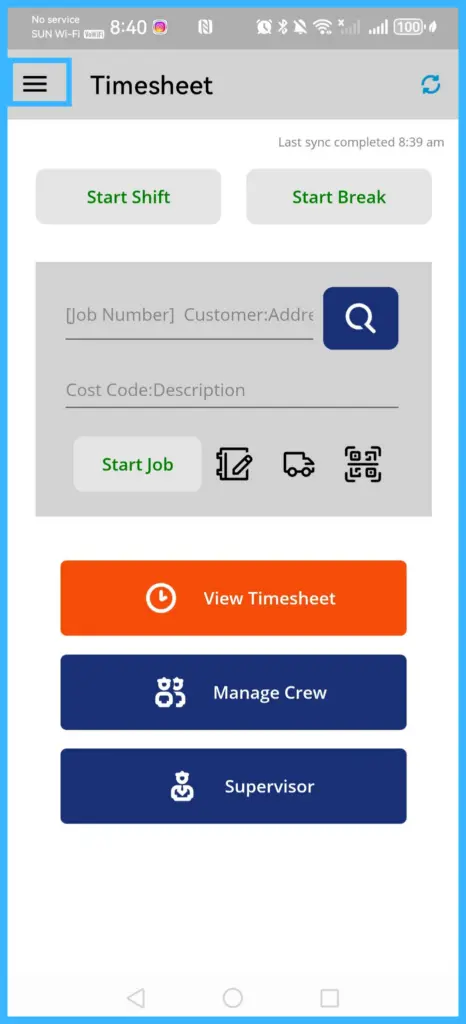
Tap the menu icon and select Timesheet.
-
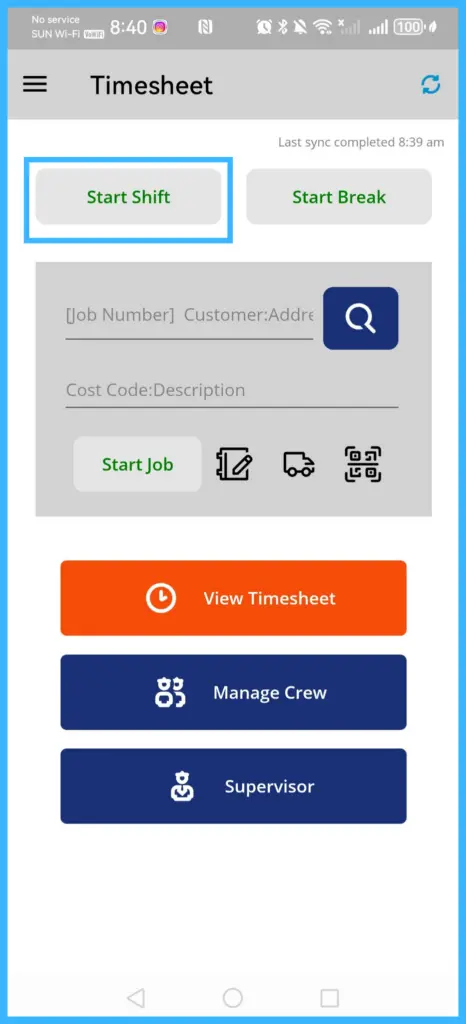
Tap Start Shift to start your timecard.
-
Choose the job:
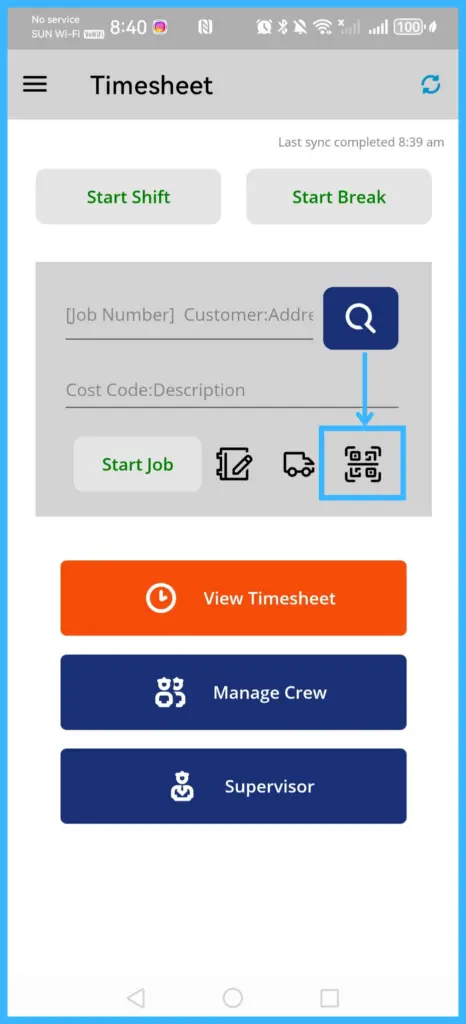
- If your company puts barcodes on work orders, tap the Scan icon and scan the barcode. The job starts automatically.
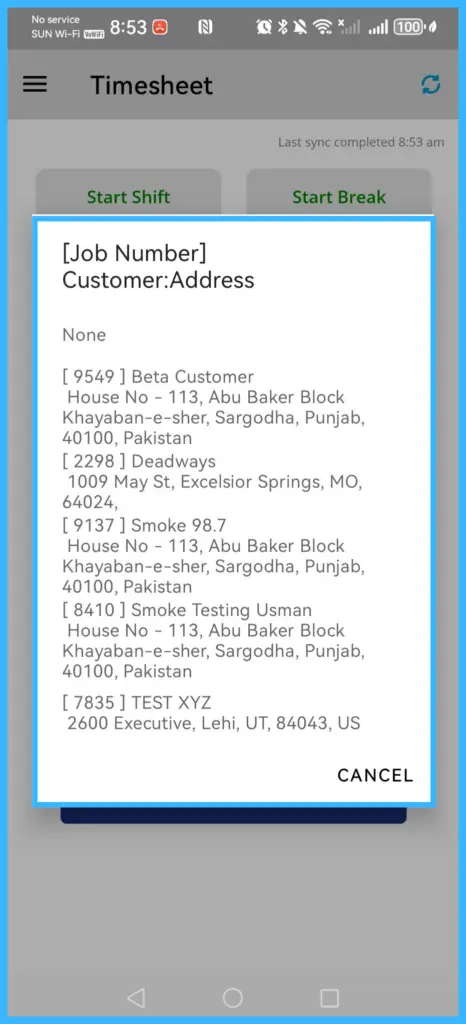
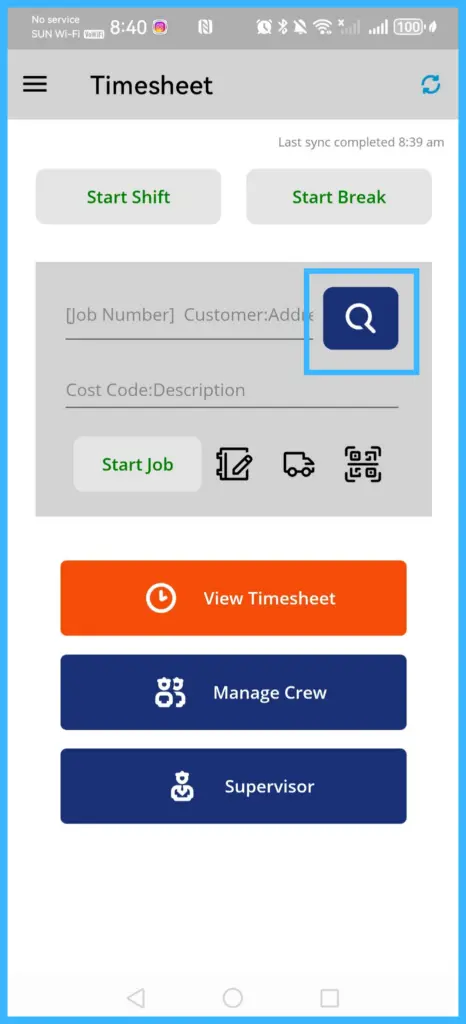
- Or tap the [Job Number] Customer: Address field, choose a job and tap Done.
- Or tap the Search icon and search by customer name. The closest job site is listed first.
-
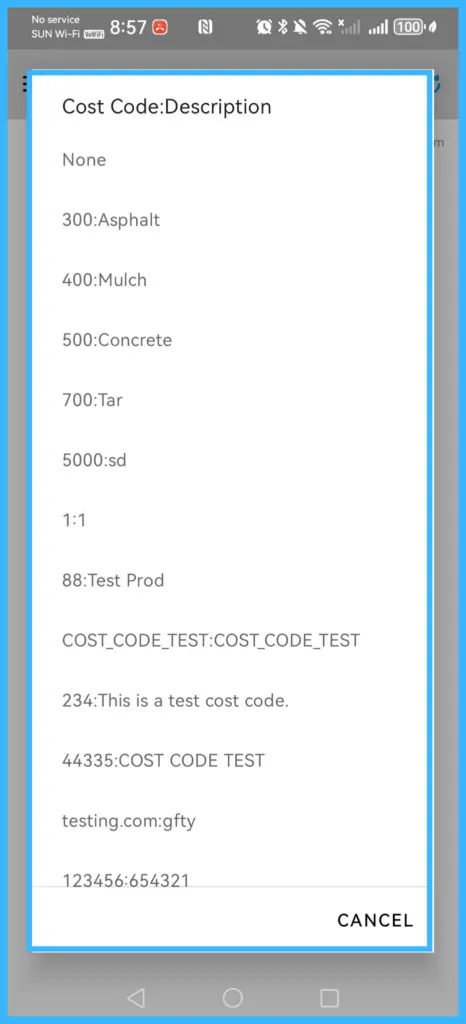
Tap Cost Code and select one, if needed.
-
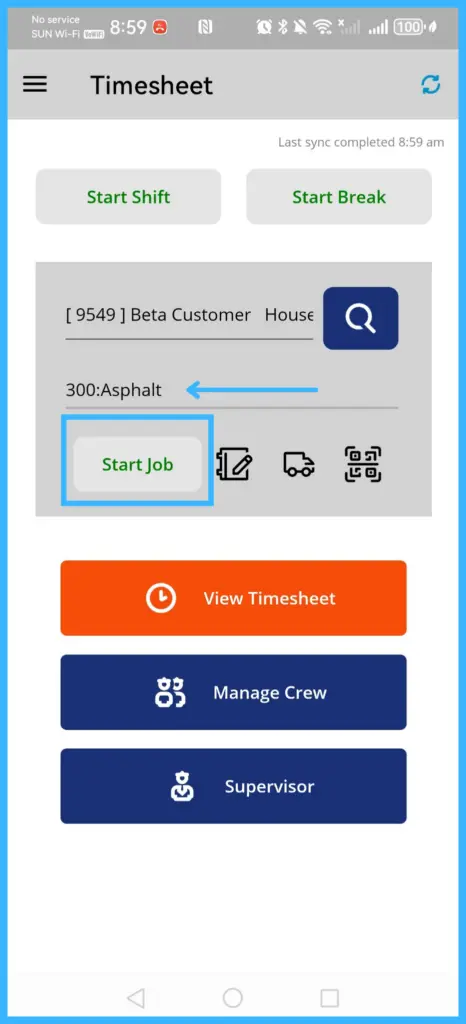
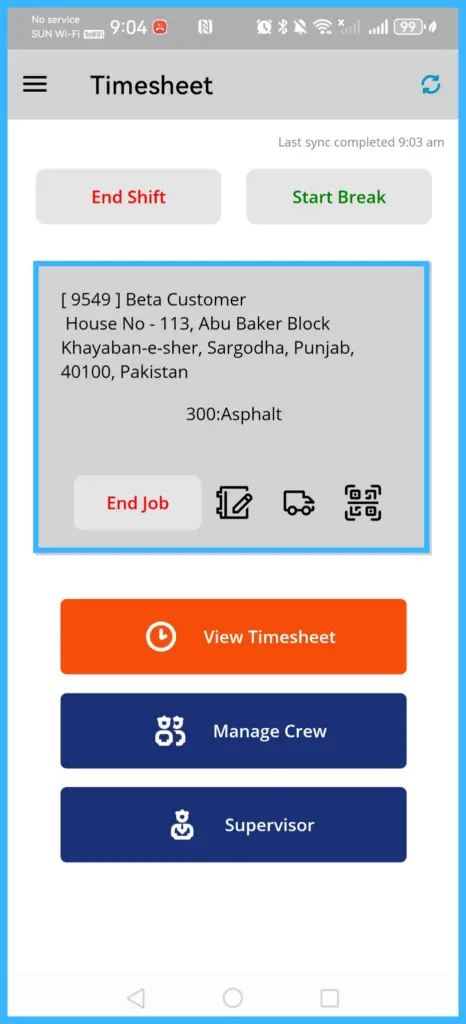
Tap Start Job to track job time.
-
As you work:
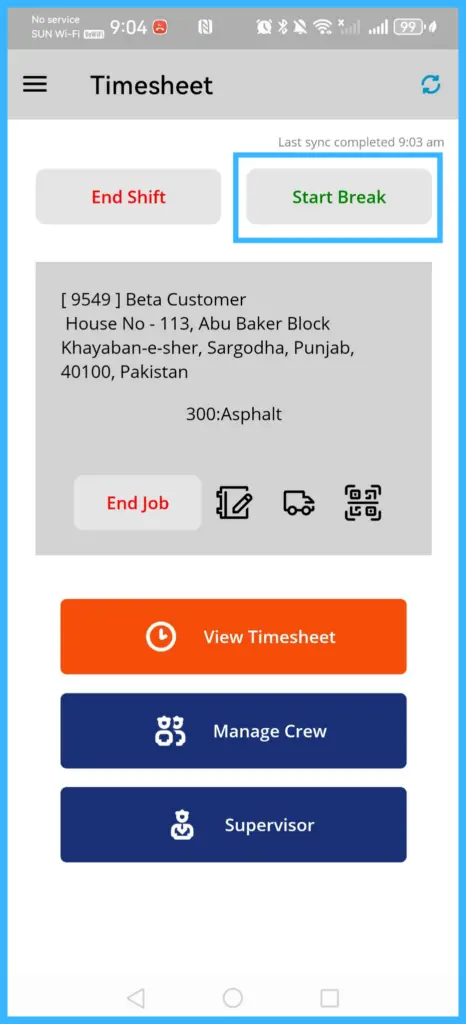
- Tap Start Break for a break and End Break when you're back.
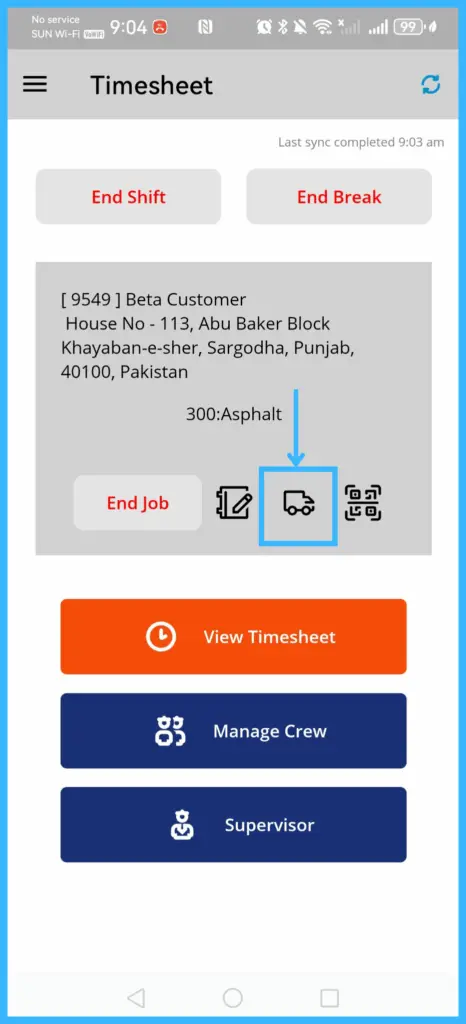
- Tap the Travel icon to track travel time.
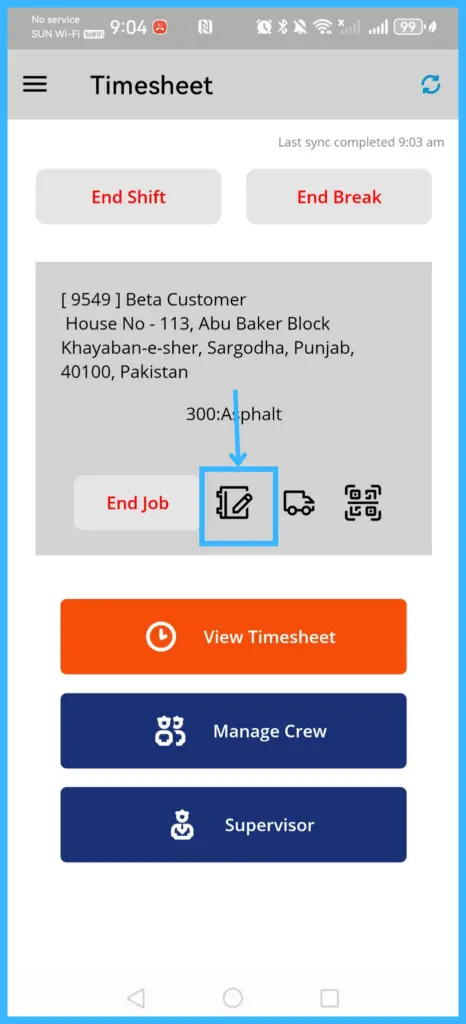
- Tap the Notes icon, type a note and tap OK. Notes are saved to the job report in the IndusTrack web app.
-
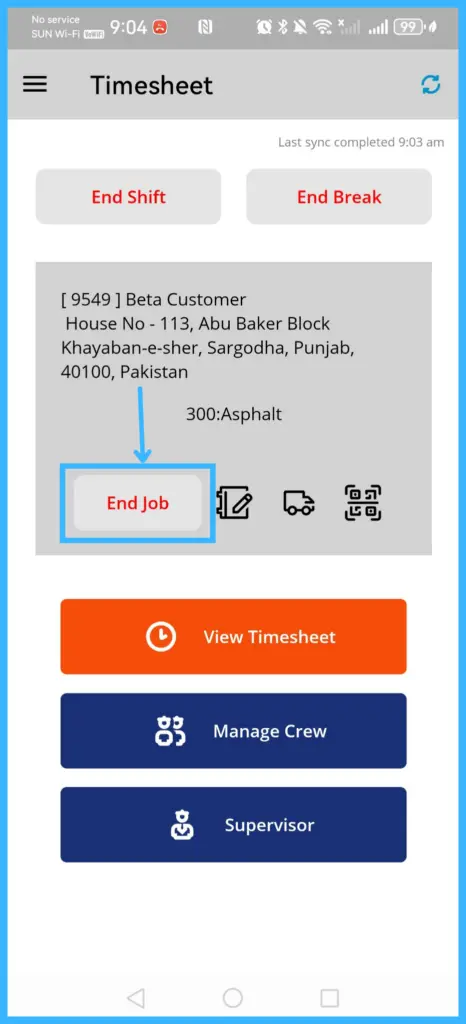
Tap End Job when the job is finished. Your shift keeps running.
-
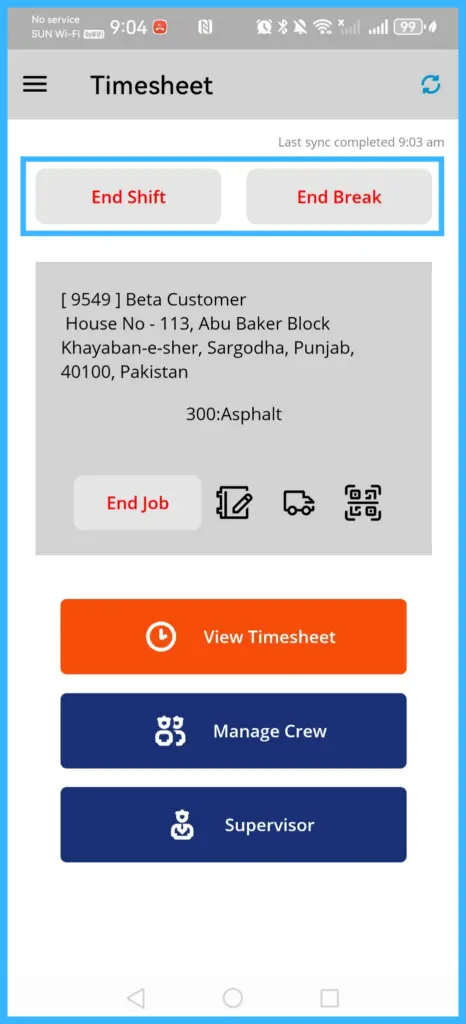
Tap End Shift when you're done for the day.
-
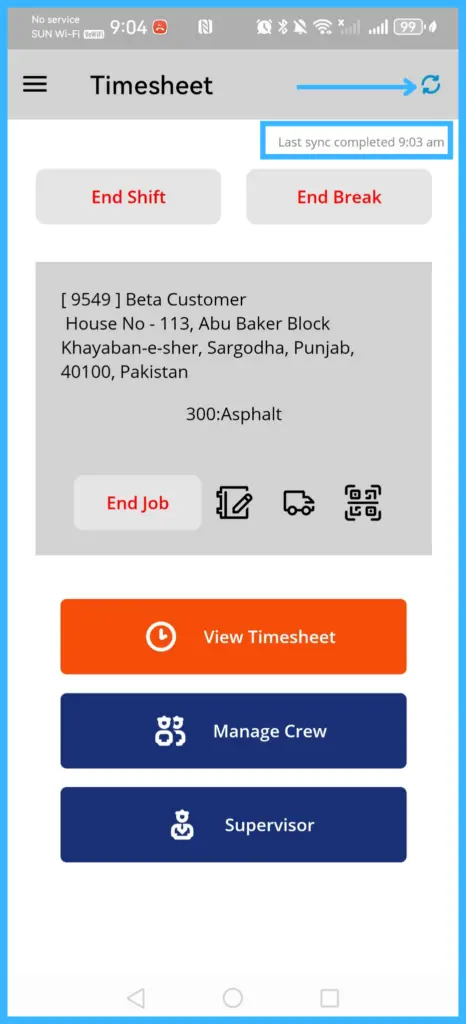
Sync before logging out, so your time reaches the office and you're paid correctly.
View, add, edit and submit your entries
-
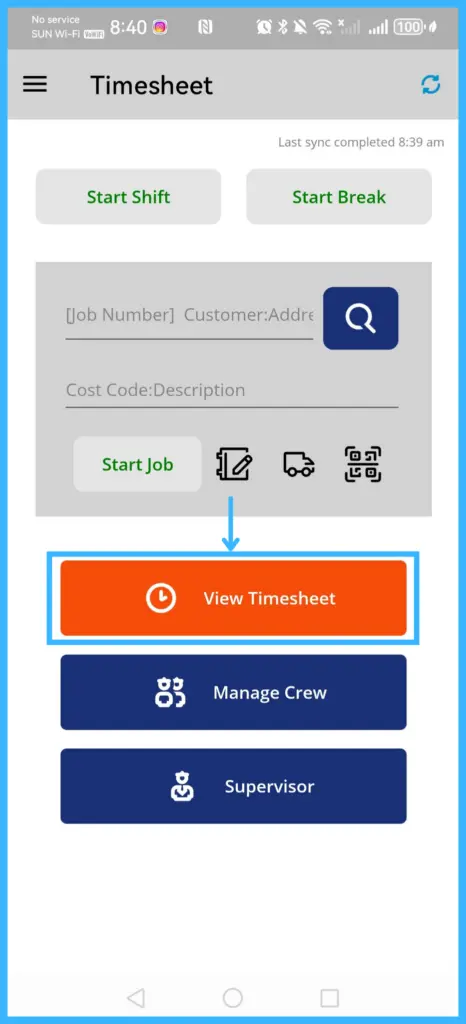
On the Timesheet screen, tap View Timesheet.
-
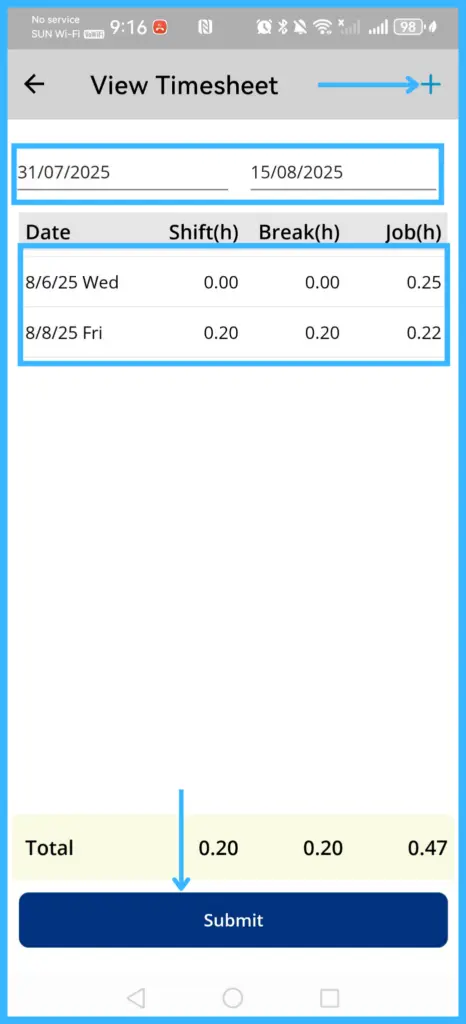
Set the Start Date and End Date to find entries.
-
To add an entry, tap the + icon. You can only do this if your office allows it.
-
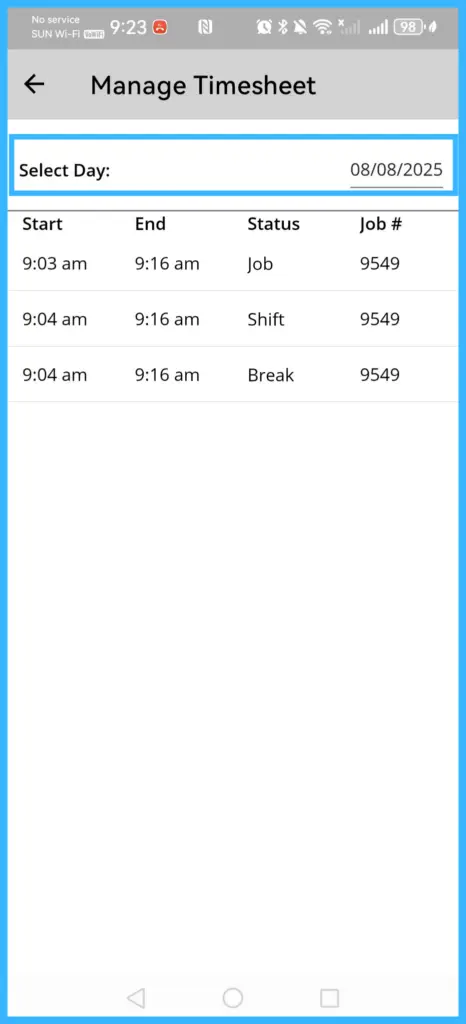
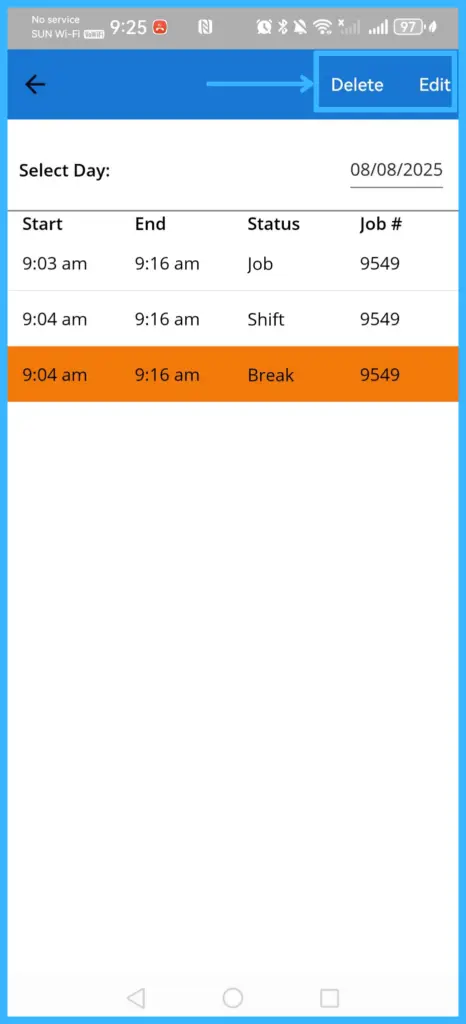
To change an entry, tap it to open Manage Timesheet. Select Day shows today; pick another day if needed. Long-press an entry, then:
- Edit: change the entry type (Shift, Job, Break or Travel), start and end time, customer or job, cost code, or date.
- Delete: remove the entry.
-
When all entries are correct, tap Submit.
Adding and editing your own entries depends on the Can Field Employee Add Timesheet Entries and Can Field Employee Edit Timesheet Entries settings; see How do I set up the mobile app for my team? (office settings)
For supervisors: manage your crew's time
You need supervisor access on your employee profile (Allow Supervisor Access); see How do I add field employees and set permissions?
Clock crew members in and out
-
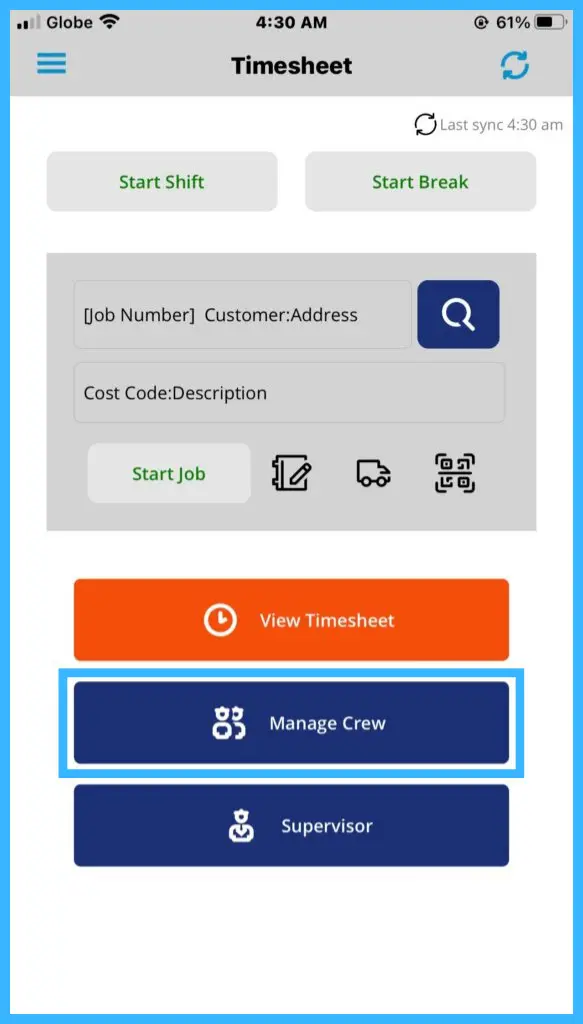
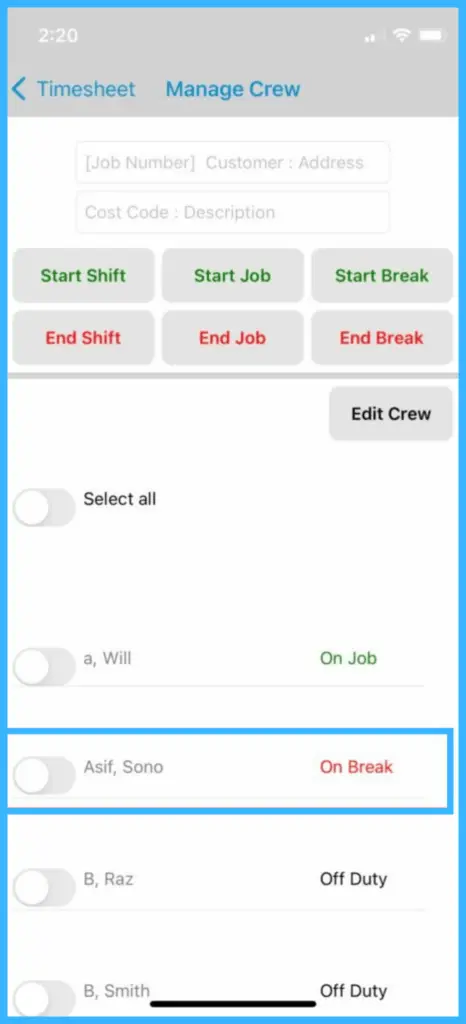
Tap Manage Crew. Your assigned crew members are listed.
-
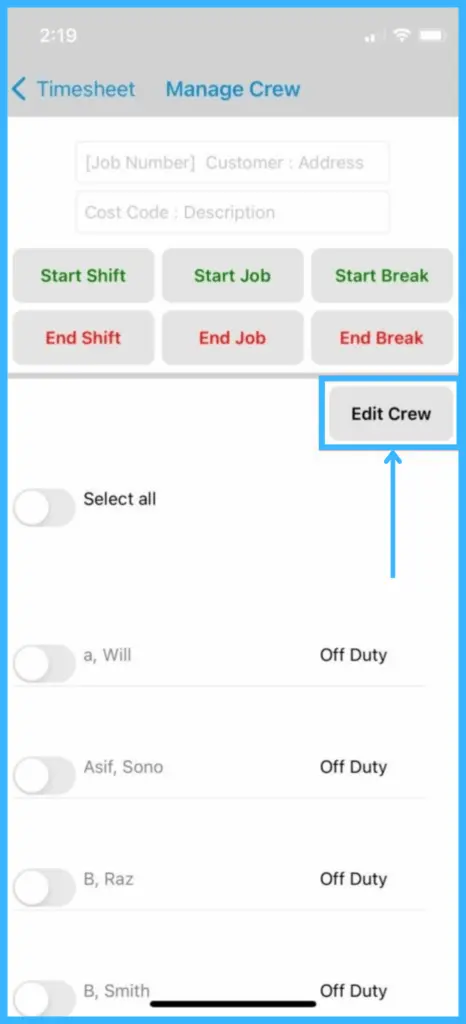
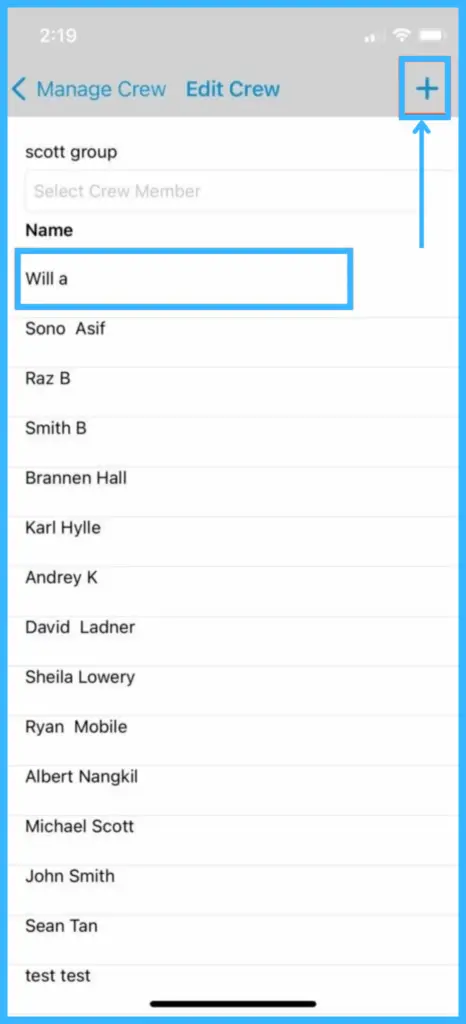
If someone is missing, tap Edit Crew, search or scroll to find them, and tap (+) to add them.
-
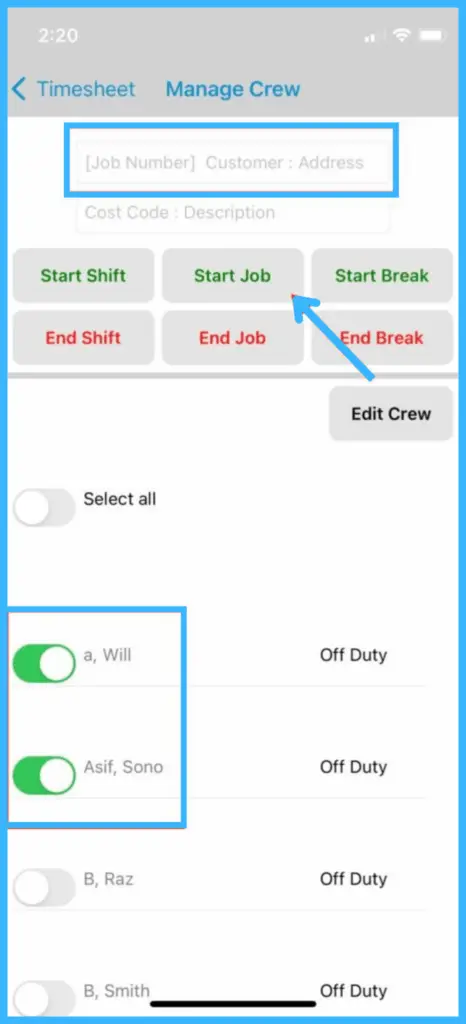
Select the Job Number, and the Cost Code if required.
-
Turn on the slider next to each crew member.
-
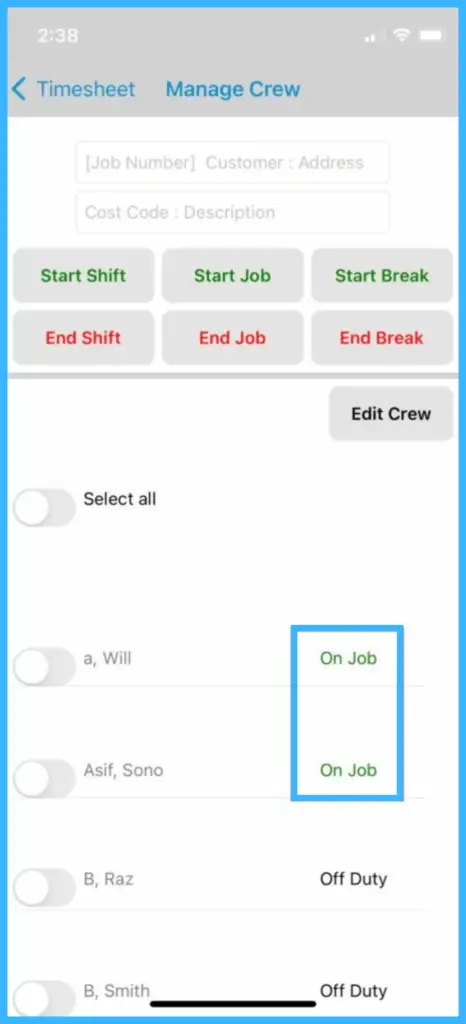
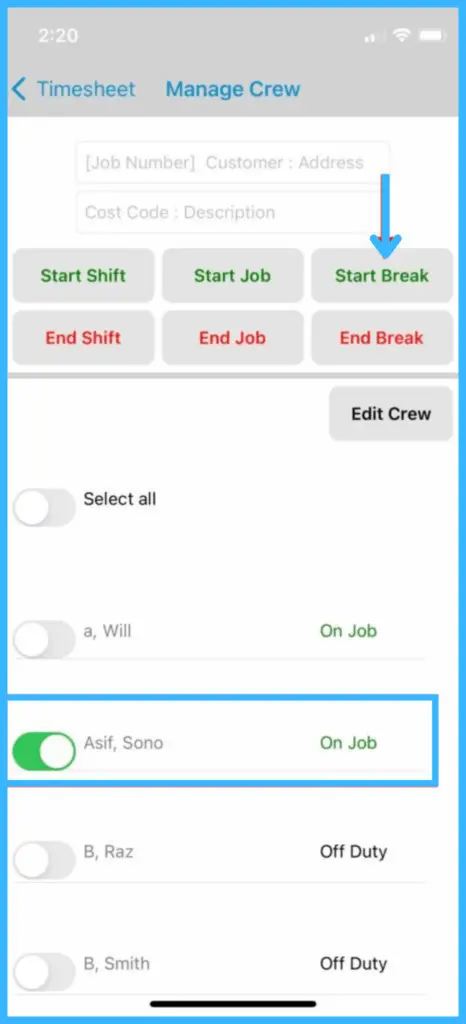
Tap the activity:
- Start Shift: status changes to On Duty.
- Start Job: status changes to On Job.
- Start Break: status changes to On Break.
Add or edit a crew member's time
-
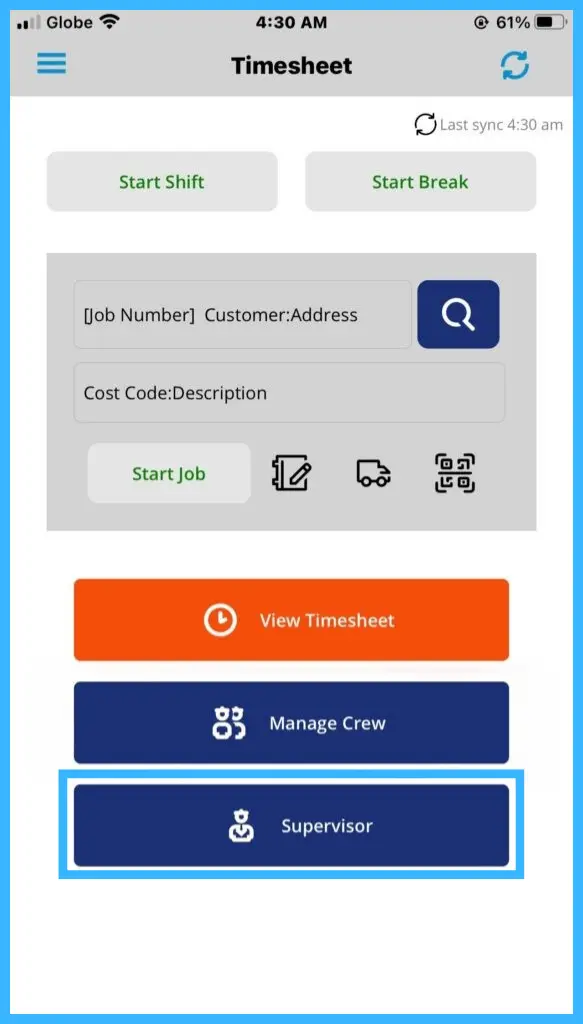
Tap Supervisor to open the Supervisor Page.
-
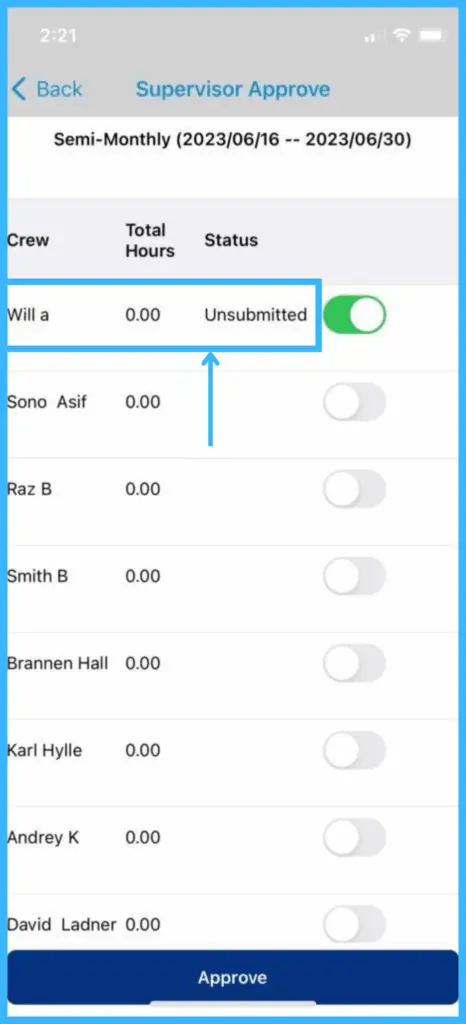
Tap the crew member's name to open their individual timesheet.
-
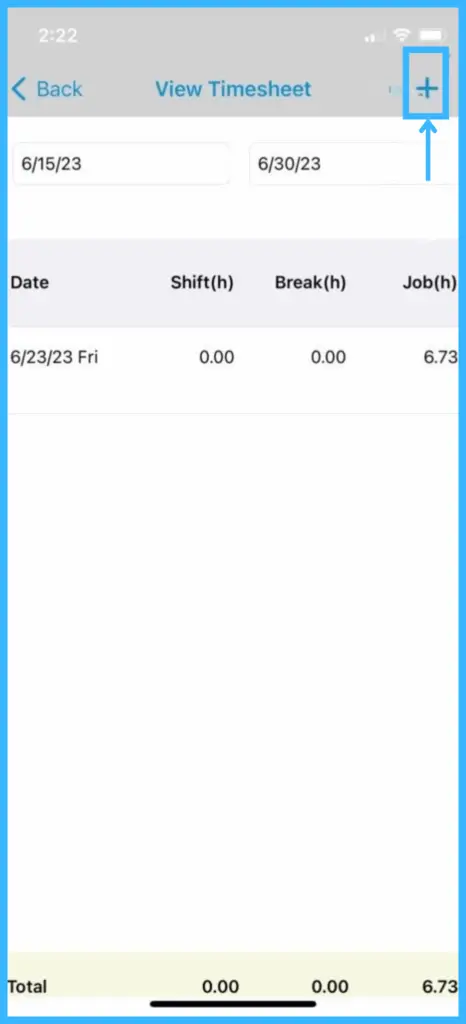
Tap + for a new entry, or tap an existing entry to edit it.
-
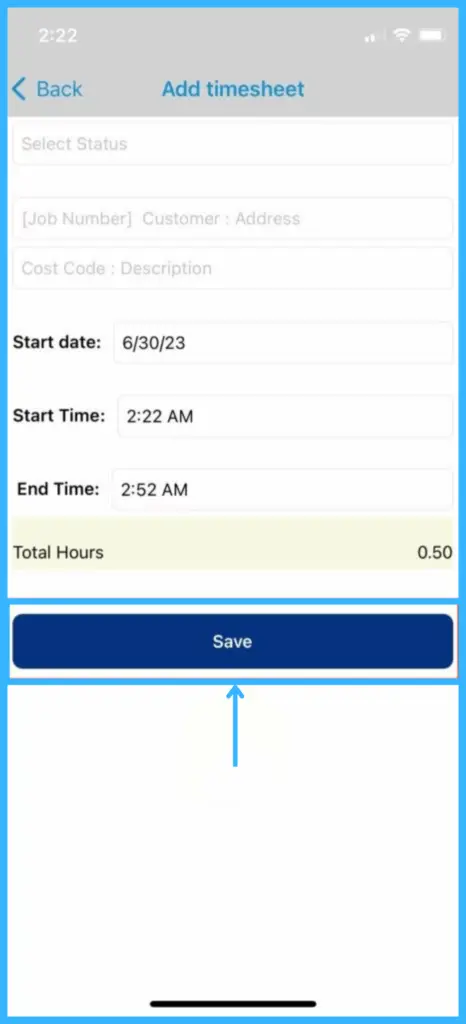
Fill in the required fields: Entry type, start and end time, customer or job, and date. Cost Code and description are optional. Tap Save. The entry appears on their timesheet, ready for your approval.
Approve timesheets
-
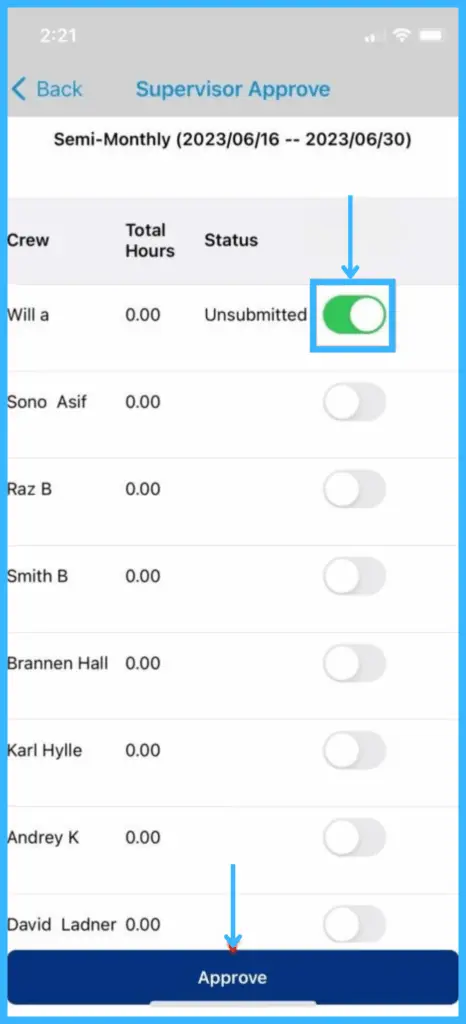
On the timesheet list, turn on the slider next to the crew member's name.
-
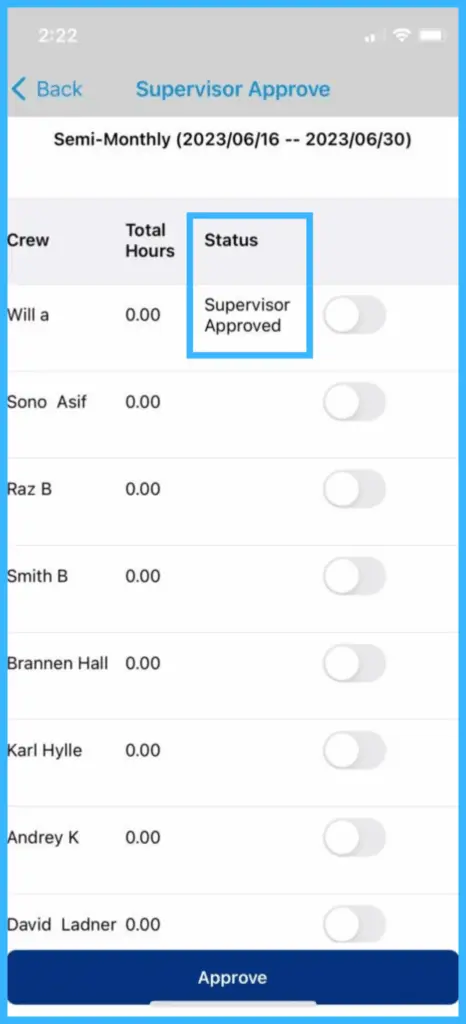
Tap Approve. The status changes to Supervisor Approved.
Once approved, the field employee can no longer edit the timesheet.
When a record is flagged as a conflict
After the app syncs, the office sees a record as conflicted when:
| Rule | When it happens |
|---|---|
| Timesheet job duration exceeded | A timesheet job is ended in the app and its length is over the allowed timesheet duration. |
| Scheduled job duration exceeded | A scheduled job is ended in the app and its length is over the allowed timesheet duration. |
| Scheduled job still active | A scheduled job stays running past the allowed timesheet duration. |
| Timesheet job still active | A timesheet job stays running past the allowed timesheet duration. |
| Shift end time modified | A shift's end time is changed in the app. |
| Overlapping records | The system creates a record that overlaps another of the same type. |
The allowed duration is set by your office in Settings›Mobile App.
Common questions
How do I make Timesheet the first screen I see?
Tap the Settings icon, tap the pencil next to Default Screen and select Timesheet. Your office must allow employees to change their default screen.
Can I change a timesheet after my supervisor approves it?
No. Approved timesheets can't be edited by the field employee.
Was this article helpful?
Contact support