How do I set up the mobile app for my team? (office settings)
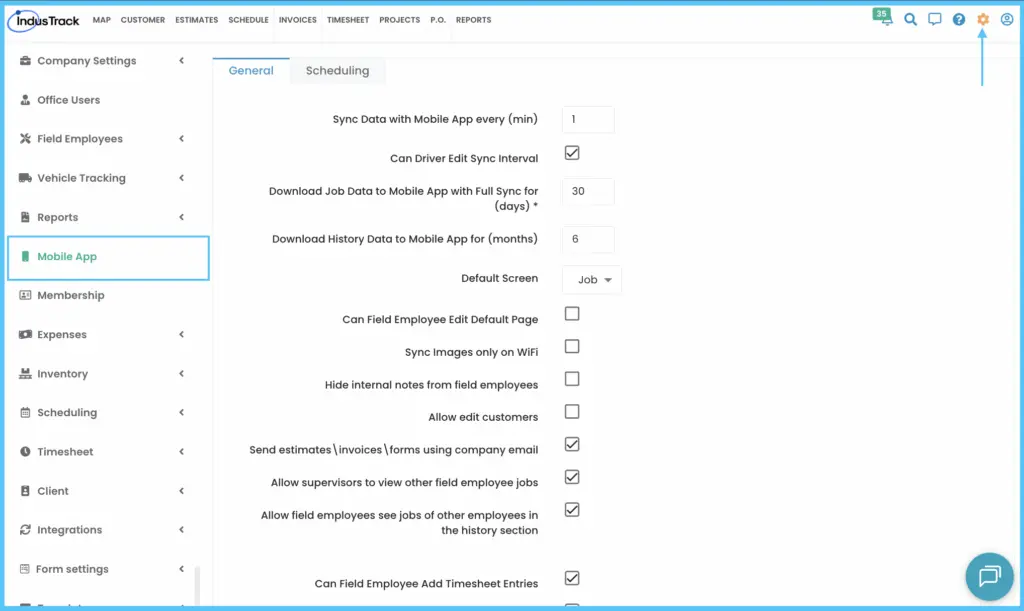
Go to Settings›Mobile App. The General tab controls syncing, the default screen and what field employees can see and edit; the Scheduling section controls job options. Click SAVE after each section.
These are office settings that apply to your team. Each field employee's login, license and module permissions are set on their profile; see How do I add field employees and set permissions? For the settings a tech changes on their own phone, see How do techs set up and sync the mobile app?
General settings
-
Go to Settings›Mobile App and open the General tab.
-
Set the options you need (see the table).
-
Click SAVE.
| Setting | What it does |
|---|---|
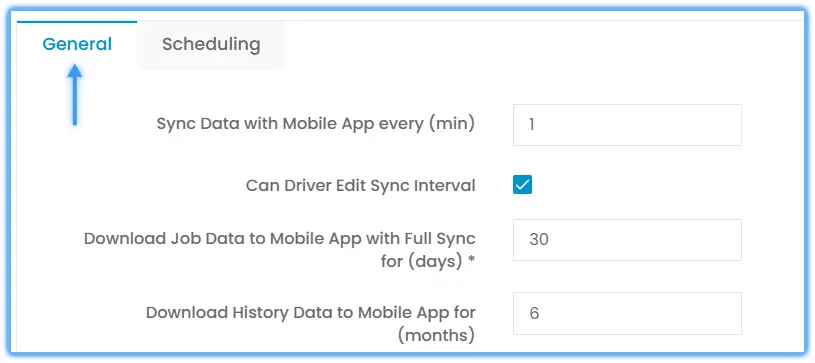
| Sync Frequency | How often the app updates, in minutes. Check the box to let employees change it. |
| Job Data Sync Period | How many days of job data the app shows. |
| Historical Data Sync Period | How many months of history the app shows. |
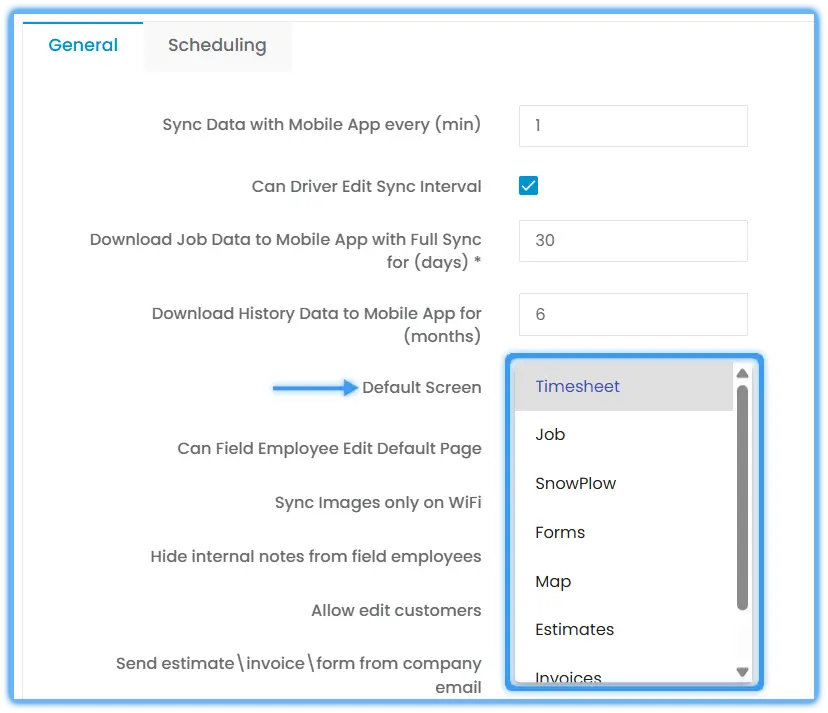
| Default Screen | The screen field employees see when they log in. |
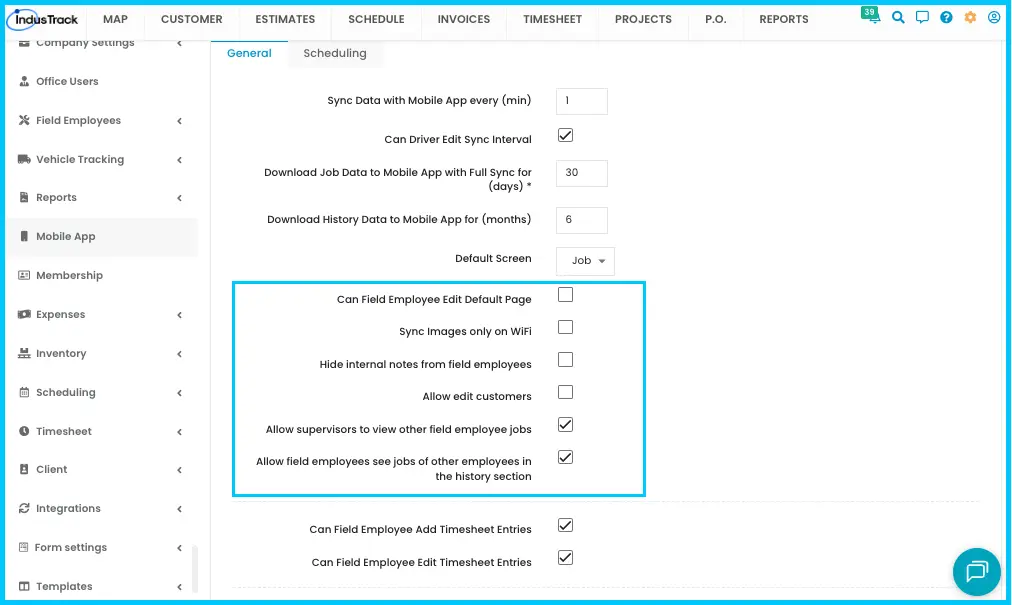
| Can Field Employee Edit Default Page | Lets field employees choose their own default screen. |
| Sync Images only on Wi-Fi | Syncs images only on Wi-Fi, to save mobile data. |
| Hide internal notes from field employees | Hides internal notes in the app. |
| Allow edit customers | Lets employees update customer details from the app. |
| Allow supervisors to view other field employee jobs | Lets supervisors see jobs assigned to other field employees. |
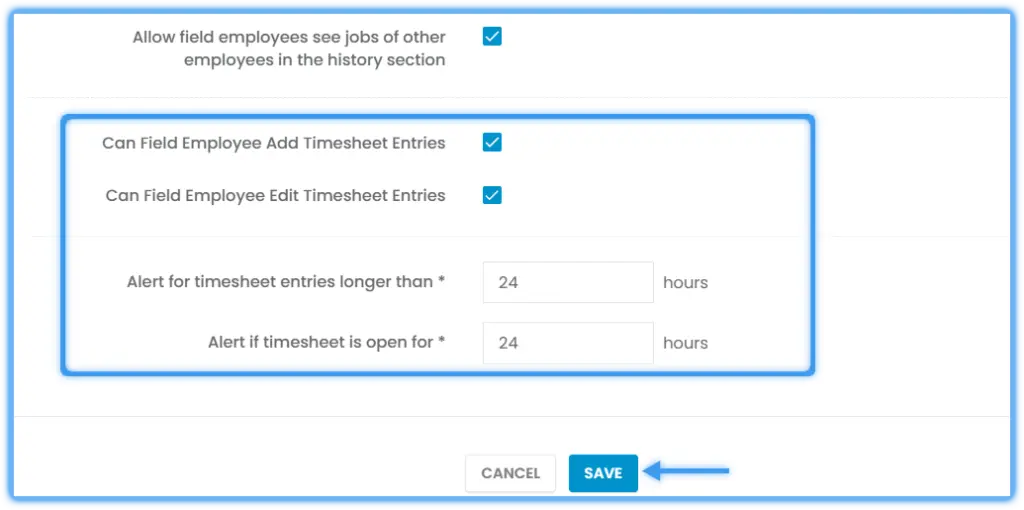
| Allow field employees to see the jobs of other employees in the history section | Lets field employees see all past jobs from all field employees in the history section. |
| Can Field Employee Add Timesheet Entries | Lets employees create their own timesheet entries. |
| Can Field Employee Edit Timesheet Entries | Lets employees edit their own timesheet entries. Leave unchecked to block edits. |
| Alert for timesheet entries Longer than (hr) | The longest entry allowed. A longer entry triggers an alert and isn't saved. This is also the highest value anyone can enter when adding a timesheet entry by hand. |
| Alert if timesheet is open for (hr) | Alerts office users when a timesheet is left open longer than this. |
Scheduling settings
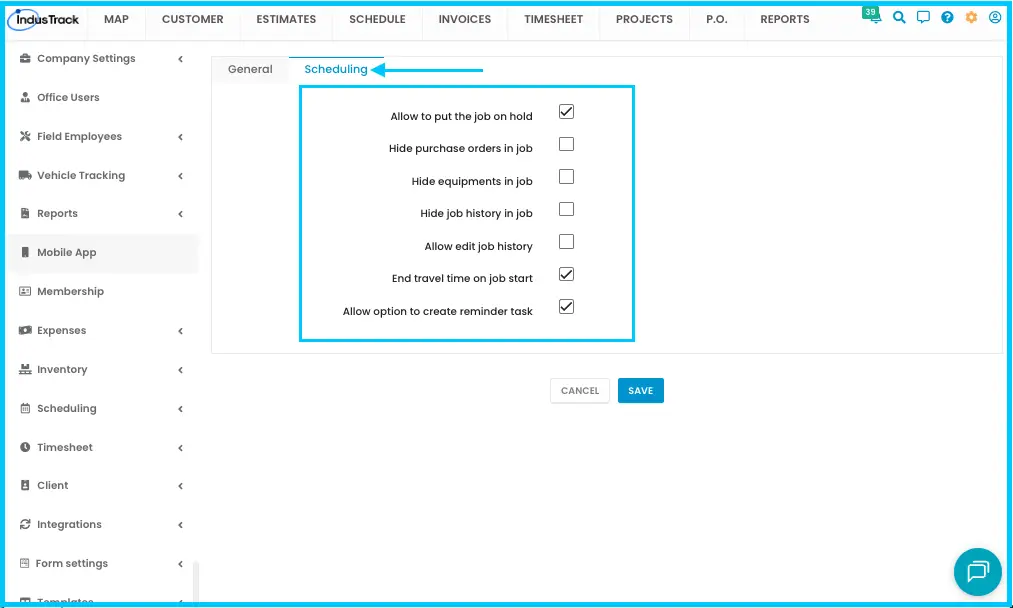
- In Settings›Mobile App, go to the Scheduling section.
- Set the options you need (see the table).
- Click SAVE.
| Setting | What it does |
|---|---|
| Allow to put the Job on hold | Lets employees pause a job or put it on hold. |
| Hide purchase orders in Job | Hides the job's purchase orders from app users. |
| Hide equipment in Job | Hides the job's equipment list from app users. |
| Hide job history in Job | Hides the job's history from app users. |
| Allow edit job history | Lets employees view and update job history. To use it, first turn on Allow field employees to see the jobs of other employees in the history section on the General tab. |
| End travel time on job start | Stops travel time when the job starts. If unchecked, employees must tap End Travel themselves. |
| Allow option to create reminder task | Lets employees create a task for the office without putting the job on hold. In the app they tap Done, then Create Reminder Task. |
Snowplow settings
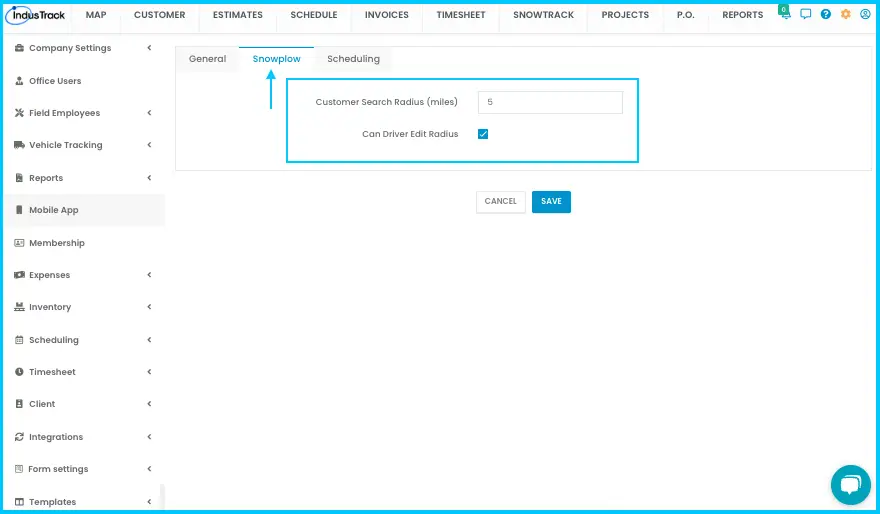
The Snowplow Settings section is only available if your subscription includes it.
| Setting | What it does |
|---|---|
| Customer Search Radius (miles) | How far employees can search for nearby customer locations. |
| Can Driver Edit Radius | Lets employees change the radius. |
Click SAVE when done.
Common questions
Who can change these settings?
Office users with permission to manage settings.
Does each tech need a license?
Yes. Each field employee gets their own login and mobile app license, set on their employee profile.
A tech can't save a long timesheet entry. Why?
It's longer than Alert for timesheet entries Longer than (hr). Entries over that limit aren't saved.
Was this article helpful?
Contact support