How do I build assemblies?
Go to Settings›Inventory›Inventory List and click Actions›+ Add New Assembly. An assembly packages services, inventory items and non-inventory items together, so you can add common combinations or promotions to estimates and invoices in one step.
Create an assembly
-
Go to Settings›Inventory›Inventory List.
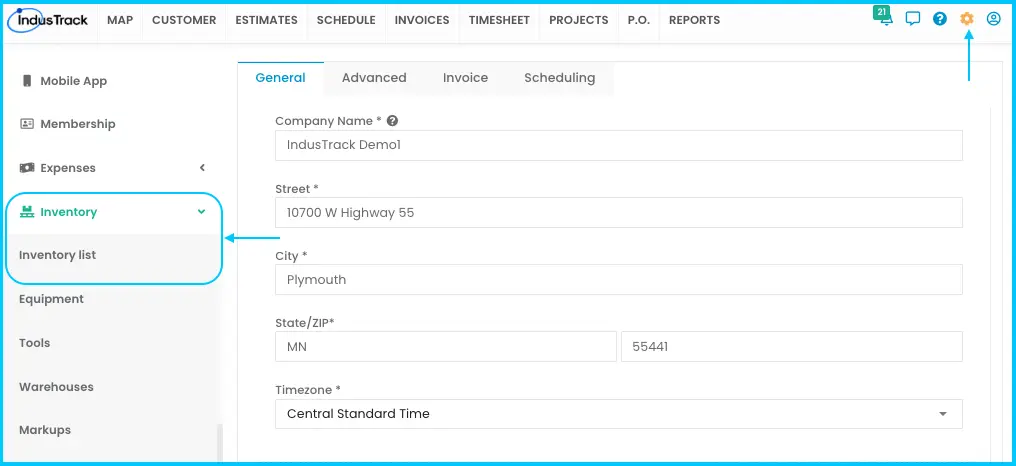
-
Click Actions›+ Add New Assembly.
-
Fill in the basic info:
- Name (required): for example, HVAC Tune-Up Package.
- SKU: a unique code for tracking.
- Configurable: check it if the price varies (for example, by job size). Leave it unchecked for a fixed price.
- Non-Taxable: check it if the assembly isn't taxed.
Watch: Filling in an assembly's name, SKU, Configurable and Non-Taxable -
Add parts:
- In Parts Name, search for and pick an inventory or non-inventory item.
- Set the quantity (default is 1).
- Click + Add Part for each extra item. Click X to remove one.
Watch: Adding parts to an assembly -
Add services:
- In Services Name, search for and pick a service.
- Set how many times it's performed (default is 1).
- Click + Add Service for each extra service. Click X to remove one.
-
Add pricing and description:
- Sales Price/Rate: the standard selling price. Hidden when Configurable is checked. To set the price of a configurable assembly, go to Settings›Inventory›Inventory List, click the assembly and edit its price.
- Sales Description: what's included.
-
Click Save. The assembly appears in the Inventory List.
Watch: Adding the price and description, then saving the assembly
Edit an assembly
In the Inventory List, click the assembly, make your changes and click Save. Inactive assemblies can't be edited; reactivate them first.
Deactivate, reactivate or delete an assembly
-
Deactivate: check one or more assemblies in the Inventory List, click Actions›Make Inactive and confirm. Use this if you no longer offer the assembly but want to keep it.
Watch: Making an assembly inactive -
Reactivate: in the inactive list (Actions›Show Inactive), check the assembly, click Actions›Make Active and confirm.
Watch: Making an inactive assembly active again -
Delete: the assembly must be inactive first. In the inactive list, check it, click Actions›Delete and confirm. Deleting is permanent and may affect past data or transactions.
Watch: Deleting an inactive assembly
Common questions
What happens if I use a name that already exists?
A message asks whether to continue. Yes creates a second assembly with the same name. No cancels.
Is this the same as a pricebook assembly?
Yes. Inventory assemblies and pricebook assemblies (flat rates) are the same. See also How do I set up my pricebook?
Was this article helpful?
Contact support