How do I manage warehouses and stock?
Go to Settings›Inventory›Warehouses. Add a warehouse for each storage location or vehicle, then assign items to it from the main storage on the warehouse's Inventory List tab.
Types of warehouse
- Physical locations, such as an office or storage building.
- Vehicles. Your service vehicles can hold inventory and act as mobile warehouses. See How do I add a vehicle and assign its GPS device?
When inventory is used from a vehicle and invoiced, the count updates automatically.
Add a warehouse
-
Go to Settings›Inventory›Warehouses.
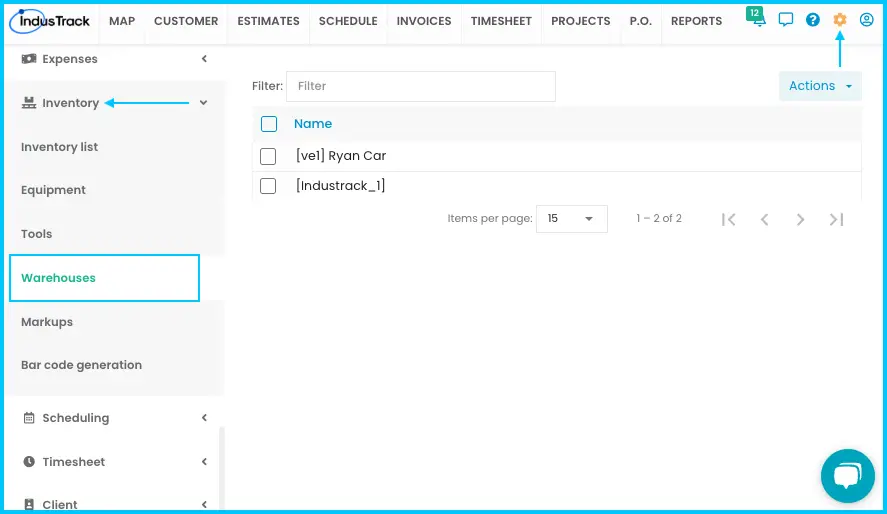
-
Click Actions›+ Add new Warehouse.
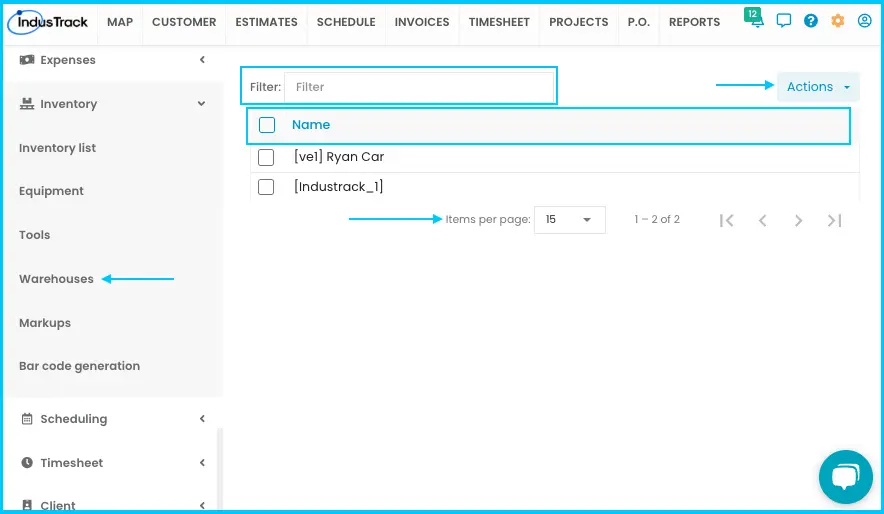
-
Fill in the Add Warehouse window:
- Vehicle: if the warehouse is a vehicle, pick it. Skip this for a physical location.
- Nick Name: fills in with the vehicle name; you can change it.
- Address: Street, City, State and Zip Code. Skip this for a vehicle.
Watch: Filling in the Add Warehouse window for a vehicle or a physical location -
Assign stock now or later (see below), then click Save and Assign or Save.
Assign items to a warehouse
-
Open the warehouse from the Warehouses list.
-
Click the Assigned Inventory tab to check whether the item is already there. If it is, just change its quantity there.
-
Click the Inventory List tab. It shows the items available in main storage.
-
Check the box beside the item. If you don't check it, the item isn't assigned even if you enter a quantity.
-
In the Assign Qty/SN column, enter the quantity (default is 1). For serialized items, click Select Serial Numbers, filter to find them and check the ones you want; the item box is checked for you.
-
Click Save and Assign. The items move from main storage to this warehouse and show on the Assigned Inventory tab.
Watch: Assigning items and serial numbers to a warehouse
Only items with stock can be assigned, and you can't assign more than is available.
Restock (increase) an item
-
Open the warehouse and go to the Inventory List tab.
-
Check the item and enter the quantity to add, or click Select Serial Numbers and check the serials to add.
-
Click Save and Assign. The new count shows on the Assigned Inventory tab.
Watch: Adding more of an item to a warehouse
Lower an item's quantity by hand
Stock goes down automatically as items are used. To lower it yourself, open the warehouse, go to the Assigned Inventory tab and change the item's quantity directly.
Remove (unassign) items
-
Open the warehouse and go to the Assigned Inventory tab.
-
Check the items to remove, or the box in the Name column header to select all.
-
Click Save and Unassign. The items go back to main inventory.
Watch: Unassigning items from a warehouse
Edit a warehouse
-
In the Warehouses list, click the warehouse name.
-
Update the general info or address.
-
Change stock as described above.
-
Click Save.
Watch: Editing a warehouse
You need edit permission to update warehouses and their inventory.
Delete a warehouse
-
Unassign all inventory from the warehouse first. IndusTrack doesn't let you delete a warehouse that still has inventory.
Watch: The message when you try to delete a warehouse that still has inventory -
In the Warehouses list, check the warehouse (or several, or select all).
-
Click Actions›Delete and confirm in the warning window.
Watch: Deleting a warehouse
Deletion is permanent and may affect other parts of the system.
Common questions
How do I find a warehouse or item quickly?
Use the search or filter bar. On a warehouse's Inventory List and Assigned Inventory tabs, click Clear Filter to remove all filters and see the full list.
Why can't I assign an item?
It has no stock in main storage, or you entered more than is available.
Was this article helpful?
Contact support