Using maps in the app
In the IndusTrack mobile app, tap the menu icon (three bars, top left) and select Map. The Vehicles tab shows where your vehicles are and what they're doing; the Employees tab shows where your field employees are.
To see the map, a field employee needs the Map permission on their profile; see How do I add field employees and set permissions?
See your vehicles
-
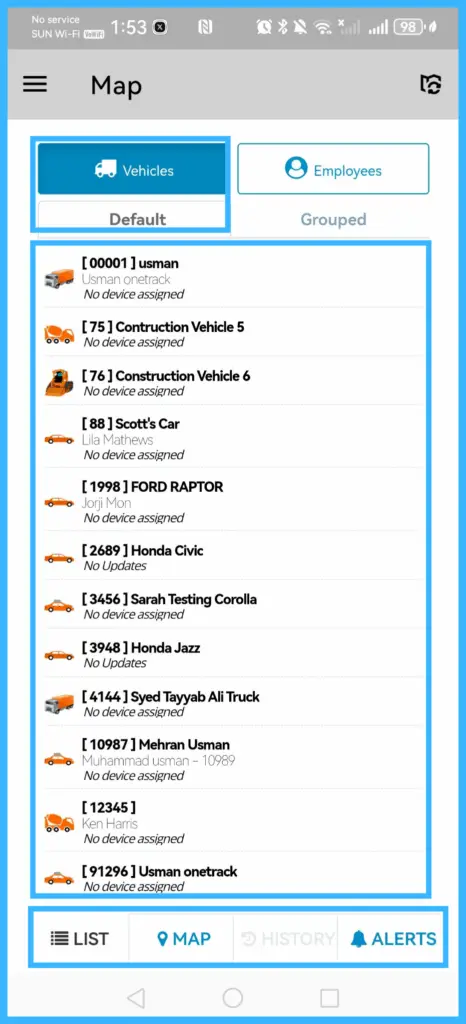
On the Vehicles tab, check each vehicle's status. The icon color shows what it's doing, and the icon shows how long it has been in that state:
Color Meaning Green En route Blue Idling Red Stopped, ignition off Orange No device assigned, or a device problem. Contact support if needed. 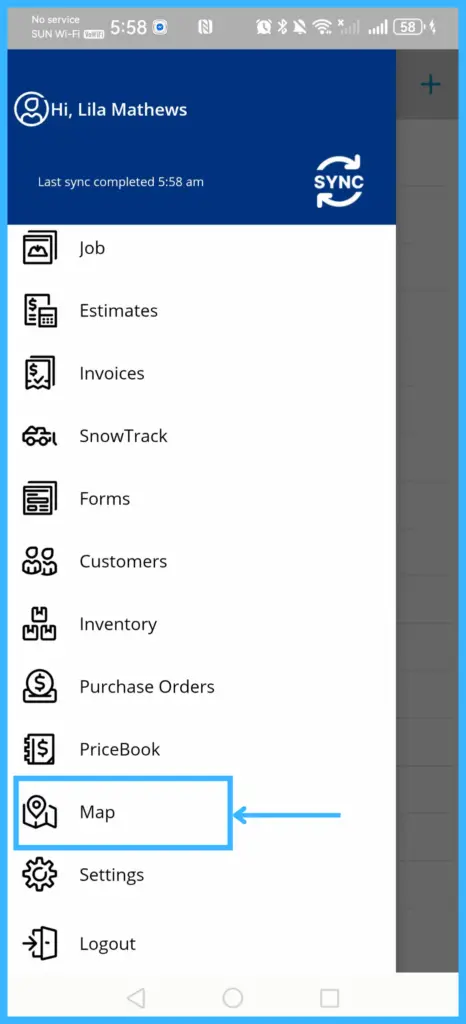
-
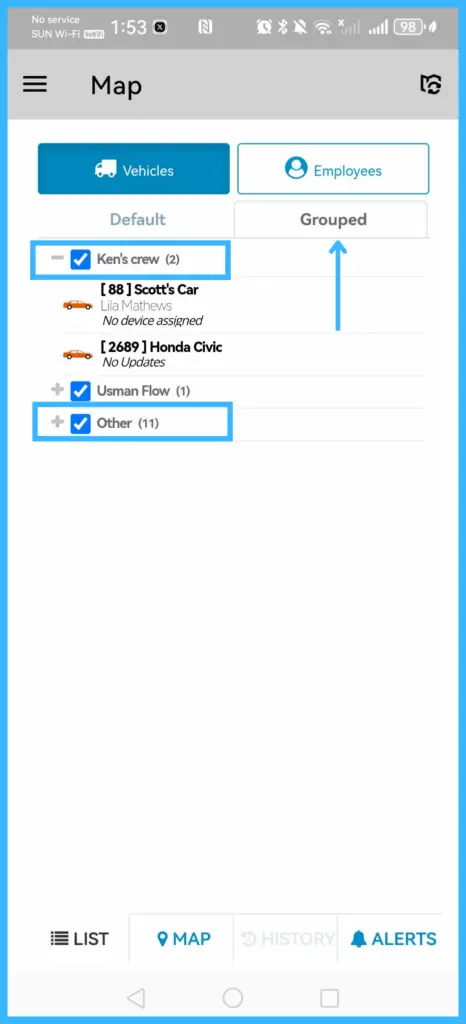
If your vehicles are in groups, open the Grouped tab to see them by group.
-
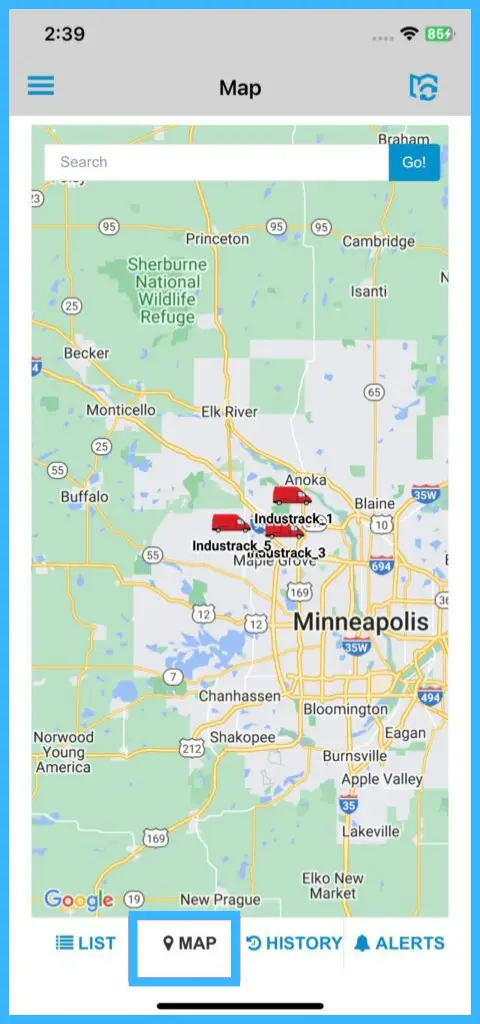
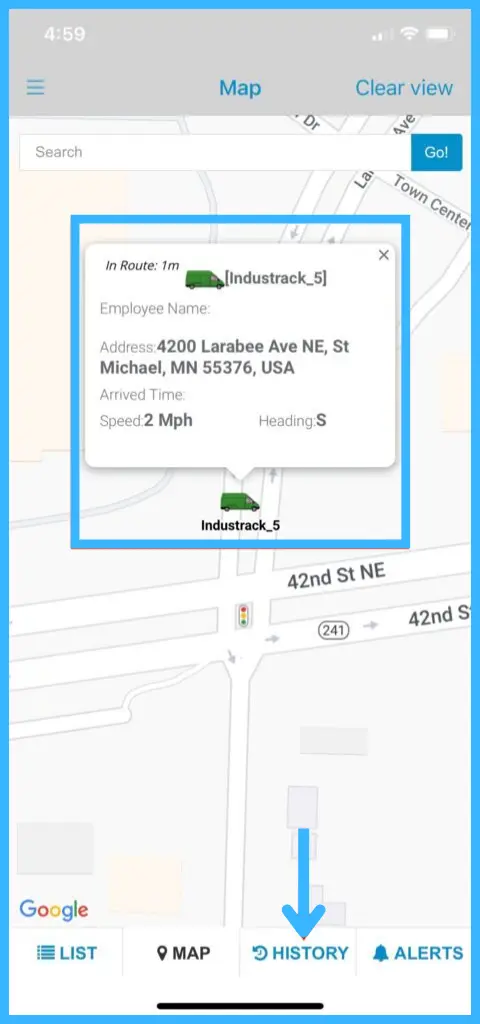
Tap Map (at the bottom) to see their locations. Zoom with two fingers, and use the search bar to find a vehicle.
-
Tap a vehicle icon to see its assigned employee, current location, arrival time, speed and direction.
See where a vehicle has been
-
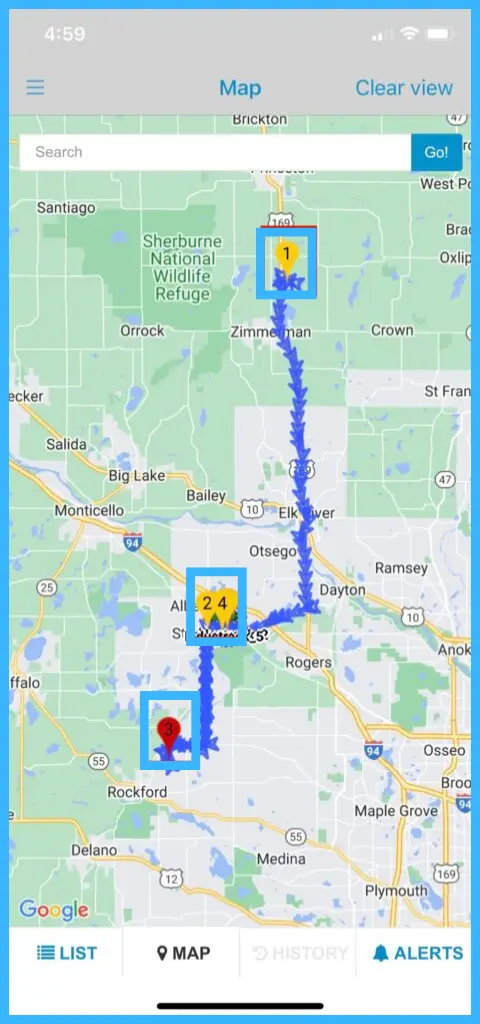
Select a vehicle and tap History. History is only available after you select a vehicle.
-
The vehicle's travel path appears. Numbered pins mark stops and idling points.
-
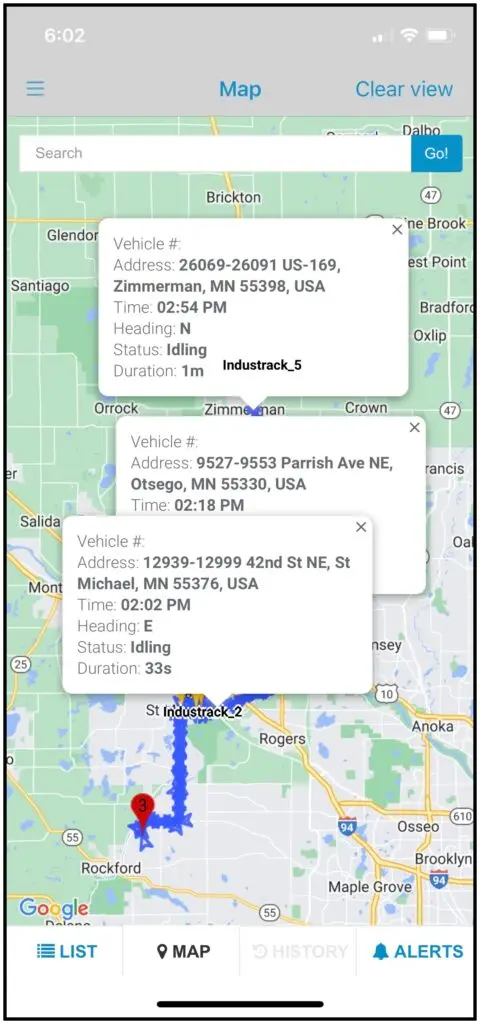
Tap a pin for the vehicle number, time, speed and direction.
-
Tap Clear (top right) to remove the trail from the screen.
See safety alerts
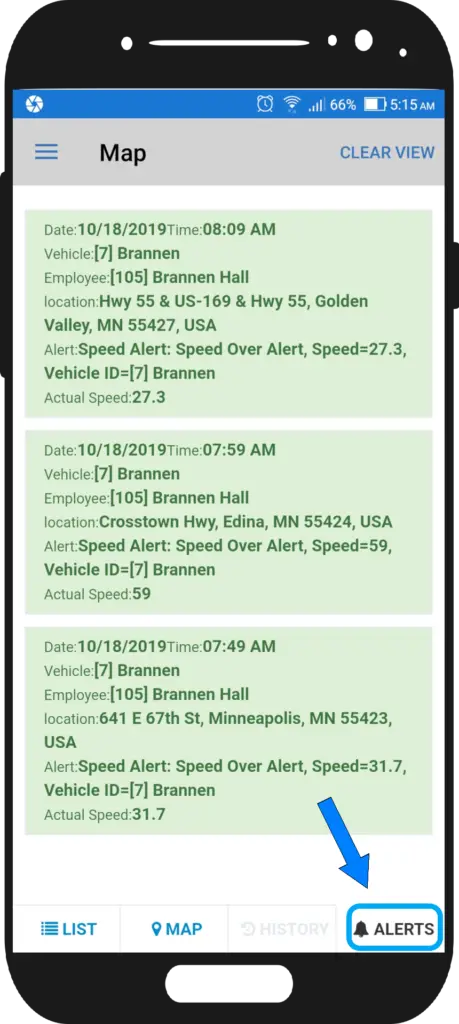
Tap Alerts (at the bottom) to see safety alerts such as speeding and sharp turns. Which alerts appear depends on your settings in the IndusTrack web app.
See your employees
-
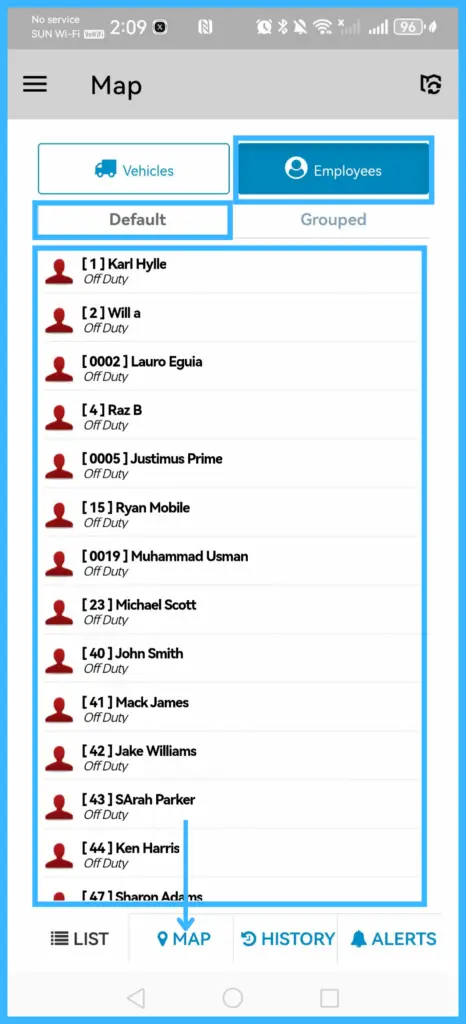
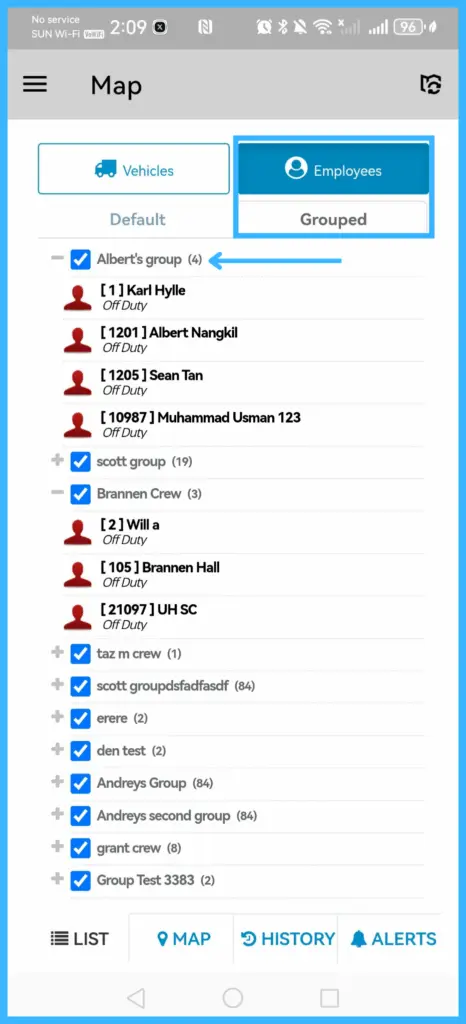
Open the Employees tab to see each employee's current status. Use the Grouped tab to see them by group.
-
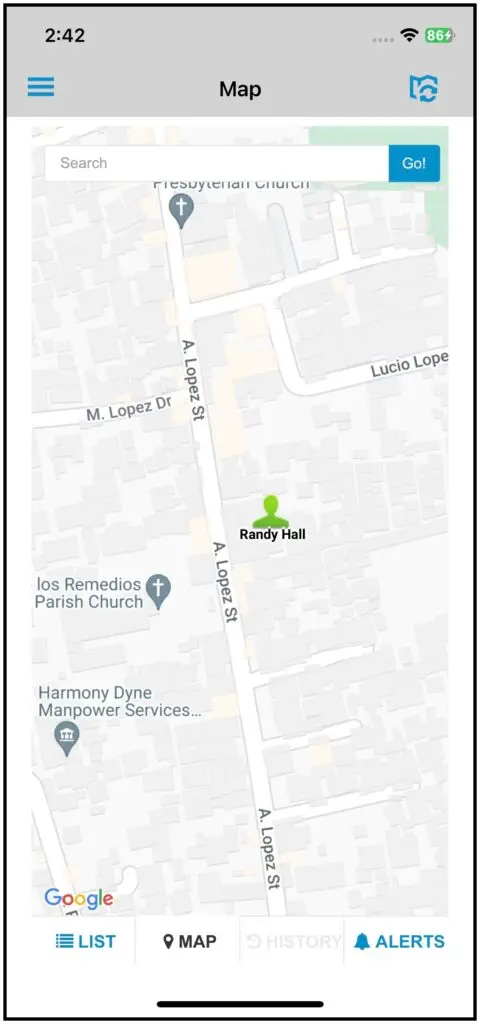
Tap Map to see their locations. Search for an employee, then tap their icon to see exactly where they are. Zoom with two fingers.
Common questions
Why can't I see an employee on the map?
Location tracking starts only when the employee taps Start Shift or Start Job in the app.
What does an orange vehicle icon mean?
No device is assigned to the vehicle, or its device has a problem. Contact support if needed.
Was this article helpful?
Contact support