How do techs set up and sync the mobile app?
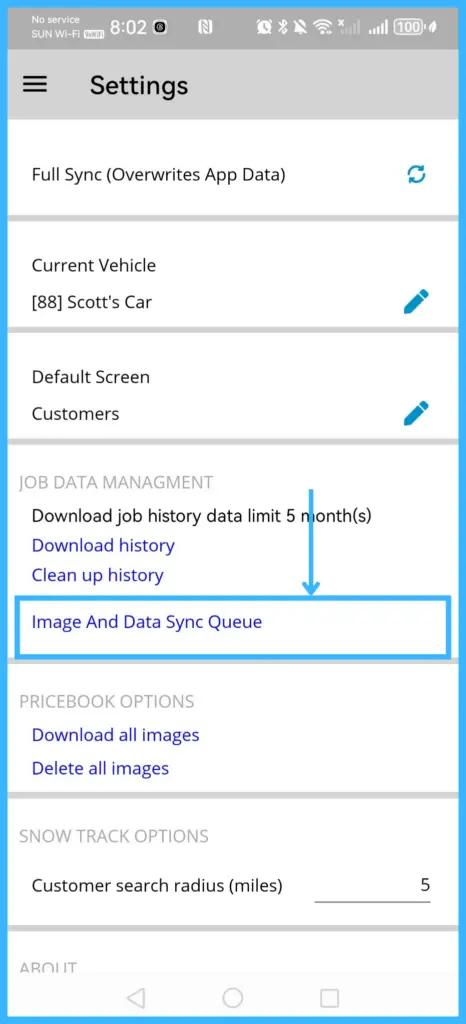
In the IndusTrack mobile app, tap the menu icon (three bars, top left) and select Settings. From there a tech can sync, change their vehicle and default screen, manage job history and pricebook images, and check the app version.
Office settings that apply to the whole team, such as sync frequency, are covered in How do I set up the mobile app for my team? (office settings)
Sync the app
There are two kinds of sync:
| Sync | What it does | How |
|---|---|---|
| Manual Sync | Pushes your data to the server and updates the app right away. | Tap the sync icon (two arrows in a circle) at the top right of the dashboard, or in Settings. |
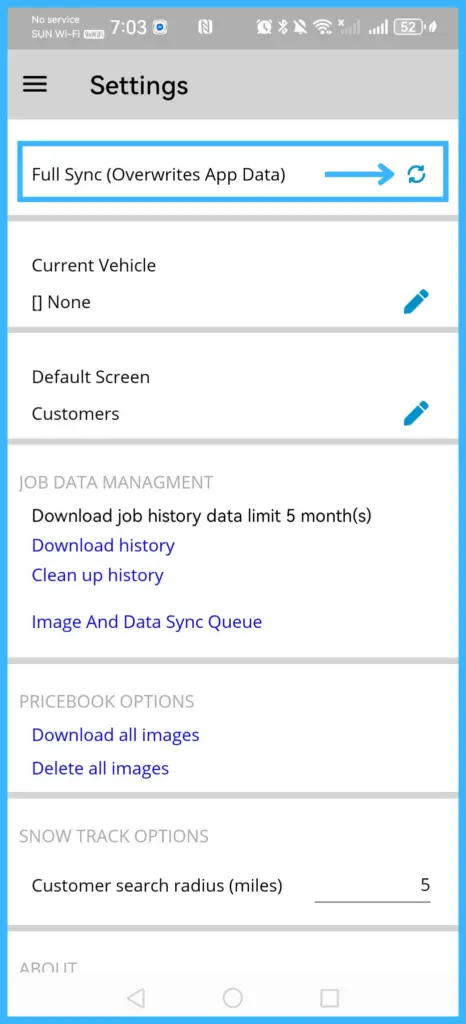
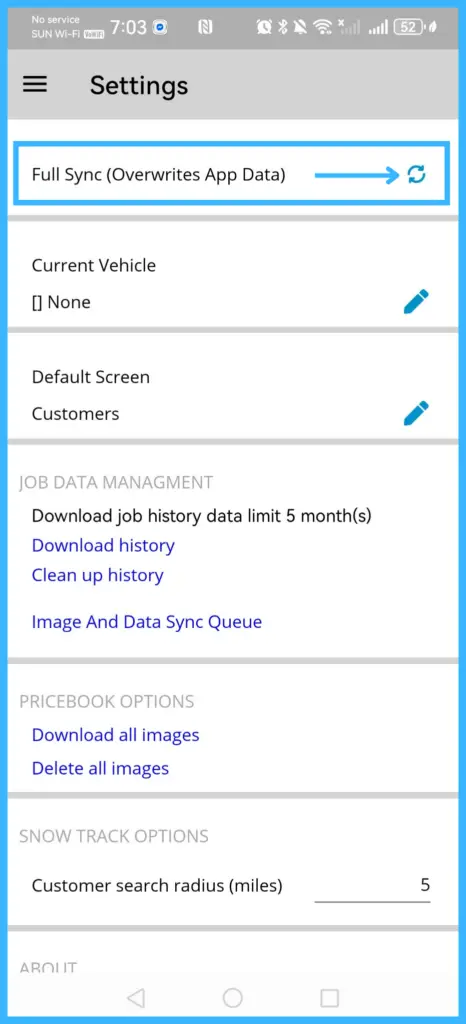
| Full Sync | Gets the latest data from the server and overwrites everything on your device. | In Settings, tap Full Sync, then Yes at the warning. |
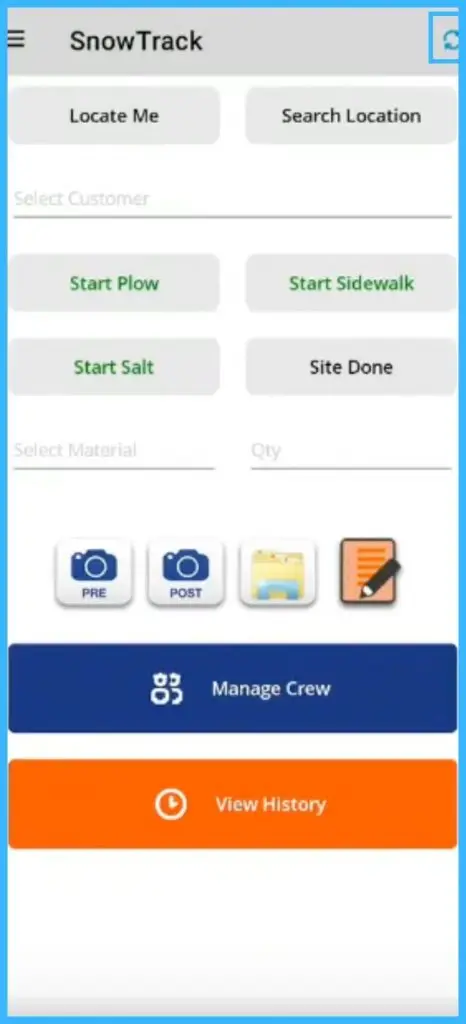
In the SnowTrack module, tap the Sync button there to update job and timesheet data, for example after working offline.
Changes the office makes in the IndusTrack web app settings reach the mobile app on a full sync.
Fix an app that isn't syncing
-
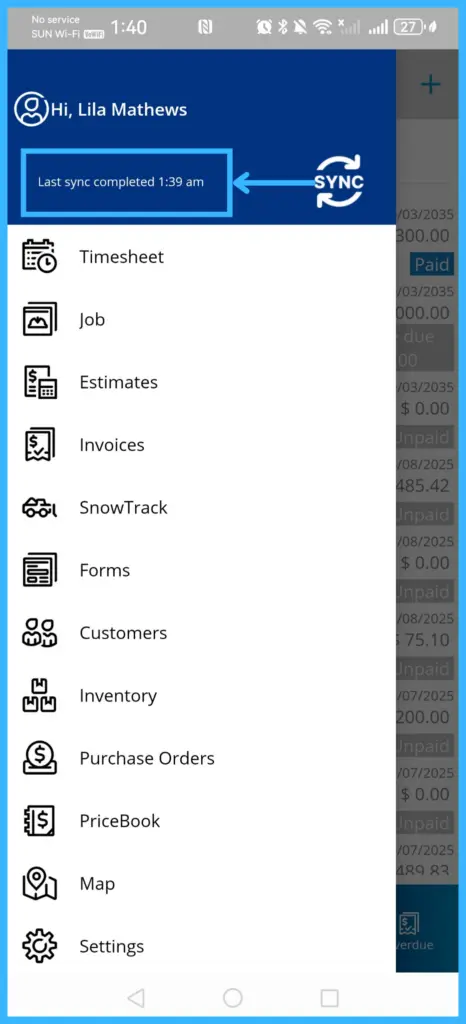
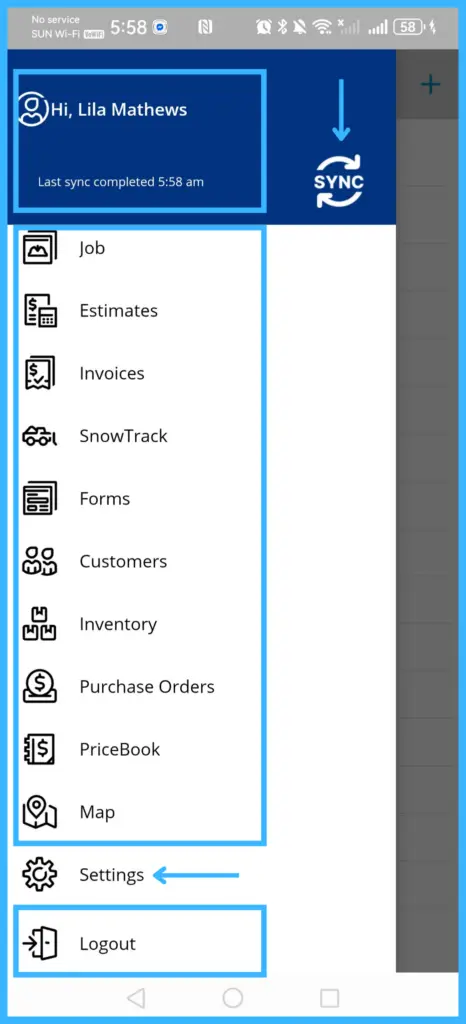
Check when it last synced. The last sync time shows on the dashboard just below your name, and at the top of Settings.
-
Update the app. If a new version is available, a notice appears in the app; tap it. Or open the App Store or Play Store, search for IndusTrack and tap Update.
-
Sync by hand. Tap the sync icon. If that doesn't help, try a Full Sync. No data is lost.
-
Check the phone. Low memory can stop syncing.
-
Check how the app is left running (see Things that stop syncing below).
-
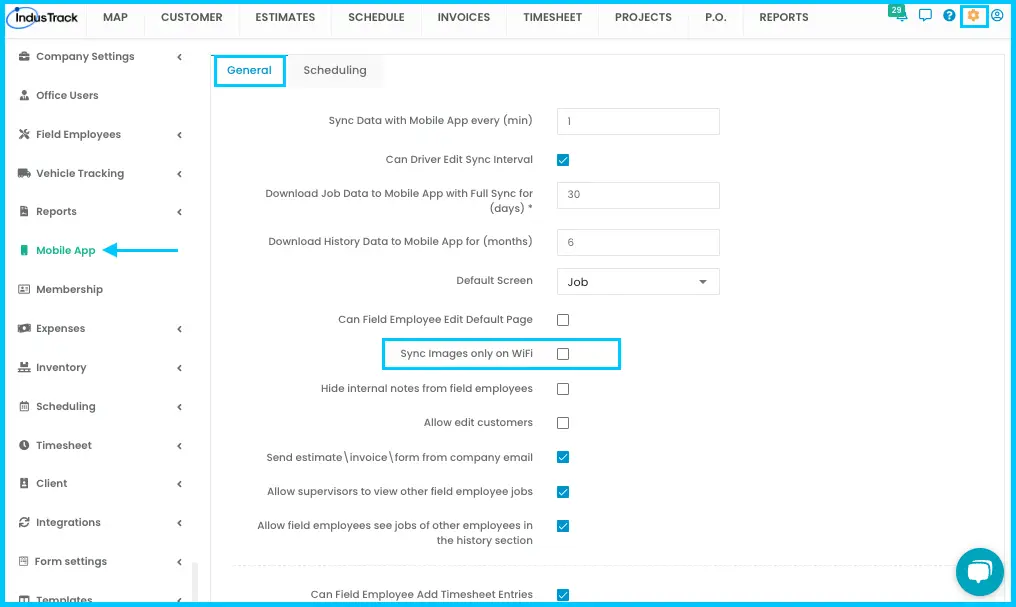
Images not syncing on mobile data? Ask your office to check Settings›Mobile App›General›Sync Images only on Wi-Fi in the web app. If your team uses mobile data, turn it off.
-
Still stuck? Send the app's database to IndusTrack developers (see Developer tools below).
Things that stop syncing
- Closing the app and locking the screen stops syncing. If the app is open when you lock the screen, it syncs once you unlock.
- Clearing the app from your recent apps stops syncing.
- Background sync doesn't run while a job's details screen is open, even if the phone is idle or locked.
- Images sync last. A notification shows how many are still waiting.
App settings
Open Settings from the menu. The top shows your account name, last sync time and the modules you can use, with Manual Sync and Logout icons.
| Setting | What it does |
|---|---|
| Full Sync | Replaces everything on the device with the latest server data. |
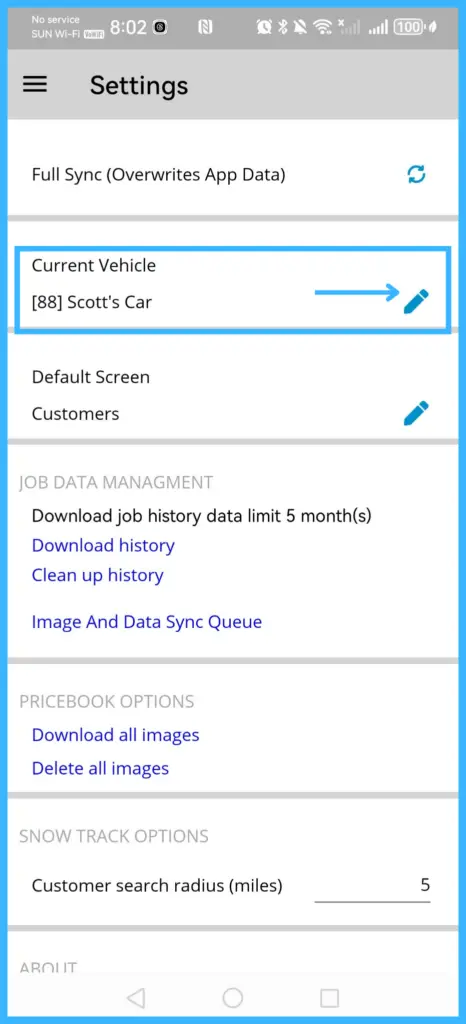
| Current Vehicle | Your assigned vehicle. Tap the pencil icon to pick another. |
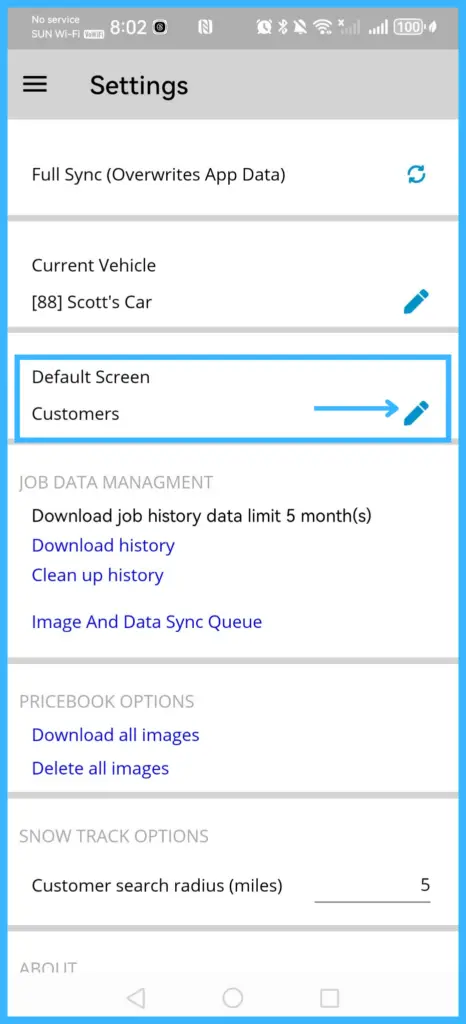
| Default Screen | The first page after you log in. Tap the pencil icon to change it (if your office allows it). |
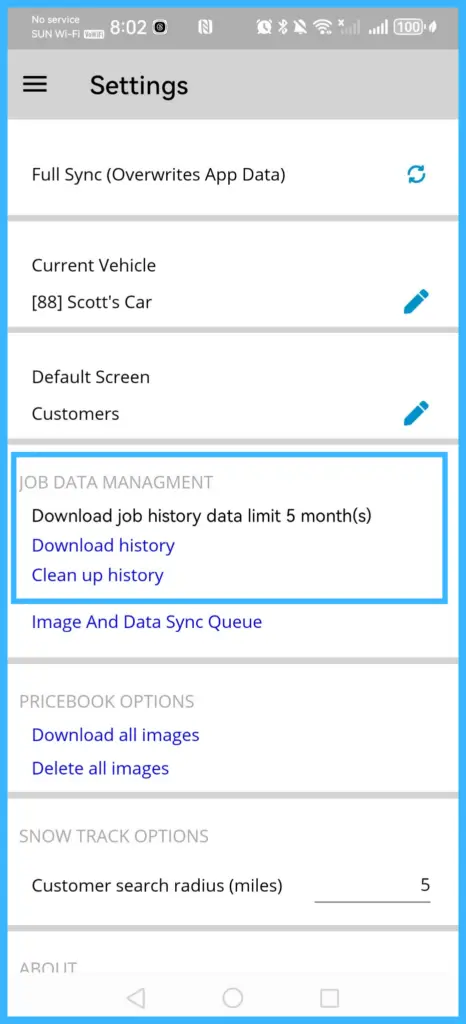
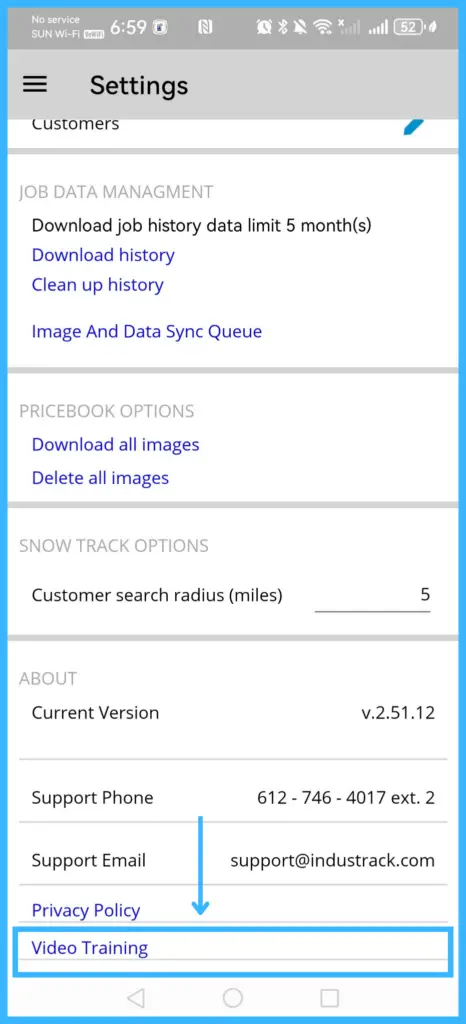
| Download history | Downloads 5 months of job history for reference. |
| Clear up history | Deletes jobs older than 30 days from the device. |
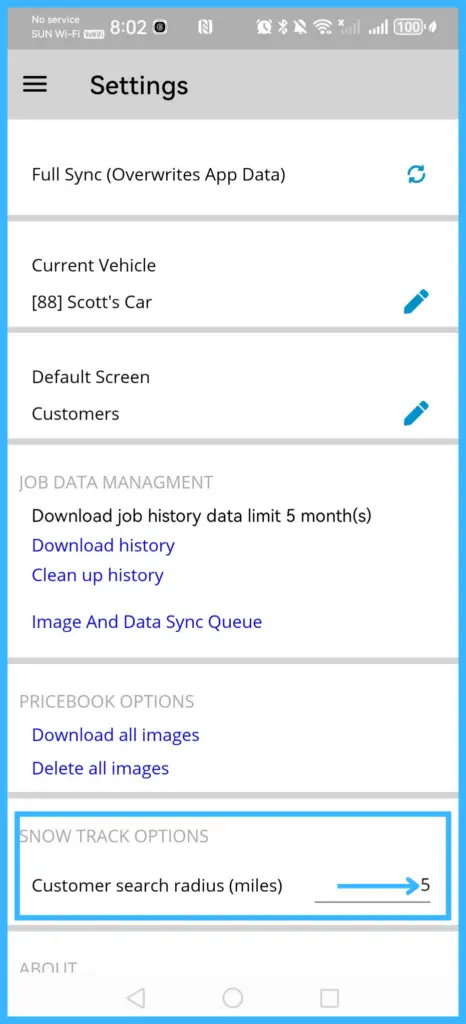
| Snow Track Option | How far (in miles) the app searches for SnowTrack customers. The SnowTrack module then finds customers within that radius automatically. |
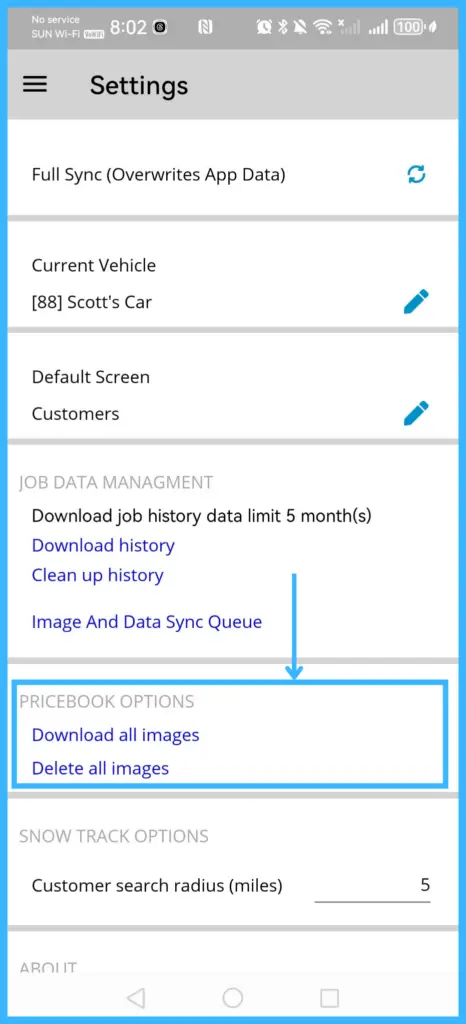
| Download Images / Delete Images | Loads or removes all pricebook category and item images on the device. |
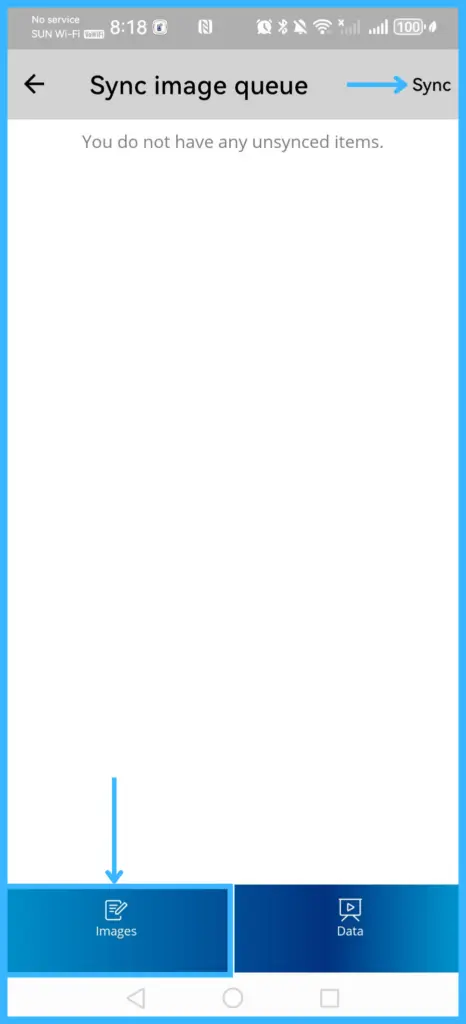
| Image and Data Sync Queue | Shows images and data waiting to sync. To speed it up, go to Images and tap Sync so the office sees them right away. |
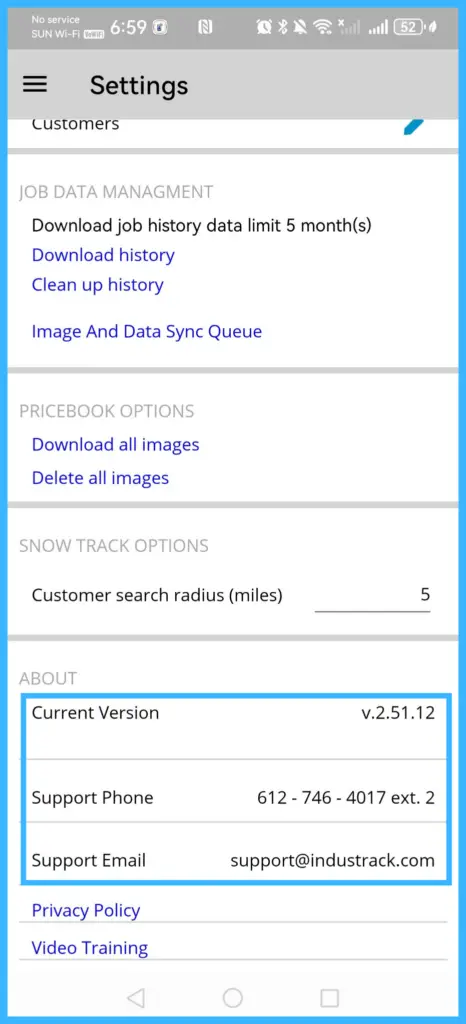
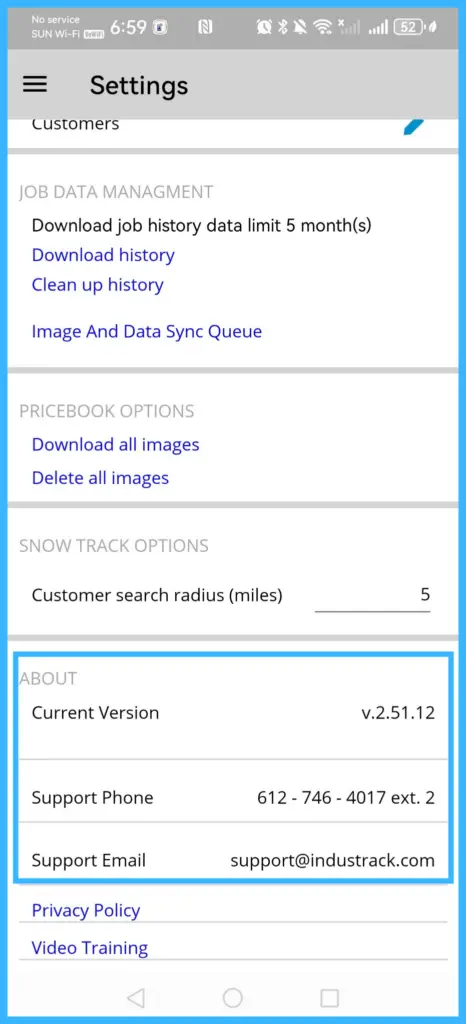
| Current Version | Your app version. If an update is available, tap the notice to install it. This area also lists the supported operating systems. |
| Support Contact | Tap the phone number to call IndusTrack support, or the email to write to them. |
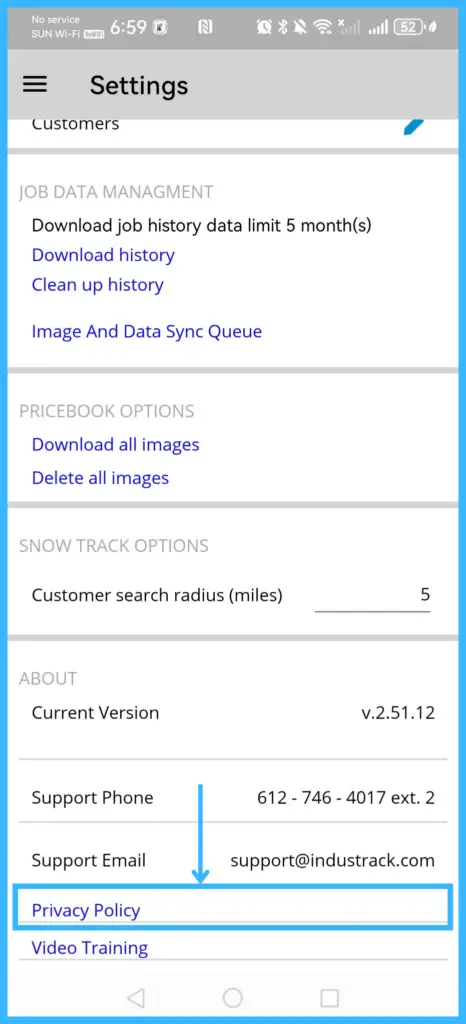
| Privacy Policy | Opens the IndusTrack privacy policy in your browser. |
| Video Training | Opens training videos and written guides on the IndusTrack website. |
Developer tools
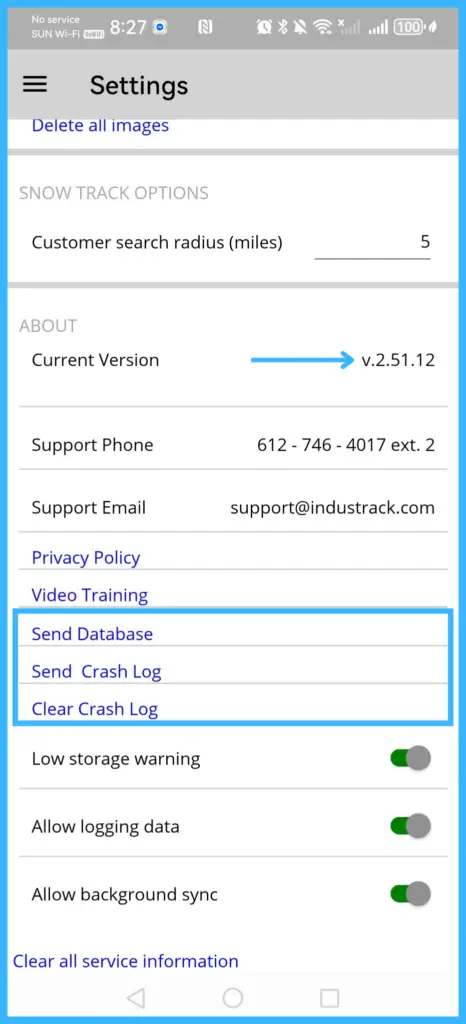
Tap Current Version 5 times to unlock these:
| Tool | Use it when |
|---|---|
| Send Database | Data or images aren't syncing. Save it to your phone or email it to IndusTrack developers. |
| Send Crash Log | The app has crashed. Save or email the crash details to developers. |
| Clear Crash Log | You want to erase stored crash reports. |
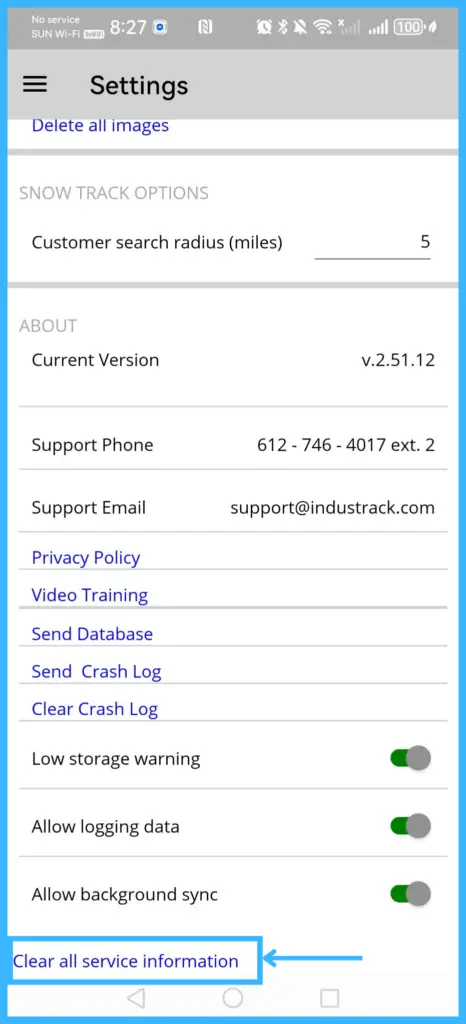
| Clear all service information | You want to reset the app's background service to its default state. It deletes the app's stored temporary files, account links, system settings and cache data from the device. |
Common questions
Why is the app slow?
Uploading many or large images (over 20 images, or big files) can slow the app.
The office shows a newer sync time than my phone. Why?
If a sync is interrupted partway, the office can show a newer sync time even though the app didn't finish uploading.
What happens when I log out?
You're signed out and need to log in again to use your account.
Was this article helpful?
Contact support