How do I print barcodes?
Turn barcodes on in Settings›Inventory›Barcode Generation, choose the barcode type and the fields to include, then in the Inventory List check the items and click Actions›Print Labels.
Set up barcodes
-
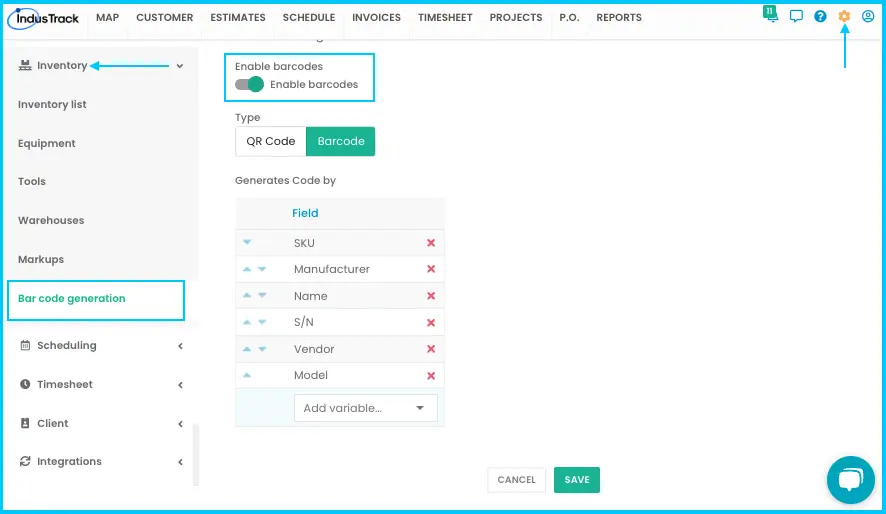
Go to Settings›Inventory›Barcode Generation.
-
Turn on Enable Barcodes.
-
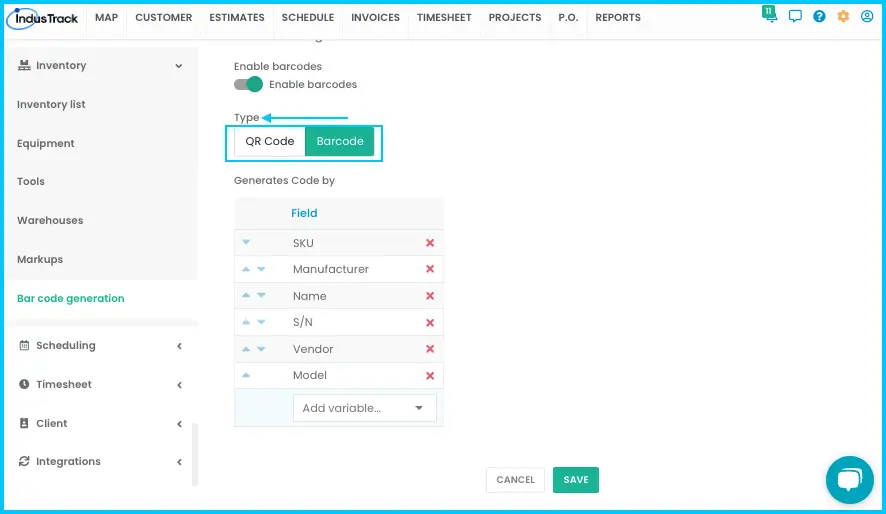
Choose the type. You can use only one at a time:
- QR Code: holds more information; you can include several fields.
- Barcode: for basic information. Name, SKU, serial number, or a combination of these is recommended.
-
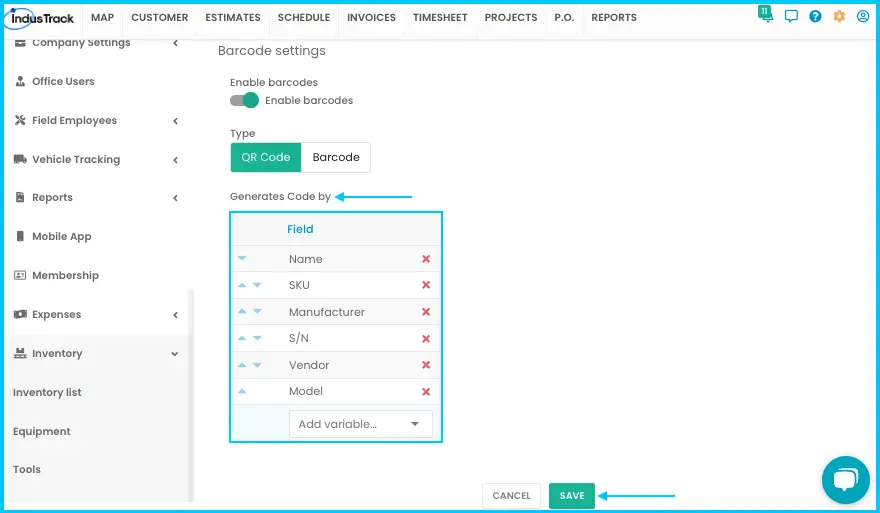
Choose the fields to include:
Field Name SKU Vendor Serial Number (S/N) Manufacturer Model -
Click Save.
Print labels
-
Go to Settings›Inventory›Inventory List.
-
Check the items you want labels for.
-
Click Actions›Print Labels.
-
Enter the number of labels and click Print.
-
A preview of the labels appears. Your printer must be set up for the preview to show.
-
Optional: right-click the preview to save the labels as images.
Watch: Printing labels from the Inventory List and previewing them
You can print tool labels the same way from the tools list (Actions›Print Labels).
Common questions
How do I know which items have a barcode?
After printing, the item shows a checkmark in the Bar/QR Code column of the Inventory List. An item with one serial number has one barcode. An item with several serial numbers has an icon next to each serial number to preview its barcode.
Which printer should I use?
The Zebra ZD410 (model ZD41022-D01000EZ) is recommended for barcode labels.
How do I scan the barcodes?
Use the barcode scanner in the IndusTrack mobile app to scan them.
Was this article helpful?
Contact support