How do I build mobile forms and automate them?
Build forms in Settings›Form Settings›Forms, or copy a ready-made one from Settings›Templates›Form Templates. Field employees fill in and sign forms on jobs in the IndusTrack mobile app, and you can use them to collect customer signatures and information. To add a form to jobs automatically, set up a trigger in Settings›Form Settings›Triggers.
Start from a ready-made form template
IndusTrack provides ready-made form templates that you can copy and customize.
-
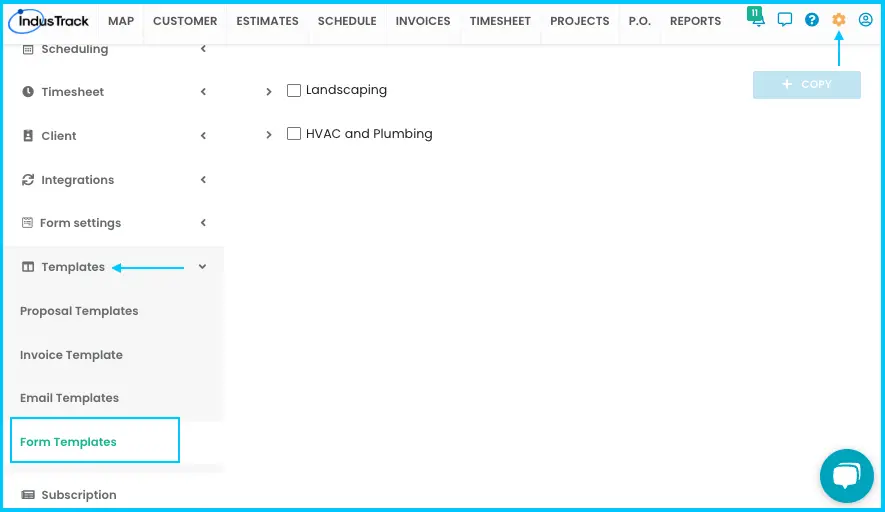
Go to Settings›Templates›Form Templates. The page shows form categories.
-
Click a category to see its templates.
-
To preview a template, click the eye icon next to it.
Watch: Previewing a form template with the eye icon -
Check the box next to each form you want. To select every form in a category, check the box next to the category name.
-
Click + Copy.
Watch: Selecting form templates and copying them to your forms list
The copies appear in your forms list in Settings›Form Settings›Forms. Use them as they are or edit them.
Build a form
-
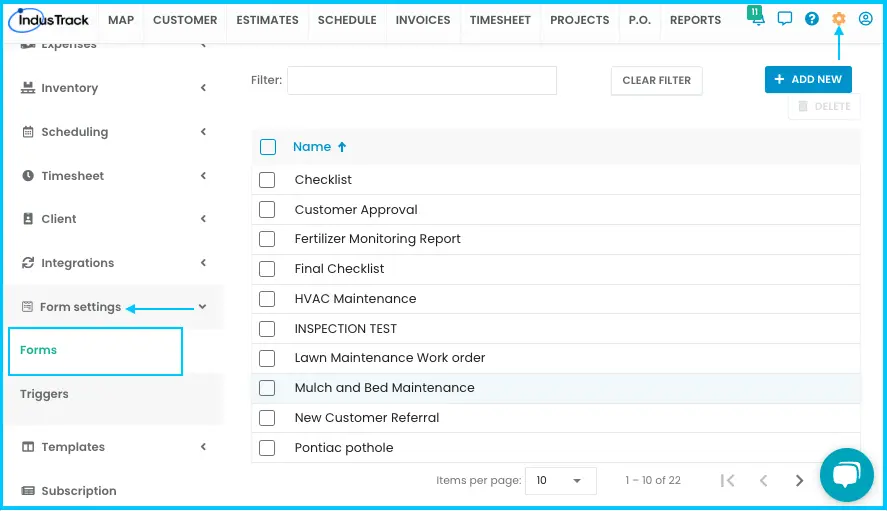
Go to Settings›Form Settings›Forms.
-
Click + ADD NEW.
-
Name your form.
-
Drag elements into the form body and put them in the order you need.
- Click an element to change its settings.
- Mark an element Required if it must be filled in.
- Remove an element with the trash can icon.
-
Click Preview to see the form.
-
Click Save.
Watch: Building a new form by dragging in elements, previewing and saving it
Form elements
| Element | Use it for |
|---|---|
| Header | A main title at the top of the form |
| Single Line | Short text, such as names, titles or one-word answers |
| Multi-Line | Longer answers or comments |
| Number | Numbers only, such as quantities, measurements or IDs |
| Name | A person's first and last name |
| Address | Street, city, state and ZIP code |
| Phone | A phone number |
| An email address | |
| Multiple Choice | Choose one or more options (checkboxes) |
| Toggle | An ON/OFF switch for yes/no or pass/fail |
| Image Upload | Upload a photo in the form |
| Drop Down | Choose one option from a list |
| Signature | A signature by touch or mouse |
| Group Header | A section title for related fields |
| Terms and Conditions | Text the user must agree to. You can show or hide the terms. |
| Date and Time | A date, time or both from a calendar picker |
| Page Break | Splits a long form into pages |
| Checklist | Items or steps to tick off |
| Multi-Column Text | Content in several columns |
| Job Number | Fills in the job number linked to the form |
| Customer Info | Fills in customer details from the job, such as name and address |
| Job Time | Job duration or other time data from the job |
| Field Notes | Comments or findings from the tech |
| Office Notes | Internal notes for the office team |
| Job Parts and Equipment | Lists the parts or equipment used on the job. You can show or hide their descriptions. |
Edit or delete a form
- Edit: click the form, make your changes and click Save.
- Delete: check the box next to each form (or the box next to Name to select all), then click Delete.
Add forms to jobs automatically with triggers
An automated form trigger adds a form to a job or task when something happens, so the form appears for the field employee without anyone adding it by hand. Without a trigger, you have to add the form and assign its trigger by hand each time you create a job.
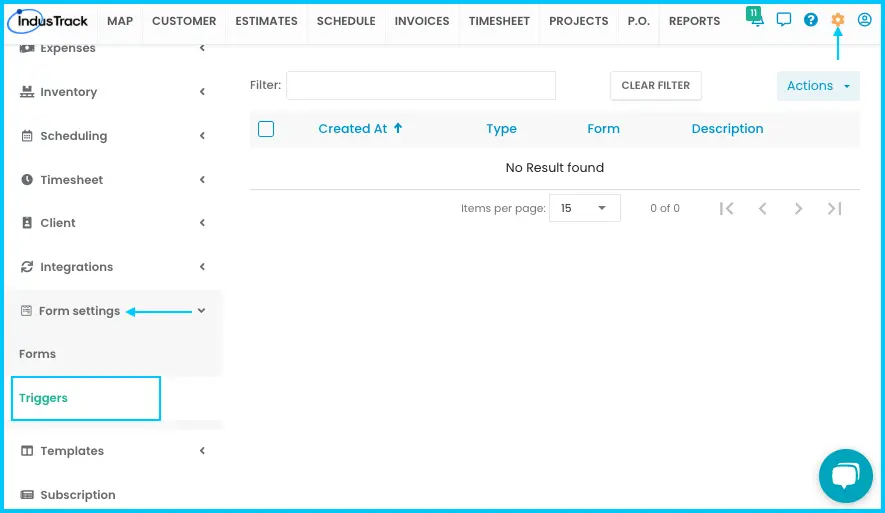
From the Triggers page you can view, create, edit and delete triggers.
-
Go to Settings›Form Settings›Triggers.
-
Click ACTIONS and select + Add New Trigger.
-
Fill in the details:
- Form (required): the form to add.
- Trigger Type (required): when the form appears.
- Description: an optional note about what the trigger is for.
-
Click Save. The trigger is active.
Watch: Adding a new trigger: choosing the form and trigger type, then saving
| Trigger Type | The form appears when |
|---|---|
| Job Started | The field employee taps Start Job |
| Job Completed | The field employee taps Complete Job |
| Task Start | The field employee taps Start Task |
| Task Complete | The field employee taps Complete Task |
| Task Incomplete | A task is marked Incomplete |
| Job Hold | A job is marked On Hold |
- Edit a trigger: click its row, make your changes and click Save.
- Delete triggers: check the box next to each trigger you want to delete (in the column to the left of Created At). Then click Actions in the top-right corner and select Delete.
The triggers table shows Created At, Type, Form and Description.
Add forms to task templates
Add a form to a task template and it's included automatically whenever that template is used on a job.
Common questions
Are there separate job-level and task-level triggers?
No. You either add a form by hand and assign its trigger, or set up an automated form trigger in Settings›Form Settings›Triggers. The Trigger Type you choose decides whether the form appears for the job (Job Started, Job Completed, Job Hold) or for a task (Task Start, Task Complete, Task Incomplete).
My trigger isn't working. Why?
Triggers must be created by an office user in the IndusTrack web app to work.
I copied a form template. Where is it?
In your forms list at Settings›Form Settings›Forms.
Was this article helpful?
Contact support