How do I customize invoice, proposal and email templates?
All templates are under Settings›Templates: Invoice Template for the invoice design, Proposal Templates for estimate designs, and Email Templates for the emails sent to customers. Invoice and proposal template changes apply only to new invoices and estimates.
Invoice template
Invoices you send or print use this design.
-
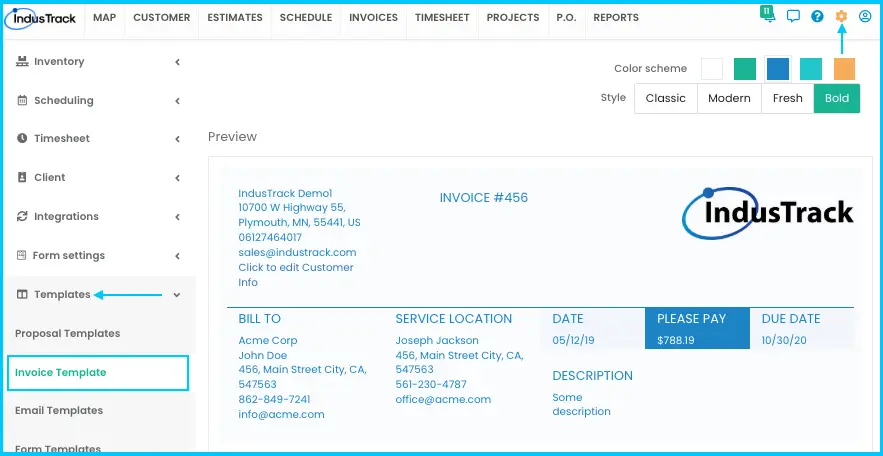
Go to Settings›Templates›Invoice Template. The Invoice Template Builder opens.
-
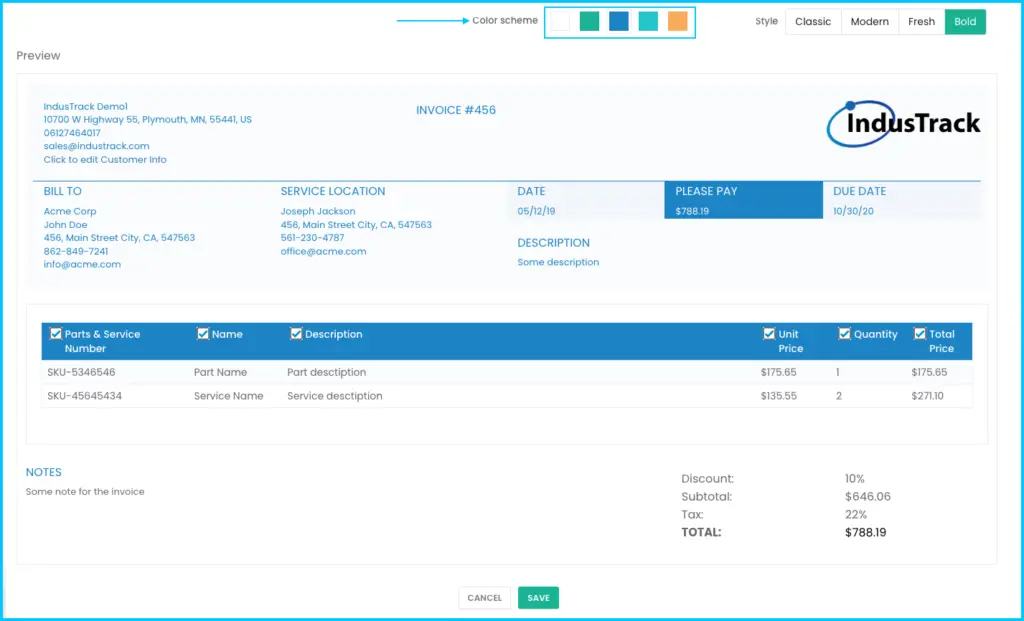
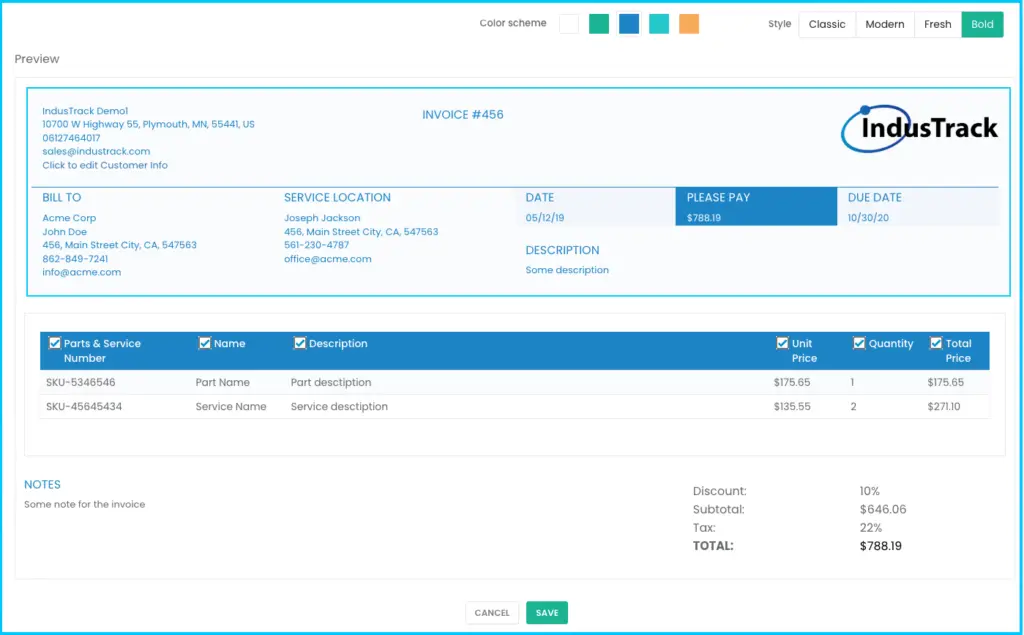
Choose a Color Scheme. The default is white.
-
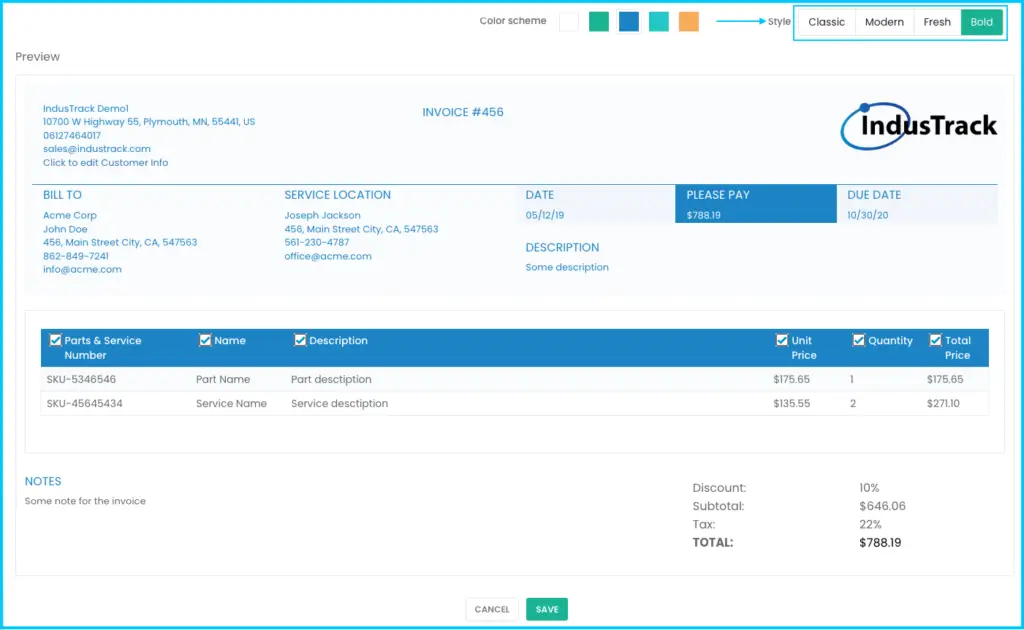
Choose a Style: Classic (default), Modern, Fresh or Bold. Your changes show in the Preview as you go.
-
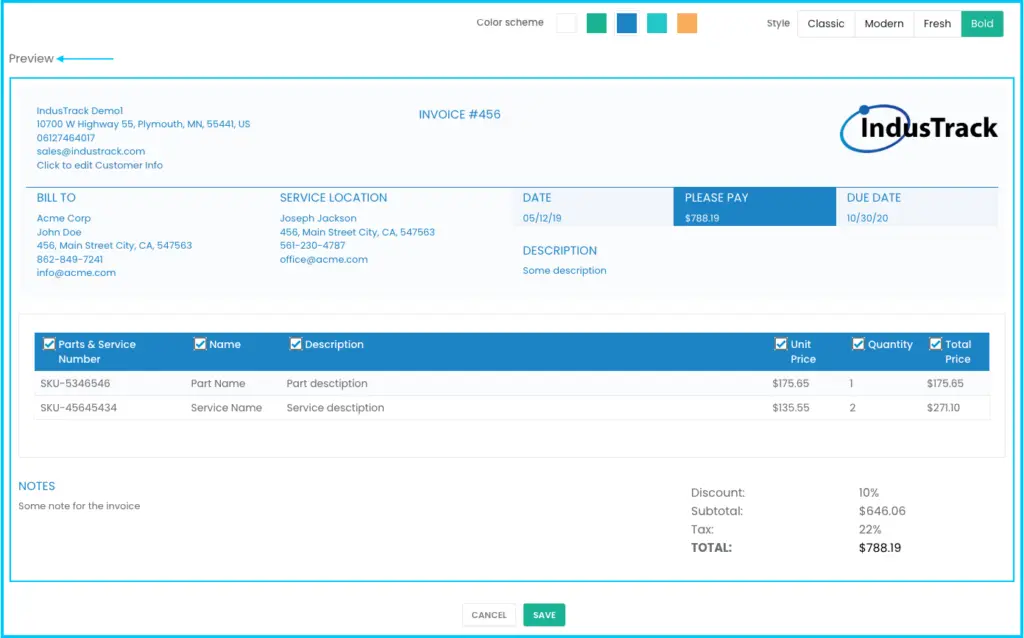
Check the Header section. It shows:
- Company Logo, Address & Email, from your company settings.
- Invoice #, Date (invoice created), Amount Due (total to be paid), Due Date (from the payment terms) and Description.
- Billing Details and Service Location, from the customer's information.
-
In the invoice body, check or uncheck the columns to show: parts, services, assemblies, equipment and labor, plus totals, subtotals, discounts, taxes and notes.
Watch: Choosing which columns show in the invoice body -
Click Save.
To update your company info and logo for the template, click Click to edit Customer Info in the header section. A window opens where you can make the changes. For all your company settings, see How do I set up my company details, terms and tax?
Proposal templates
Proposal templates are the designs for estimates you send to customers. IndusTrack includes a default template. You can edit it or create more for different jobs or customers.
Create a proposal template
-
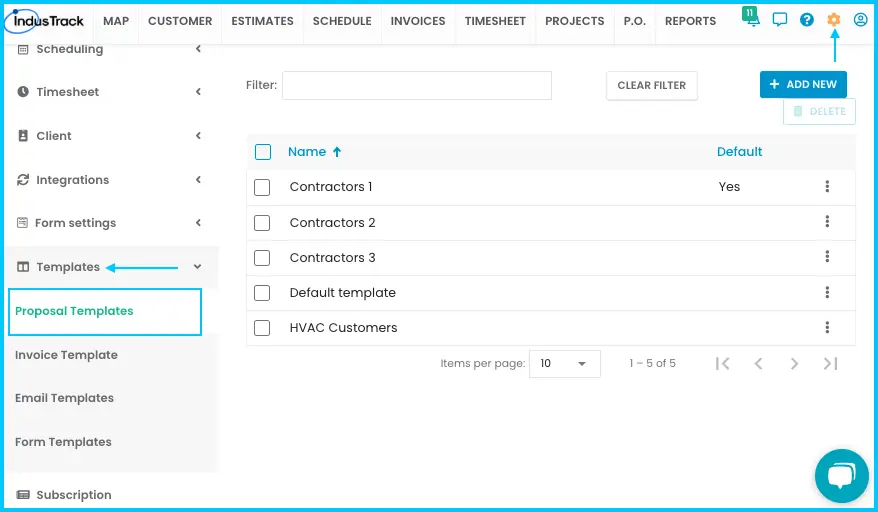
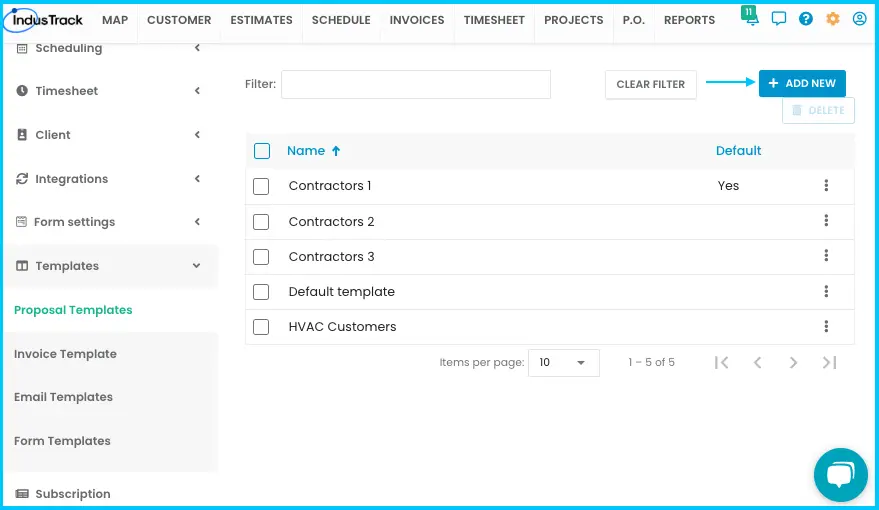
Go to Settings›Templates›Proposal Templates.
-
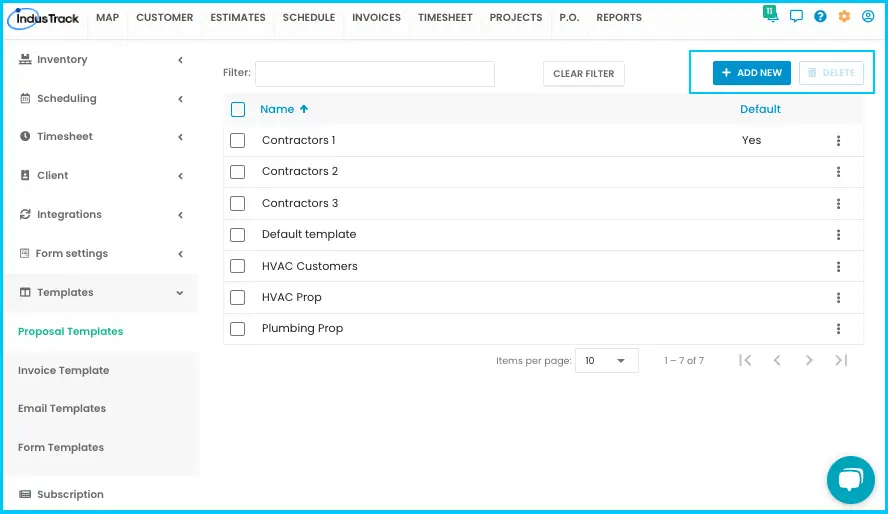
Click +Add New. The Proposal Template Builder opens.
-
Enter a Template Name (up to 50 characters).
-
Choose a Color Scheme (default white) and a Style: Classic (default), Modern, Fresh or Bold. Changes show in the Preview.
Watch: Naming a proposal template and choosing its color scheme and style -
Turn sections on or off with their toggles. Sections that are off are greyed out.
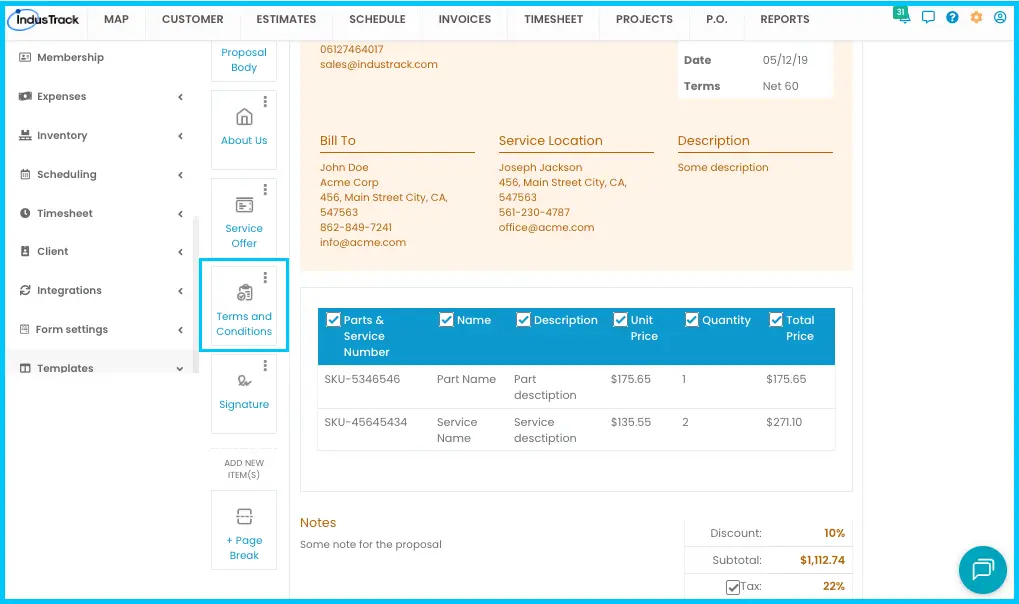
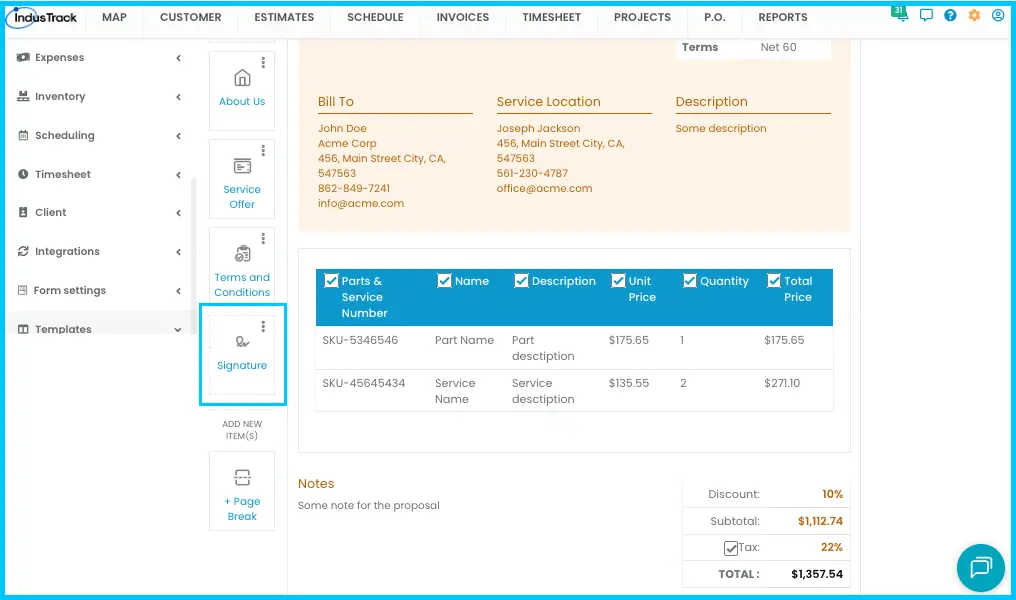
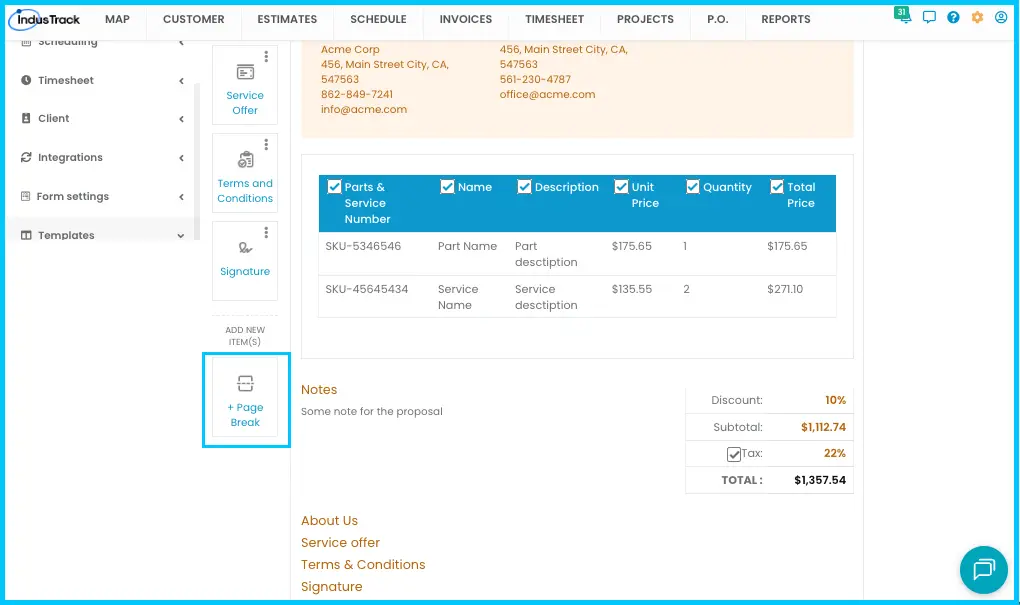
Section What it holds Header Your company logo, address and email, the customer's billing details, and dates. Choose the header design from the style drop-down. Proposal Body Pricing: parts, labor, equipment and totals. Choose Full, Detailed or Totals Only, and check the columns to show. About Us Your company details, in a text editor. Service Offer Descriptions of your services. Terms and Conditions Your policies or legal terms. Signature A fixed signature section. You can only change where it appears. Page Break Adds a page break for printing. Watch: Setting up the Header section of a proposal template Watch: Adding your company details to the About Us section 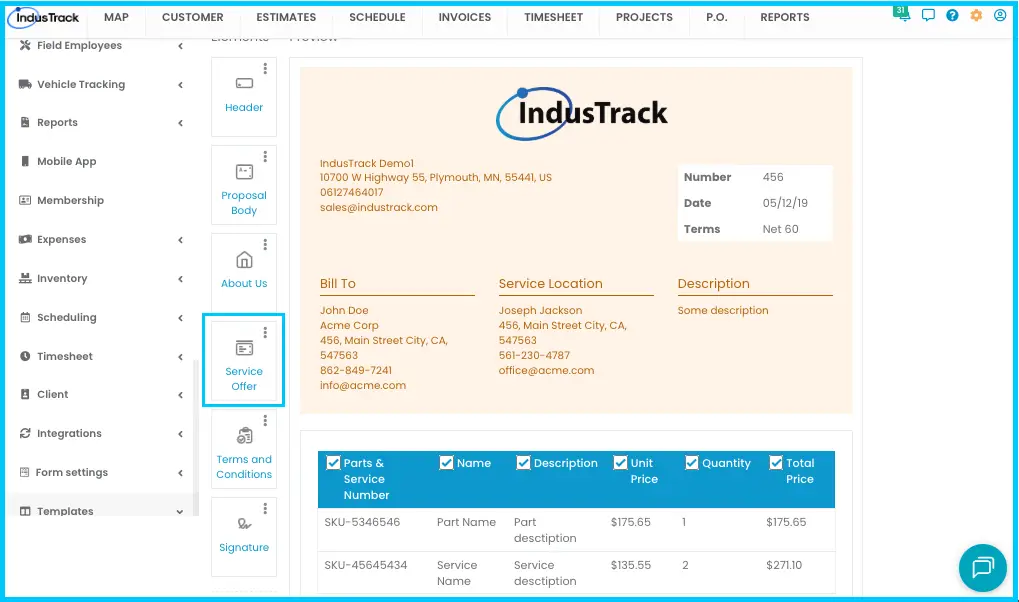
-
To reorder a section, open its 3-dot menu and click Move Up or Move Down. You can rename About Us, Service Offer and Terms and Conditions from the same menu, and remove a Page Break with Remove.
Watch: Moving proposal sections up and down from the 3-dot menu -
Click Save. The template appears in the list.
Copy, edit, set default or delete
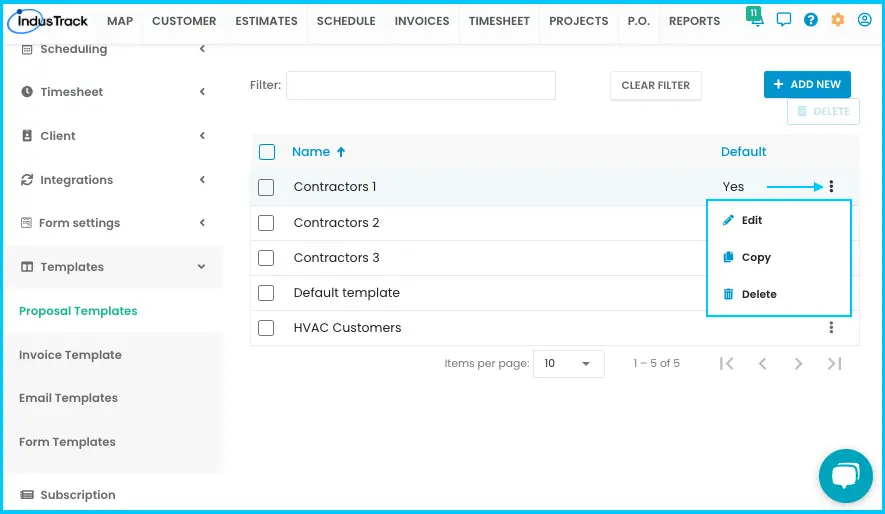
Click the 3-dot menu next to a template:
-
Copy: makes a copy to start from. Open the copy, click Edit, change the name and content, and click Save.
Watch: Copying a proposal template and editing the copy -
Edit: make changes in the builder and click Save. Estimates already made with this template don't change.
Watch: Editing a proposal template -
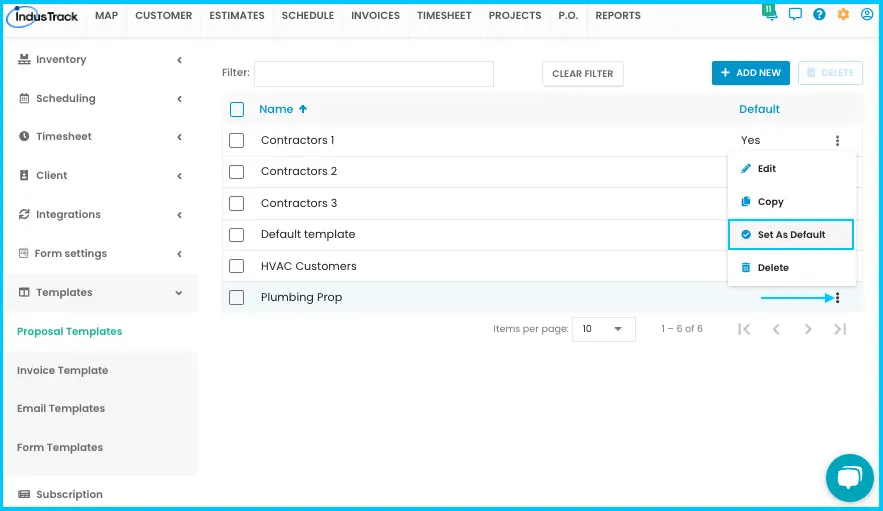
Set As Default: new estimates use this template. Only one template can be the default; the Default column shows "Yes" for it.
-
Delete: or tick the checkboxes of one or more templates (the header checkbox selects all), click Delete and confirm. Deleting can't be undone.
Watch: Deleting proposal templates
How tax shows on proposals
The Tax checkbox in the Proposal Body controls whether tax appears on the estimate and in the customer email.
| Tax in the template | What the customer sees |
|---|---|
| Checked, tax value entered | Tax appears on the estimate and in the email. |
| Checked, no tax value | The Tax section shows on the estimate PDF, but it's empty. |
| Unchecked, no tax value | No Tax section, and no tax is calculated. |
| Unchecked, tax value entered or added by hand | No Tax line on the estimate PDF or in the email, but the total includes the tax. |
Email templates
-
Go to Settings›Templates›Email Templates.
-
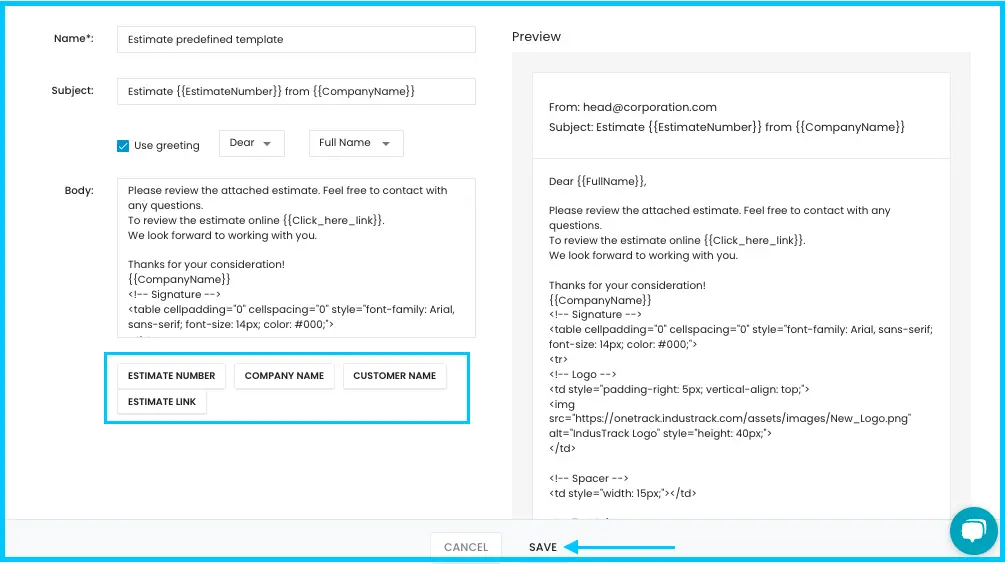
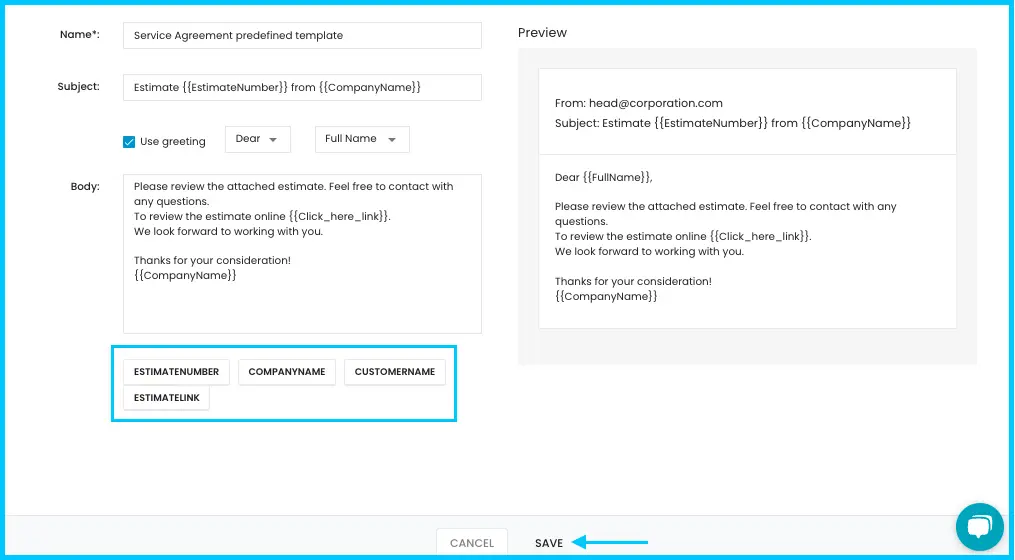
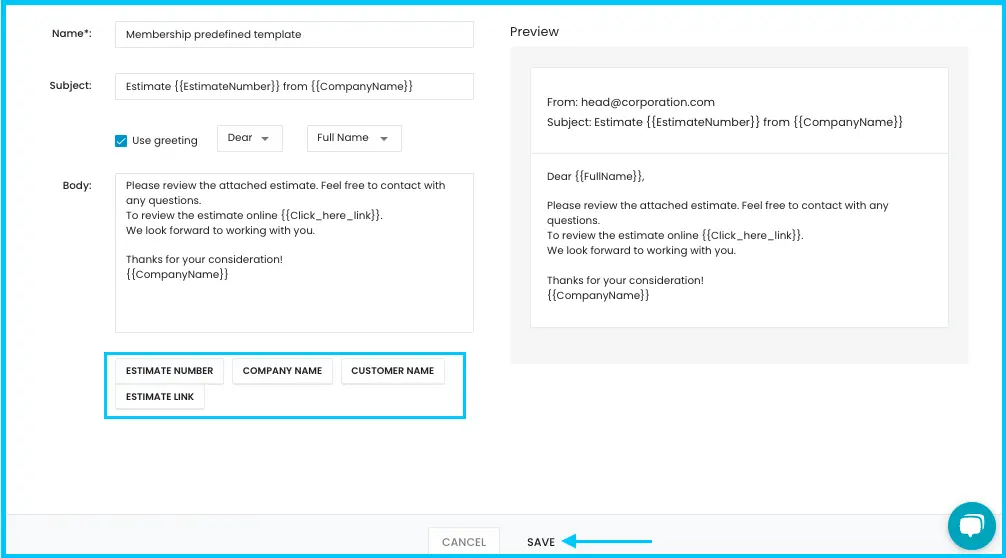
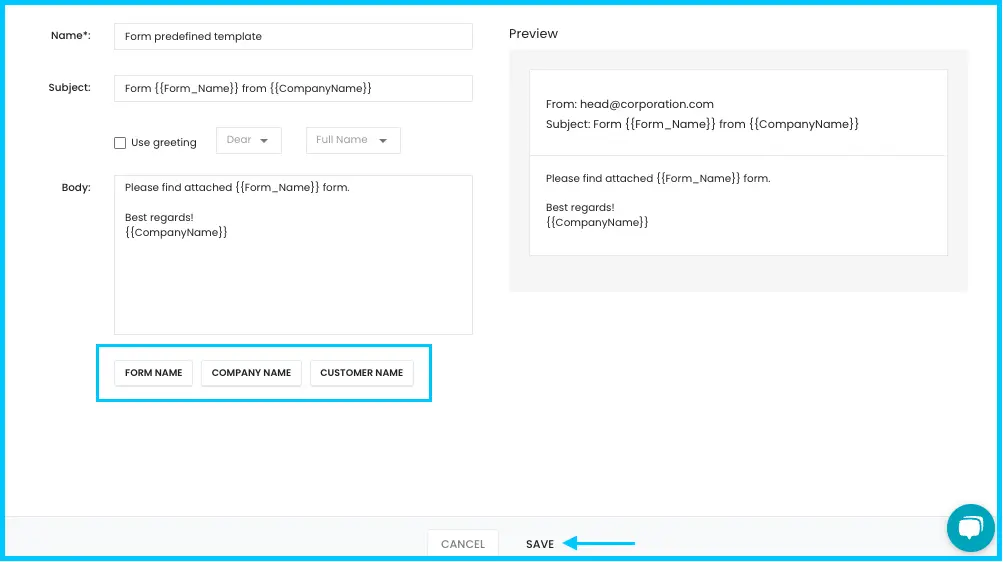
Click +Add New and choose the template type: Invoice, Invoice Reminder, Estimate, Service Agreement, Membership or Forms.
Watch: Adding a new email template and choosing its type -
Edit the Subject line.
-
Set the greeting. Check Use Greeting, choose Dear, To or Hello, and choose the name:
- First Name, Last Name or Full Name: the contact person's name.
- Customer Name: the customer's company name.
For a custom greeting, uncheck Use Greeting and type it in the body.
-
Edit the Body Message.
-
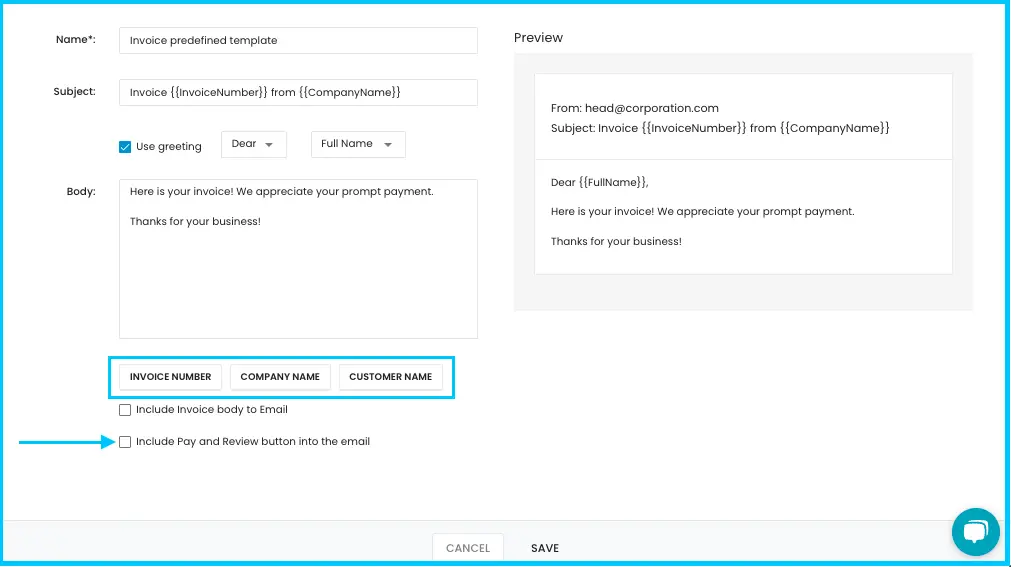
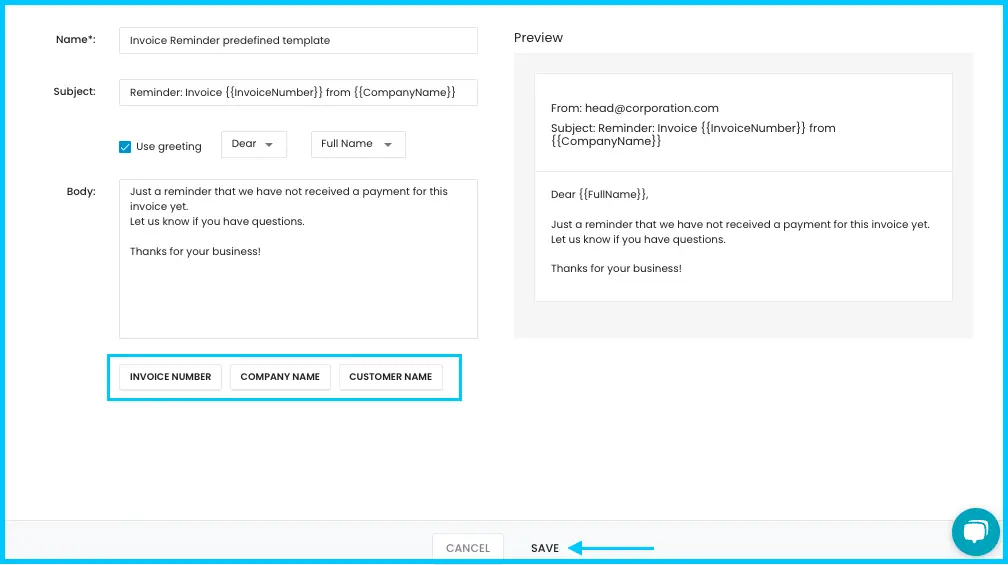
To insert customer or document details, put your cursor where you want them and click a variable in the list below the email body.
Watch: Inserting a variable into an email template -
Check the live preview on the right and click Save. The template becomes the new default for that email type.
Watch: Editing the subject, greeting and body, and checking the live preview
Each template starts with a default message from IndusTrack.
| Template | Attachment | Variables | Extra options |
|---|---|---|---|
| Invoice | PDF of the invoice | Invoice Number, Company Name, Customer Name | Include Invoice Body to Email puts the invoice in the email. Include Pay and Review Button into the Email lets customers pay online. |
| Invoice Reminder | Invoice Number, Company Name, Customer Name | Sent automatically when an invoice is overdue, based on your reminder settings. | |
| Estimate | PDF of the estimate | Estimate Number, Company Name, Customer Name, Estimate Link | |
| Service Agreement | PDF of the proposal | Estimate Number, Company Name, Customer Name, Estimate Link | |
| Membership | PDF of the membership proposal | Estimate Number, Company Name, Customer Name, Estimate Link | |
| Forms | PDF of the form | Form Name, Company Name, Customer Name |
In variables, Company Name is your company's name and Customer Name is your customer's company name. Estimate Link lets the customer open the estimate or proposal online.
Common questions
I changed a template. Why do old invoices or estimates look the same?
Template changes only apply to new invoices and estimates. Existing ones keep their design.
Can I edit a variable's text in the email?
No. Don't change the variable syntax; it breaks the link to your data and causes errors. Insert variables by clicking them in the list.
How many proposal templates can be the default?
One. Setting a new default replaces the current one.
Was this article helpful?
Contact support