How do I use tags?
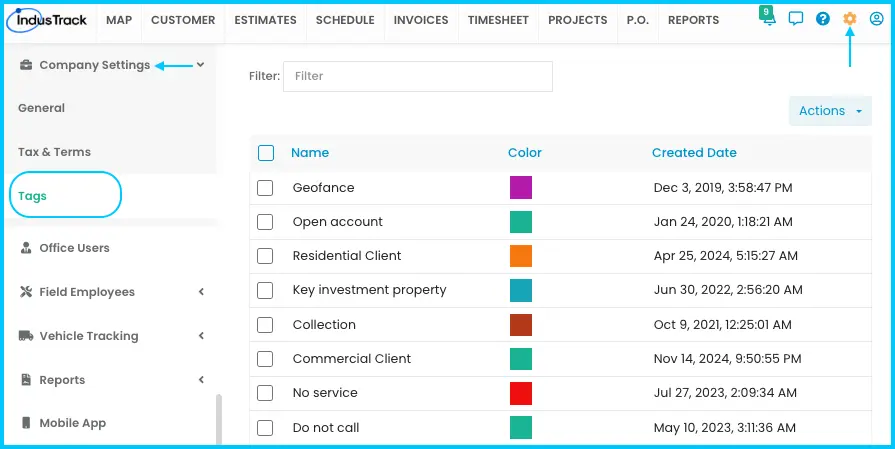
Create tags in Settings›Company Settings›Tags, then add them to customers in the Customers module. Tags help you organize and find customers, and you can run reports by tag.
Create a tag
-
Go to Settings›Company Settings›Tags.
-
Click Actions and select + Add New Tag.
-
In the Add Tag window, enter a tag name.
-
Choose a color. The default is green.
-
Click Save. The tag appears in the list with its Name, Color and Created Date.
Watch: Adding a new tag, choosing its color and saving
To edit a tag, click it in the list.
Add tags to a customer
-
Go to the Customers module and open the customer's profile.
-
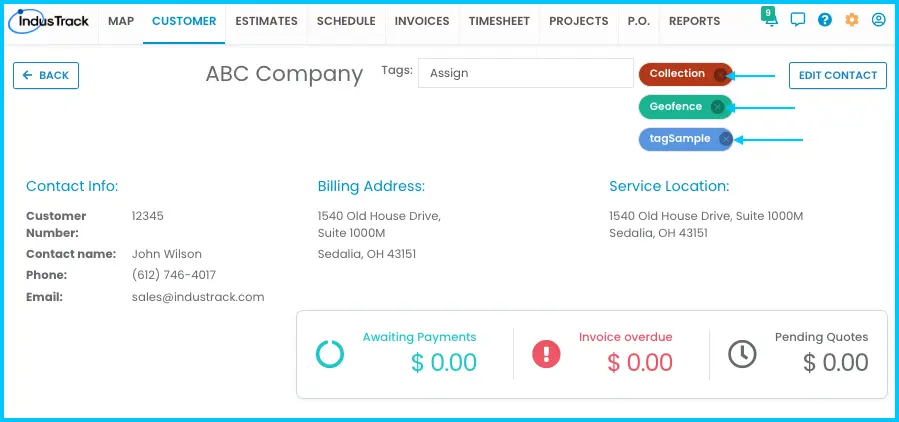
In the Tags field next to the customer's name, select the tags you want. You can also create a new tag here.
-
Click the tag to attach it. Tags show in the Tags column of the customer list.
Watch: Adding tags to a customer from the Tags field in their profile
To remove a tag from a customer, click the X next to the tag name.
Add tags to several customers at once
-
In the customer list, check the boxes next to the customers you want to tag.
-
Click More Actions›Assign Tags.
-
Select the tags you want.
-
Click Select to apply them.
Watch: Selecting several customers and assigning tags with More Actions > Assign Tags
Delete a tag
-
Go to Settings›Company Settings›Tags.
-
Check the box next to each tag to delete. To select all tags on the page, check the box in the Name header.
-
Click Actions›Delete and confirm.
Watch: Selecting tags and deleting them
Common questions
I deleted a tag in settings. Why is it still on customers and invoices?
Deleting a tag from settings doesn't remove it from customers and invoices where it was already used.
I removed a tag from a customer. What happens to their invoices?
The tag is also removed from all of that customer's related invoices.
Where can I use tags in reports?
Customer, estimate and invoice reports can be filtered by tag. See Which report do I need? (all reports explained).
How do tags get onto estimates and invoices?
They come from the customer, and you can also add tags to an estimate or invoice directly.
Was this article helpful?
Contact support