How do I set up timesheet rules and cost codes?
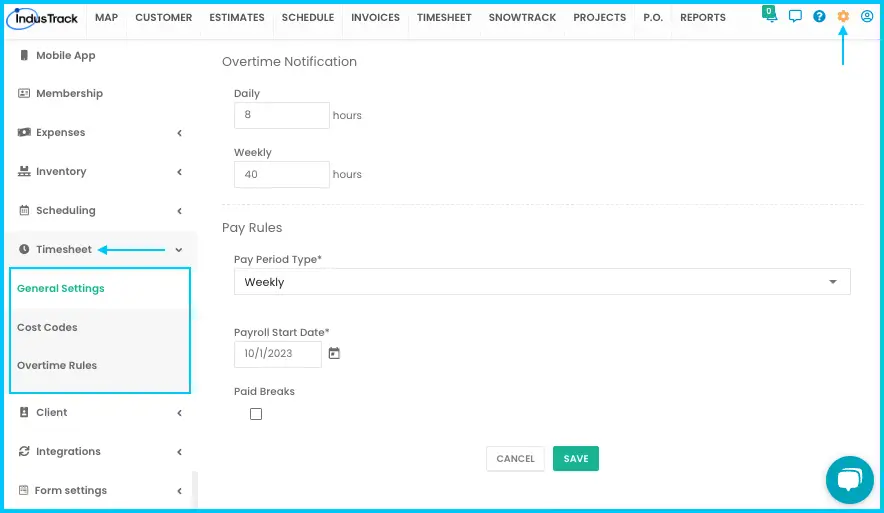
Go to Settings›Timesheet. General Settings holds overtime thresholds and pay rules, and Cost Codes holds the codes your team picks on timesheet records.
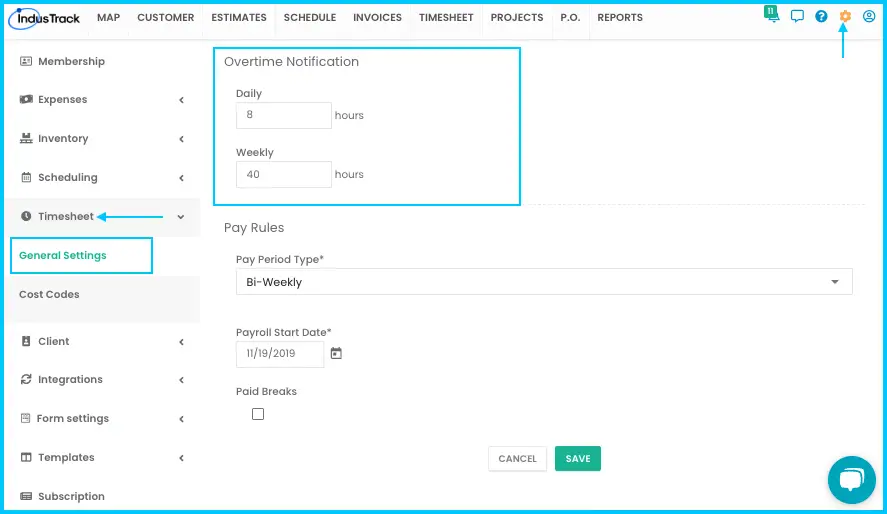
Overtime rules are set in General Settings under Overtime Notification, where you set time thresholds for daily and weekly overtime.
Set overtime thresholds
-
Go to Settings›Timesheet›General Settings.
-
Find Overtime Notification.
-
Enter the limits:
- Daily Overtime: the most regular hours allowed per day. Time beyond this counts as overtime.
- Weekly Overtime: the most regular hours allowed per week. Time beyond this counts as overtime.
Watch: Setting daily and weekly overtime
Set pay rules
-
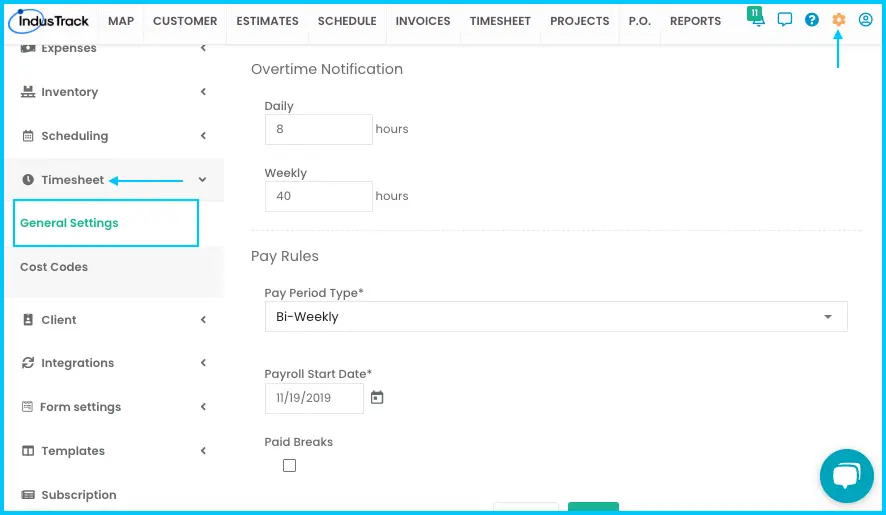
Go to Settings›Timesheet›General Settings›Pay Rules.
-
Set the rules:
- Pay Period Type: how often your team is paid: Weekly, Bi-weekly, Semi-monthly or Monthly.
- Payroll Start Date: the date the new pay rules begin. Pick it from the calendar.
- Paid Breaks: check the box if breaks count as paid time. Leave it unchecked if breaks are unpaid and should be subtracted from total time.
Watch: Setting the pay period type, payroll start date and paid breaks
The pay period you choose also sets the period summed up at the top of the Timesheet page.
Add a cost code
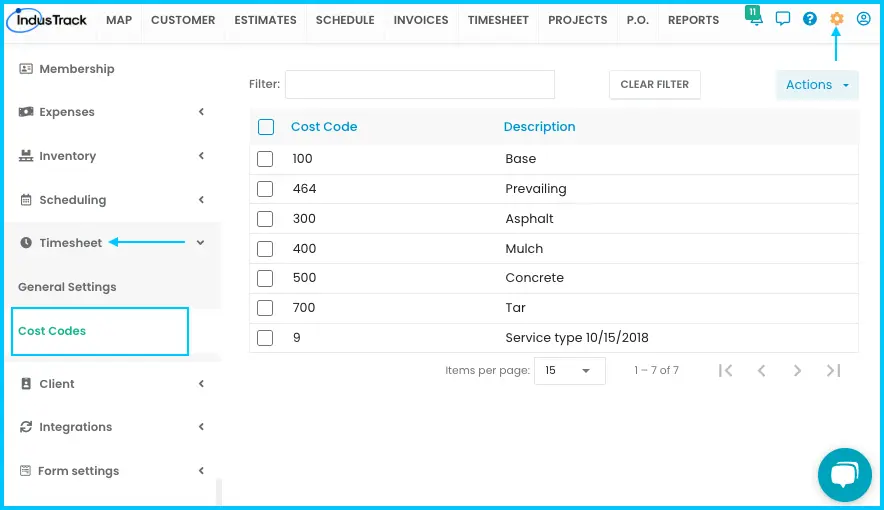
Cost codes help you track job costs on your team's timesheets. They're chosen in the Cost Code field of a timesheet record.
-
Go to Settings›Timesheet›Cost Codes.
-
Click Actions and select Add New Cost Code.
Watch: Using the Actions button on the Cost Codes page -
Fill in:
- Cost Code: a short code or number, for example 001 or PAINT01.
- Description: a short note about what the code is for.
-
Click Save. The code is added to the list.
Watch: Adding a cost code
Edit or delete a cost code
-
Edit: click the cost code, change the code or description, and click Save.
Watch: Editing a cost code -
Delete:
- Tick the checkbox next to each code to delete, or the top checkbox to select all.
- Click Actions and select Delete.
- Confirm when prompted.
Watch: Deleting cost codes
Common questions
Can I undo deleting a cost code?
No. Deleting a cost code can't be undone, and it affects your employees' timesheets.
Where do I set how long a timesheet can stay open before it's flagged?
That's in the mobile app settings: Settings›Mobile App, Alert if timesheet is open for (hr). See How do I set up the mobile app for my team? (office settings)
Was this article helpful?
Contact support