How do I set up service agreements?
Open the customer's profile, go to the Contracts tab, open the Contracts List, click Add New and choose Service Agreement. Add the services, their schedule and pricing, then click Save. The visits appear under the customer's Upcoming Services.
A service agreement (also called a service contract) is a contract between your company and the customer. It sets out which services you'll provide, how often, for how much, with the job and contact details.
Add a service agreement
-
Go to Customers and find the customer. Use the Filter bar to search by company or contact name.
-
Open the customer's profile and go to the Contracts tab.
-
Open the Contracts List sub-tab.
-
Click Add New and select Service Agreement.
Watch: Opening the Contracts List and adding a service agreement -
Fill in the general information:
- Name (required): a clear name or description.
- File Upload: click Choose File to add signed contracts, manuals or images. You can add more than one.
- Proposal Template: choose a pre-made proposal template if needed. It works the same way as on estimates. Proposal templates are set up under Settings›Templates›Proposal Templates. See How do I customize invoice, proposal and email templates?
- Start Date & End Date (required): when the agreement begins and ends. Every agreement needs an end date.
Watch: Filling in the service agreement's general information -
Under List of Services, add each job or task the agreement covers, with its equipment:
- Choose existing customer equipment, or create new equipment.
- Pick the Service Location, if the customer has more than one.
- Select a Job Template. See How do I use job and task templates?
- Click the repeat icon and set how often the service happens (see below).
- Add the price, discount and tax.
-
Repeat step 6 for each job. Each job can have its own schedule.
-
Click Save. The agreement appears in the Contracts List, and its visits are added to Upcoming Services.
Watch: Adding services, setting their schedule and pricing, and saving the agreement
Set the schedule
| Frequency | Settings |
|---|---|
| Weekly | How often (for example every 1 or 2 weeks) and which days of the week |
| Monthly | Which day of the month, and which months |
IndusTrack calculates and shows every visit between the agreement's start and end dates.
View, edit or delete an agreement
All three start in the customer's Contracts List.
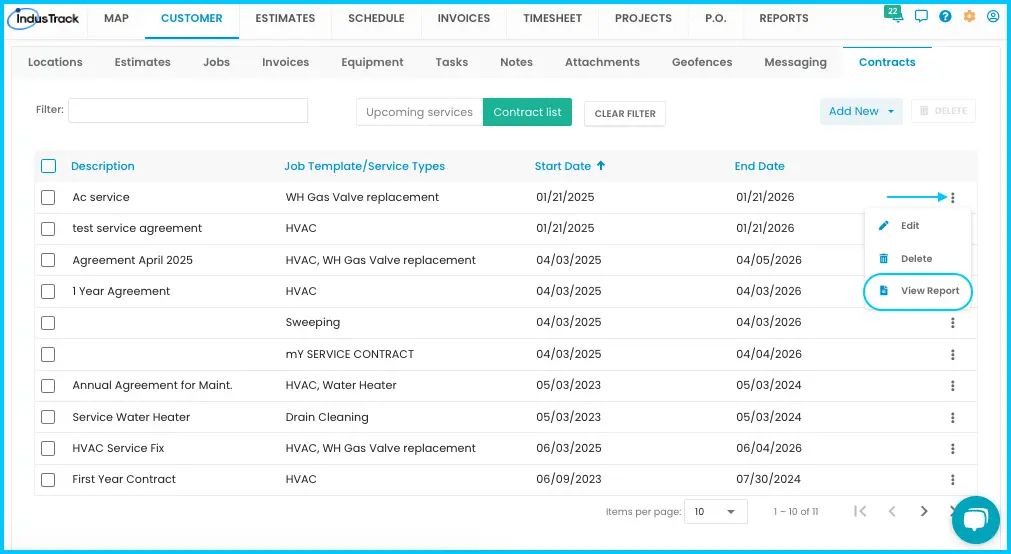
- View the report: click the 3-dot menu next to the agreement and select View Report. It shows the full contract and the status of its jobs and tasks.
- Edit: click the 3-dot menu, select Edit, make your changes and click Save.
- Delete: Be careful. Deleting an agreement can't be undone and may affect reports, records and job history.
- Click the 3-dot menu and select Delete, or check the box next to the agreement and click Delete. To delete several, check each one, or the box in the header to select all.
- At the warning, click Yes to delete, or Cancel to stop.
Common questions
Can a service agreement be open-ended?
No. Every service agreement needs an end date.
Can I undo deleting a service agreement?
No. Deleting removes it from the system and may affect reports, records and job history.
A customer has new equipment that needs regular service. What's the fastest way to set that up?
Create a service agreement for the customer and add the equipment's jobs to it.
Where do I manage a customer's existing contracts?
On the customer's Contracts tab. See What's in a customer profile? (jobs, estimates, invoices, equipment, contracts, notes, files)
Was this article helpful?
Contact support