How do I read the map's alert window?
The alert window is at the bottom of the Map page. It lists vehicle safety alerts, such as speeding or hard braking, as they are triggered.
Read the alerts
-
Click Map in the module header.
-
Look at the alert window at the bottom of the page. If there are no alerts, it's empty.
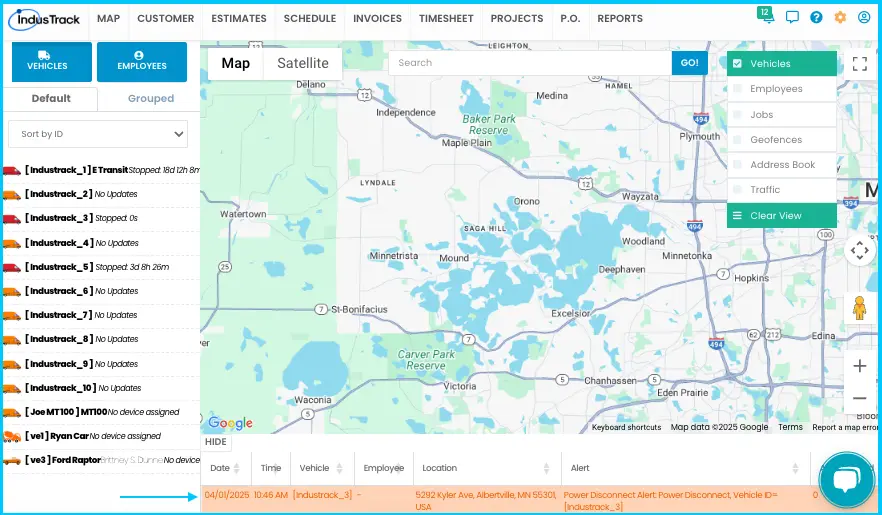
-
Read the alerts. They are about vehicle activity, for example:
- Speeding
- Power disconnect
- Hard braking
- Quick acceleration
- Other vehicle activity alerts
-
Click any column header, such as date or type, to sort the alerts.
-
Scroll down to see more alerts.

Common questions
Why are the alerts different colors?
Each alert's color depends on how that alert was set up.
Why is my alert window empty?
The window is empty when there are no alerts. To turn on and customize alerts, see How do I set up vehicle alerts? For what each alert means, see What does each vehicle alert type mean?
Can I clear alerts from the window?
You can hide them: click HIDE at the top left of the alert window.
How far back does the alert list go?
The alert window only shows alerts from the current day.
Was this article helpful?
Contact support