How do I set up vehicle alerts?
Go to Settings›Vehicle Tracking›Alerts and click + Add New. Choose what triggers the alert (such as speeding or idling), when it's active, which vehicles it covers and who gets notified by email or text. Triggered alerts also appear in the map's alert window.
Create an alert
-
Go to Settings›Vehicle Tracking›Alerts.
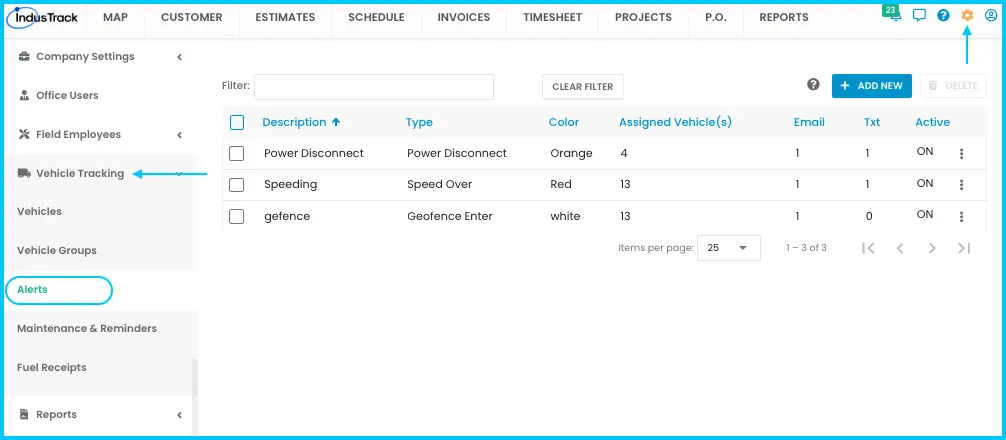
-
Click + Add New.
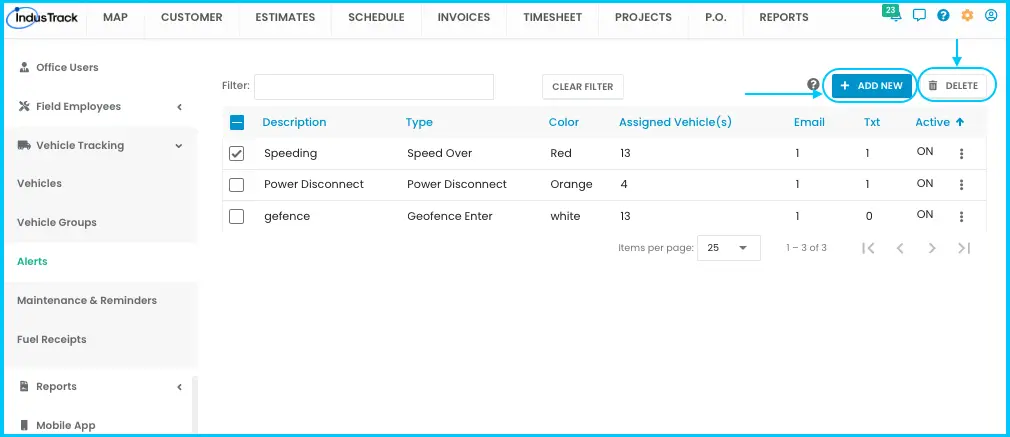
-
Enter a Description (required): a short, clear name.
-
Choose an Alert Type (required). Some types add fields, such as a speed limit or number of minutes. See What does each vehicle alert type mean? below.
Watch: Entering a description and choosing an alert type -
Set when the alert is active:
- Time range: a start and end time (AM/PM). Type it or use the clock icon.
- Days of the week: weekdays, weekends or both.
-
Pick an Alert Color for the map's alert window. White is used if you don't pick one.
-
Make sure Active is checked. The alert won't work otherwise.
Watch: Setting the time range, days, color and Active box -
Choose who's notified: Send Email (email addresses) and Send Text (phone numbers for SMS).
Watch: Choosing who gets email and text notifications -
Select the vehicles it applies to. Use the filter bar to search, or tick the box next to Vehicle to select all.
Watch: Selecting the vehicles an alert applies to and saving -
Click Save.
You can use one alert for all vehicles, or create separate alerts for different vehicle types, like cars, trucks or snow plows.
Edit, pause or delete an alert
-
Edit: click the three-dot menu next to the alert, select Edit, make changes, click Save.
Watch: Editing an alert -
Turn off or on without deleting: click the three-dot menu and select Turn Off or Turn On.
Watch: Turning an alert off and on -
Delete one: click the three-dot menu, select Delete, then confirm.
-
Delete several or all: check their boxes (or the box in the Name header for all), click Delete, then confirm. Deleting may affect other settings or data.
Watch: Deleting one, several or all alerts
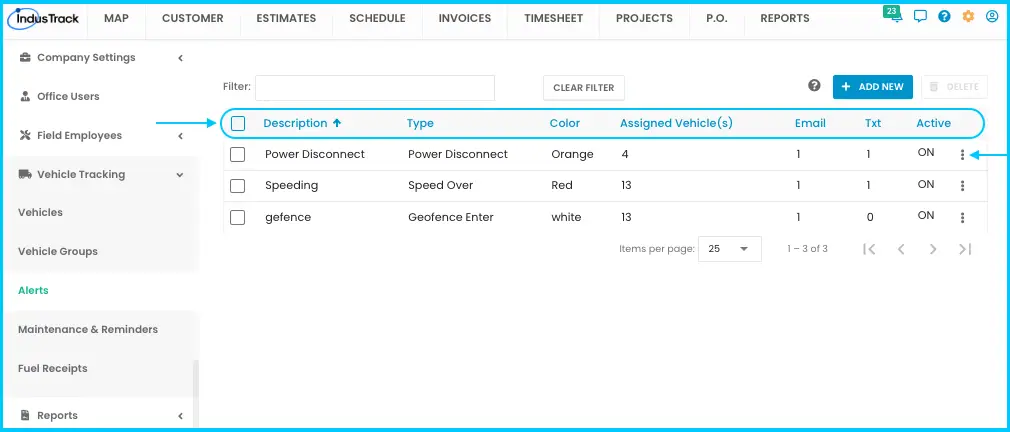
Reading the alerts list
| Column | What it shows |
|---|---|
| Description | The alert's name |
| Type | What triggers it, such as Speed Over or Idle |
| Color | Its color in the map's alert window |
| Assigned Vehicle(s) | How many vehicles it covers; click for details |
| How many email addresses are notified; click for the list | |
| Txt | How many phone numbers get texts; click for the list |
| Active | Whether it's on or off |
Common questions
I set up an alert but it never fires. Why?
Check that Active is checked and that the current time and day fall inside the alert's time range and days of the week.
How do I pause an alert without losing its settings?
Use Turn Off from the three-dot menu instead of deleting it.
Was this article helpful?
Contact support