How do I manage, send or download an estimate?
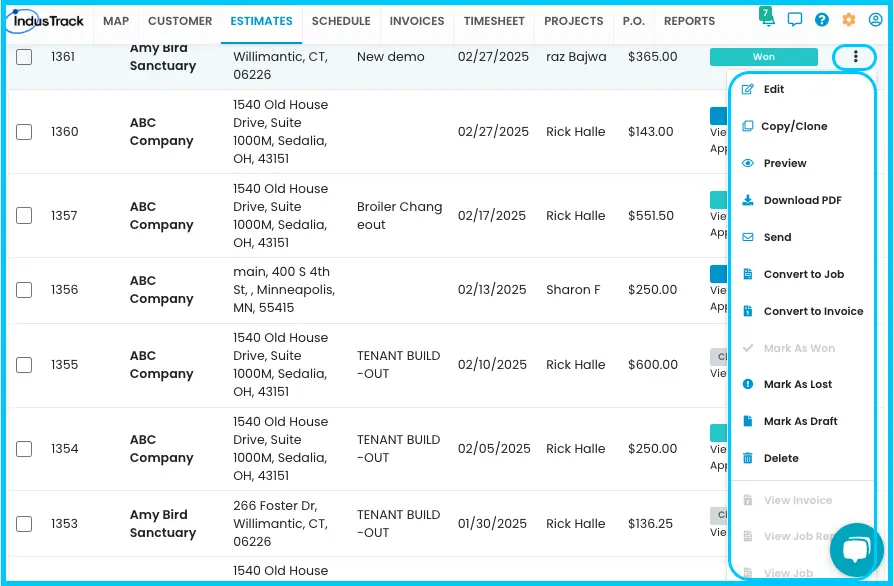
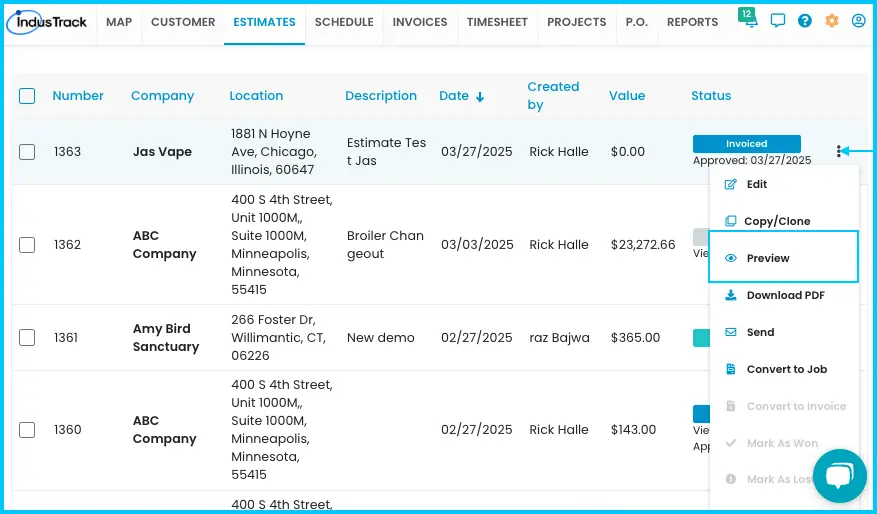
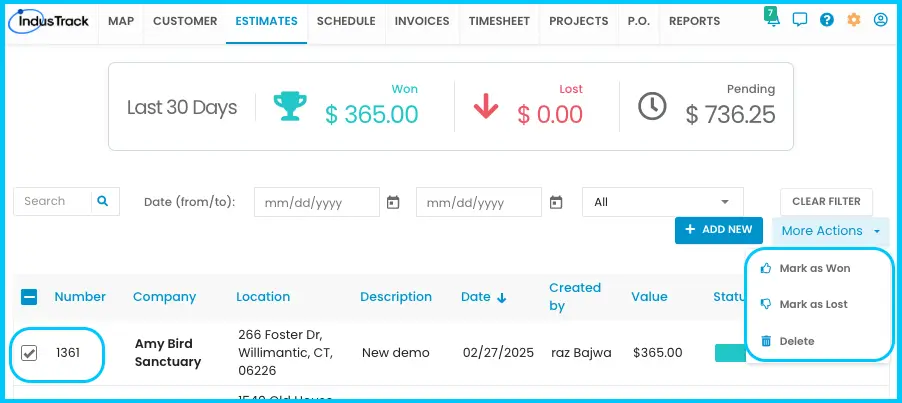
In the Estimates module, click the three dots next to an estimate to edit, copy, preview, download, send, convert, mark as won or lost, or delete it. To update several estimates at once, check their boxes and click More Actions.
An estimate is a proposal you send the customer before work begins. It shows the items, services, schedule and expected costs.
Find an estimate
- Search: use the search bar.
- Date filter: choose a date or date range.
- Status filter: Draft, Sent, Viewed, Won, Scheduled, Lost, Change Requested or Invoiced.
- Viewed means the customer has viewed the estimate you sent. If the customer approves it, the estimate is automatically marked Won.
- Scheduled means an office user has converted the estimate into a job.
- Click CLEAR FILTER to remove filters.
Three-dot menu options
| Option | What it does |
|---|---|
| Edit | Change the estimate (see below). |
| Copy/Clone | Create a duplicate. |
| Preview | See how the estimate looks to your customer. |
| Download PDF | Save a PDF copy to your computer. |
| Send | Email the estimate to one or more recipients. |
| Convert to Job | Turn the estimate into a job. It doesn't need to be Won first. Greyed out if the estimate is already scheduled. |
| Convert to Invoice | Turn the estimate into an invoice. Greyed out if it's already invoiced. |
| Mark as Won / Mark as Lost | Update the status by hand. |
| Mark as Draft | Set the estimate back to draft. |
| Delete | Remove the estimate. |
| View Invoice | Open the invoice, if the estimate was invoiced. |
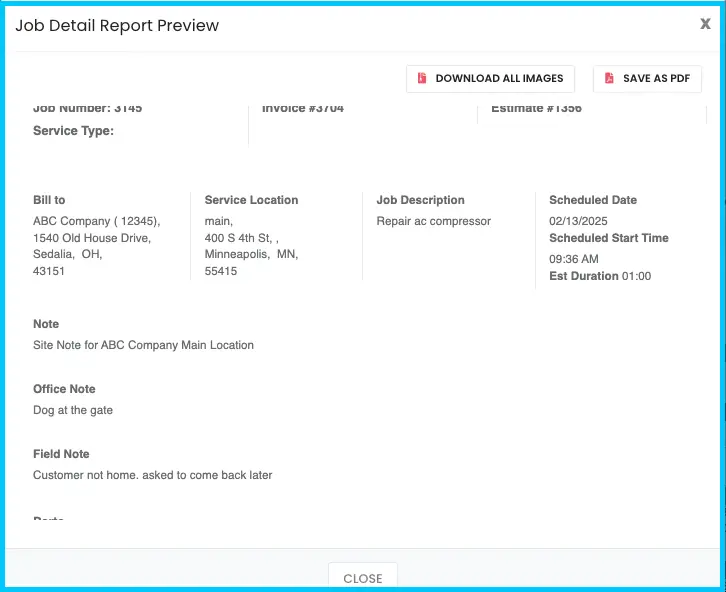
| View Job Report | See the job's notes, attachments and tasks, if the estimate was scheduled. |
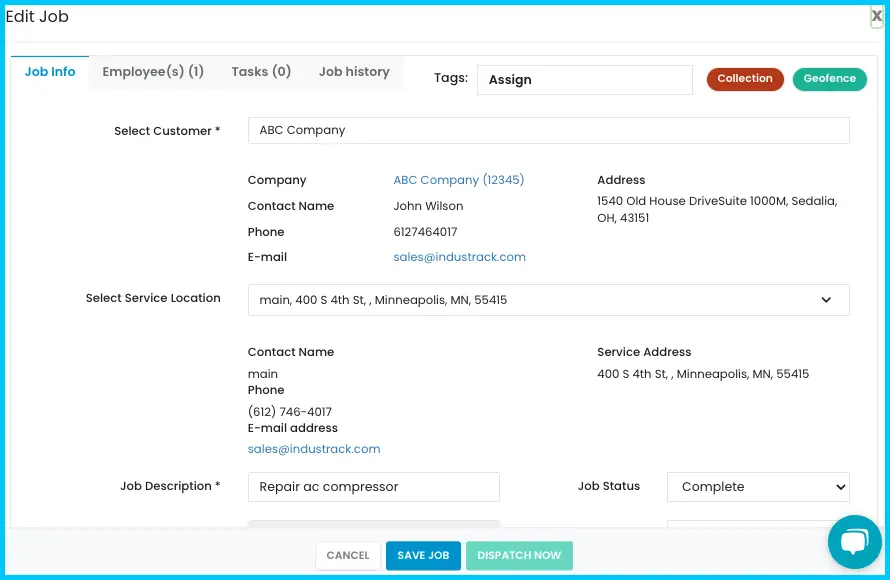
| View Job | Open the job in edit mode to see its history and assigned employees. |
Edit an estimate
-
Click the three dots next to the estimate and choose Edit.
-
Make your changes.
-
Click Save to keep working, or Save and Close to return to the list.
Watch: Editing an estimate
You can edit estimates in Draft or Lost status only. Estimates that are Won, converted or scheduled can't be edited.
Send an estimate
-
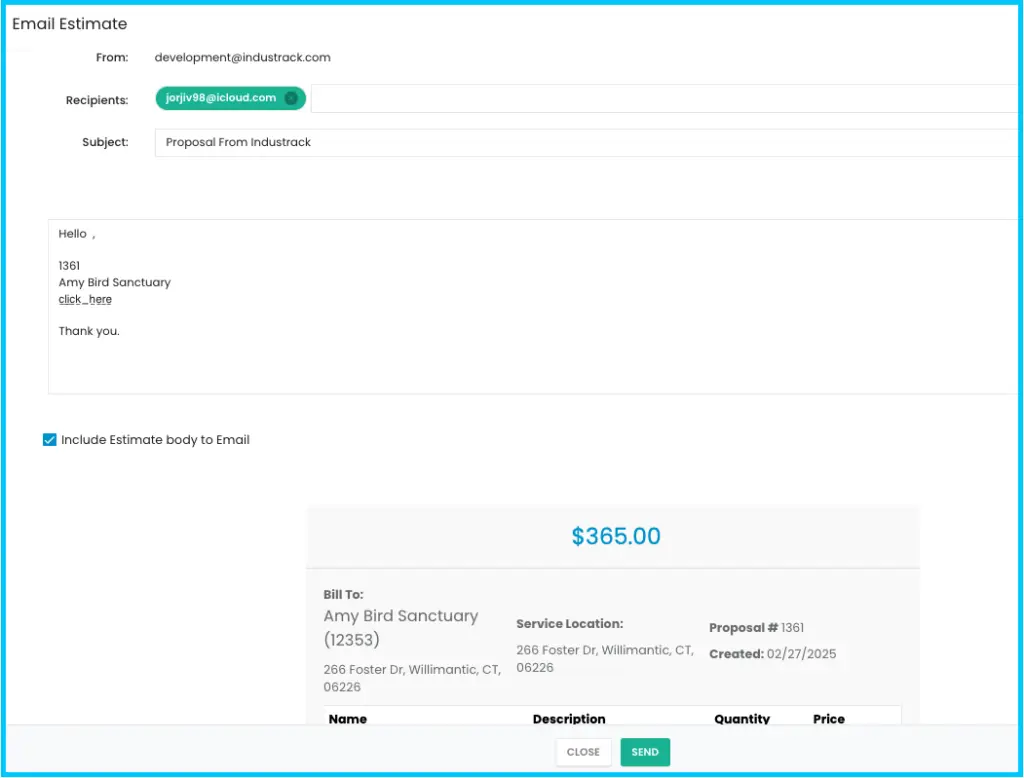
Click the three dots next to the estimate and choose Send.
-
In the Email Estimate window, enter an email address in the Recipients box and press Enter. Repeat for each extra recipient.
-
Click Send.
Watch: Sending an estimate by email
The estimate is emailed to everyone in the Recipients box.
The customer can Approve, Reject or Request Changes from the email, and the estimate status updates automatically. Any attachments on the estimate are included.
Preview, print or download
- Preview and print: click the three dots, choose Preview, adjust the print settings and click Print on the preview page.
- Download PDF: click the three dots, choose Download PDF, choose where to save it, and click Save.
Mark as won or lost
When the customer approves or declines:
-
Click the three dots next to the estimate.
-
Choose Mark as Won or Mark as Lost.
-
Click Yes to confirm.
Watch: Marking estimates as won
For several estimates, check their boxes, click More Actions, and choose Mark as Won or Mark as Lost. You can also mark an open estimate as lost from its Actions menu.
Convert to a job or invoice
- To a job: click the three dots (or Actions on an open estimate), choose Convert to Job, and click Yes. The Add New Job window opens in the Schedule module. You can convert an estimate to a job at any time; it doesn't need to be Won first. See How do I create and schedule a job?
- To an invoice: see How do I turn an estimate or completed job into an invoice?
Delete estimates
- One: open the estimate, click Actions›Delete, and click Yes. You can also choose Delete from the three-dot menu in the list.
- Several: check their boxes, click More Actions›Delete, and confirm.
Common questions
Why can't I delete an estimate?
It's linked to an invoice or a job. Estimates with an invoice or job can't be deleted.
Why is Convert to Job or Convert to Invoice greyed out?
The estimate has already been scheduled or invoiced. Use View Job, View Job Report or View Invoice to see what it was converted to.
Why can't I edit an estimate?
It's Won, converted or scheduled. Only Draft and Lost estimates can be edited.
Do I need to save before sending or previewing?
No. Changes are saved automatically when you send, download, preview, mark as won, lost or draft, or convert.
Was this article helpful?
Contact support