How do I create an estimate?
Go to the Estimates module, click Add New, choose the customer and location, and click Proceed. Add items, set the tax, then choose Save and Close from the More Actions drop-down. You can also start an estimate from the Estimates tab of a customer's profile.
Steps
-
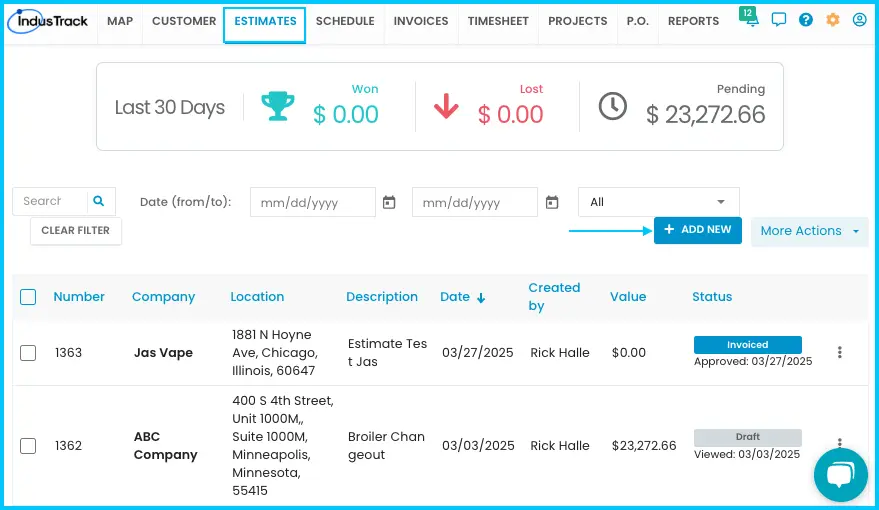
Go to the Estimates module and click Add New (top right).
- Or open the customer's profile, go to the Estimates tab and click + Add New. The customer is filled in for you.
-
Choose the customer from the list.
-
If the customer has more than one service location, choose the right one.
-
Click Proceed. The estimate page opens.
-
In the General section, check the default description and edit it if needed.
-
Add items:
- Click the search bar and search by name or item code for inventory items, equipment, services or labor hours.
- Click an item to add it. The other fields fill in automatically.
- Set the quantity with the arrows or type a number.
- Repeat for each item. The subtotal, total cost, total price and summary update as you go.
-
Add a discount if needed:
- For a discount on the whole estimate, enter it in the Discount row below the subtotal.
- For a discount on one line item, enter it in the Discount column for that item.
-
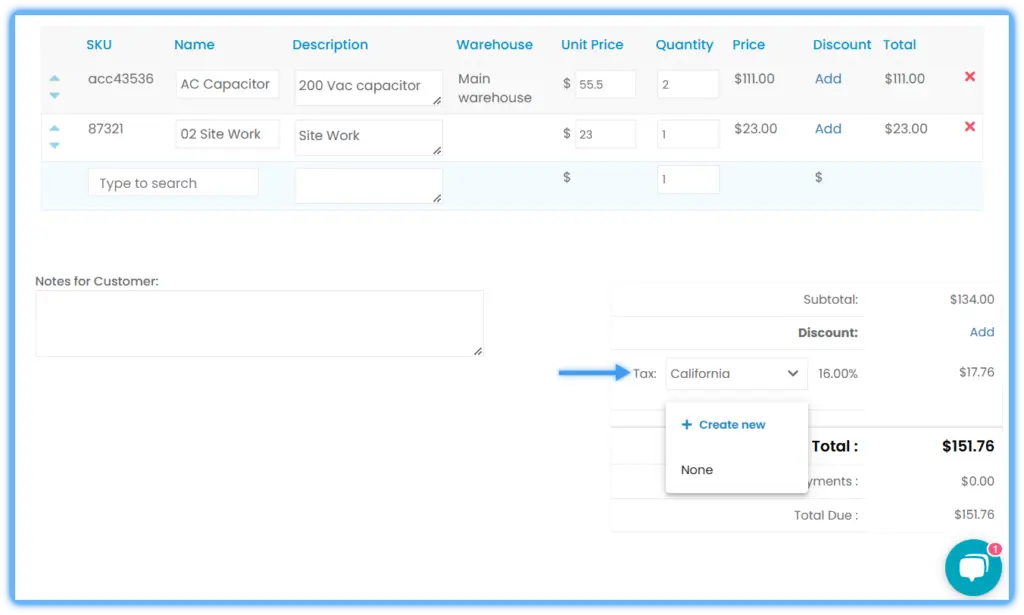
Set the tax. If the customer has a tax rate set, it applies automatically. To change it, select the tax field and choose a rate, or click + Create new to add a new rate.
-
Add any extra information for the customer in Notes for Customer.
-
Open the More Actions drop-down and choose:
- Save to save and keep editing, or
- Save and Close to save and exit.
Watch: Adding items to an estimate and saving it
The estimate appears in the Estimates module. To send, print or convert it, see How do I manage, send or download an estimate?
Proposals and attachments
- Proposal: to add a proposal to an estimate, first create it under Settings›Templates›Proposal Templates. Then, when creating or editing the estimate, choose it from the Proposal Template drop-down on the left, below the Description field.
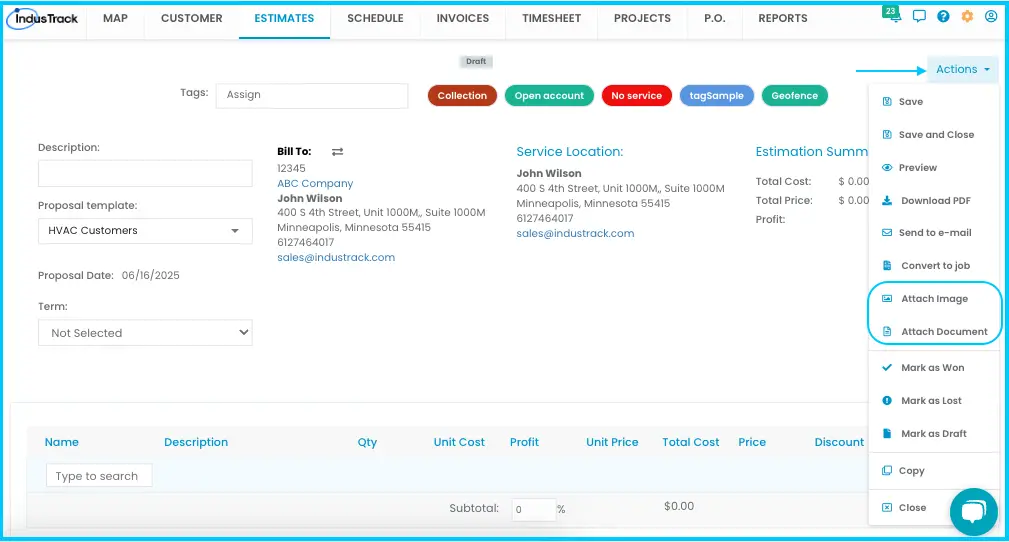
- Attachments: you can attach documents and images to an estimate. Create a new estimate or open an existing one, click Actions at the top right of the estimate, and click Attach Images or Attach Documents. Attachments are included when you send the estimate. If you convert the estimate into a job, they carry over to the job, and once the job is dispatched, field employees can see them in the IndusTrack mobile app.
Common questions
I added an item that's already on the estimate. What do Yes and No mean?
A pop-up asks what to do.
| Click | Result |
|---|---|
| Yes | Adds a new line for the same item. Use this if the price is different or you want it shown separately. If the price has changed, the new line uses the updated price. |
| No | Adds to the existing line. The quantity and total go up; the line keeps its original price. |
I got "Possible Estimate Number Duplication". What should I do?
Another estimate already uses that number. Click Yes to use it anyway, or No to go back and use a different number. You only see this when Auto Increment is off. You can find this setting under Settings›Company Settings›General, on the Advanced tab.
Someone else edited the same estimate and my changes weren't saved. Why?
Whoever saves first wins. The second person sees "Something's not quite right" with the name of the user who finished first, and their changes are not saved. Have only one person edit an estimate at a time.
Do I need to save before previewing or sending?
No. Your changes are saved automatically when you Send Estimate Email, Download PDF, Preview, Mark as Won, Mark as Lost, Mark as Draft, or Convert to Job or Invoice.
Can techs create estimates in the field?
Was this article helpful?
Contact support