How do I group field employees?
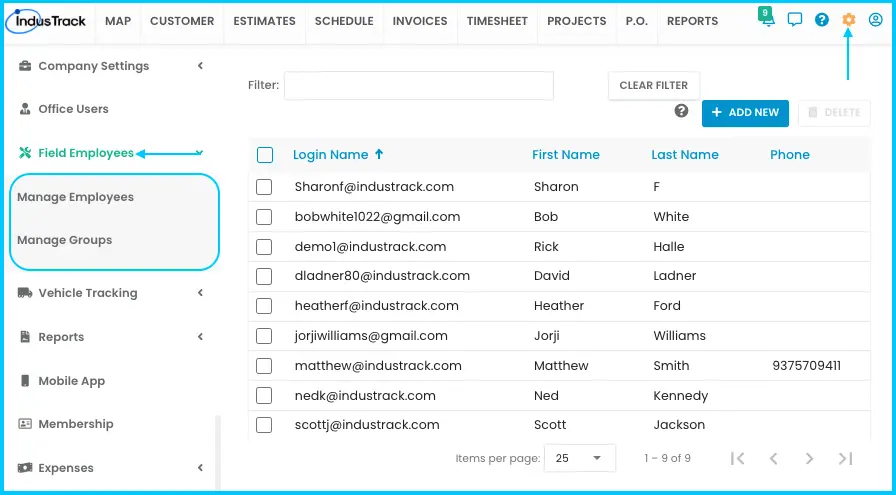
Go to Settings›Field Employees›Manage Groups and click + Add New. Name the group, pick a Group Supervisor, move employees into the assigned list, and click Save.
Group employees however suits you: by schedule, specialty, location or anything else. Office users with the right permissions can create and manage groups.
Create a group
-
Go to Settings›Field Employees›Manage Groups.
-
Click + Add New.
-
Enter a Group Name.
-
Select a Group Supervisor. Only employees with Allow Supervisor Access turned on appear in this list (see How do I add field employees and set permissions?).
-
Add employees to the group (see the next section).
-
Click Save.
Watch: Creating a group: naming it, choosing a supervisor and saving
Add employees to a group
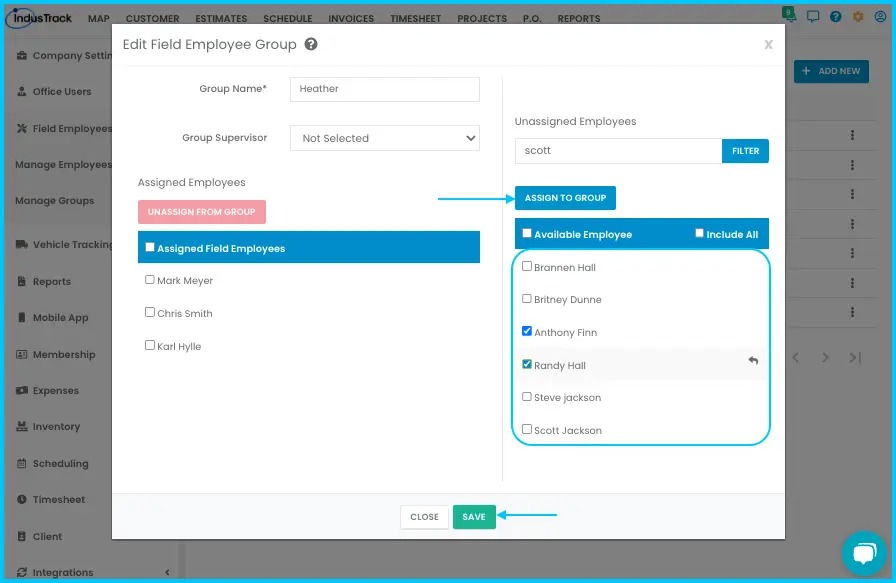
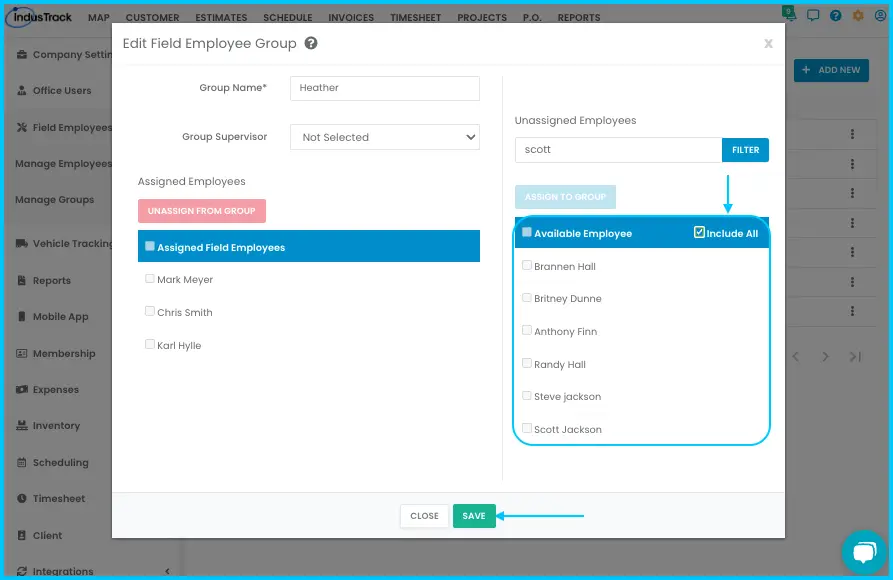
Employees not yet in the group are listed under Available Employee. Use the filter bar to search for someone.
| To add… | Do this |
|---|---|
| One employee | Hover over their name and click the arrow. They move to Assigned Employees. |
| Several employees | Check their boxes and click Assign to Group. |
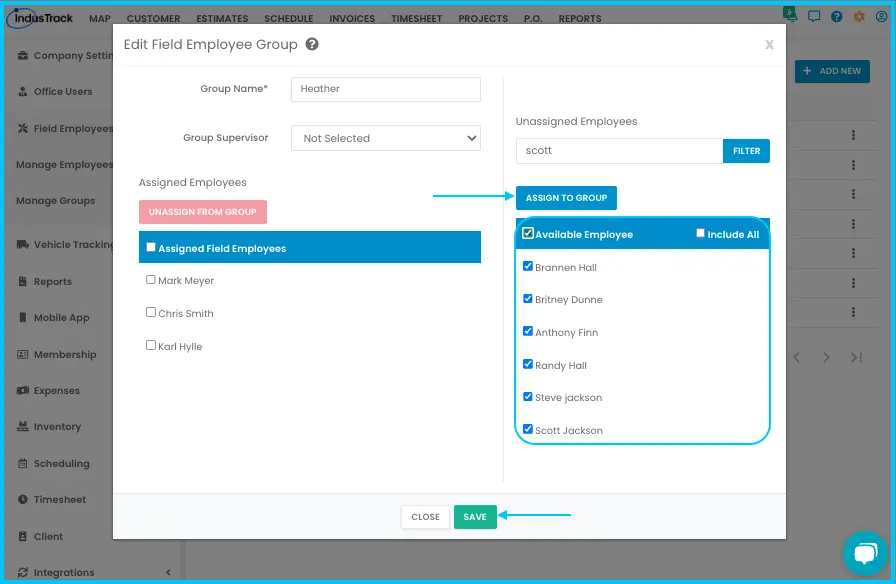
| Everyone listed now | Check the box at the top of the list to select everyone, then click Assign to Group. People you hire later are not added. |
| Everyone, including future hires | Check Include All and save the group. This turns off the other selection options. |
Remove employees from a group
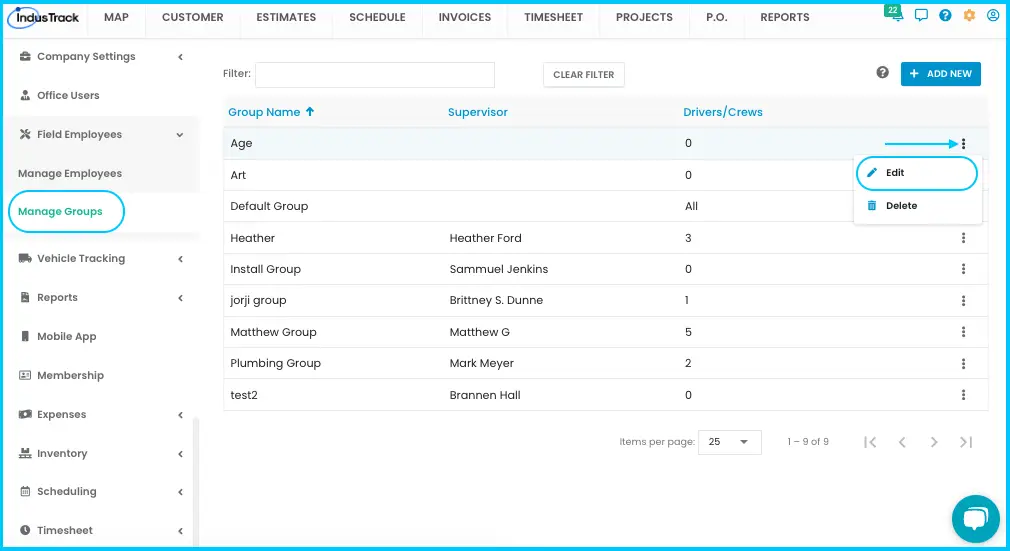
- Find the group in the Manage Groups list, click the 3-dot menu and select Edit.
- Remove employees from the Assigned Employees list (see the table below).
- Click Save.
| To remove… | Do this |
|---|---|
| One employee | Hover over their name and click the x. |
| Several employees | Check their boxes and click Unassign from Group. |
| Everyone | Check the Assigned Field Employees box to select all, then click Unassign from Group. |
If the group uses Include All, uncheck Include All first, then remove employees. Checking Include All again puts everyone back in the group.
Edit or delete a group
The Manage Groups list shows each group's Group Name, Supervisor and number of Drivers/Crews. Use the filter bar to find a group or supervisor.
-
Edit: click the 3-dot menu, select Edit, make your changes and click Save.
Watch: Editing a group from the 3-dot menu -
Delete: click the 3-dot menu, select Delete, and click OK to confirm.
Watch: Deleting a group from the 3-dot menu
Common questions
Can a supervisor lead more than one group?
No. A supervisor can manage only one group, but they can also be listed as a crew member in other groups.
Why isn't an employee showing in the Group Supervisor list?
Only employees with supervisor access appear. Edit the employee and turn on Allow Supervisor Access.
I added everyone to a group. Will new hires be added too?
Only if you used Include All. Selecting everyone with the checkbox adds only the employees who exist now.
Was this article helpful?
Contact support