How do I create and manage projects?
Click Projects in the main menu, then + Add New. Choose the customer and service location, fill in the project details, and link the estimates, purchase orders, jobs, invoices and files that belong to it. The project dashboard then totals costs, revenue and profit.
Open the Projects page
-
Click Projects in the main menu. If it's grayed out, your user account doesn't have permission to view or edit projects.
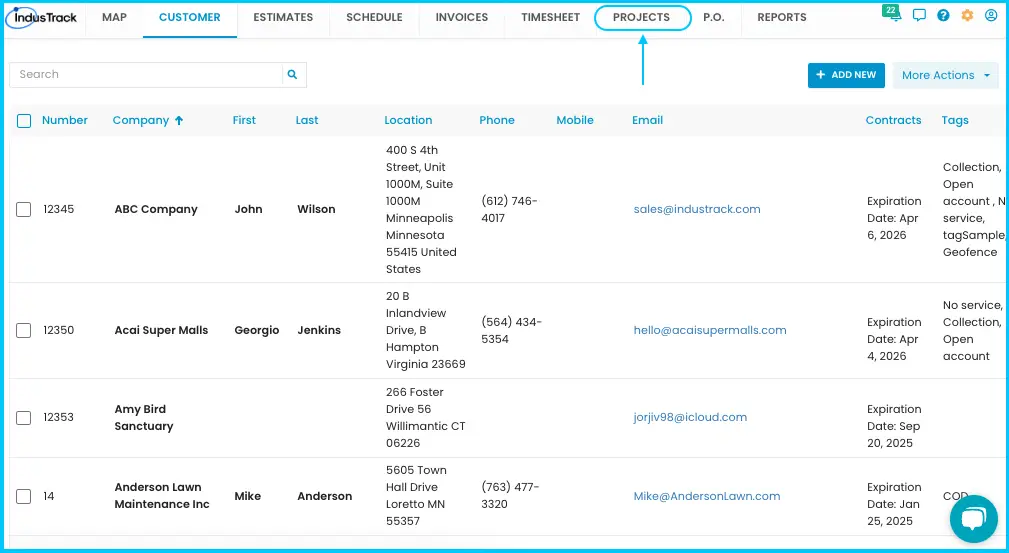
-
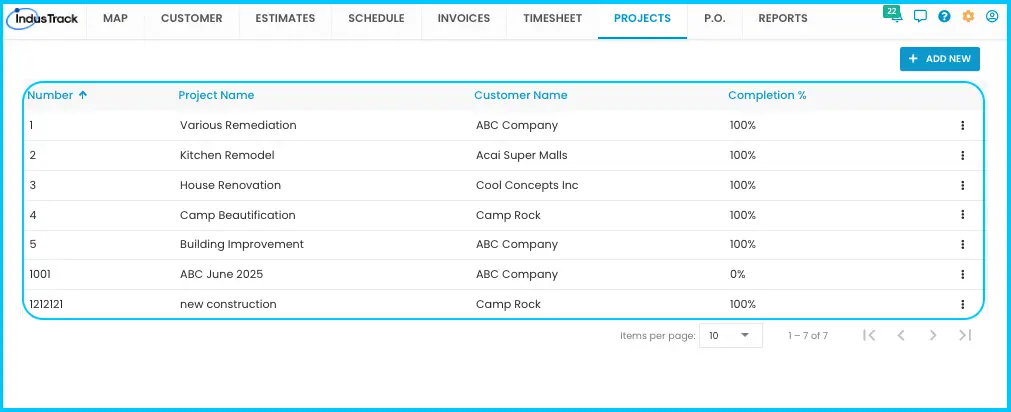
The page lists every project:
| Column | Shows |
|---|---|
| Number | Project ID |
| Project Name | Name of the project |
| Customer Name | The customer linked to the project |
| Completion % | How far along the project is, based on its start and end dates |
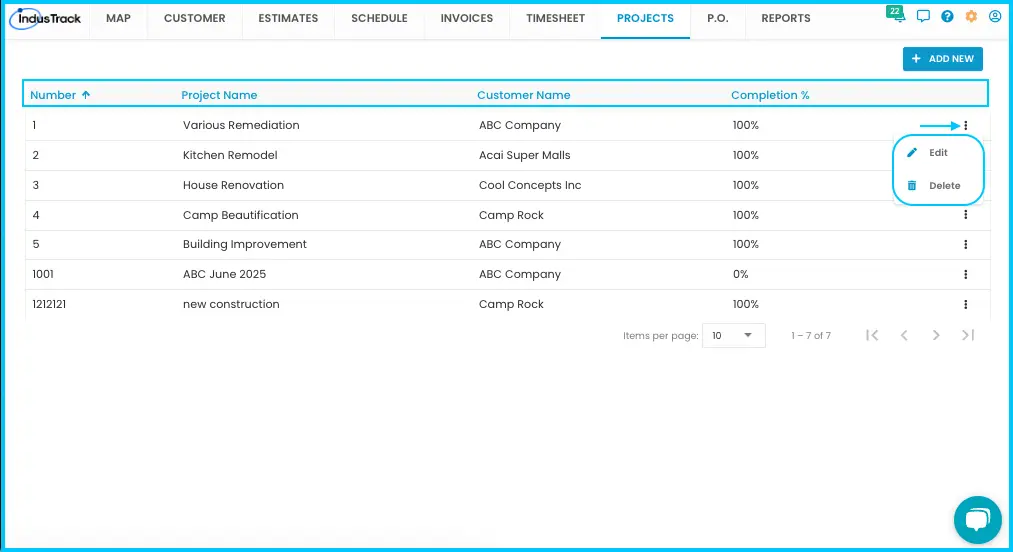
To change or remove a project, click the 3-dot icon at the end of its row and choose Edit or Delete.
Create a project
-
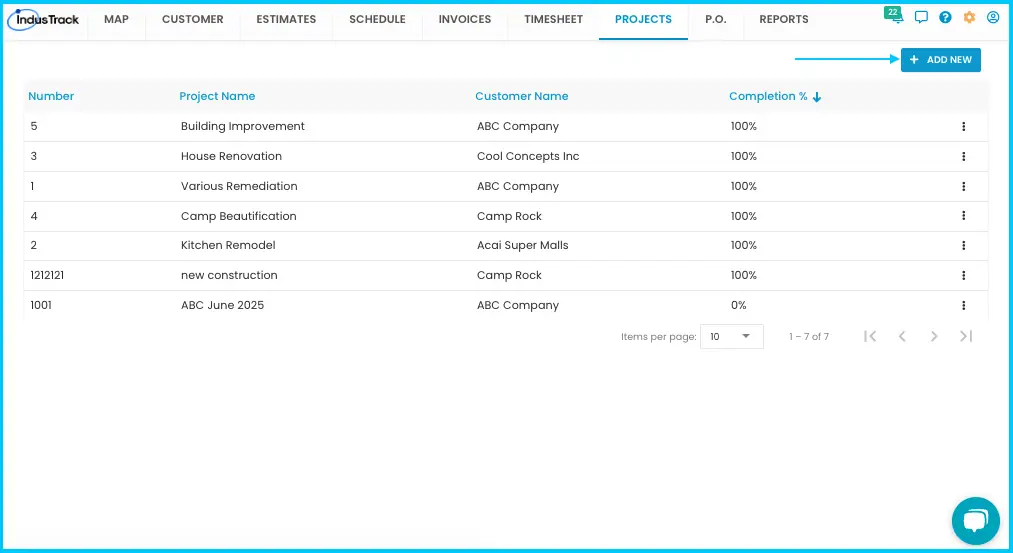
On the Projects page, click + Add New.
-
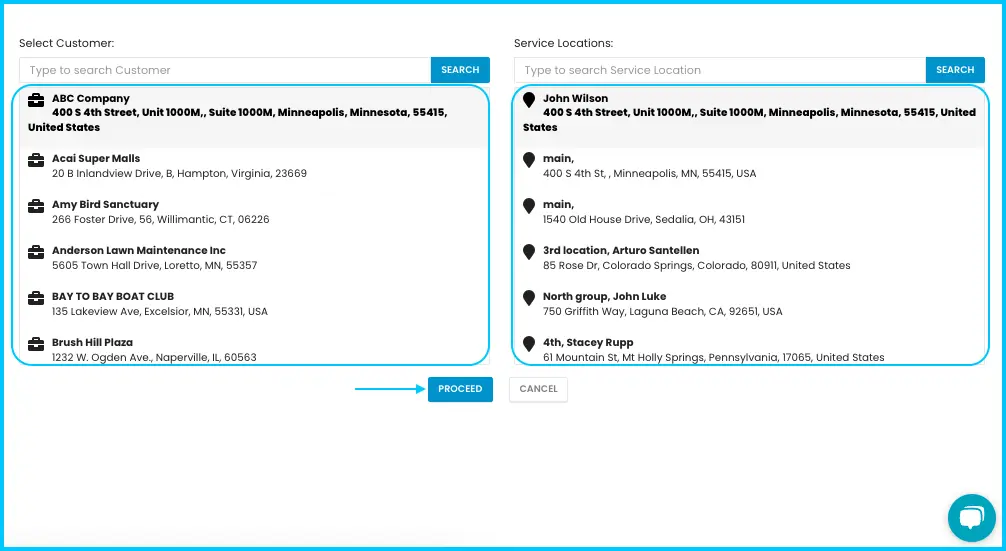
Choose the customer from the list, or search for them.
-
Choose the Service Location.
-
Click Proceed. The Project Page opens.
-
Fill in the general information:
- Project Name and Number: a name and ID for the project.
- Start and End Dates: these drive the Completion %.
- Description: any notes about the project.
-
Add tags (optional): click the Tags search bar and select tags, or create a new one. Tags help you group and find projects. See How do I use tags?
Watch: Filling in the project details and adding tags -
Link items to the project (see below). You don't need to save first.
-
When everything is linked, click Save.
Link estimates, POs, jobs and invoices
The tabs at the bottom of the Project Page link existing records to the project. The steps are the same on each tab:
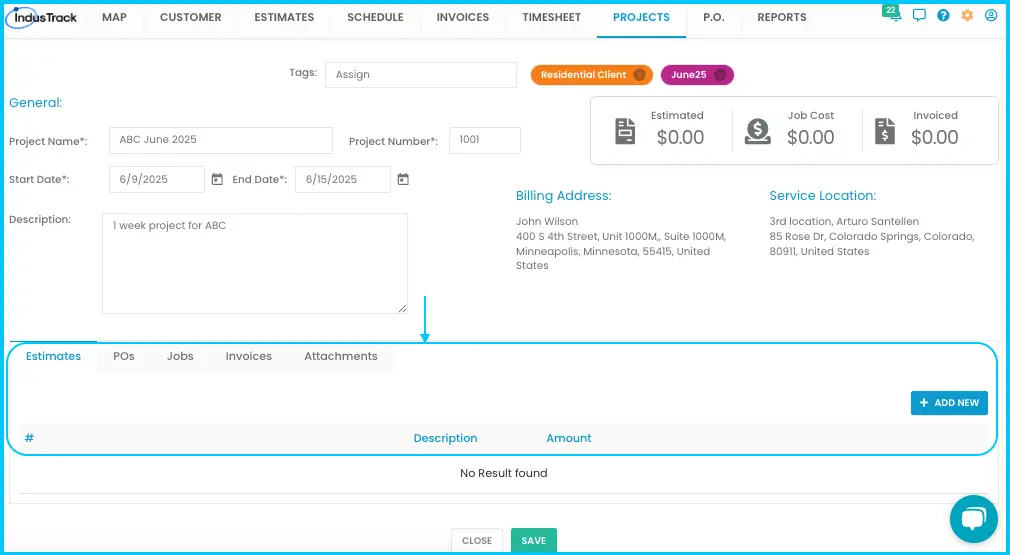
- On the tab, click + Add New.
- Check the box next to each record you want to link, or use the search bar to find it. You can select several at once.
- Click Proceed. The linked records appear in the tab's list.
| Tab | What to link |
|---|---|
| Estimates | Cost projections for labor, materials and resources, for budgeting |
| Purchase Orders (POs) | Purchases for the project, to track spending |
| Jobs | The jobs that make up the project |
| Invoices | Billing for the project. The list shows each invoice's amount and status. |
To unlink a record from the project, click the three dots next to it and choose Delete.
Add attachments
-
On the Attachments tab, click + Add New.
-
In the pop-up, click Choose File. Files can be up to 5 MB.
-
Add a description (optional).
-
Click Save. Repeat for more files.
Watch: Adding an attachment to a project
Read the project dashboard
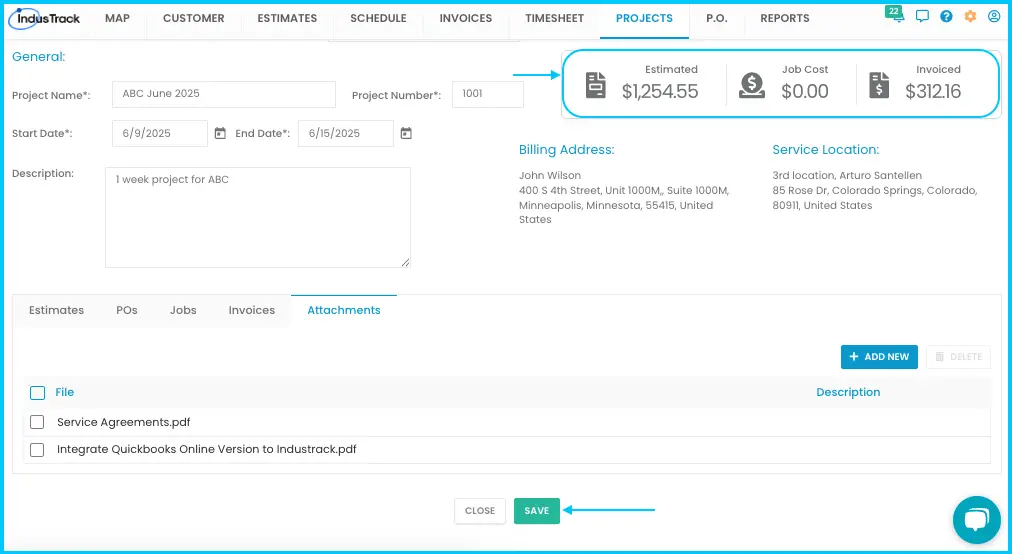
Once records are linked, the dashboard on the Project Page calculates totals for job costs, invoices, profit and revenue, so you can see the project's financial health at a glance.
Run the Project Management Report
The Project Management Report shows each project's estimated cost, actual job cost, invoiced revenue and profit.
-
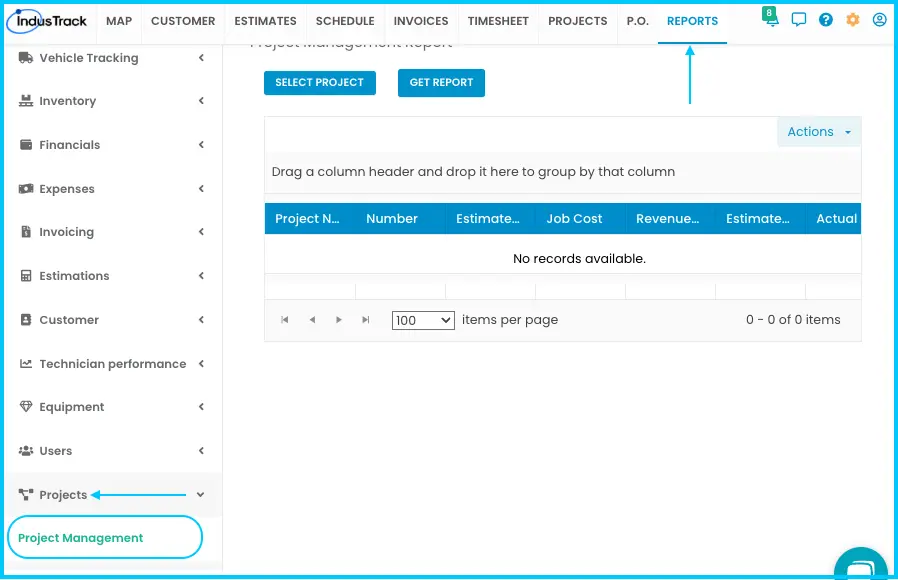
In the top menu, go to Reports›Projects›Project Management.
-
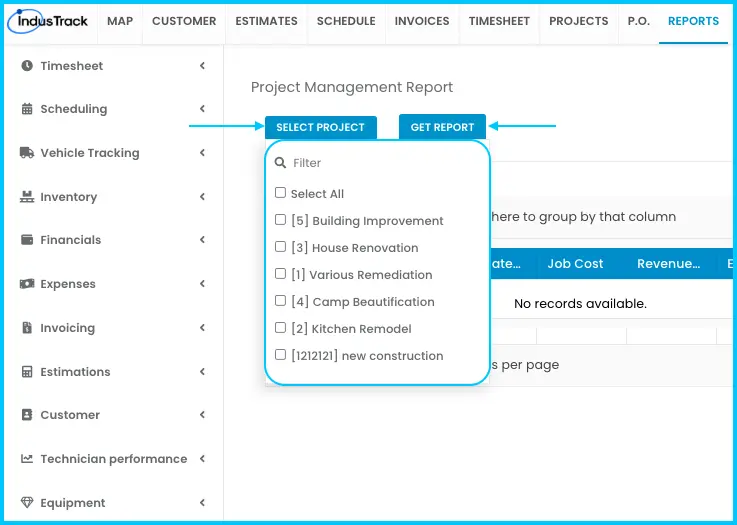
Click Select Project and choose one or more projects.
-
Click Get Report.
-
Drag and drop column headers to arrange the report.
-
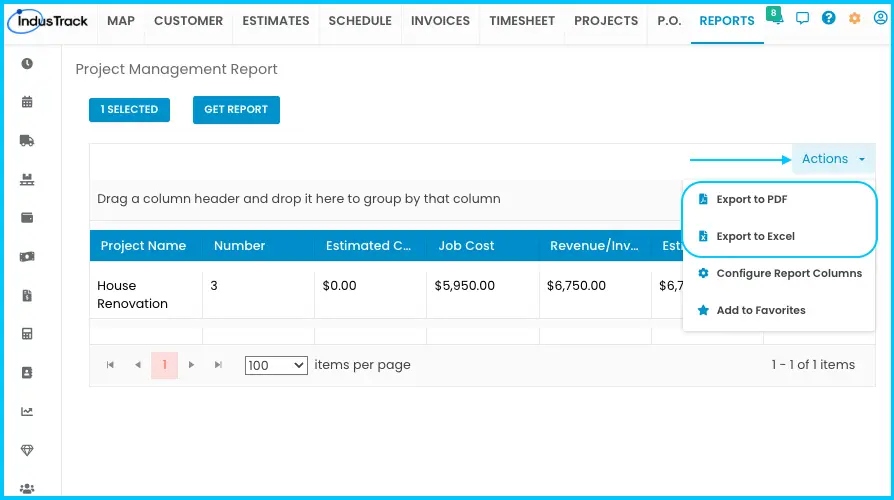
To export, click Actions and choose Export to PDF or Export to Excel.
| Column | Shows |
|---|---|
| Project Name | Name of the project |
| Number | Project ID |
| Estimated Cost | Total projected cost |
| Job Cost | Actual direct costs, including labor and materials |
| Revenue/Invoice | Total billed for the project |
| Estimated Profit | Revenue (invoice) minus estimated cost: the expected profit |
| Actual Profit | Revenue (invoice) minus job cost: the real profit once the job is done |
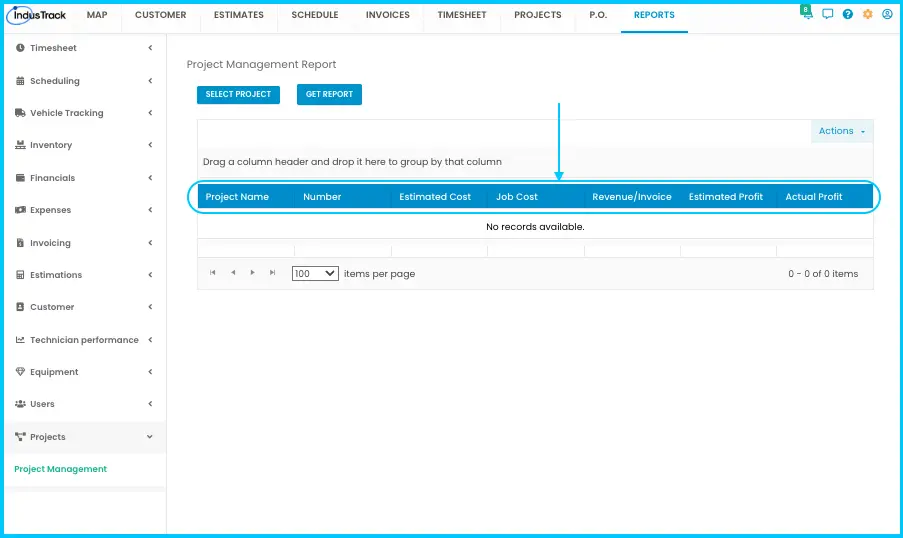
To hide columns, open Configure Report Columns, uncheck the columns you don't need and click SAVE. To keep the report handy, add it to Favorites; a Favorites tab then appears at the top right.
Common questions
Why are Estimated Cost, Job Cost, Revenue or Profit blank in the report?
These values only appear when the whole chain of records is in place and linked:
- Create an estimate with inventory items.
- Convert it into a job, then assign and dispatch the job.
- The tech completes the job in the IndusTrack mobile app.
- Once the job syncs and is approved for invoicing, convert it into an invoice.
- Link the estimate, job, purchase order and invoice to the project.
Do I need to save a new project before linking estimates, jobs or invoices?
No. Link everything, then click Save at the end.
How is Completion % worked out?
It's based on the project's start and end dates.
What's the largest file I can attach?
5 MB per file.
Why can't I open Projects?
If the tab is grayed out, your account doesn't have permission. Ask your administrator.
Was this article helpful?
Contact support