How do I create and manage invoices?
Go to the Invoices module and click Add New. Choose the customer and location, add parts and services, check the terms, tax and discounts, then click Actions›Save and Close. To send, print, record a payment or delete an invoice, click the three dots next to it in the list.
Create an invoice
-
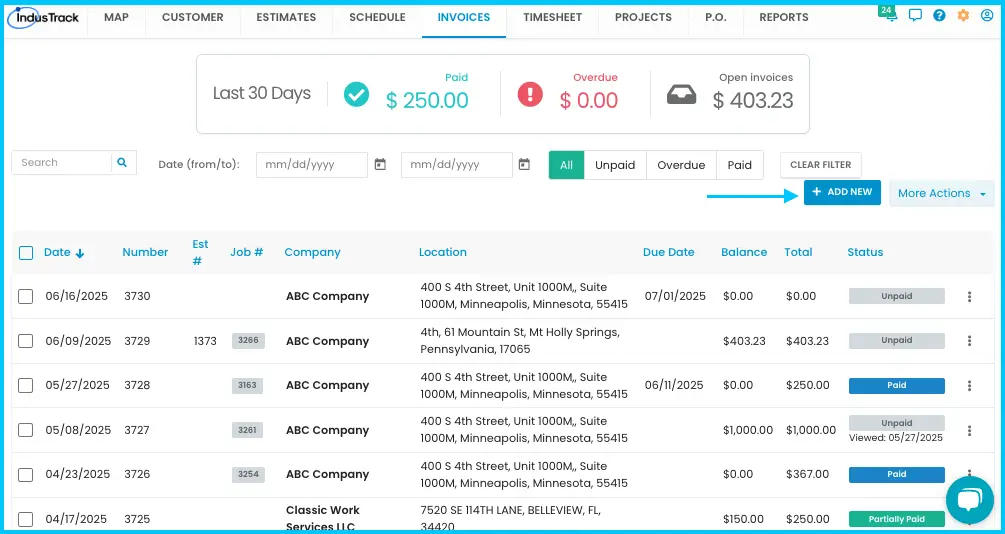
Go to the Invoices module and click Add New.
- You can also start from the Invoices tab of the customer's profile.
-
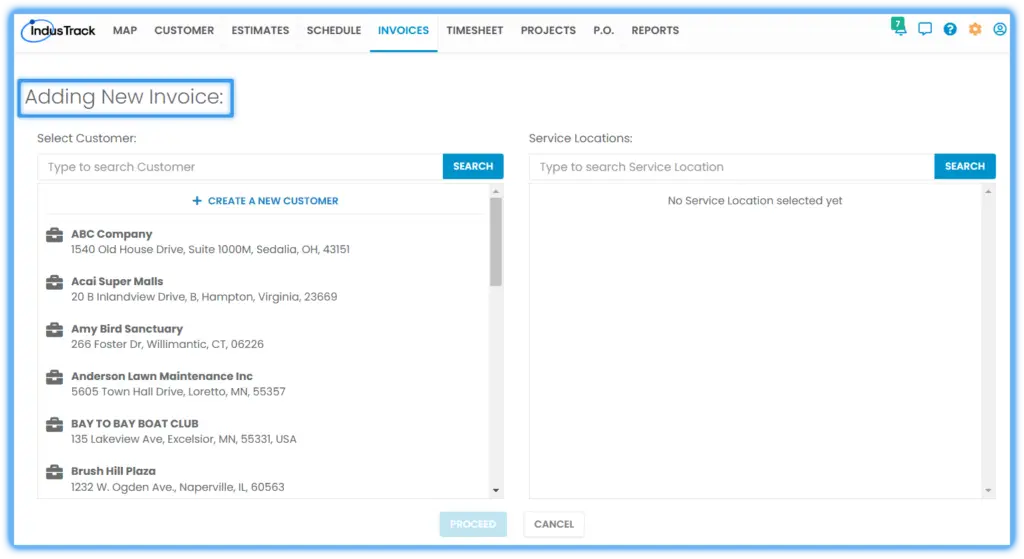
Choose the customer from the list, or search for them.
-
Choose the service location and continue. The invoice page opens.
Watch: Choosing the customer and service location for a new invoice 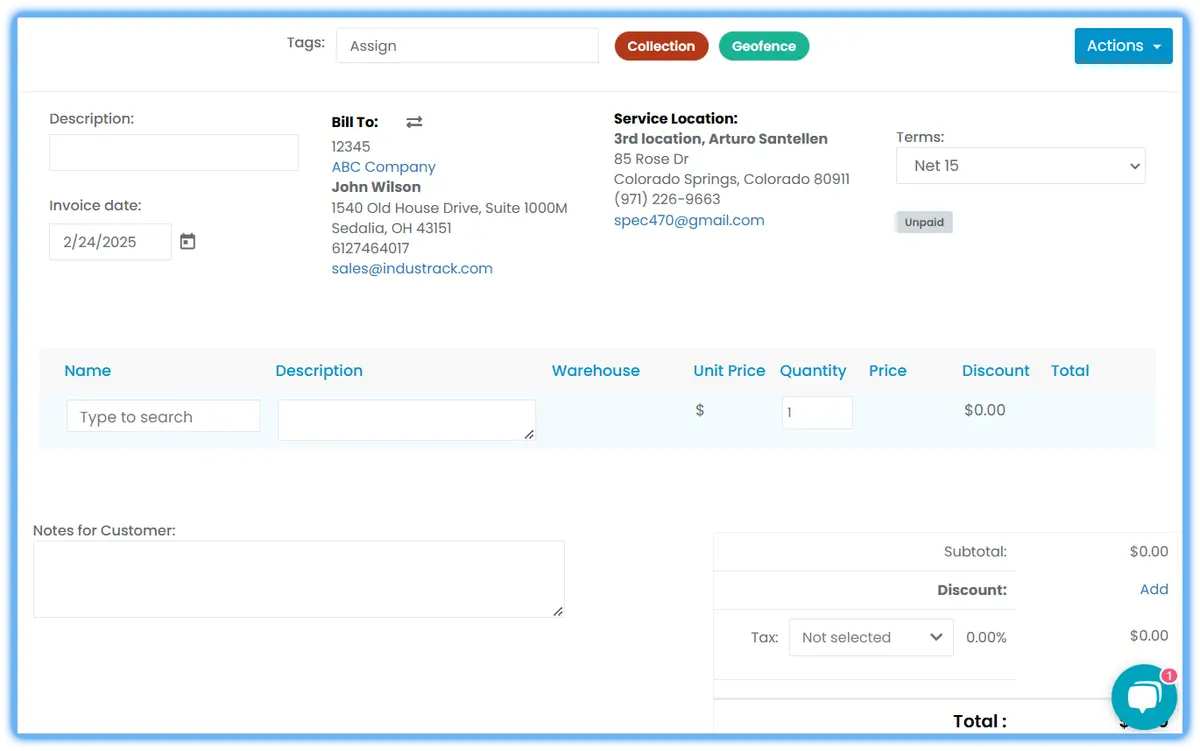
-
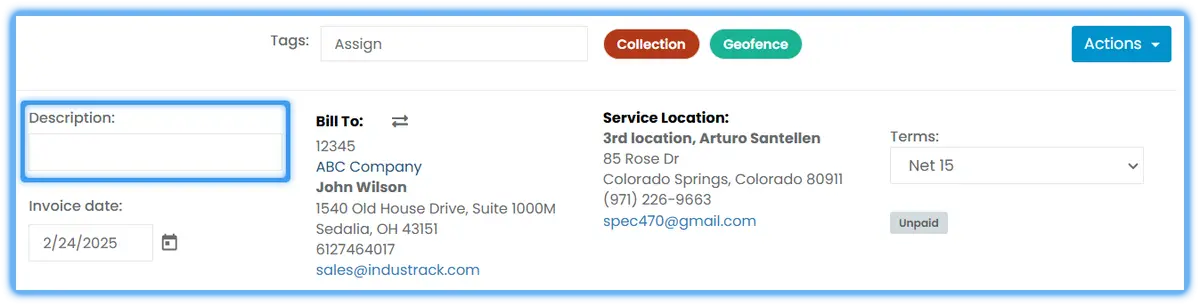
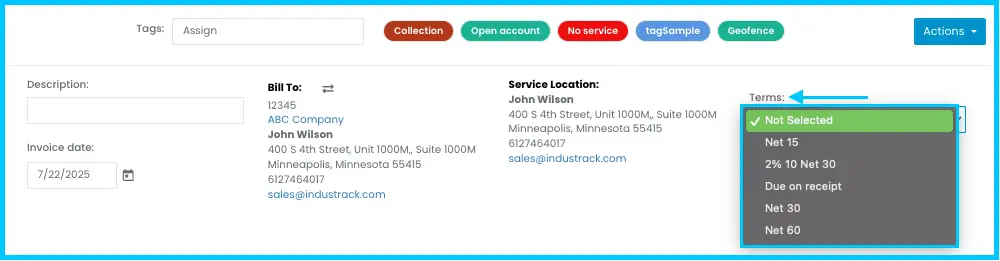
Give the invoice a description.
-
Check the terms of payment. If the customer has a term, it's selected automatically. To use a different term, click the Term field and choose one. If the customer has no term, the Term field is left blank and the invoice has no due date.
- The customer's tags fill in automatically. You can add or remove tags.
-
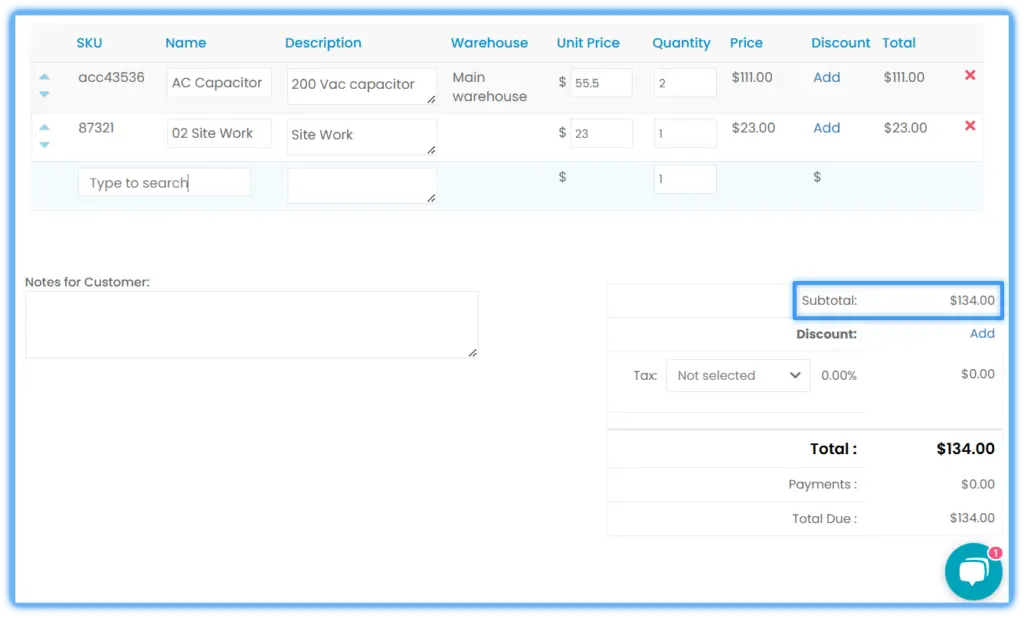
Add parts and services:
- Click the parts and services search bar and pick an item, or type its name or code.
- Item not listed? Scroll to the bottom of the list and use the option to create a new item.
- Set the quantity. The total updates automatically.
- To remove an item, click the X next to it.
- Repeat for each item. The subtotal updates as you go.
Watch: Searching for parts and services and adding them to the invoice 

-
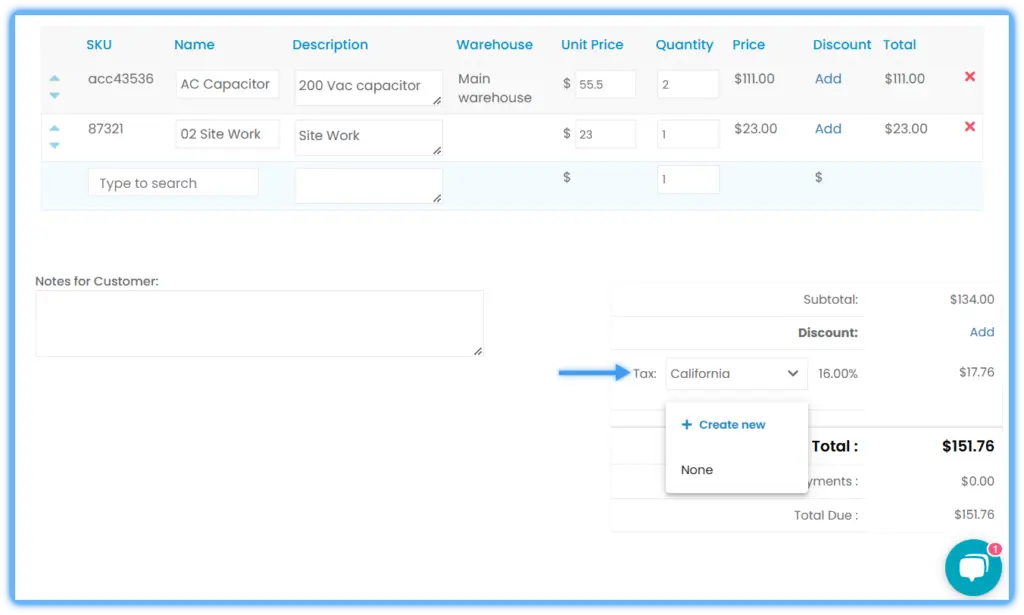
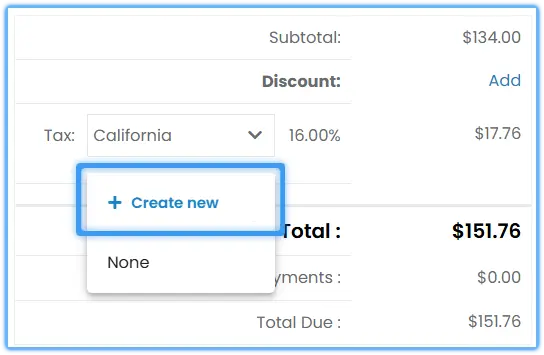
Set the tax. If the customer has a tax rate set, it applies automatically. To change it, select the tax field and choose a rate, or click + Create new to add one.
-
Add discounts if needed (see below).
-
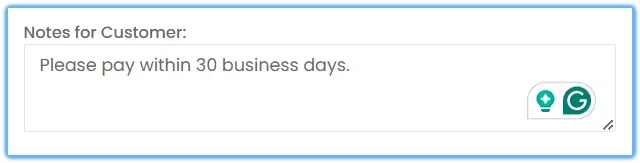
Add any notes for the customer in Notes for Customer.
-
Click Actions›Save to save and keep working, or Save and Close to save and exit.
Watch: Saving a new invoice
The invoice appears in the invoice list and on the Invoices tab of the customer's profile.
To create an invoice from an estimate or a completed job instead, see How do I turn an estimate or completed job into an invoice?
Discounts
| Type | How |
|---|---|
| Pre-set customer discount | Applies to the invoice total automatically if the customer has one. It's the default discount on the customer's Custom Pricing tab. |
| Custom pricing | Category and item discounts set on the customer apply automatically. See How does custom pricing work? |
| One line | Click Add in the Discount column for the item. Choose a dollar value or percentage. |
| Whole invoice | Add the discount to the total. Choose a dollar value or percentage. |
The Invoices module
The top of the page shows:
- Paid in Last 30 Days: total of invoices marked paid in the last month.
- Overdue: invoices past their due date.
- Open Invoices: unpaid invoices that are not yet overdue.
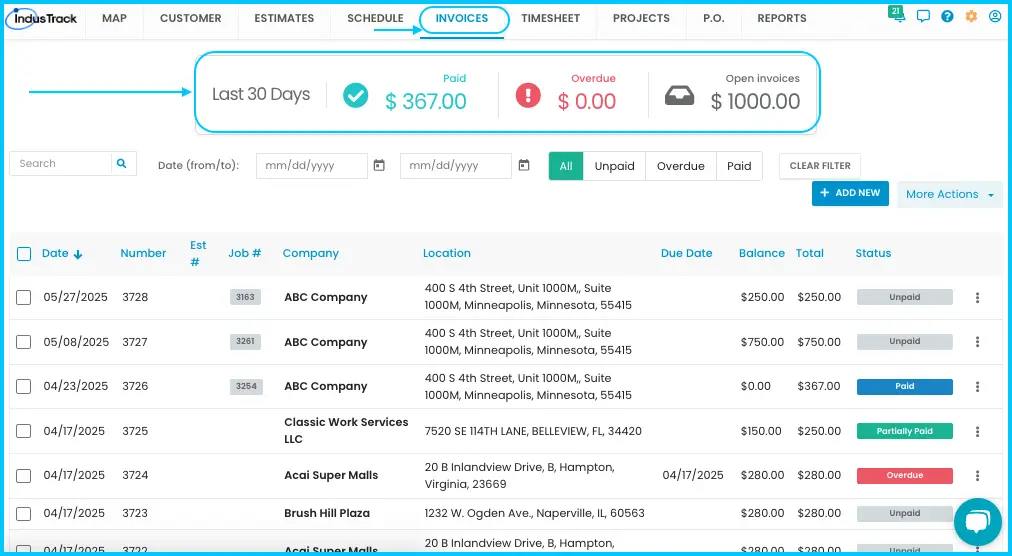
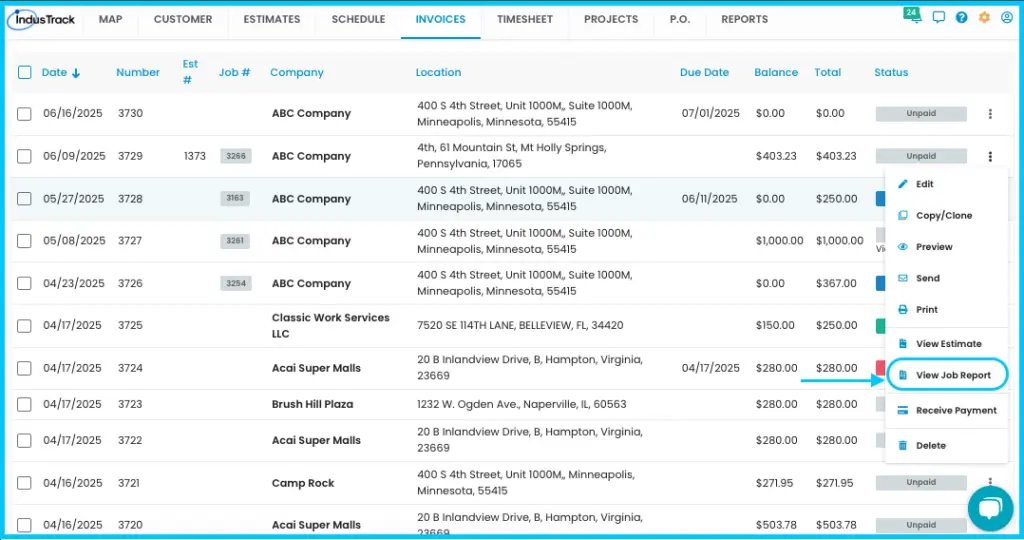
The list shows each invoice's date, number, linked estimate or job, company, service location, due date, balance, total and status. If the invoice came from an estimate, the estimate number appears; if it came from a job, the job number appears.
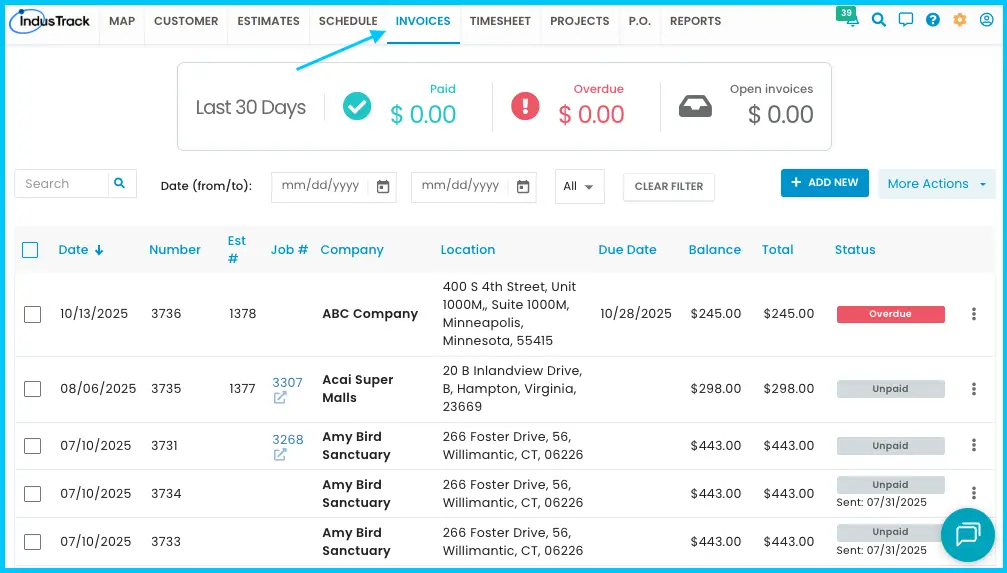
- Search by customer, invoice number or location.
- Filter by status (click Unpaid, Overdue or Paid) or by date range.
Invoice options
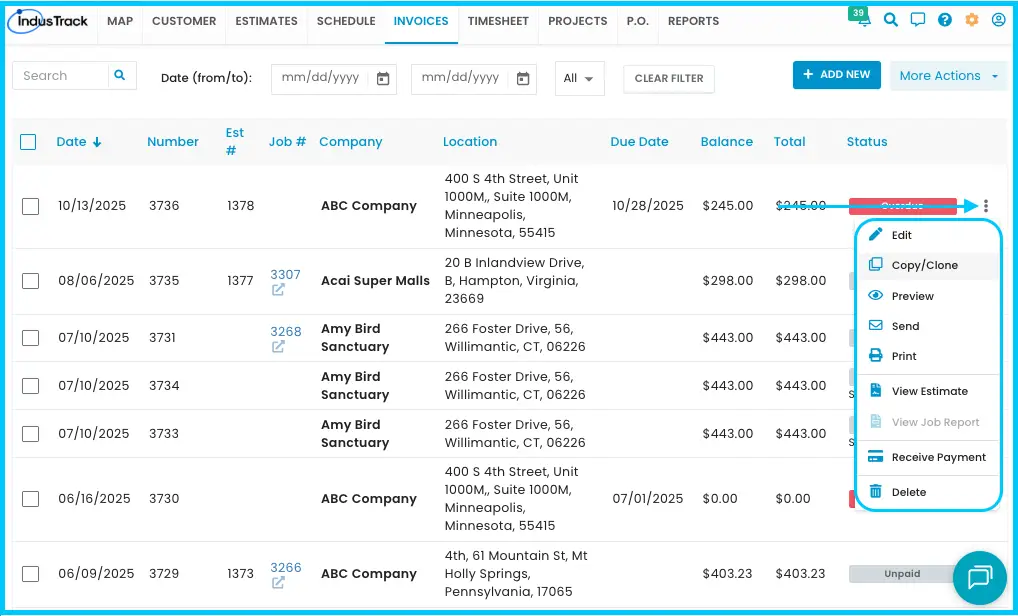
Click the three dots next to an invoice in the list, or open it and use the Actions menu.
| Option | What it does |
|---|---|
| Edit | Open the invoice, make changes, and click Actions›Save or Save and Close. |
| Copy/Clone | Make a duplicate. |
| Preview | See the invoice as a PDF. You can save it as a PDF from here. |
| Send | Email the invoice (steps below). |
| Print a copy. | |
| View Estimate | Open the linked estimate. Greyed out if there isn't one. |
| View Job Report | See the linked job's notes, attachments and tasks. Greyed out if there isn't a job. |
| Receive Payment | Record a payment (steps below). |
| Send Reminder | Send a payment reminder for an unpaid invoice (open invoice, Actions menu). |
| Create follow up task | Assign someone to follow up with the customer (open invoice, Actions menu). |
| Delete | Remove the invoice. Click Yes to confirm or Cancel to keep it. |
| Close | Close the open invoice (open invoice, Actions menu). |
Send an invoice
-
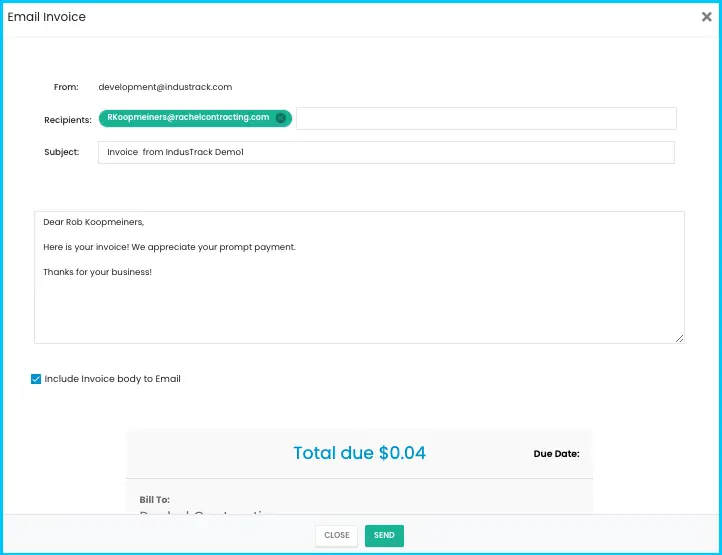
Click the three dots next to the invoice and choose Send, or open it and choose Actions›Send to E-Mail.
-
Change the subject, recipients and message if needed.
-
Scroll down to check the invoice preview.
-
Click Send.
Watch: Sending an invoice by email
The status changes to Sent with the send date. When the customer opens it, the status changes to Viewed.
Send a payment reminder
-
Open the unpaid invoice and choose Actions›Send Reminder.
-
Add recipients, and change the subject or message if you want.
-
Send it.
Watch: Sending a payment reminder for an unpaid invoice
Create a follow-up task
-
Open the invoice and choose Actions›Create follow up task.
-
Enter a task name and due date.
-
Set a reminder. Check Show in popup to notify the person assigned.
-
Add notes or a description.
-
Click Save.
Watch: Creating a follow-up task for an invoice
Record a payment
-
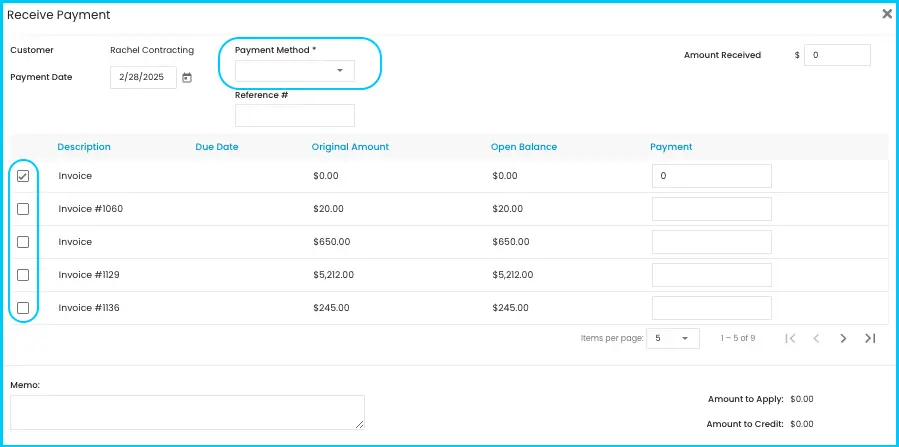
Click Receive Payment (from the invoice's three-dot menu).
-
All of the customer's invoices appear. Select the ones being paid.
-
Choose the payment method.
-
Click Save. The invoice status changes to Paid.
Watch: Recording a payment for an invoice
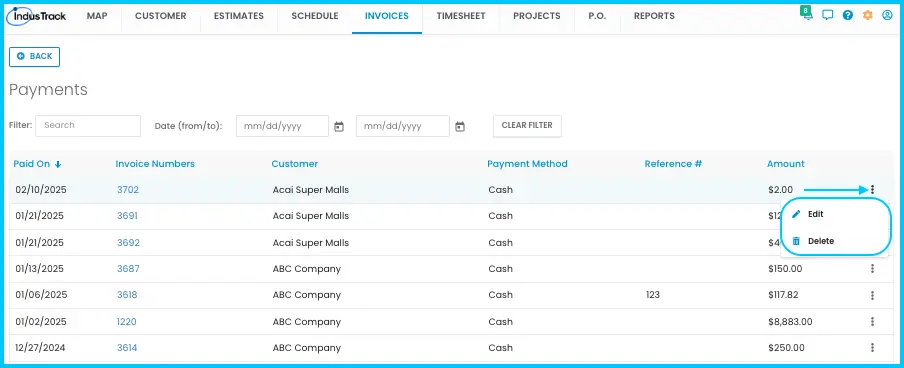
See or change payments: click More Actions›View Payments. The list shows the payment date, invoice number, customer, payment method, amount and reference number. Search or filter by date range, and click the three dots next to a payment to edit or delete it.
Sync invoices to QuickBooks
If your account is connected to QuickBooks:
-
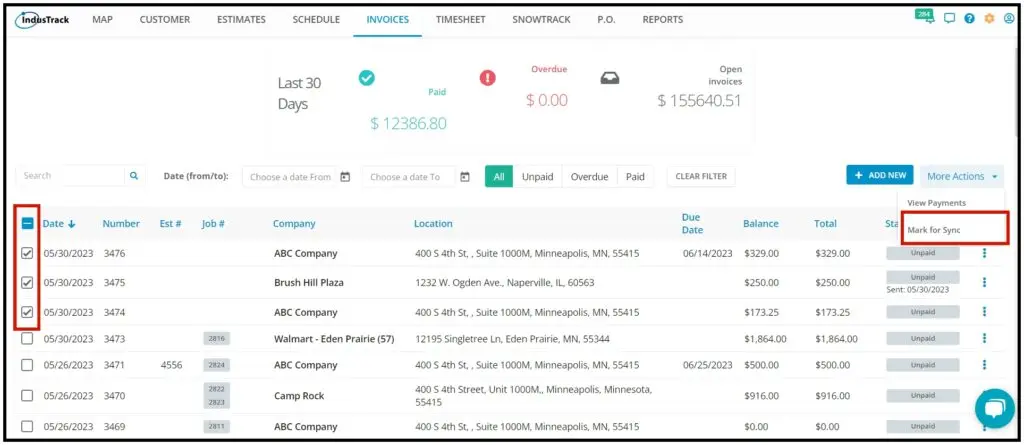
Check the invoices to sync.
-
Click More Actions›Mark for Sync.
-
Click YES to confirm. The status changes to Ready for Sync.
Watch: Marking invoices for sync to QuickBooks
After the sync, the status goes back to Unpaid. If the invoice is marked paid in QuickBooks, it changes to Paid in IndusTrack after the next sync. Invoices sync to QuickBooks only. See How do I connect QuickBooks Online? or How do I connect QuickBooks Desktop?
Common questions
I added an item that's already on the invoice. What do Yes and No mean?
Yes adds it as a new line (with the new price, if the price has changed). No adds the quantity to the existing line and keeps the original price.
I got "Possible Invoice Number Duplication". What should I do?
Another invoice already uses that number. Click Yes to save with the same number, or No to cancel; the invoice is not saved and you'll see "Invoice cannot be saved."
Someone else edited the same invoice and my changes weren't saved. Why?
Whoever saves first wins. The second person sees "Something's not quite right" with the name of the user who finished first, and their changes are not saved. Have only one person edit an invoice at a time.
Can I invoice an estimate before the job is done?
Yes. A won estimate can be converted to an invoice even before a job is completed.
Can I put several jobs on one invoice?
Yes, from the Jobs Queue. See How do I turn an estimate or completed job into an invoice?
The Invoices module is greyed out or missing. Why?
You may not have access. Ask your admin.
How do I know an invoice was partly paid?
Its balance is lower than its total.
Can I delete any invoice? Can I get a deleted invoice back?
Any invoice can be deleted. Once deleted, you can't restore it yourself. Contact IndusTrack Support if you need a deleted invoice restored.
Was this article helpful?
Contact support