Which vehicle tracking reports can I run?
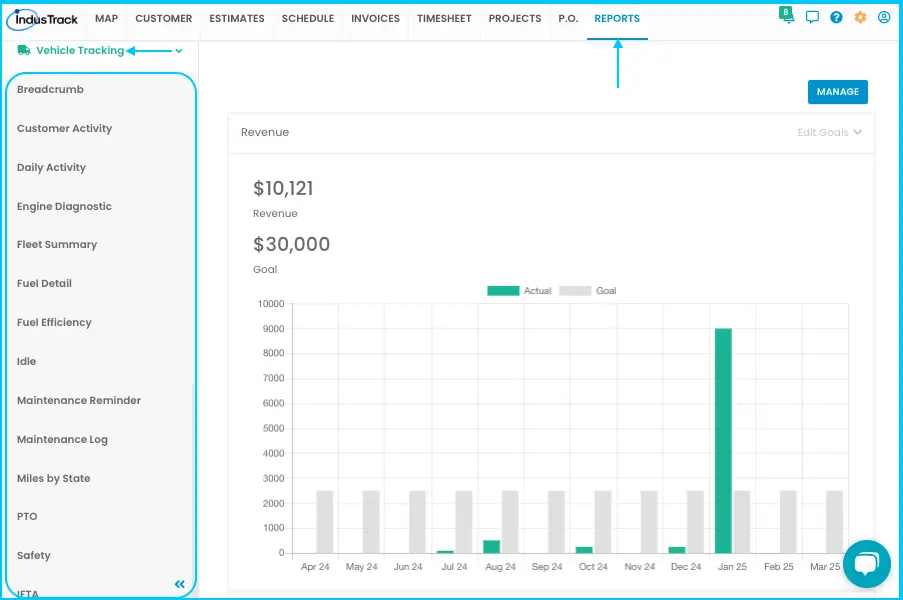
Go to the Reports module, click Vehicle Tracking in the left panel and choose a report from the drop-down. Select vehicles and dates, click Get Report, and use the Actions button to export to PDF or Excel.
Available reports
| Report | Use it to see |
|---|---|
| Breadcrumb | Where vehicles have been, on a map |
| Customer Activity | Vehicle visits to customer locations |
| Daily Activity | Each day's vehicle movements |
| Engine Diagnostic | Engine diagnostic codes and issues |
| Fleet Summary | Fleet activity and costs |
| Fuel Detail | Fuel purchases per vehicle |
| Fuel Efficiency | Fuel use and mileage per vehicle |
| Idle Report | Idle time and idle fuel cost |
| Maintenance Reminder | Upcoming vehicle maintenance |
| Maintenance Log | Past maintenance records |
| Miles by State | Distance driven in each state |
| PTO Report | Power take-off (PTO) usage |
| Safety Report | Safety alerts such as speeding or harsh braking |
Run a report
-
Go to Reports›Vehicle Tracking and choose the report.
-
Select one or more vehicles and the date (and time, where asked).
-
Click Get Report.
-
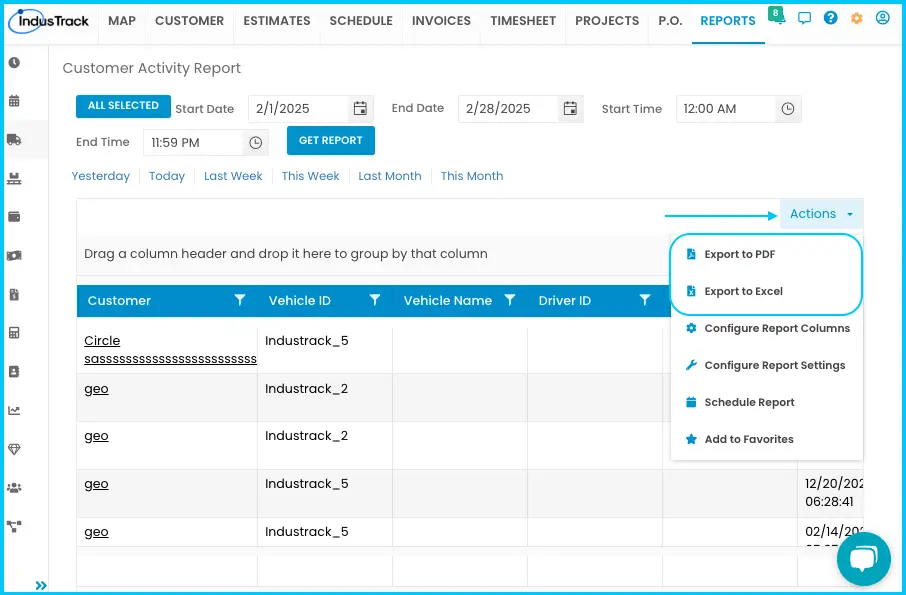
Click Actions to:
- Export to PDF or Export to Excel.
- Configure Report Columns: uncheck columns you don't want and click SAVE.
- Schedule Report: see How do I schedule a report to email automatically?
- Add to Favorites: a Favorites tab appears at the top right of the left panel with all your favorite reports.
Watch: Choosing report columns with Configure Report Columns 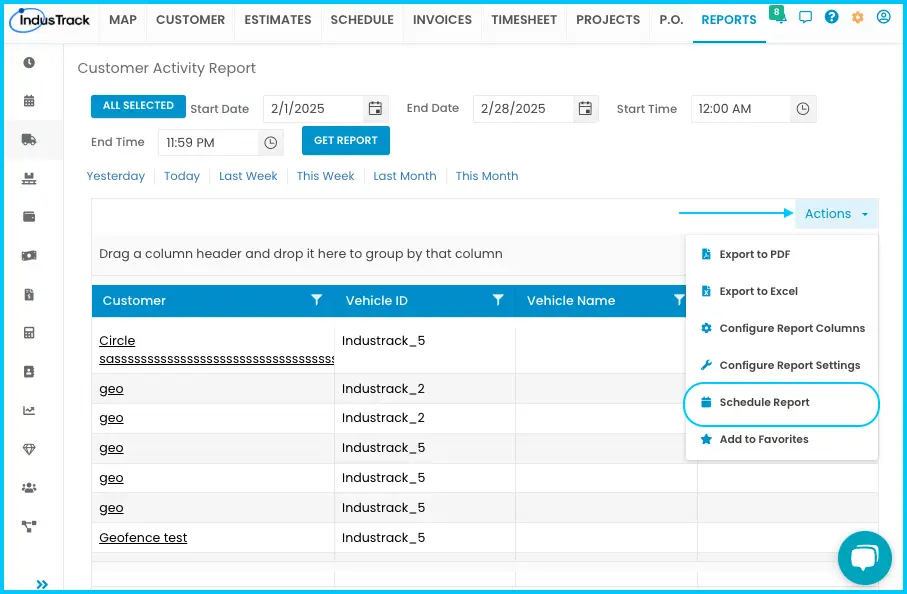
Watch: Adding a report to Favorites
Breadcrumb
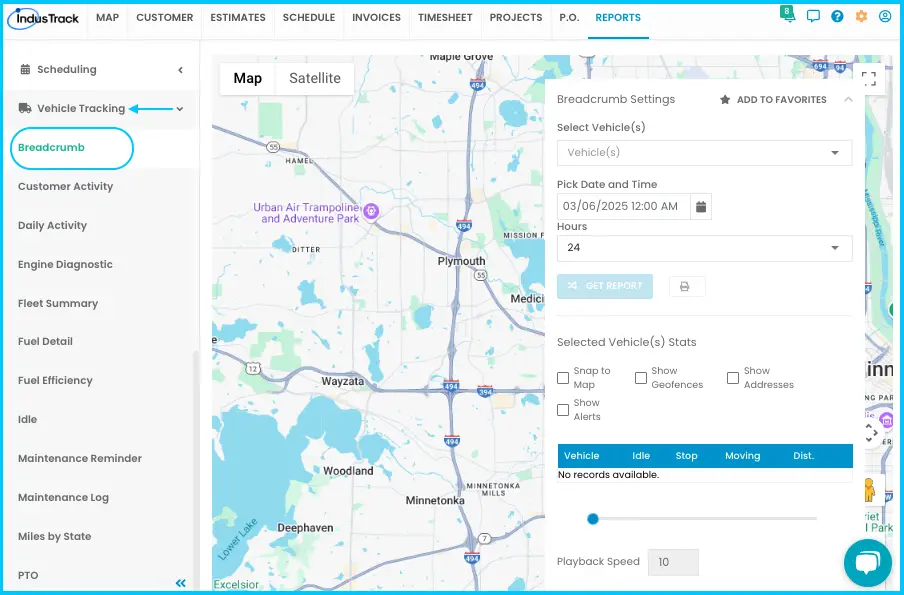
Shows a vehicle's past locations on a map, in a web browser or on a mobile device.
-
Go to Reports›Vehicle Tracking›Breadcrumb.
-
In the Breadcrumb settings:
- Select vehicles.
- Choose the date and time, and select hours.
- Check any extras: Snap to Map, Geofences, Addresses, Alerts.
- Adjust the playback speed if needed.
-
Click Get Report to see the trail on the map.
-
Switch between Map View and Satellite View. Click the Location Icon to zoom in.
Watch: Running a Breadcrumb report and viewing the trail on the map
Customer Activity
Summarizes vehicle activity at customer locations. You can pick a date and time or a preset period such as Yesterday, Today or Last Week.
| Column | Shows |
|---|---|
| Customer | Customer name |
| Vehicle ID / Vehicle Name | The vehicle |
| Driver ID / Driver Name | The driver |
| Arrive Time | Arrival time |
| Depart Time | Departure time |
| Time at Customer | Time spent at the customer's location |
Configure Report Settings (in the Actions menu) sets the defaults for this report:
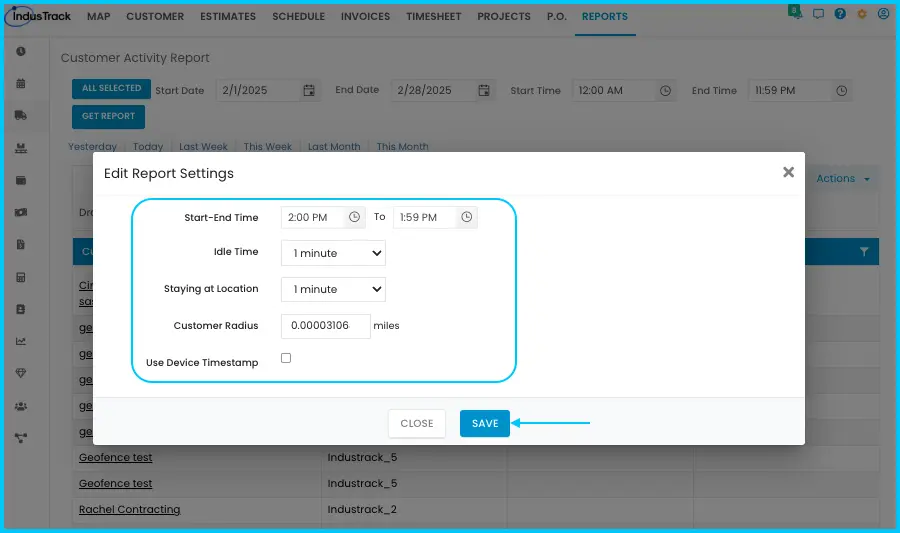
| Setting | What it does |
|---|---|
| Start-End Time | Default time range for the report |
| Idle Time | Only idle periods longer than this (for example 1 minute) are counted |
| Staying at Location | Only stays longer than this (for example 1 minute) are included |
| Customer Radius | Vehicles outside this radius are left out |
| Use Device Timestamp | Uses the GPS device's timestamp |
Daily Activity
Vehicle stops, idle time and distance. Columns: Vehicle ID, Vehicle Name, Date, Time, Status, Location, Move, Stop, Idle (engine running but not moving), Distance.
Engine Diagnostic
Diagnostics and alerts for possible engine issues. Columns: Vehicle ID, Vehicle Name, Diagnostic Code, Description.
Fleet Summary
Fleet costs and travel data. Columns: Vehicle ID, Vehicle Name, Idle Fuel Cost, Total Fuel Cost, Labor Cost (hr) (labor cost per hour), Labor Cost (mile) (labor cost per mile), Maintenance Cost, Move Time, Stop Time, Idle Time, Engine Hours, Distance.
Fuel Detail
Fuel purchases and costs. Columns: Vehicle ID, Date, Fuel Purchased (Gallons), Fuel Purchased Cost, Gas Station, State, Card Number (fleet fuel card).
Fuel Efficiency
Fuel use and mileage. Columns: Vehicle ID, Year-Make, Fuel Purchases (Gallons), Fuel Purchased Cost, Fuel Used (Gallons), Distance, Average MPG.
Idle Report
Idle time and its fuel cost. Columns: Vehicle ID, Vehicle Name, Idle Time, Idle Fuel Cost (based on fuel consumption rate and cost per unit), PTO Time (power take-off duration).
Maintenance Reminder
Upcoming service. Columns: Vehicle ID, Current Miles, Current Hours, Service Type, Reminder Status, Due At (mileage or time), Record.
Maintenance Log
Completed maintenance. Columns: Vehicle ID, Service Type, Date, Completed Miles, Completed Hours, Facility, Invoice #, Cost.
Miles by State
Distance driven in each state. Columns: Vehicle ID, Vehicle Name, State, Distance.
PTO Report
Power take-off usage. Columns: Vehicle ID, Vehicle Name, PTO Time.
Safety Report
Safety events such as speeding or harsh braking. Columns: Vehicle ID, Date, Time, Driver ID, Location, Alert Type, Description, Speed, Duration.
Common questions
Why is a visit missing from Customer Activity?
Check the report settings. Stays shorter than Staying at Location, or vehicles outside the Customer Radius, are left out.
Can I get these reports by email?
Yes, from Actions›Schedule Report. See How do I schedule a report to email automatically?
Was this article helpful?
Contact support