How do I set up vehicle maintenance reminders?
Go to Settings›Vehicle Tracking›Maintenance & Reminders›Schedule Maintenance and click + Add New. Schedule a service by date, miles or engine hours, and choose who gets reminded before it's due.
Create a maintenance schedule
-
Go to Settings›Vehicle Tracking›Maintenance & Reminders›Schedule Maintenance.
Watch: Opening Schedule Maintenance in settings -
Click + Add New.
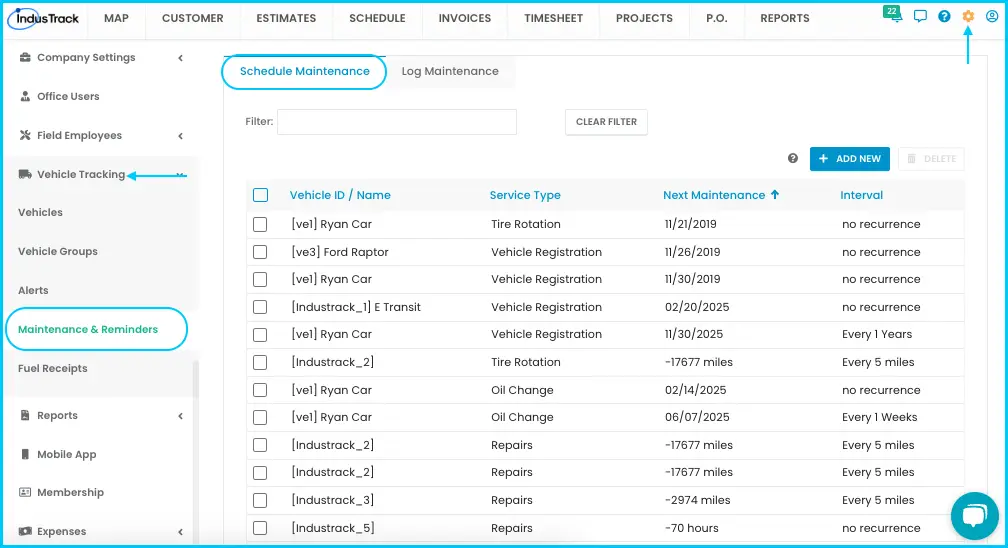
-
Fill in the general information:
- Vehicle ID/Name (required): search by name or ID.
- Service Type (required): for example, oil change. New service types you type are saved to the dropdown for next time.
- Email Users: who receives reminders. Tick specific users or select all.
- Show In Popup: turn on to show the reminder when those users log in.
Watch: Choosing the vehicle, service type and who gets reminders -
Choose how the service is scheduled:
- By Date: set the Due Date (required). Check Reoccur Every to repeat weekly, monthly or yearly. Check Reminder and enter how many days before to send it.
- By Miles: the vehicle's Current mileage is shown. Enter the Due mileage (required). Check Recur Every to repeat after a set number of miles. Check Reminder and enter how many miles before to send it.
- By Engine Hours: the vehicle's Current engine hours are shown. Enter the Due hours (required). Check Recur Every to repeat after a set number of hours. Check Reminder and enter how many hours before to send it.
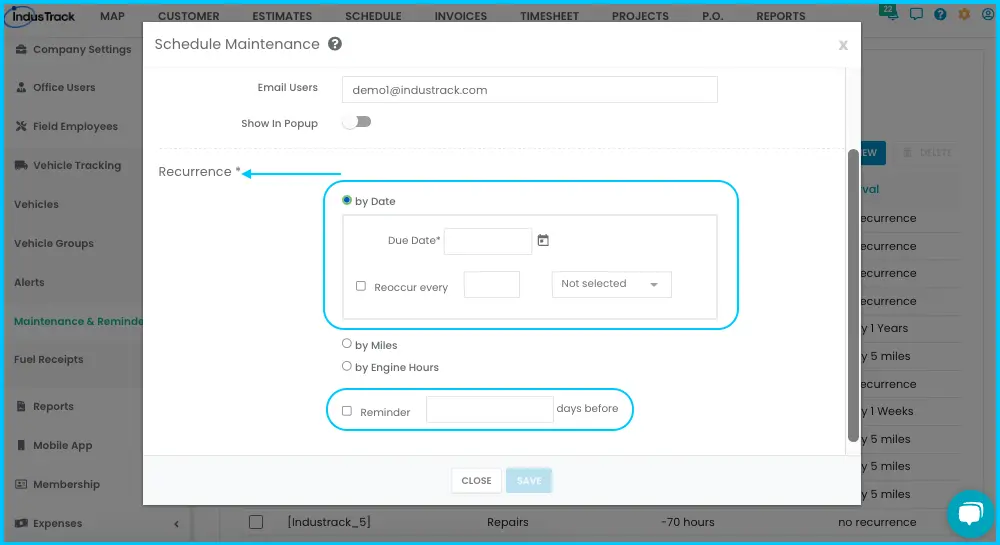
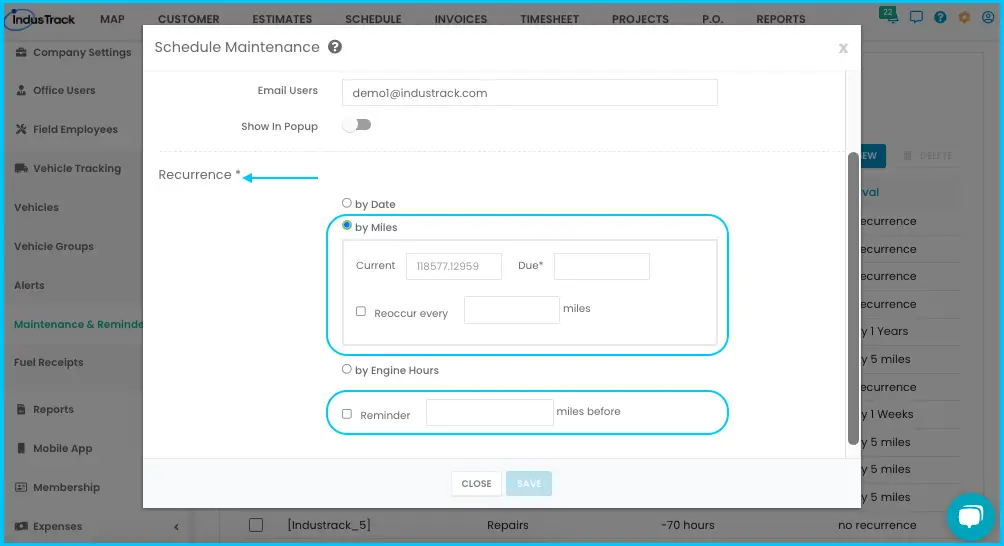
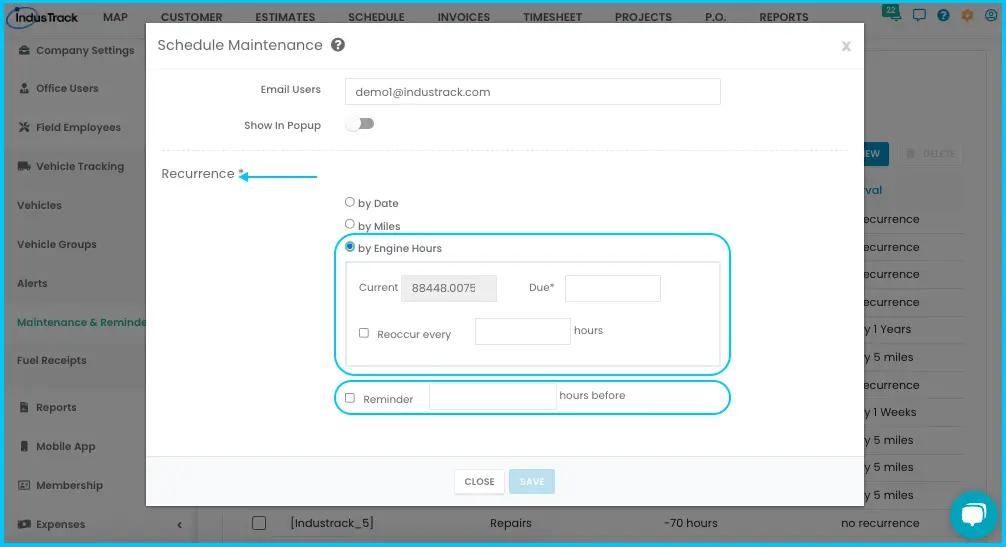
-
Click Save. The schedule appears in the maintenance list.
Watch: Saving a maintenance schedule
Shortcut: in the Vehicles list, the three-dot menu next to an active vehicle also lets you set or log maintenance for it.
Edit or delete a schedule
-
Edit: click the schedule's row, make changes, click Save.
Watch: Editing a maintenance schedule -
Delete: check the box next to one or more schedules (or the header box for all), click Delete, then OK. Deleting is permanent and may affect reminders.
Watch: Deleting a maintenance schedule
Reading the schedule list
| Column | What it shows |
|---|---|
| Vehicle ID/Name | The vehicle's ID and name |
| Service Type | The service due, such as Oil Change |
| Next Maintenance | When it's next due: date, mileage or engine hours |
| Interval | How often it repeats |
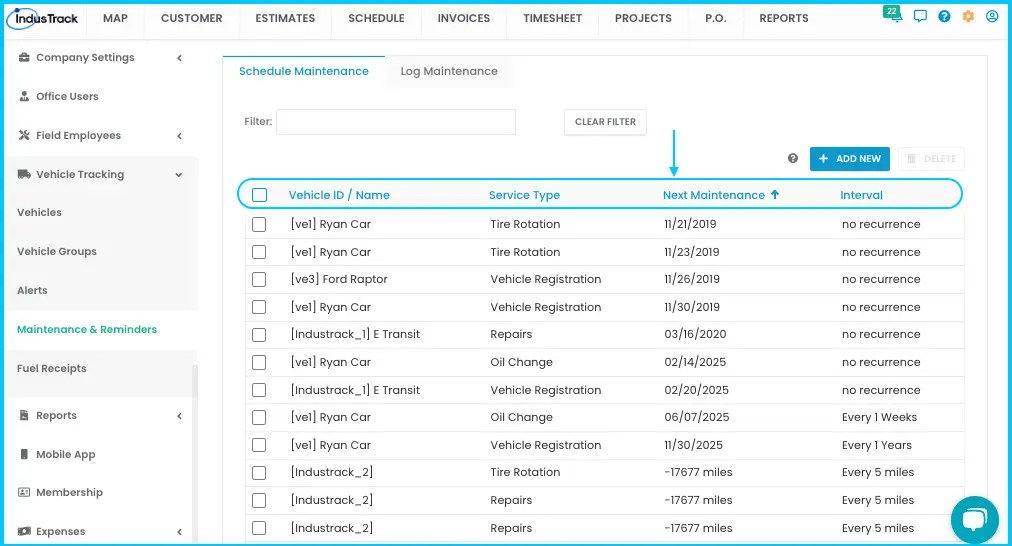
Click a column header to sort, use the search bar to filter, and show 25, 50 or 100 per page.
Common questions
Why is the current mileage or engine hours wrong?
It comes from the vehicle's profile. If Current Mileage and Current Engine Hours were never set there, the numbers only count from when the GPS device was installed. Update them on the vehicle.
Can I pick a service type that isn't in the list?
Yes. Type it in and it's saved for future schedules.
Was this article helpful?
Contact support