SnowTrack report
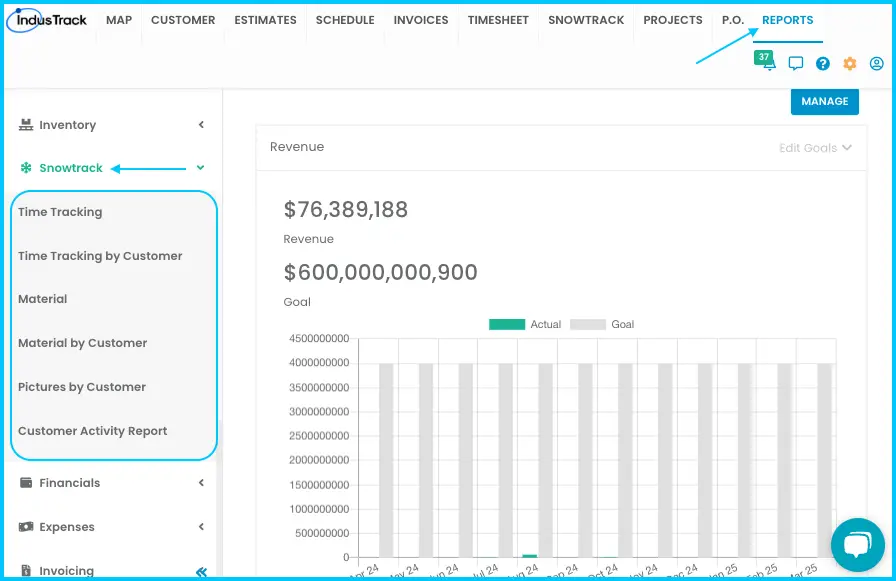
Go to Reports in the top menu and click SnowTrack, then choose one of six reports. Together they document the time and materials spent on each customer's snow work, plus the photos crews took.
Pick a report
| Report | Use it to see |
|---|---|
| Time Tracking | A summary of employee activity over a period |
| Time Tracking by Customer | The same, organized by customer |
| Material | Materials used for SnowTrack work |
| Material by Customer | Materials used, grouped by customer |
| Pictures by Customer | Job photos crews uploaded for each customer |
| Customer Activity Report | Work done for each customer, with arrival and departure times |
Time Tracking
Shows customer name, number and phone; vehicle ID; employee ID and name; date, arrival and departure time; time at customer; services provided (plow, salt, shovel); materials used (name and quantity); and notes.
-
Go to Reports›SnowTrack›Time Tracking.
-
Select employees, or Select All.
-
Choose a date range or a preset period (Yesterday, Today, Last Week and so on).
-
Click Get Report.
-
To export, click Actions (see Export and customize a report below).
Watch: Running the Time Tracking report
Time Tracking by Customer
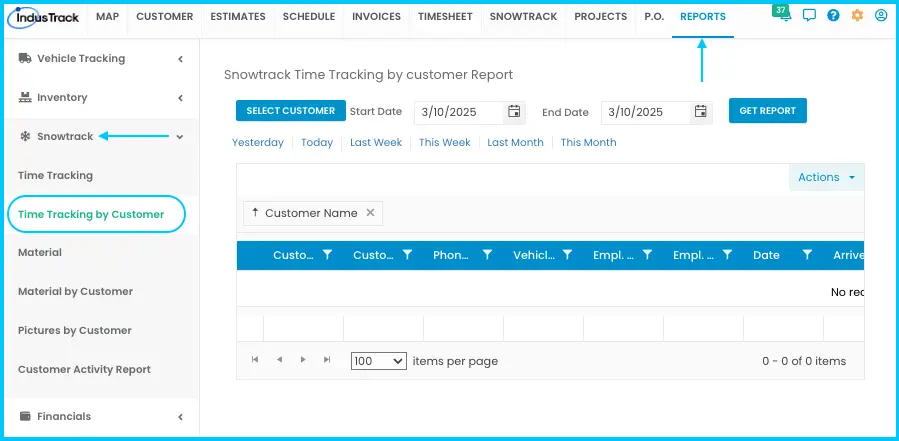
The same information as Time Tracking, organized by customer.
-
Go to Reports›SnowTrack›Time Tracking by Customer.
-
Select one or more customers.
-
Choose a date range or a preset period.
-
Click Get Report.
-
Export to PDF or Excel if needed.
Watch: Running the Time Tracking by Customer report
Material
Shows customer details (name, number, phone), vehicle and employee information, date of work, and materials used (for example salt, sand, de-icer or ice melter).
-
Go to Reports›SnowTrack›Material.
-
Select the customer.
-
Choose a date range or a preset period.
-
Click Get Report.
-
Export to PDF or Excel if needed.
Watch: Running the Material report
Material by Customer
Like the Material report, but grouped by customer. It shows the same columns.
-
Go to Reports›SnowTrack›Material by Customer.
-
Select one or more customers.
-
Choose a date range or a preset period.
-
Click Get Report.
-
Export to PDF or Excel if needed.
Watch: Running the Material by Customer report
Pictures by Customer
Shows the job photos employees uploaded for each customer in a period.
-
Go to Reports›SnowTrack›Pictures by Customer.
-
Select one or more customers.
Watch: Selecting several customers for the Pictures by Customer report -
Choose a date range or a preset period.
-
Click Get Report.
-
Download the photos with Download All Images, Download by Customer or Download by Date (Pre/Post Images). They are saved to your computer's Downloads folder.
Watch: Running the Pictures by Customer report and downloading photos
Customer Activity Report
Shows the customer, employee ID and name, arrive time and depart time (of the vehicle), and total time at the customer.
-
Go to Reports›SnowTrack›Customer Activity Report.
-
Select one or more employees.
-
Choose a date range or a preset period.
-
Click Get Report.
-
Export to PDF or Excel if needed.
Watch: Running the Customer Activity Report
Export and customize a report
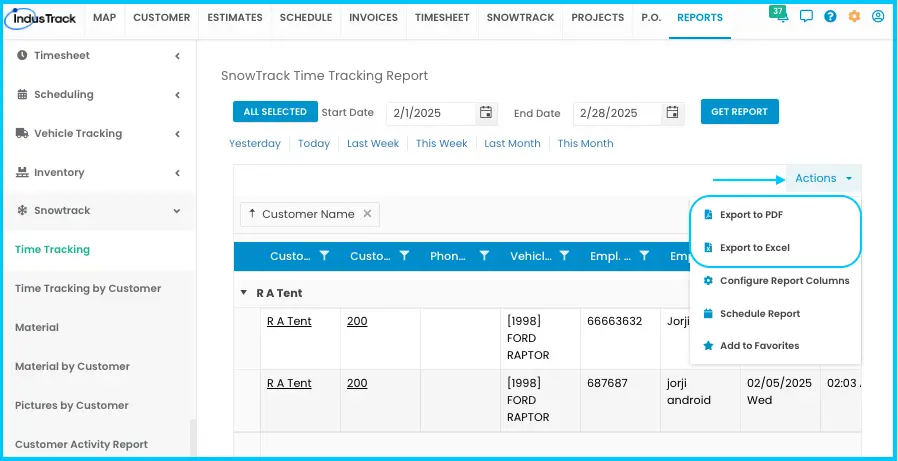
After you click Get Report, click Actions:
-
Export to Excel or Export to PDF downloads the full report to your computer.
-
Configure Report Columns lets you choose which columns to show. Hidden columns are left out of the generated report.
Watch: Choosing which report columns to show -
Schedule Report sends the report automatically at a set frequency. See How do I schedule a report to email automatically?
-
Add to Favorites adds the report to a Favorites tab at the top right of the left panel, for quick access.
Watch: Scheduling a report and adding it to Favorites
Common questions
Why isn't a deactivated employee in the employee list?
Deactivated employees don't appear in the employee drop-down. If you select All Employees, any deactivated employee with timesheet records in the date range is still included.
Why can't I download some old photos?
Only photos uploaded after 10/21/2019 can be downloaded.
Was this article helpful?
Contact support