How do I send customers automatic reminders?
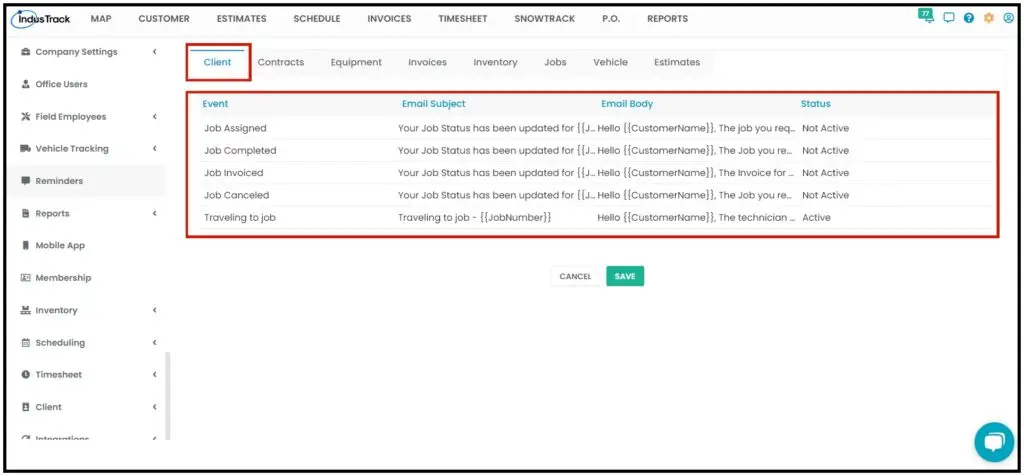
Go to Settings›Reminders and open the client reminders. Click a reminder, check Enable Notification, and click Update. IndusTrack then emails the customer automatically when that job event happens.
This article covers the client reminders, which go to your customers. Other reminders, such as for invoices, inventory, contracts, equipment and vehicles, are set up for each office user.
Client reminders
| Reminder | Sent when | Includes |
|---|---|---|
| Job Assigned | The job is scheduled. | Customer name, job number, scheduled date and time, location. |
| Job Completed | The job status changes to Completed. | Customer name, job number, date and time of completion, location. |
| Job Invoiced | The job's invoice is sent to the customer. | Customer name, job number, date of completion, location. |
| Job Canceled | The job is canceled. | Customer name, job number, date and time of cancellation, location. |
| Traveling to Job | The field employee is on the way. | Customer name, job number, location, estimated time of arrival. |
Turn on a reminder
-
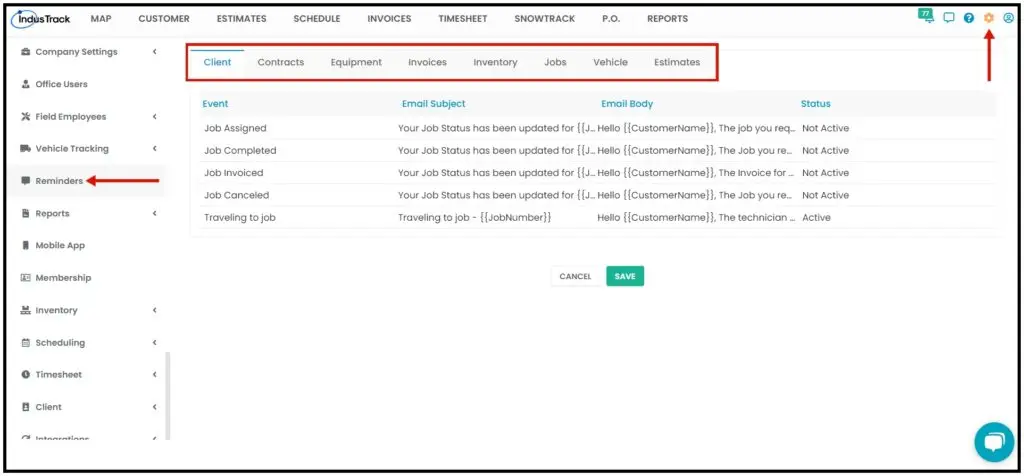
Go to Settings›Reminders and open the client reminders.
-
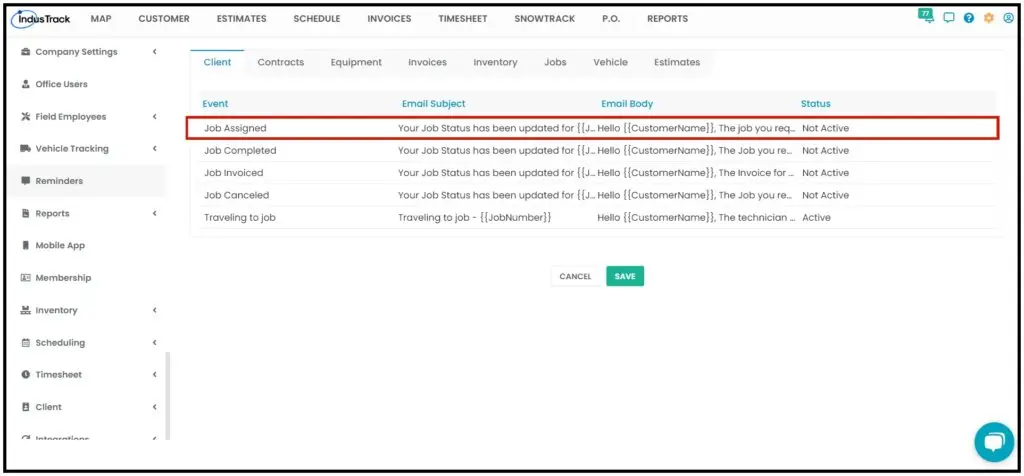
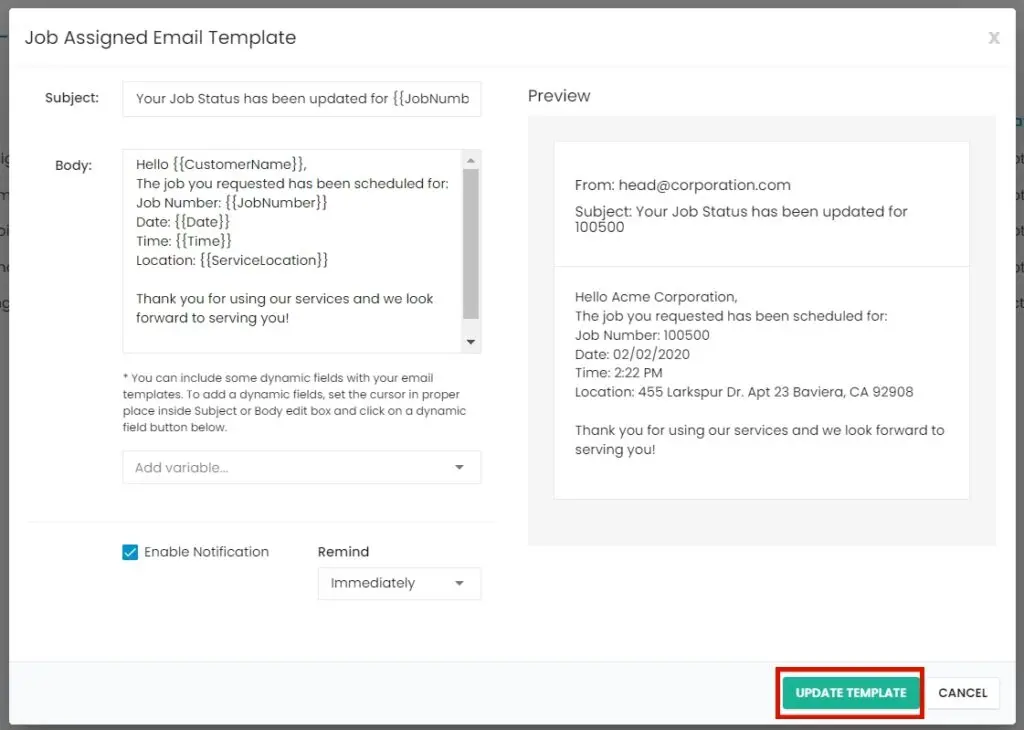
Click anywhere on the reminder's row. Its email template opens.
-
Check Enable Notification.
-
For Job Assigned only, choose when to send it from the Remind drop-down. The other client reminders don't have this option.
Option Sent Immediate When the job status changes to Scheduled. Day of the Job On the scheduled date. Day Before One day before the scheduled date. Two Days Before Two days before the scheduled date. Week Before One week before the scheduled date. 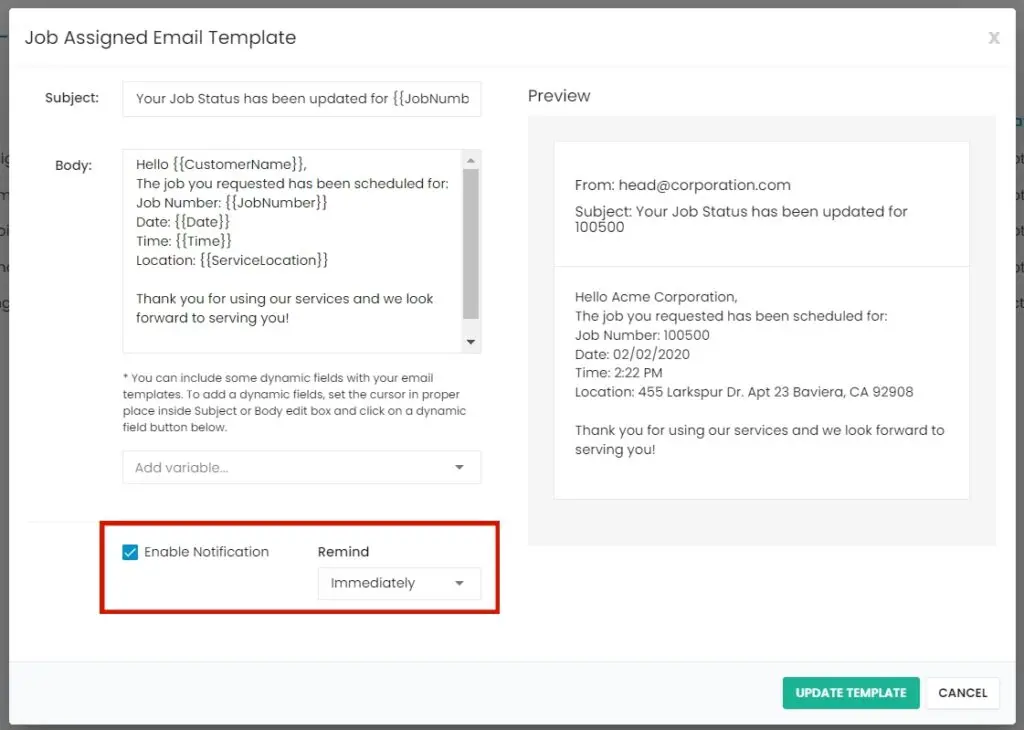
-
Click Update. The reminder is now on.
To turn a reminder off, open it, uncheck Enable Notification, and click Update.
Change the email template
The templates are ready to use, but you can change them.
-
Click the reminder's row to open its template.
-
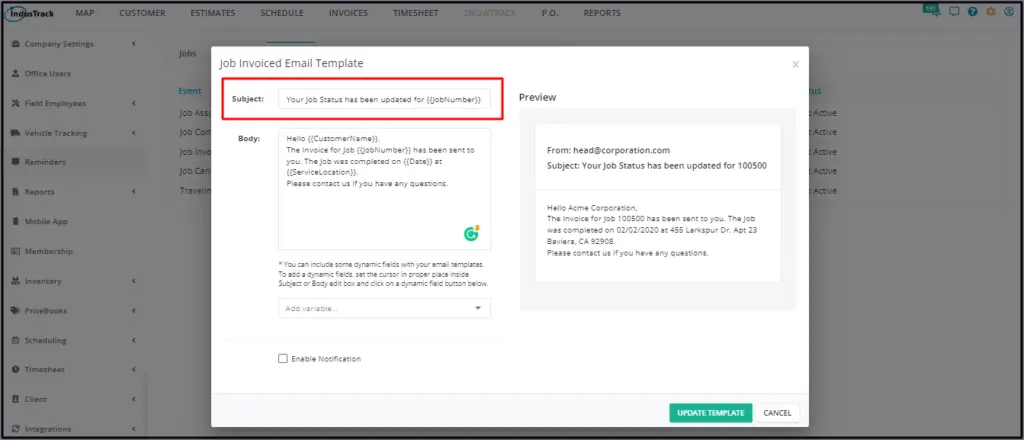
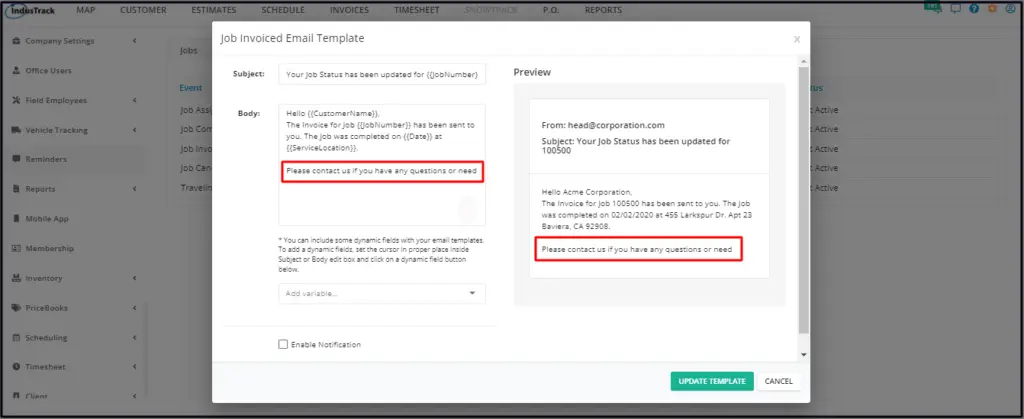
Edit the Subject and Body. The Preview updates as you type.
-
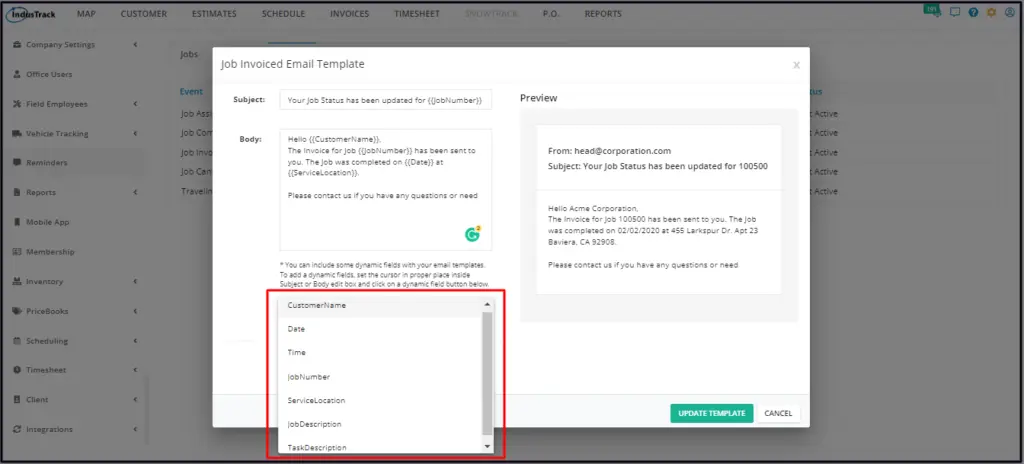
To add a dynamic field, put your cursor where you want it and choose a field from the Add Variable drop-down.
-
Click Update.
Common questions
My dynamic field isn't working in the email. Why?
Dynamic fields stop working if any letter or character in them is changed. Don't edit the text of a dynamic field after you add it.
Does the Job Canceled email say why the job was canceled?
Not by default. Edit the template to add the reason if you want customers to see it.
Can reminders go to my staff too?
Reminders can be sent to customers and staff. The client reminders in this article go to customers. Reminders for your staff are set up for each office user.
Was this article helpful?
Contact support