How do I set up scheduling options? (calendars, job colors, service types, hold reasons)
Go to Settings›Scheduling. Here you set up the calendars in the Schedule module, the colors and service types you pick on each job, and the reasons techs choose when putting a job on hold.
| Setting | Where | What it controls |
|---|---|---|
| Calendars | Settings > Scheduling > General Settings > Calendars | Hours shown, default job length, and which employee groups each calendar shows |
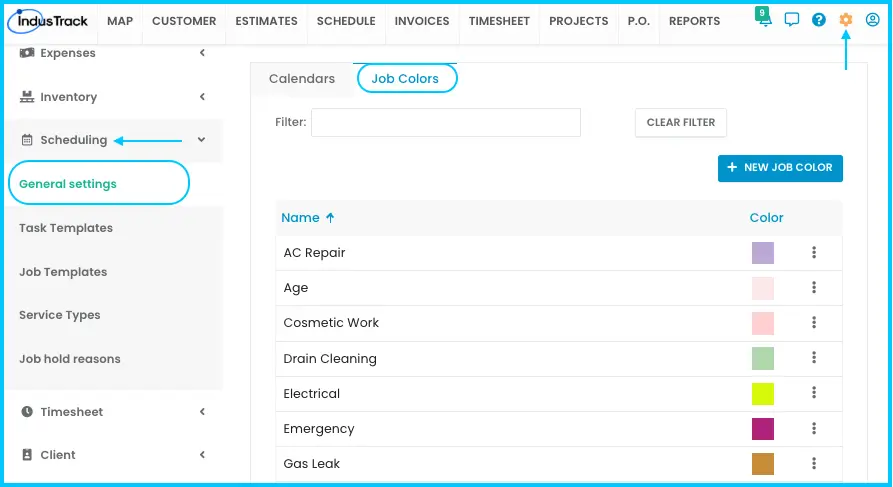
| Job colors | Settings > Scheduling > General Settings > Job Colors | Colors that label jobs on the calendar and map |
| Service types | Settings > Scheduling > Service Types | Categories of work (such as HVAC Repair) used on jobs, reports and billing |
| Job hold reasons | Settings > Scheduling > Job Hold Reasons | Reasons available when a job is put on hold |
| Task and job templates | Settings > Scheduling > Task Templates / Job Templates | See How do I use job and task templates? |
Calendars
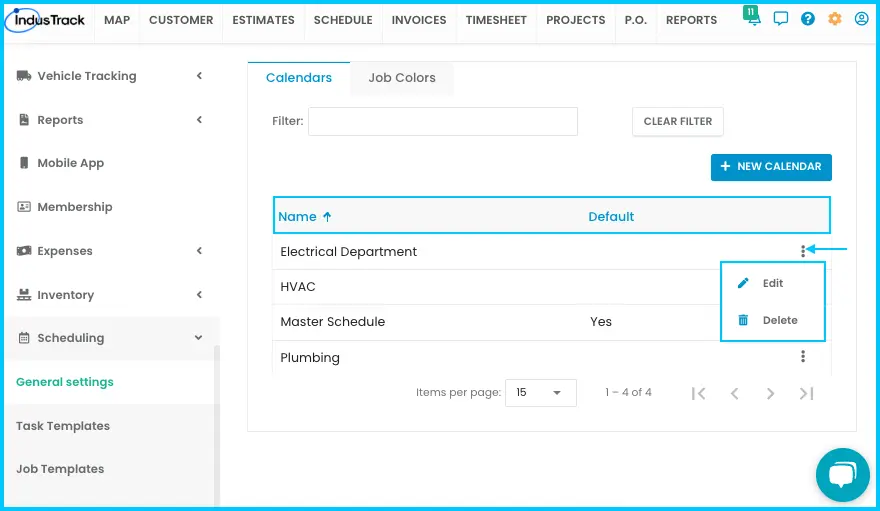
The Default Calendar includes all field employees and covers 12:00 AM to 11:59 PM. To change it, click the three-dot menu, choose Edit, adjust the start and end times, default job duration or name, and click Save.
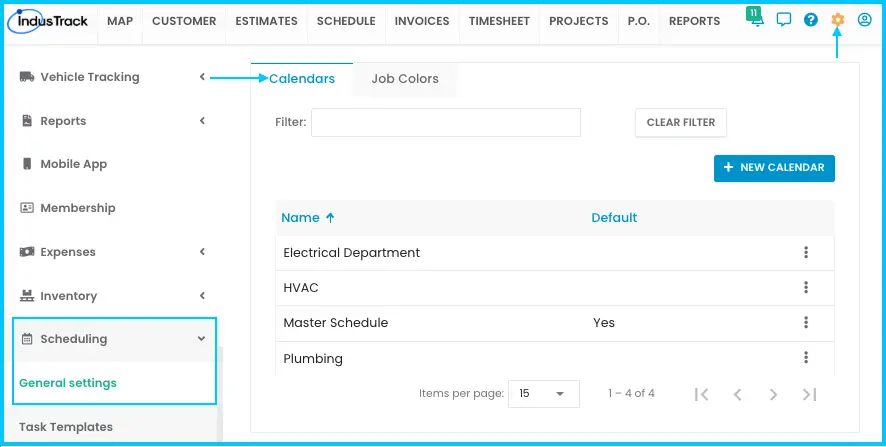
To add a custom calendar for specific groups:
-
Click + New Calendar.
-
Enter a Name (required).
-
Set Work Times (default 9:00 AM to 5:00 PM) and Job Duration (default 1 hour).
-
Choose the Assigned Employee Groups. A calendar with no group can't be used in the Schedule module.
-
Click Save.
Watch: Adding a custom calendar and assigning employee groups
To edit or delete a calendar, click its three-dot menu. Deleting can't be undone and may affect jobs, so move its jobs to another calendar first.
Job colors
-
Click + New Job Color.
-
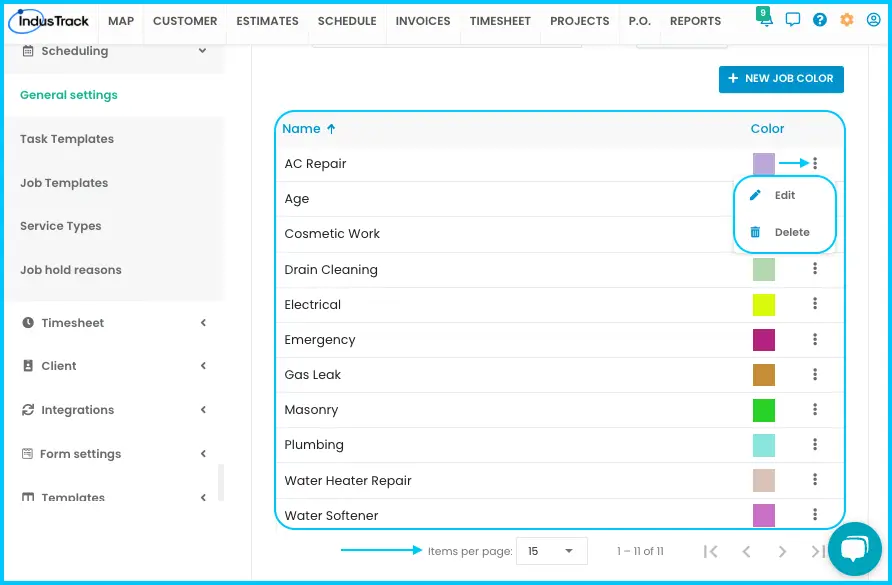
Enter a Name and pick a Color.
-
Click Save.
Watch: Adding a new job color
Edit or delete a color from its three-dot menu. Show 15, 25 or 50 colors per page.
Service types
-
Click Actions›+ Add New Service Type.
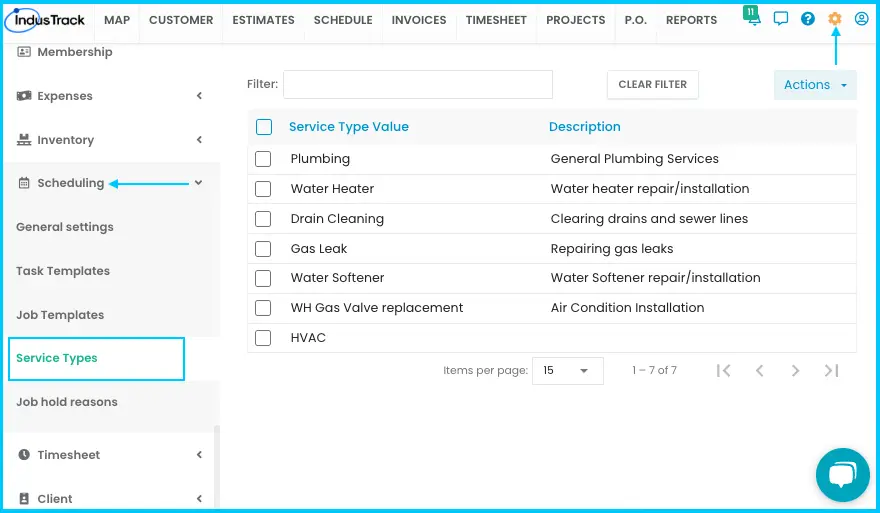
Watch: Using the Actions button on the Service Types page -
Enter a Service Type Value (code or short name) and a short Description.
-
Optional: select a service from your inventory, if that's enabled. The service type then takes the inventory service's name.
Watch: Selecting an inventory service, which fills in the service type name -
Click Save.
Watch: Adding a new service type
To edit, click the service type. To delete, check it (or several), click Actions›Delete and confirm. Deleting may affect other settings or reports.
Job hold reasons
-
Click Actions›+ Add New.
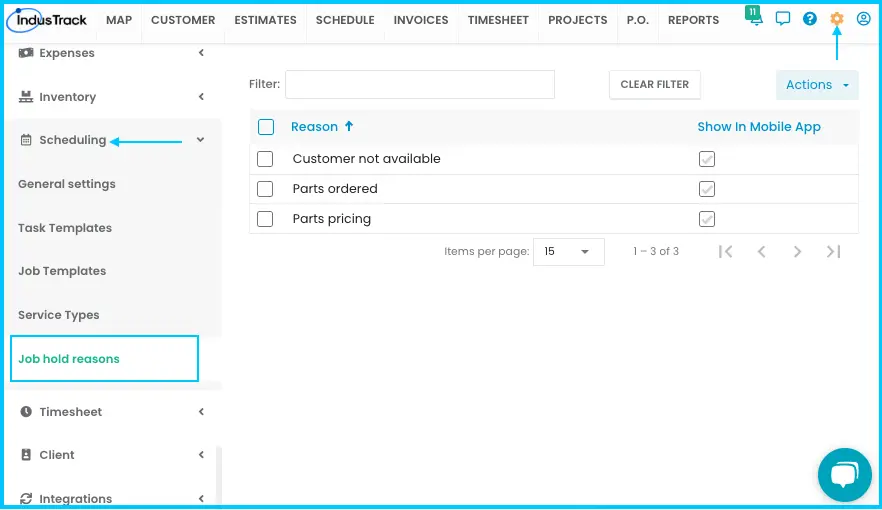
Watch: Using the Actions button on the Job Hold Reasons page -
Type the reason, and check the box if field employees should see it in the mobile app.
Watch: Adding a job hold reason -
Click Save.
To edit, click the reason. To delete, check it, click Actions›Delete and confirm with Yes. Deleting may affect other parts of the system.
Common questions
My new calendar doesn't appear in the Schedule module. Why?
It has no employee group assigned. Edit it and add at least one group.
Why can't I type a service type name?
You selected a service from inventory, so the name comes from that inventory service.
Techs don't see a hold reason in the app. Why?
Its Show in Mobile App box isn't checked. Edit the reason and check it.
Was this article helpful?
Contact support