How do I edit, reassign or delete a job?
Double-click the job on the calendar to open the Edit Job window. Change any details or the assigned crew, then click Save Job. More options, including delete, are under Actions.
Edit or reassign a job
-
Find the job on the calendar and double-click it.
-
Change what you need. To reassign it, open the Employees tab and add or remove crew.
-
Click Save Job.
Watch: Opening a job from the calendar, editing it and saving
Add tasks to an existing job
-
Double-click the job and open the Tasks tab.
-
Optional: choose a task template from the dropdown and click Load. Loading a template deletes the tasks already on the job.
-
Click Add New Task, enter a Task Name (service type is optional) and add any parts, services, equipment, attachments, customer equipment, forms, purchase order or notes.
-
Click Save Job.
Watch: Adding tasks to an existing job
Delete a job
-
Open the job's Edit Job window.
-
Click Actions›Delete Job and confirm. The job is removed from the calendar.
Watch: Deleting a job from the Edit Job window
After the job is done
-
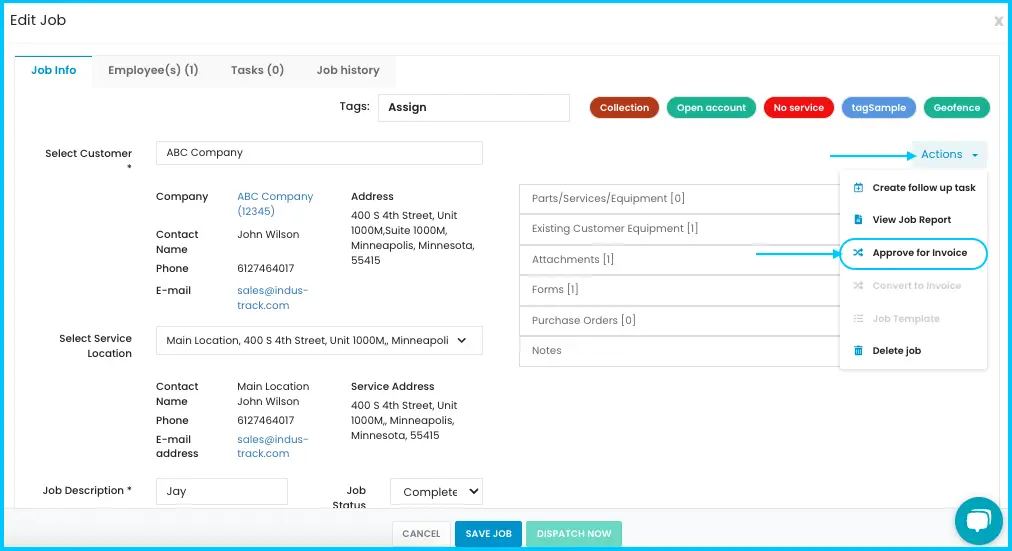
Approve for invoicing: open a completed job and click Actions›Approve for Invoice. Only jobs marked Completed can be approved.
-
Convert to an invoice: after approving, click Convert to Invoice. The Edit Invoice window opens so you can add, remove or edit items, then save.
Watch: Converting an approved job to an invoice -
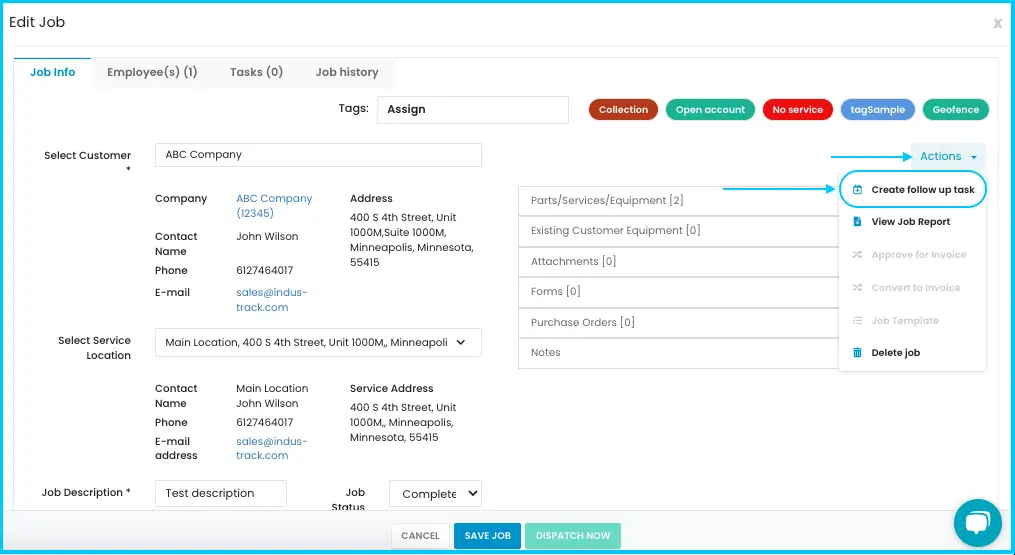
Follow up: click Create Follow-Up Task. A task opens already linked to the job; fill it in and save.
Common questions
Why can't I delete a job?
It has an invoice. A job with an invoice can't be deleted.
Why can't I approve a job for invoicing?
It isn't marked Completed yet.
Was this article helpful?
Contact support