Release 94 (June 26, 2024)
Release 94 links purchase orders to invoices, adds vendor import, office-user default templates, and a duplicate customer view, and improves vendors and purchase orders.
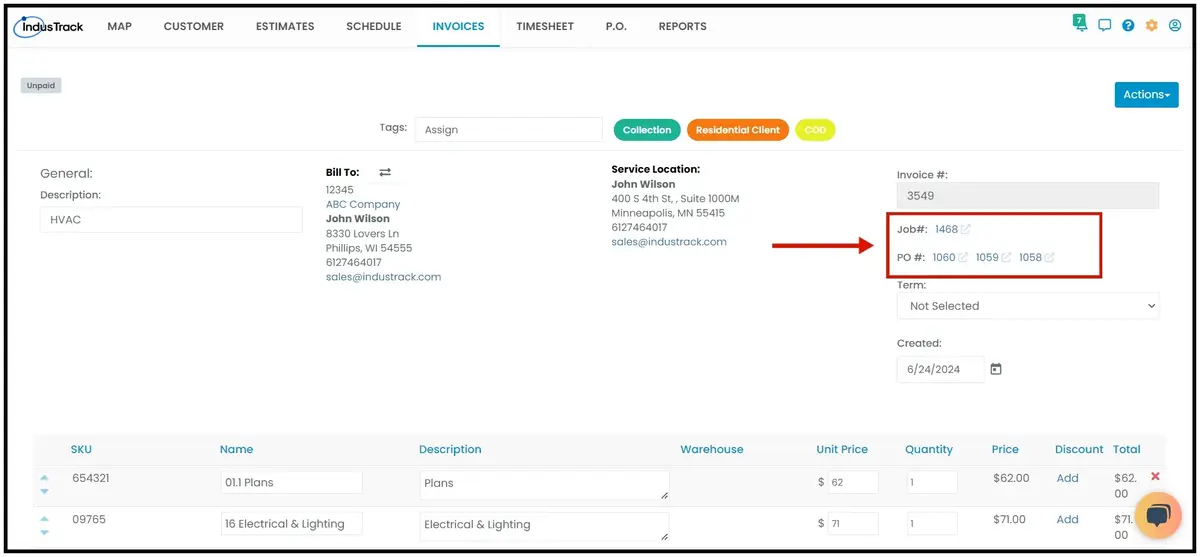
Job and purchase order numbers on invoices
Before, purchase orders attached to a job were not linked to the invoice when the job was converted. Now, when a job is converted to an invoice, all purchase orders attached to the job are attached to the invoice too. Click the job or purchase order number link to open that job or PO.
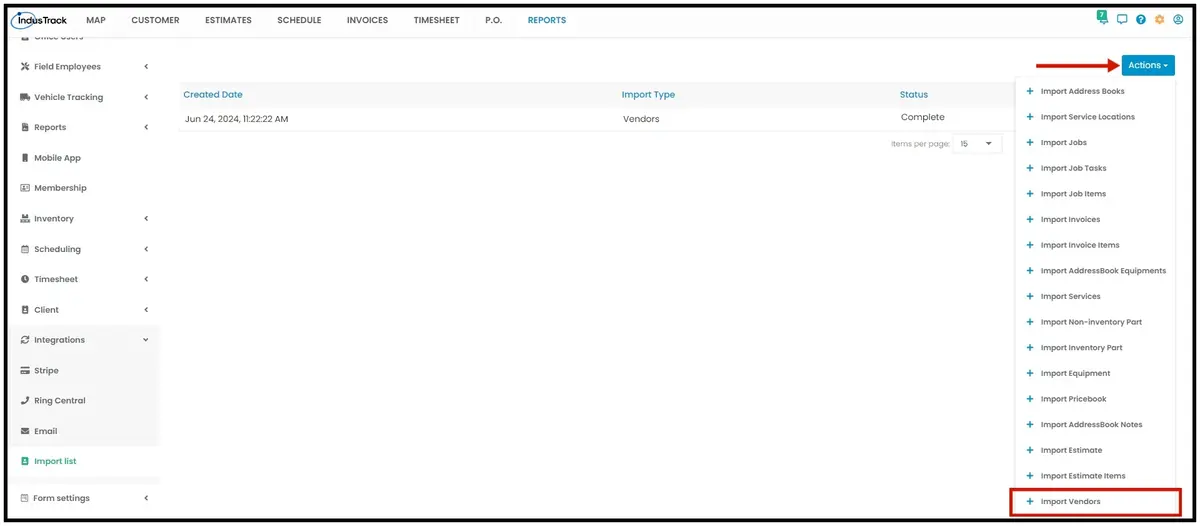
Import List: vendors
You can now import your vendor list into IndusTrack from an Excel file. Before, there was no vendor import.
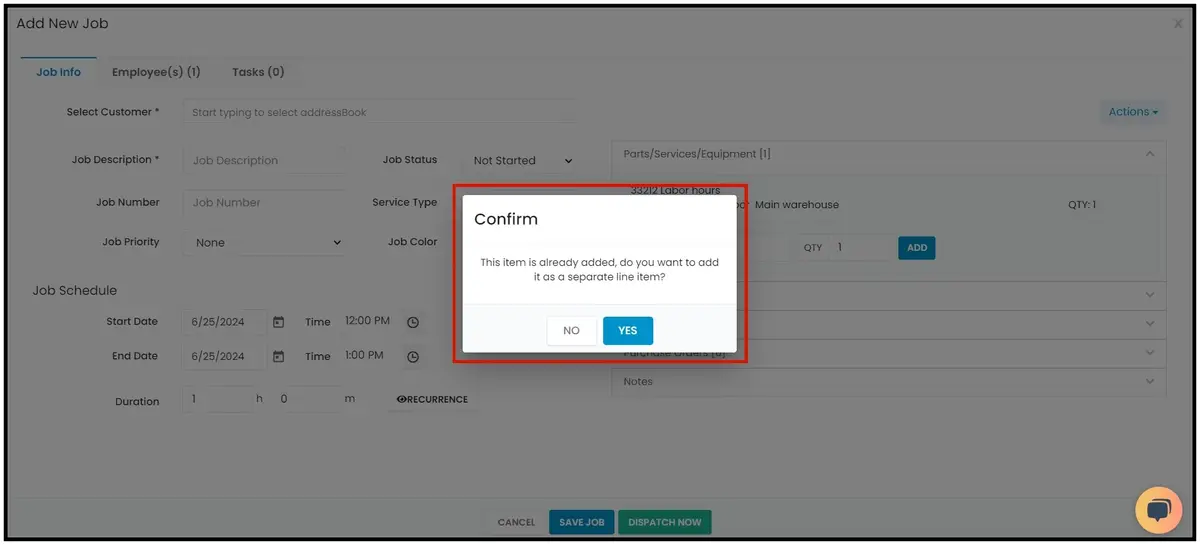
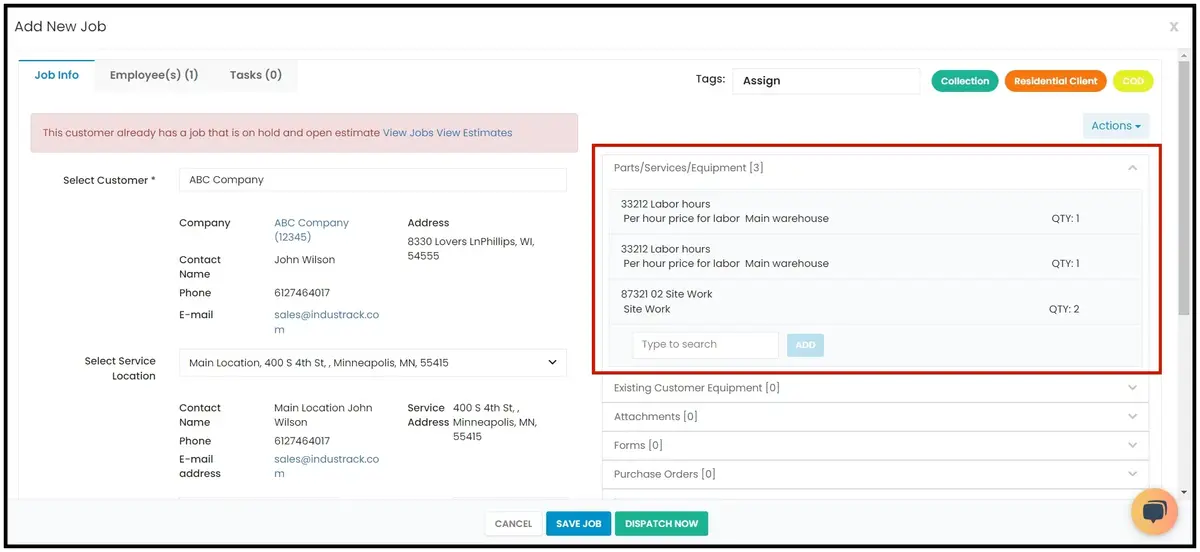
Adding parts, services or equipment to a job
Before, adding the same line item twice to a job's parts, services or equipment combined them automatically. Now IndusTrack asks whether to add it as a separate line item or combine it into one.
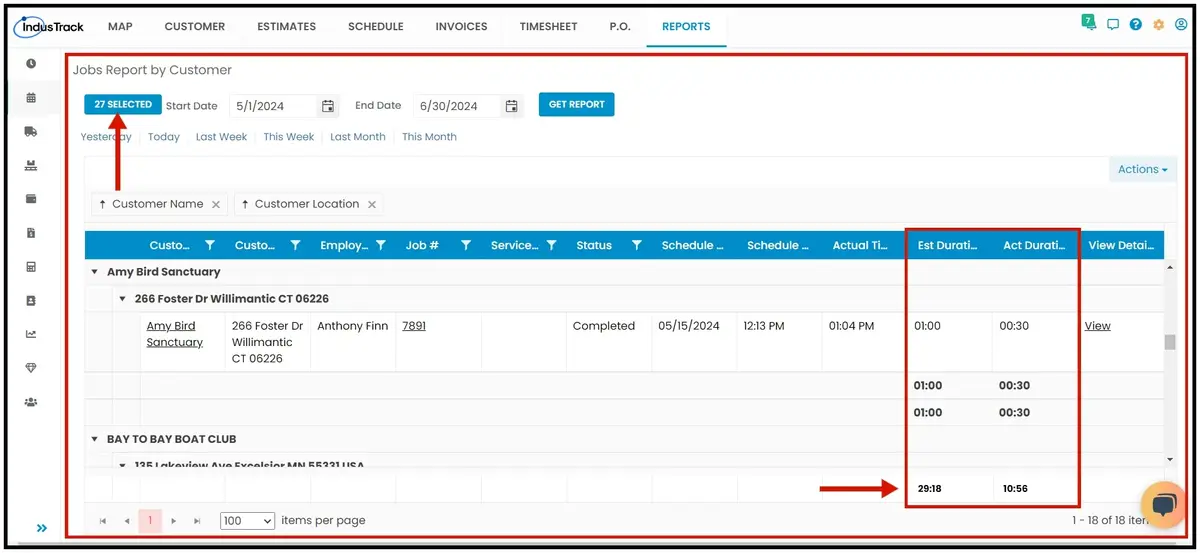
Jobs Report by Customer
You can now select several customers when running this report (before, only one). The report also shows overall totals for the Estimated Duration and Actual Duration columns.
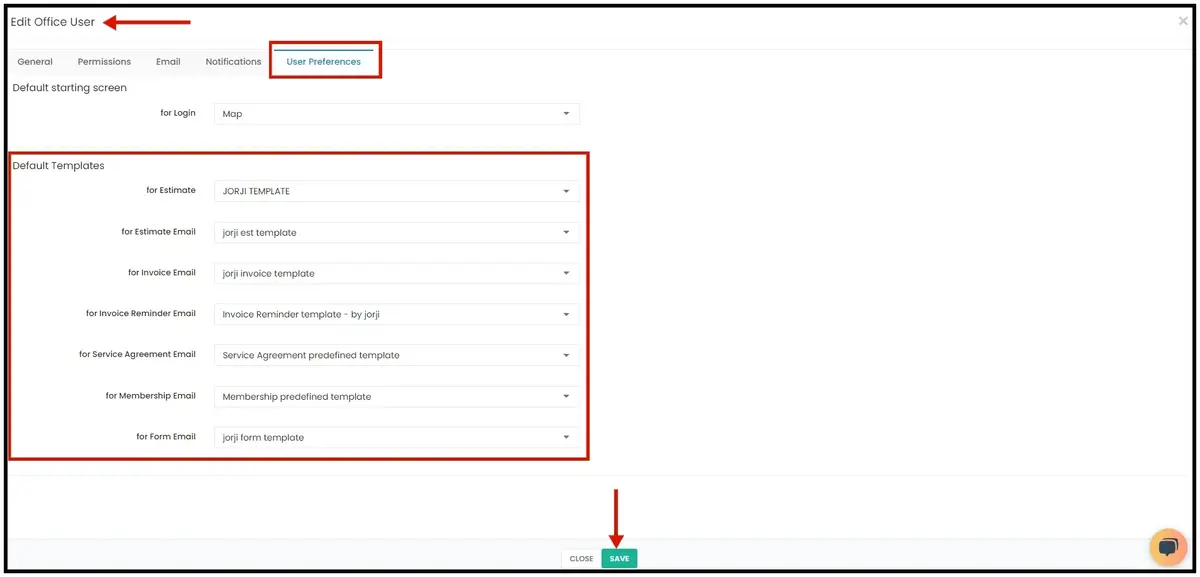
Default templates by office user
Before, templates could be set as a company default, but users could still pick any saved template when creating invoices or estimates. Now you can assign default templates to each office user. When that user creates an invoice or estimate, their default template is applied automatically.
To set it up, go to Settings›Office Users, select the office user, open the Preference tab and go to Default Templates. Choose a saved template from each drop-down and click Save.
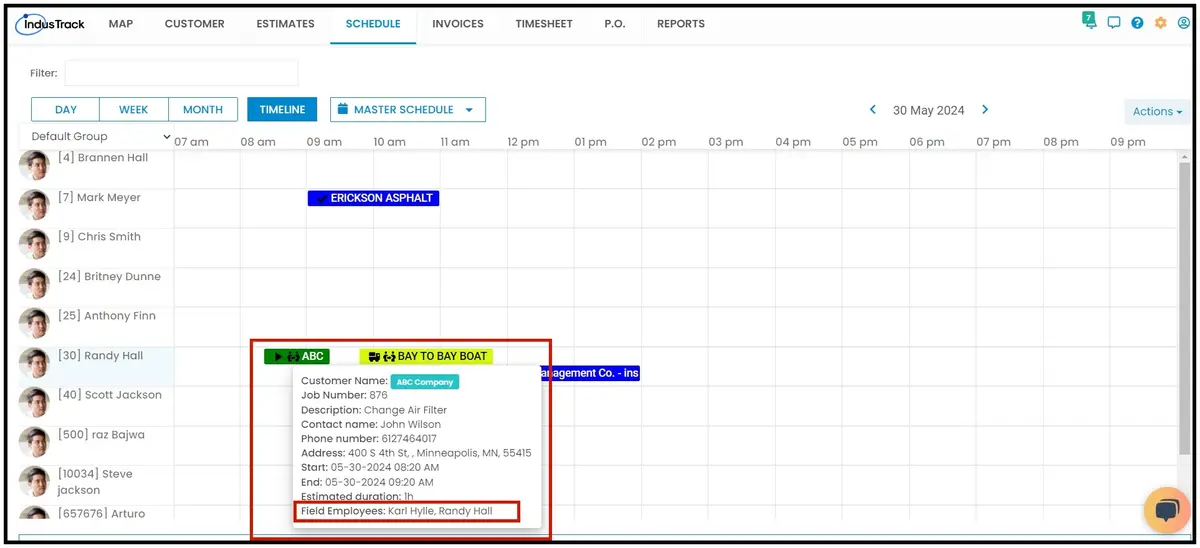
All assigned field employees shown on hover in Timeline View
Before, hovering over a job showed all its assigned field employees only in the Day, Week and Month views of the Scheduling module. Now it works in the Timeline View too.
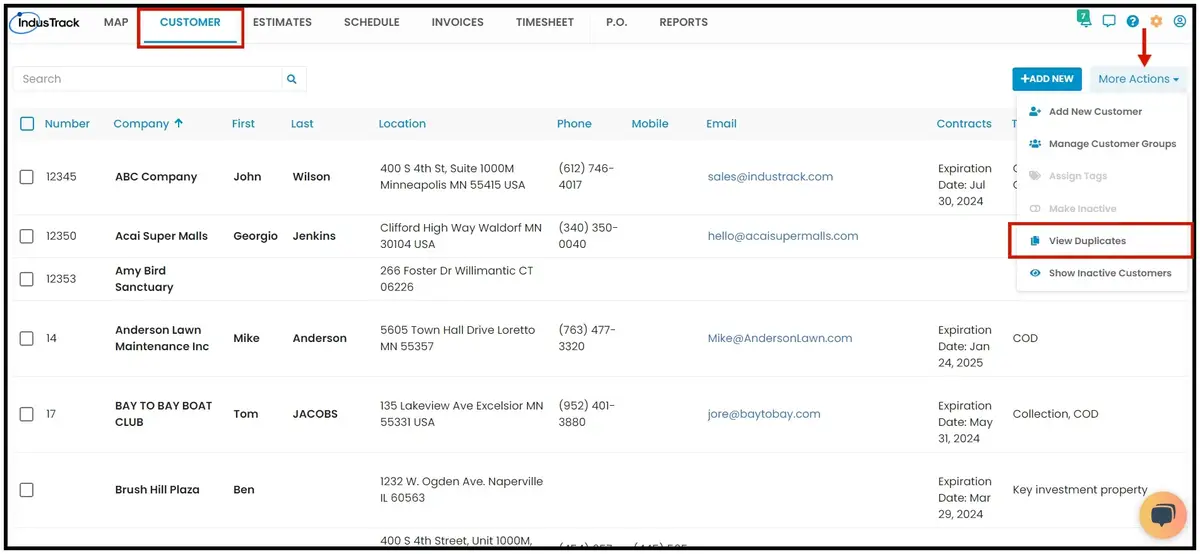
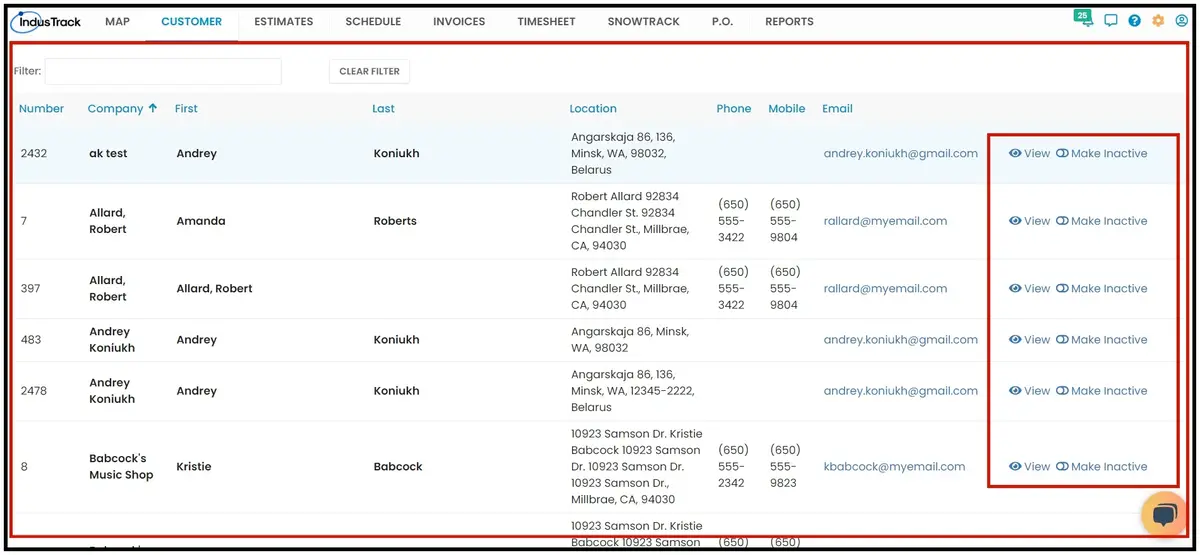
View duplicate customers in the Customer module
You can now see duplicate customer profiles and make them inactive in one click. A customer counts as a duplicate when the Customer Number or Customer Name is an exact match. From the Customer Duplicates list, you can View a duplicate or make it inactive.
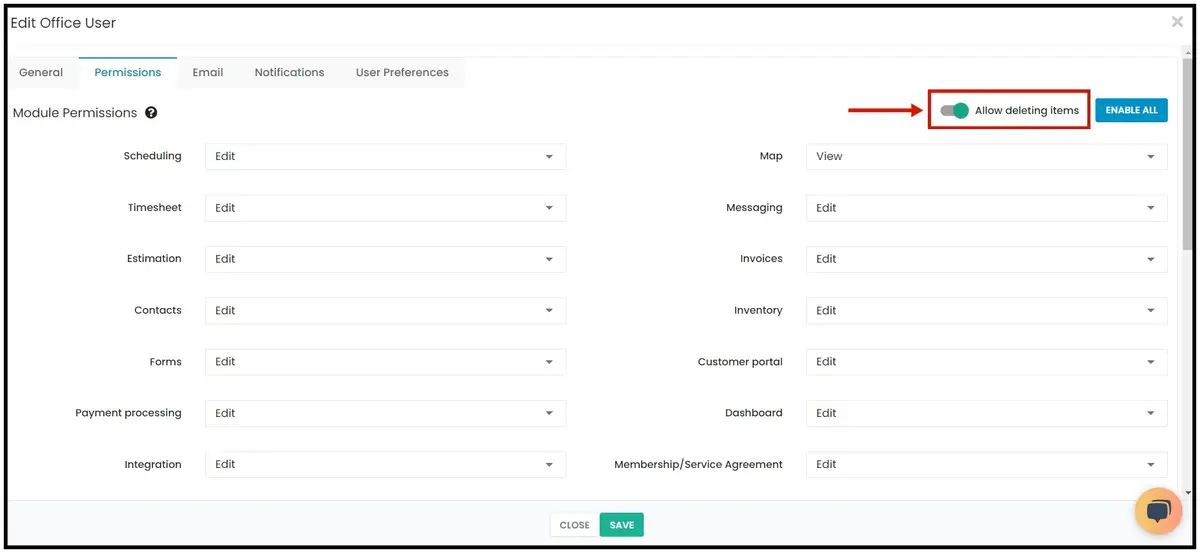
Office user permission to delete items
Before, office users with a customized role could delete items in any module they could edit. Now a customized role has a setting you can turn on or off that controls deleting items in the modules the user can access.
Vendors and purchase orders
-
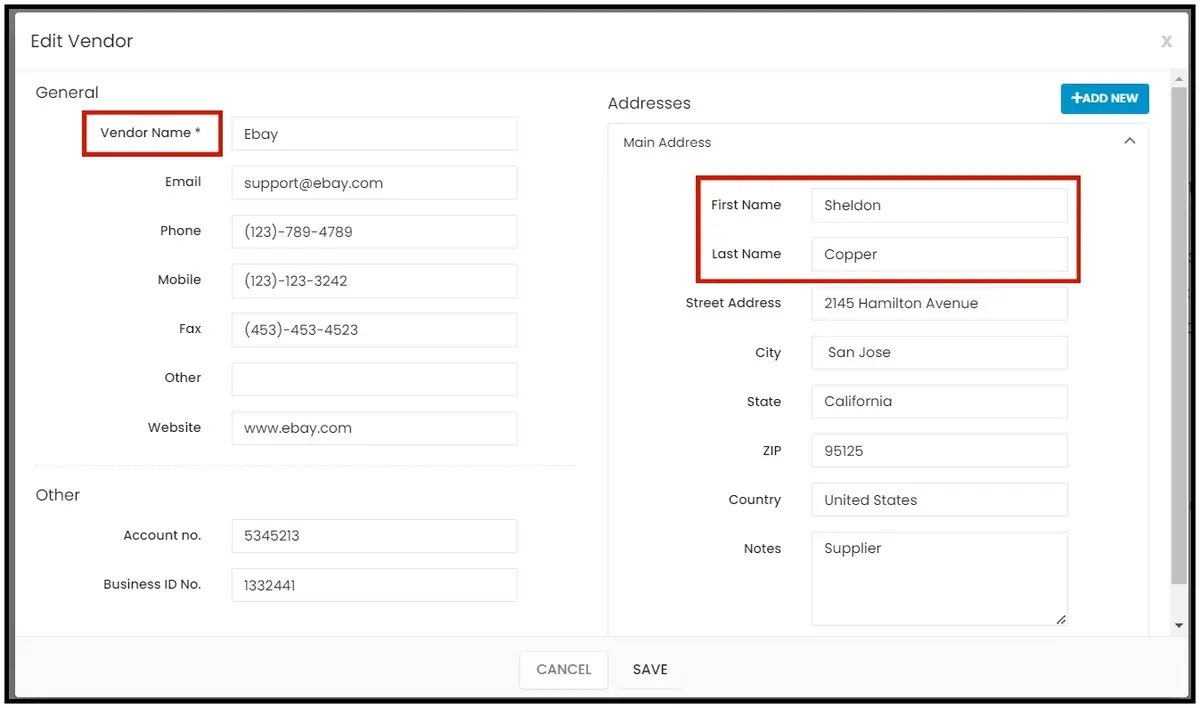
Vendor contacts: you can now add a contact first and last name when adding a vendor. The Company Name column is renamed Vendor Name.
-
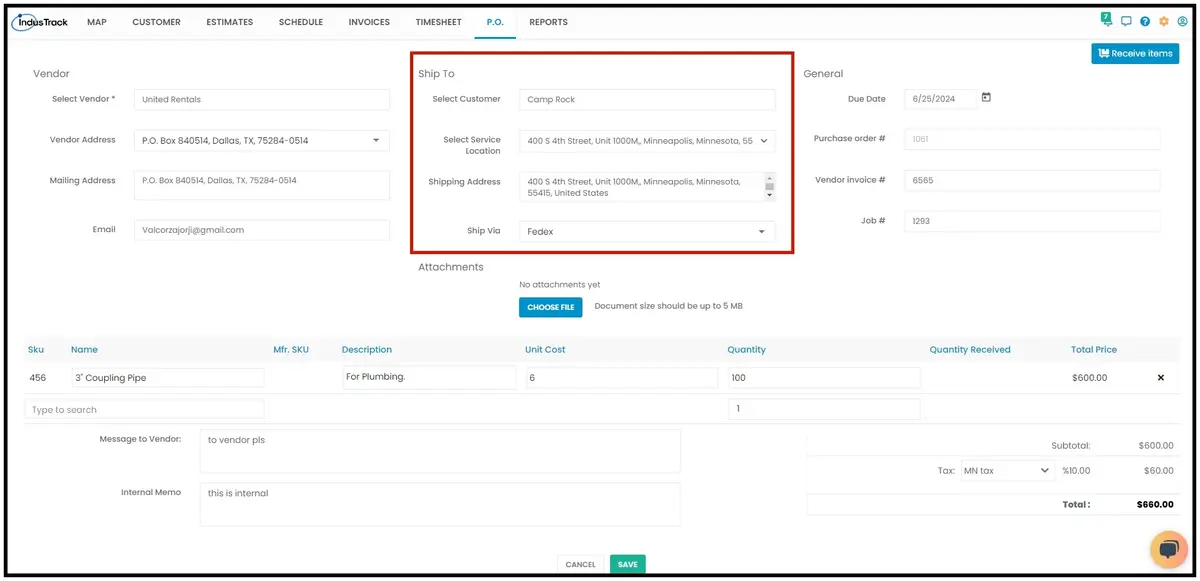
Purchase order Ship To: instead of typing the Ship To address, you can select a customer from your customer list or create a new one. The customer's details fill in automatically. If the customer has several service locations, you can pick one from the drop-down.
-
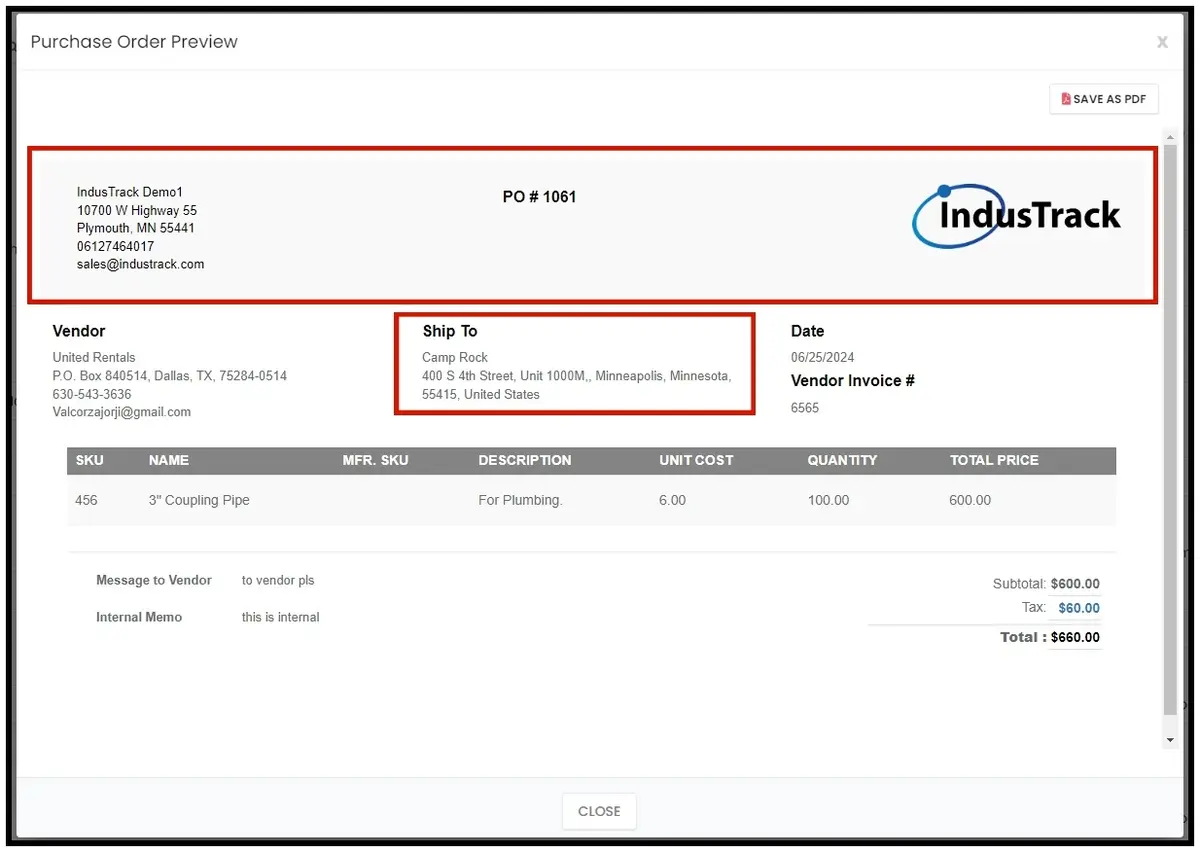
Purchase order preview: now shows your company info and logo, and the customer or company name under the Ship To details.
Was this article helpful?
Contact support