Release 93 (April 22, 2024)
Release 93 adds tag colors, per-user reminders, customer module permissions, a login history report, barcode columns in inventory, and more control over QuickBooks Online customer sync.
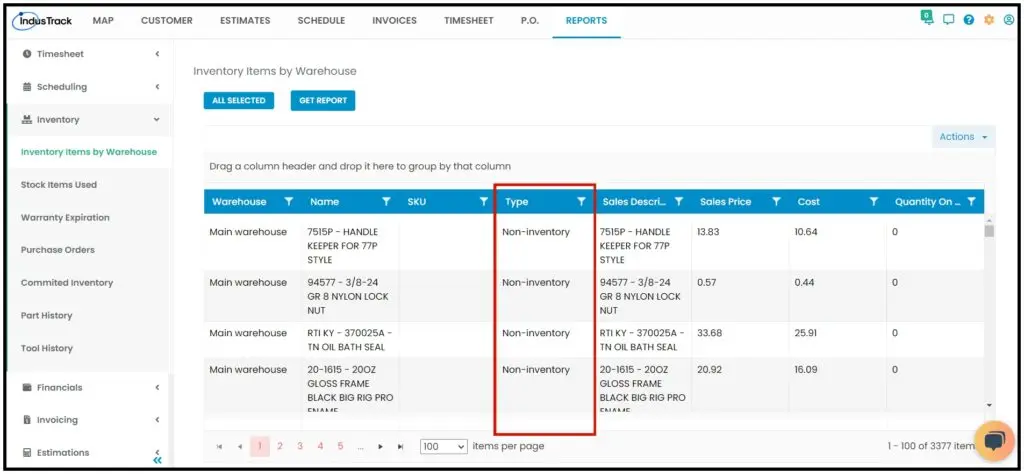
Inventory Items by Warehouse report
The Type column was empty. It now shows the type of each inventory item.
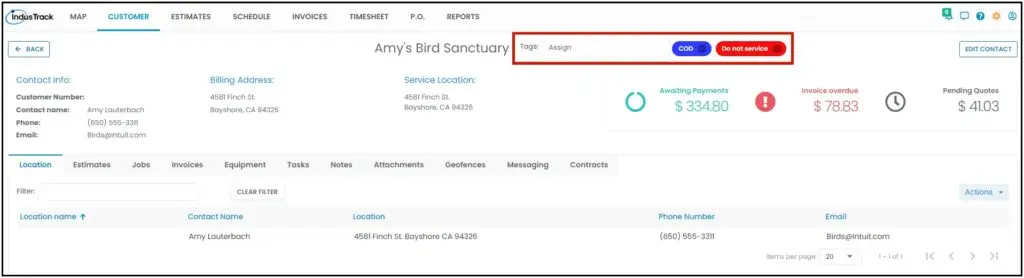
Colors for tags
Tags were always green. You can now choose a color for a tag so it stands out.
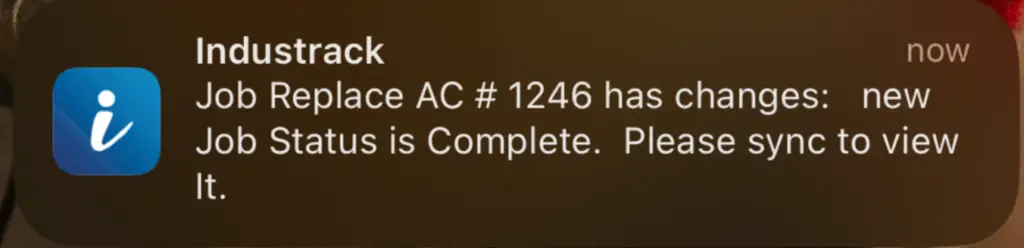
Push notification when the office completes a job
Before, a field employee got no notification when a dispatcher or office user completed their job from the office. Now the field employee gets a push notification on their mobile device.
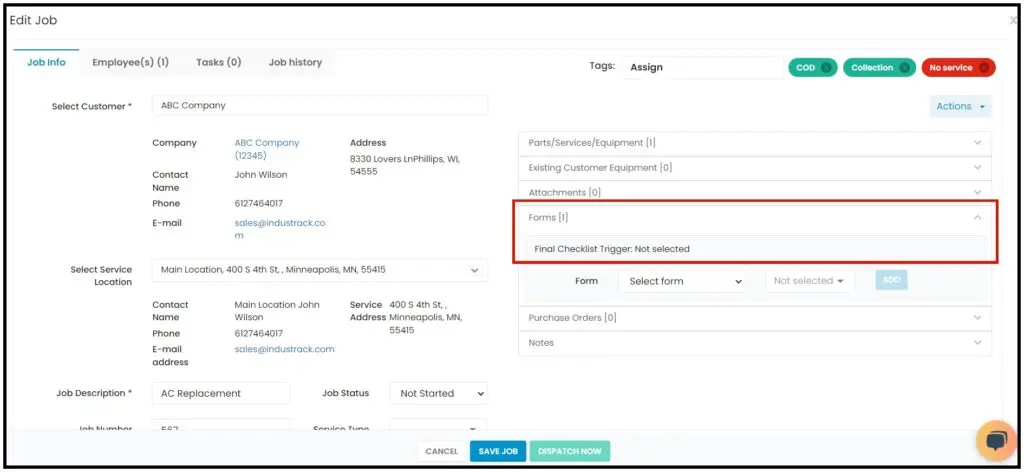
Attach forms to a job without a trigger
Before, a dispatcher had to select a trigger to attach a form to a job. Now forms can be attached without a trigger.
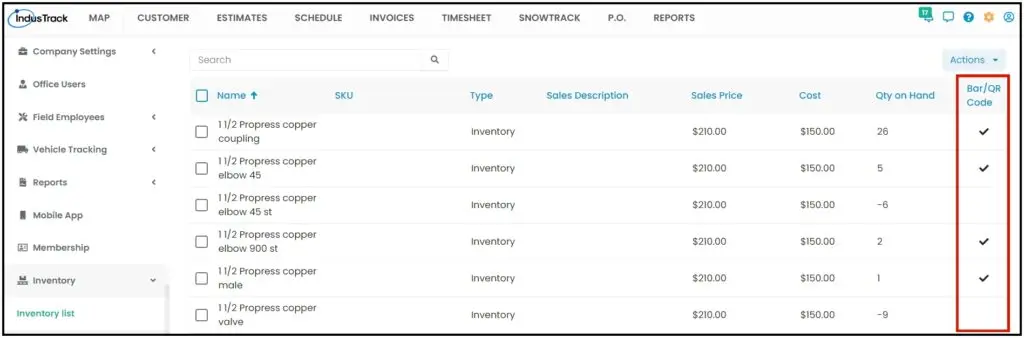
Barcode/QR code column in Inventory and Tools
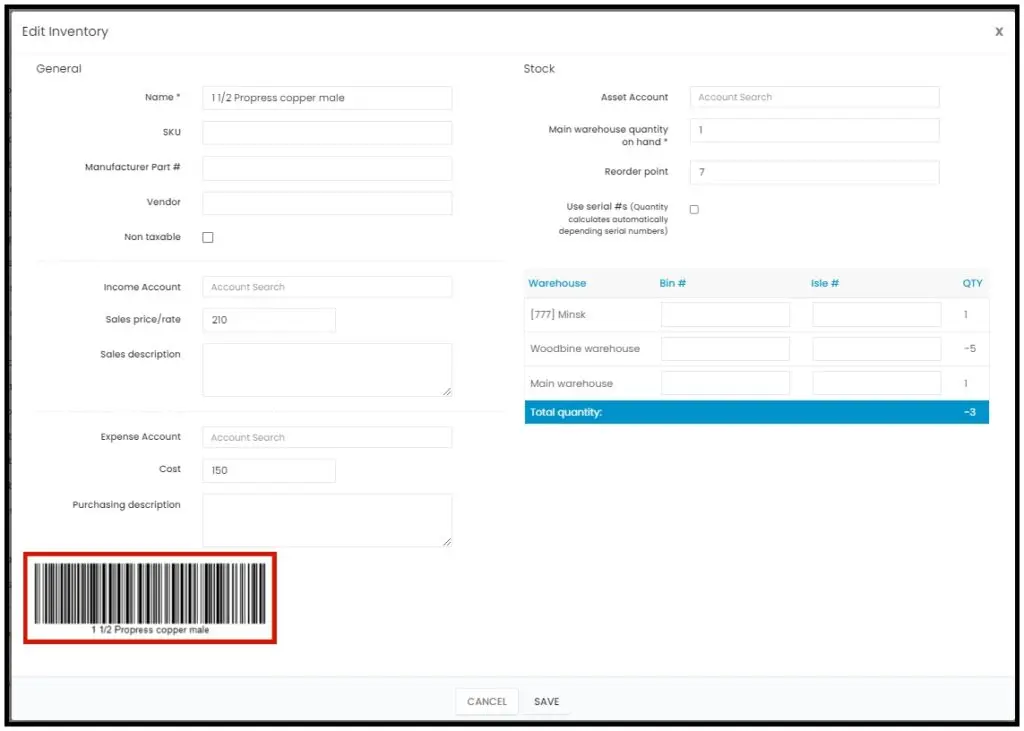
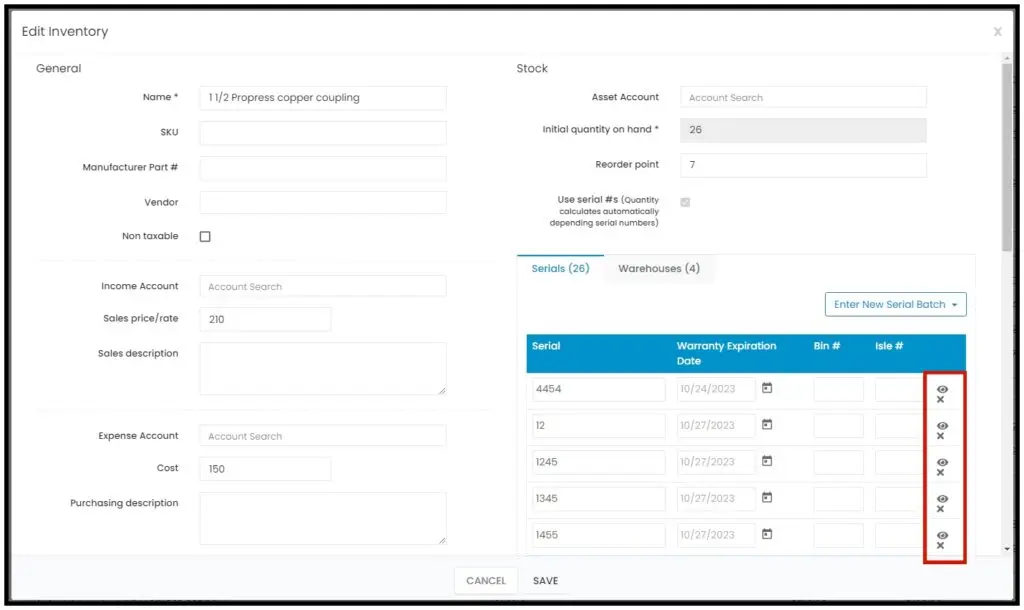
Before, you had to open an inventory item or tool to see whether it had a barcode or QR code. The Inventory list and Tool list now have a Barcode/QR Code column. If an item doesn't have multiple serial numbers, one code is shown at the bottom. If it has multiple serial numbers, an icon next to each serial number lets you preview its code.
Office user permissions for the Customer module
Before, every office user with Admin access could add and edit customers. Now you can set each office user's Customer module permission to View, Edit or No Access.
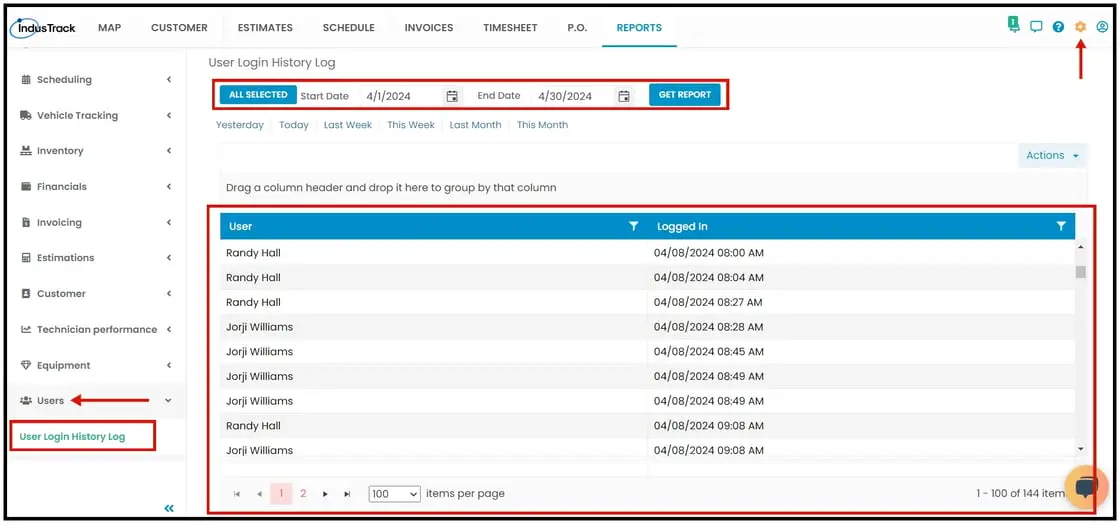
User Login History Log report
A new report shows which office users logged in to the web app, and the date and time they logged in.
Reminders moved to the office user level
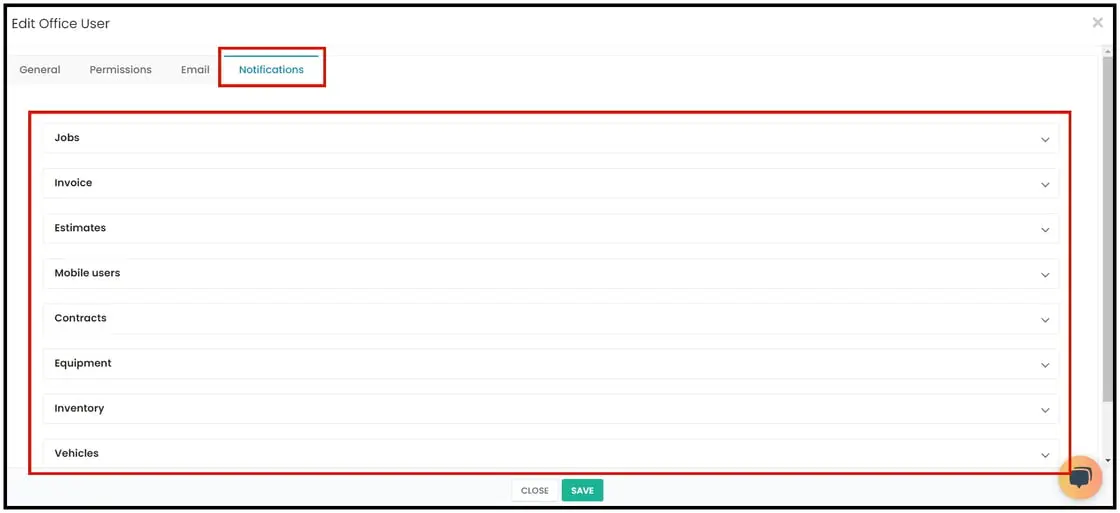
Before, reminders were a global setting under Settings›Reminders, and every office user got every reminder. Now you set reminders for each office user: go to Settings›Office User, select the office user and open the Notifications tab.
-
The Notifications tab lists Jobs, Invoice, Estimates, Mobile Users, Contracts, Equipment, Inventory and Vehicles. The tabs you see depend on your package and permissions.
-
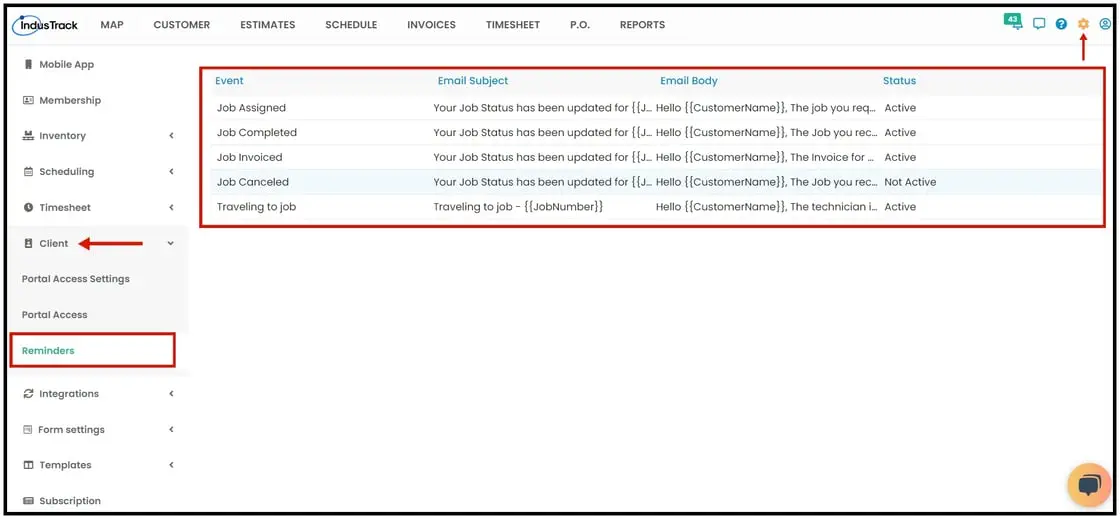
The Client Reminders tab moves under the Client Portal settings.
-
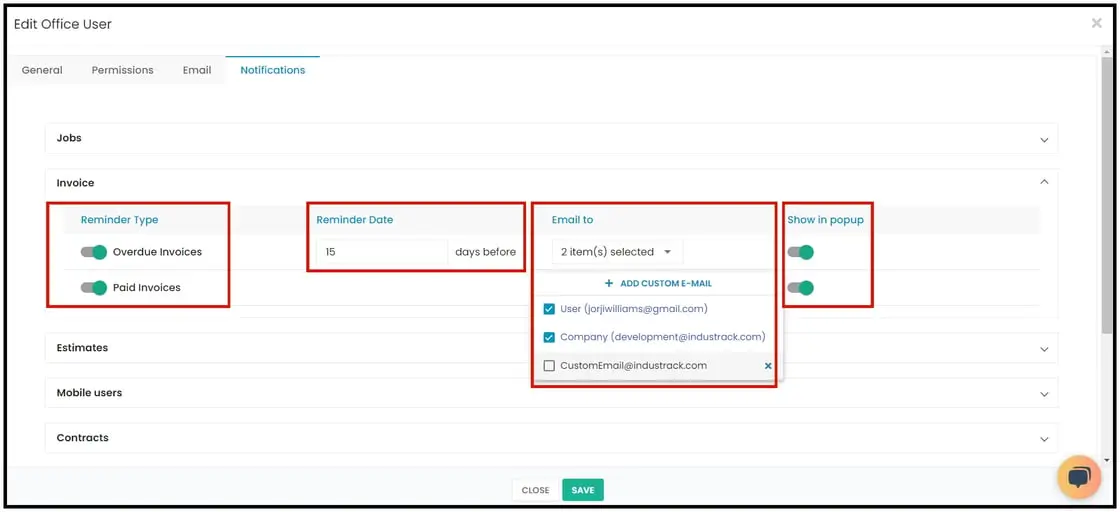
Turn each notification on or off, or enter a number of days to set when it reminds you.
-
Email can go to the office user's email, the company-wide email or a custom email. You can uncheck both emails and show the notification only in the pop-up.
-
The pop-up checkbox is unchecked by default. If a notification is on but no email or pop-up option is selected, it shows only under the bell icon.
-
Notifications are generated every hour and include everything due within the next hour.
-
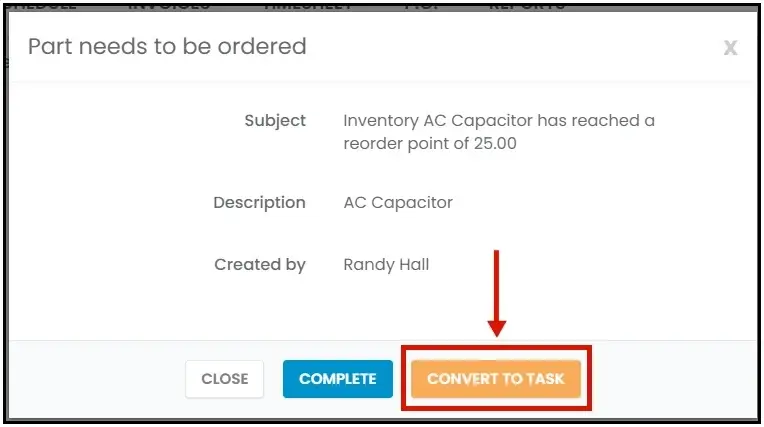
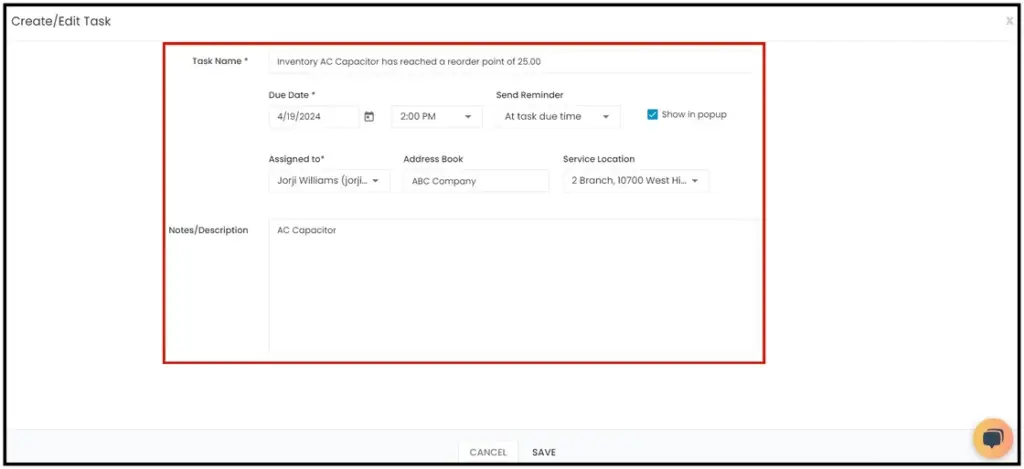
Postponing a notification has been removed. To postpone one, convert it to a task. A task has a due date and can be postponed as many times as you need by changing the date. When the due time comes, the task shows in a pop-up.
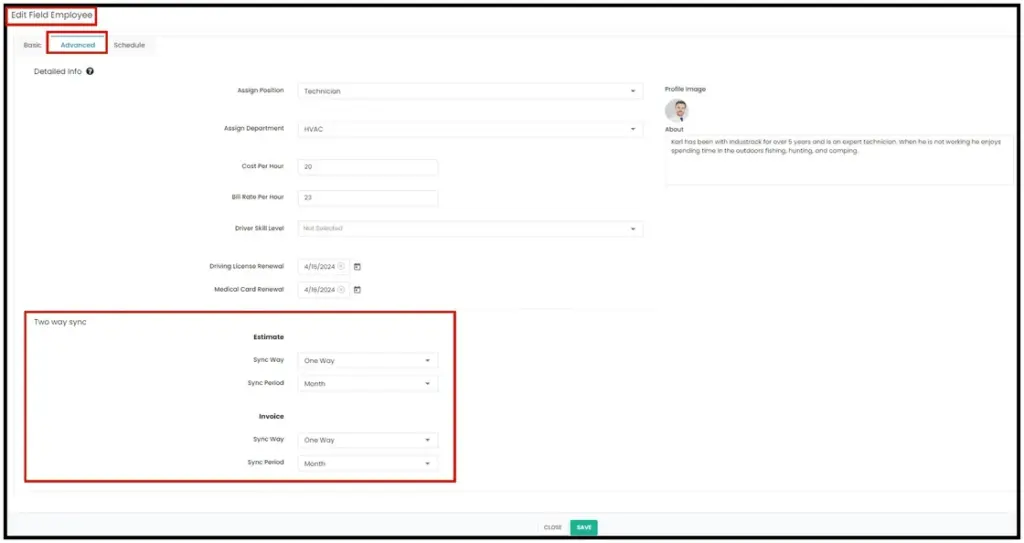
Invoice and estimate sync settings per field employee
The mobile app's invoice and estimate sync settings were global. Now you set them for each field employee: go to Settings›Field Employees›Manage Field Employees, select the employee and open the Advanced tab.
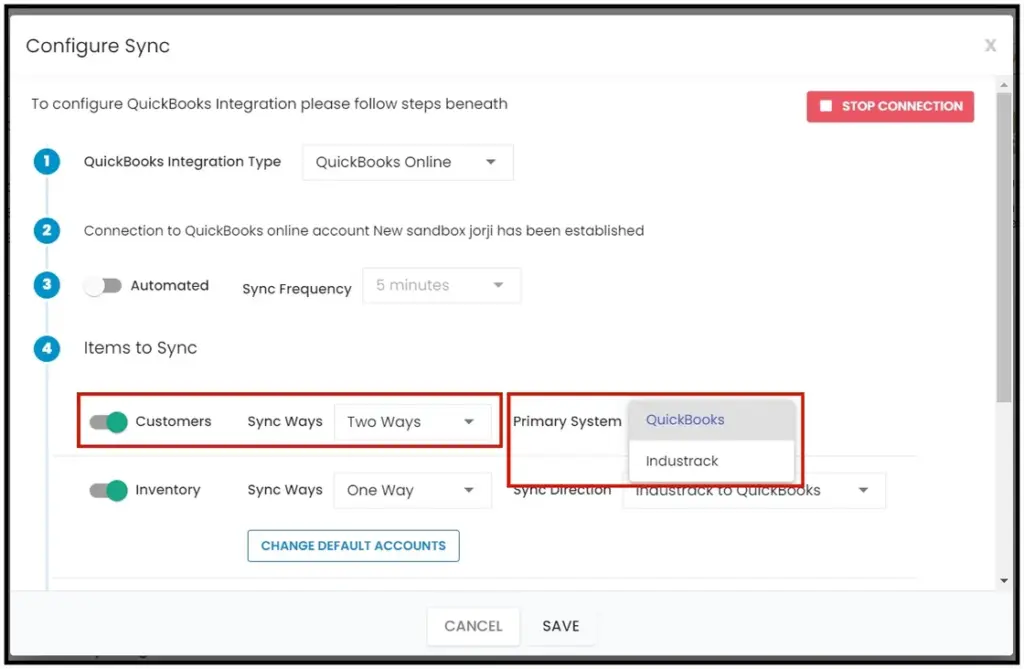
Choose the primary system for QuickBooks Online customer sync
Before, QuickBooks was always the primary system when two-way customer sync was on. Now you can choose which system is primary.
Was this article helpful?
Contact support