How do I message a customer?
Open the customer's profile, go to the Messaging tab and click Add New. Fill in the email address, subject and message, then click Send. Every email you send is saved on this tab.
Send a message
-
Open the customer's profile from the Customer module.
-
Click the Messaging tab.
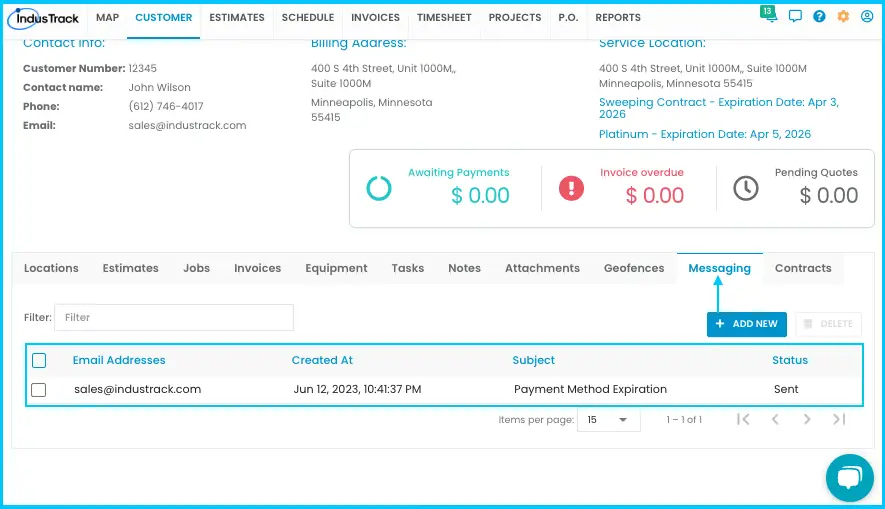
-
Click Add New. The New Message window opens.
-
Fill in:
- Email Address (required): the main email from the customer's profile is filled in. If the customer has more than one location or email, choose the right one, or more than one.
- Subject (required).
- Message (required).
-
Click Send. The message appears in the list.
Watch: Writing and sending a new message to a customer
The message list
Each message shows the email address it was sent to, the date and time sent, the subject and the status. Use the filter bar to find a message.
Delete messages
Deleting can't be undone and may affect other records.
-
Check the box next to each message to delete, or the box at the top of the column to select all.
-
Click Delete.
-
Click Yes to confirm.
Watch: Deleting messages
Common questions
Can the customer reply to these messages?
Messages are logged, but replies can't be received in IndusTrack.
Is there a limit on how many messages I can send?
No. You can send unlimited email messages to customers.
Was this article helpful?
Contact support