Which job reports can I run?
Go to the Reports module, click Scheduling in the left panel and choose a report from the drop-down. Set your filters and dates, click Get Report, and use Actions›Export to PDF/Excel to download.
Available job reports
| Report | Use it to see |
|---|---|
| Jobs by Tech | Jobs each field employee worked on |
| Jobs by Customer | All jobs for selected customers |
| Jobs by Status | Jobs in selected statuses |
| Items Used by Customer | Materials used for one customer |
| Items Used | All items used in jobs |
| Forms | Forms submitted from jobs |
| Estimated vs. Actual | Estimated vs actual costs of jobs |
| Reminders | Reminders by status |
| Job History | Job assignments for field employees |
| Deleted Items | Deleted jobs, estimates, invoices, customers and purchase orders. It's also under Reports›Audit; see Which report do I need? (all reports explained), section Audit. |
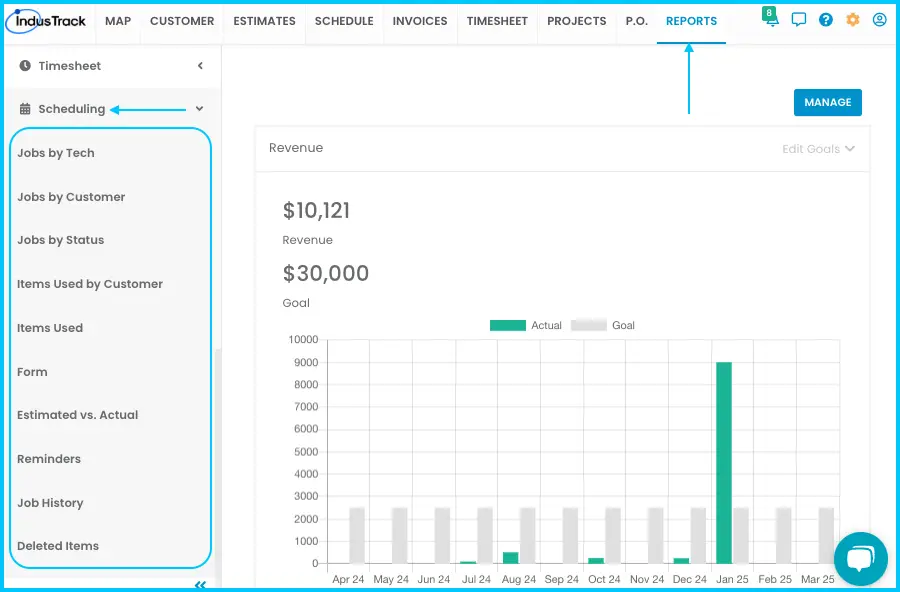
The Actions menu for Jobs by Tech also has Configure Columns, Schedule Report and Add to Favorites. See How do I schedule a report to email automatically?
Jobs by Tech
Shows jobs assigned to a field employee that also have a matching timesheet entry.
-
Go to Reports›Scheduling›Jobs by Tech.
-
Select employees, or search for them.
-
Choose a date range.
-
Click Get Report.
Watch: Running the Jobs by Tech report and exporting it
| Column | Shows |
|---|---|
| Customer & Location | Job site |
| Employee Name | Assigned worker |
| Job # & Service Type | Job number and category |
| Status | Started, declined or completed |
| Schedule vs. Actual Time | Planned vs actual start time |
| Estimated vs. Actual Duration | Expected vs real duration |
| View Details | Job report preview |
| Total Job Time | Total time the job was active |
| Total Travel Time | Total time the tech spent traveling |
Jobs by Customer
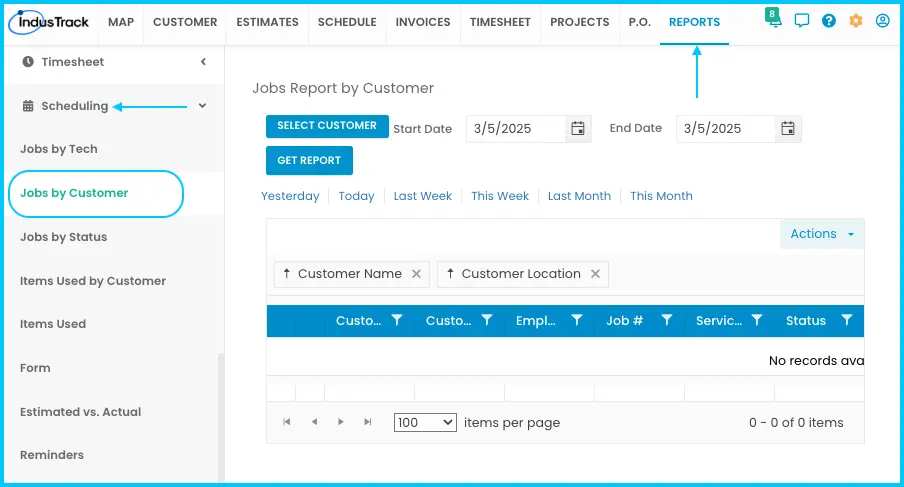
Shows all jobs for the selected customers in the date range. If a customer has no jobs in that period, the report is empty.
-
Go to Reports›Scheduling›Jobs by Customer.
-
Select customers from the search bar or drop-down.
-
Choose a start and end date.
-
Click Get Report. The jobs are shown by service location. Totals for Estimated Duration and Actual Duration are at the bottom.
Watch: Running the Jobs by Customer report and exporting it
| Column | Shows |
|---|---|
| Customer Name | Customer |
| Customer Location | Where the job was dispatched |
| Employee Name(s) | Field employees assigned |
| Job Number | Job number |
| Service Type | Service type |
| Status | Started, declined or completed |
| Schedule Date & Time | When the job was scheduled |
| Actual Time | When the job started |
| Estimated Duration | Expected duration |
| Actual Duration | Time spent on the job |
| View Details | Job detail report preview |
| Total Job Time | Total time the job was active |
| Total Travel Time | Total time the tech spent traveling |
Jobs by Status
Lists jobs by status for a period. Columns are the same as Jobs by Customer.
-
Go to Reports›Scheduling›Jobs by Status.
-
Select statuses: Not Started, Started, Paused, On Hold, Completed or Declined/Canceled.
-
Choose a start and end date.
-
Click Get Report.
Watch: Running the Jobs by Status report
Items Used by Customer
Shows materials used for one customer, on Completed jobs only.
-
Go to Reports›Scheduling›Items Used by Customer.
-
Select a customer.
-
Choose a start and end date.
-
Click Get Report.
Watch: Running the Items Used by Customer report
Columns: Customer Name, Field Employee Name & ID, Date (when the item was used), Part Name, Cost (actual item cost), Price (selling price), Quantity, Job #.
Items Used
Summarizes inventory and equipment used on Completed jobs in the period.
-
Go to Reports›Scheduling›Items Used.
-
Select items and a date range.
-
Click Get Report.
Watch: Running the Items Used report
Columns: Date, ID (item SKU), Name, Description, Price (selling price), Quantity Used, SN # (serial number), Job #.
Forms
Shows forms submitted from jobs.
-
Go to Reports›Scheduling›Forms.
-
Select employees.
-
Choose a date range.
-
Click Get Report.
Watch: Running the Forms report
Columns: Employee Name (who submitted it), Form Name, Date, Time, Customer, Job Number, Location (where it was submitted).
Estimated vs. Actual
Compares estimated and actual costs of jobs. A job appears here when:
- An estimate with inventory items is created in IndusTrack.
- The estimate is converted into a job.
- A task is added to the job, with the inventory items in that task.
- The job is assigned and dispatched to a field employee.
- The field employee syncs the IndusTrack mobile app, starts and completes the task, and marks the job Completed.
Once synced, the job appears under the Completed Job tab and in this report.
To run it: go to Reports›Scheduling›Estimated vs. Actual, select a date range and click Get Report.
| Column | Shows |
|---|---|
| Date | When the estimate was created |
| Customer Name & Location | Customer and service location |
| Estimate No | Estimate number |
| Estimate Description | Estimate details |
| Estimated | Total estimated value |
| Item Cost | Actual cost of items |
| Actual Labor | Labor cost |
| Invoiced | Final billed amount |
| Profit | See below |
Profit is calculated in one of two ways:
- If an invoice exists: Profit = Estimated – Invoiced.
- If there's no invoice: Profit = Estimated – (Item Cost + Actual Labor).
Reminders
Lists reminders for inventory, jobs, services, equipment and parts.
For jobs: when you create or edit a job on the calendar, you can set a reminder to go out a number of minutes, hours or days before the job starts. Save the job and it appears in the report. Jobs with no reminder don't appear.
-
Go to Reports›Scheduling›Reminders.
-
Select a status (Open, Postponed, Completed or Due Date) and a date range.
-
Click Get Report.
Watch: Running the Reminders report
Columns: Reminder (name), Subject, Description, Created by, Due Date, Created Date/Time, Assigned to (office user), Status.
Job History
Tracks job assignments for field employees.
-
Go to Reports›Scheduling›Job History.
-
Select employees and a date range.
-
Click Get Report.
Watch: Running the Job History report
Columns: Customer Name, Customer Location, Employee Name, Job #, Service Type, Status, Schedule Date, Schedule Time, Actual Time, Est Duration, Actual Duration, View Details.
Common questions
I removed a tech from a job. Why does it still show under them in Jobs by Tech?
The job stays in the report as long as the tech's timesheet entry for it exists. It disappears only when the tech is removed from the job and the timesheet entry is deleted.
Why is a job missing from a report?
Jobs that last less than a minute don't appear. If a job is completed but has no duration, check the Timesheet module for conflicts; they must be resolved before actual durations show. Items Used reports only include completed jobs.
Why can't I find a deactivated employee?
Deactivated employees are hidden from the employee drop-down. If you select All Employees, a deactivated employee with timesheet records in the date range is still included.
Was this article helpful?
Contact support