How do I use job and task templates?
Templates save setup you repeat. A task template is a saved set of tasks, with their parts, attachments and forms, that you load onto a job. A job template saves a whole job setup, and is also what service agreements use. Manage both in Settings›Scheduling.
Create a task template
-
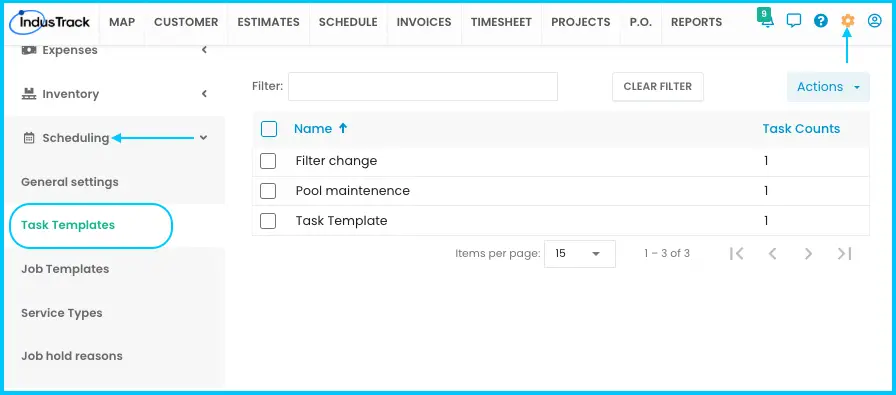
Go to Settings›Scheduling›Task Templates.
-
Click Actions›+ Add New Task Template and enter a name.
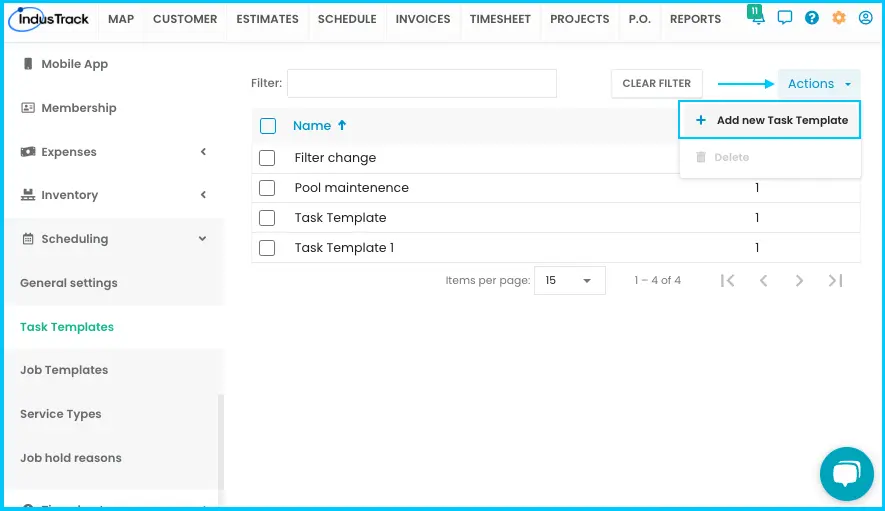
Watch: Using the Actions button on the Task Templates page -
Click Add New Task and fill in:
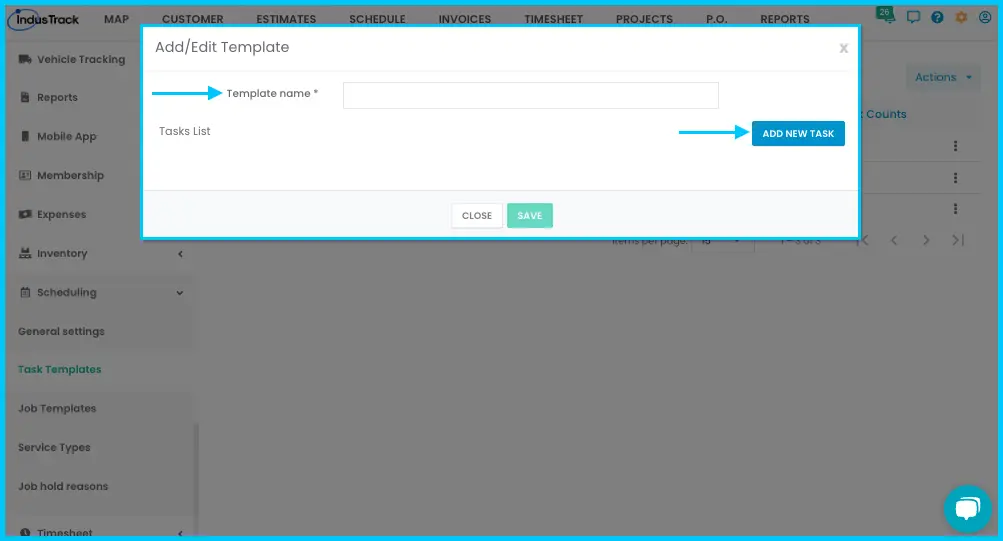
- Task Name and Service Type.
- Parts/Services/Equipment: type an item name, pick it, enter the quantity and click Add. Items can be inventory or non-inventory parts, services, assemblies or equipment.
- Attachments: a link, an uploaded file or an existing file.
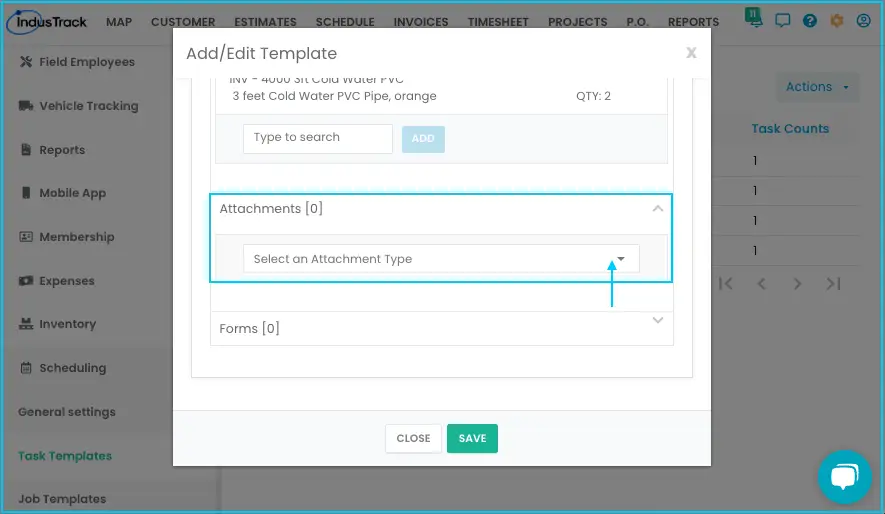
- Forms: pick a form, choose its trigger and click Add.
Watch: Adding a form and its trigger to a task -
Click Add New Task again for more tasks. Reorder them with the arrows on the left; expand or collapse them with the arrows on the right.
Watch: Reordering, expanding and deleting tasks in a template -
Click Save.
To use it, open a job's Tasks tab, click Load Template, pick it and click Load.
Create a job template
-
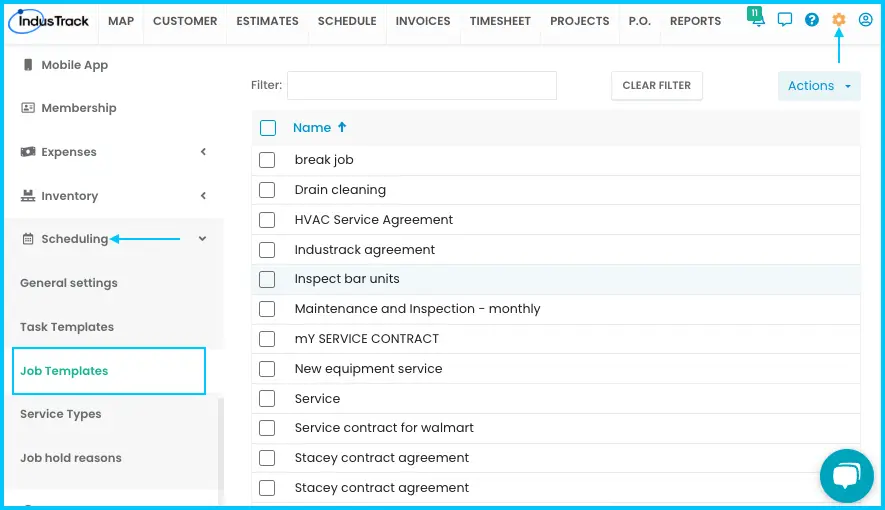
Go to Settings›Scheduling›Job Templates.
-
Click Actions›+ Add New Job Template.
Watch: Using the Actions button on the Job Templates page -
Fill in the Name (required), Description, Job Description, Service Type and Notes.
Watch: Filling in the job template name, descriptions, service type and notes -
Add parts, services, assemblies or equipment: click the field, search for the item, enter the quantity and click Add. These appear as line items when invoiced.
Watch: Adding parts, services and equipment to a job template -
Add Attachments (upload, link or existing file) and Forms (pick a form, choose a trigger, click Add).
-
Click Save.
To use it, open a new job, click Actions›Job Template, select the template from the drop-down and click Select.
Edit, copy or delete a template
-
Edit: click the template, make changes and save. Remove an item with its X; delete a task with Delete Task.
Watch: Editing a task template Watch: Editing a job template -
Copy: click the three-dot menu and choose Clone.
Watch: Cloning a task template Watch: Cloning a job template -
Delete a task template: check it, click Actions›Delete and confirm. This can't be undone and may affect jobs.
Watch: Deleting a task template -
Delete a job template: select it, click the three-dot menu, choose Delete and confirm.
Watch: Deleting a job template
Common questions
An item I need isn't in the list. Do I have to leave the template?
No. Click Create a New Item, choose the type (inventory, non-inventory, service, assembly or equipment), fill it in and save. It's added to the template and to your inventory or equipment list.
What happens if I change a job template used by a service agreement?
You're asked to confirm. Yes saves the change and updates upcoming services in that agreement; No discards it. Deleting such a template also asks for confirmation.
A form I need isn't available. What can I do?
Upload it as an attachment for now, or add it on the Forms page first.
Was this article helpful?
Contact support