How do I group vehicles?
Go to Settings (gear icon)›Vehicle Tracking›Vehicle Groups, click + Add New, name the group and move vehicles into it. Group vehicles by type (trucks, vans), area, crew, purpose or supervisor.
Create a group
-
Go to Settings›Vehicle Tracking›Vehicle Groups.
Watch: Opening Vehicle Groups in settings 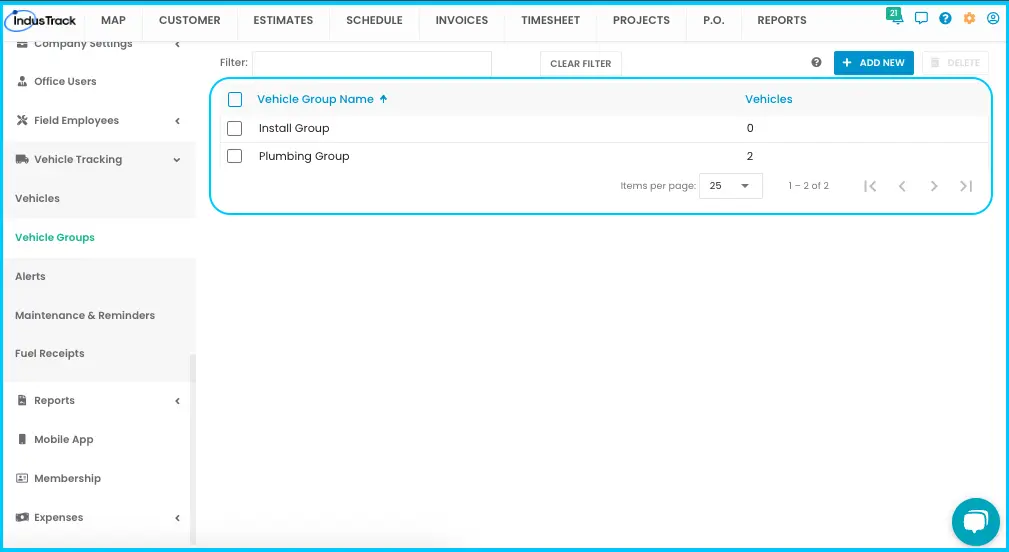
-
Click + Add New.
-
Enter a Vehicle Group Name (required).
-
Add vehicles from the Available Vehicles list in any of these ways:
- One vehicle: hover over its name and click the arrow icon.
- Several vehicles: check their boxes and click Assign to Group.
- All listed vehicles: check the box at the top of the list and click Assign to Group.
- Every vehicle, now and in future: check Include All. New and reactivated vehicles join automatically.
Watch: Adding vehicles to a group, one at a time, several at once or with Include All -
Click Save.
Watch: Creating a new vehicle group
Tip: use the filter bar to find a vehicle by name.
Remove vehicles from a group
-
Click the group's row to open it.
-
In the Assigned Vehicles list, either hover over a vehicle and click the X, or check the boxes (or the top box for all) and click Unassign from Group.
Watch: Removing vehicles from a group -
Click Save.
Rename or delete a group
-
Rename or change vehicles: click anywhere on the group's row, make changes, click Save.
Watch: Changing a vehicle group -
Delete: check the box next to the group (or the box in the Name header for all groups) and click Delete. Deleting is permanent and may affect other settings or data.
Watch: Deleting a vehicle group
Common questions
Why can't I pick vehicles for a group?
Include All is checked, which turns off manual selection. Uncheck it to choose vehicles yourself.
I removed vehicles from an "Include All" group and they came back. Why?
Re-checking Include All adds every vehicle back, including ones you removed.
Can a vehicle be in more than one group?
Yes. The Vehicles list shows "Multiple" in its Group(s) column.
Was this article helpful?
Contact support