How do I give customers portal access?
Turn the portal on in Settings›Client›Portal Access Settings, then create a login for each customer user in Settings›Client›Portal Access with Actions›+ Add New Portal User. The user gets an email with their login details.
The Client Portal is a secure place where your customers, and their authorized employees, log in to see their Equipment, Jobs, Estimates and Invoices. The portal is view-only: customers can't pay invoices or approve estimates there.
Turn on the Client Portal
-
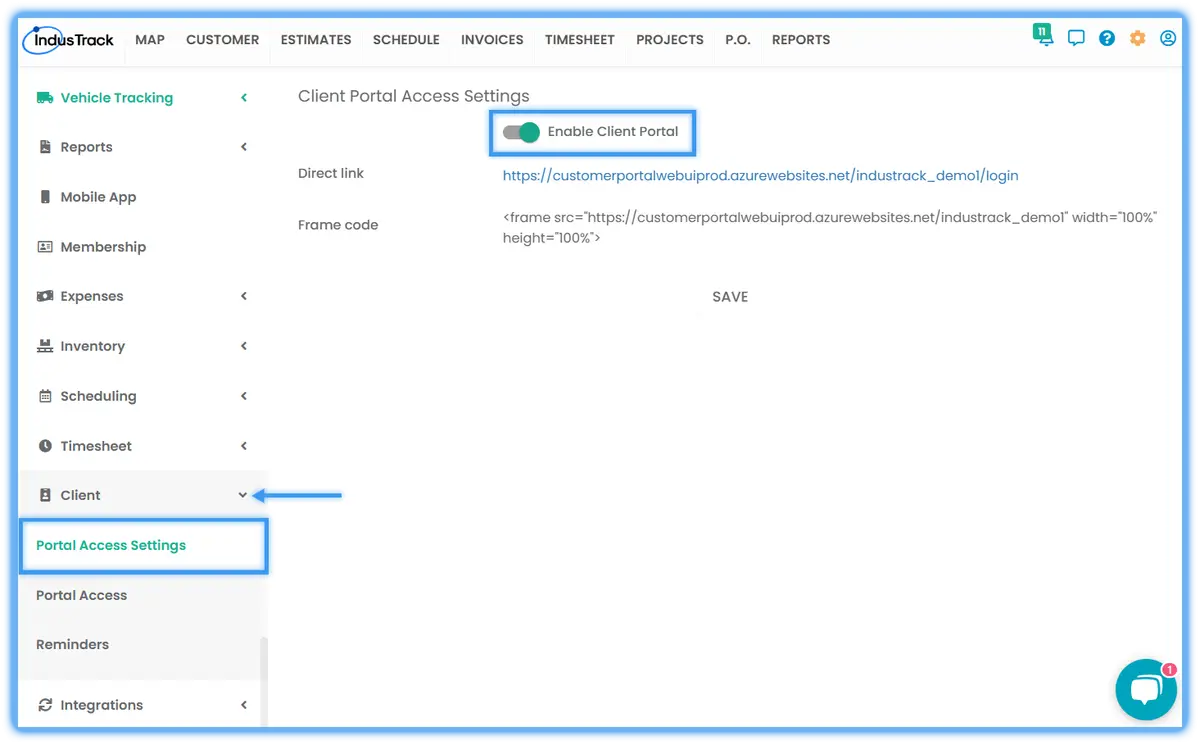
Go to Settings›Client›Portal Access Settings.
-
Turn the Client Portal switch ON.
-
Copy the Direct Link that appears. This is the login page your customers use.
-
Click Save.
Watch: Turning on the Client Portal and copying the Direct Link 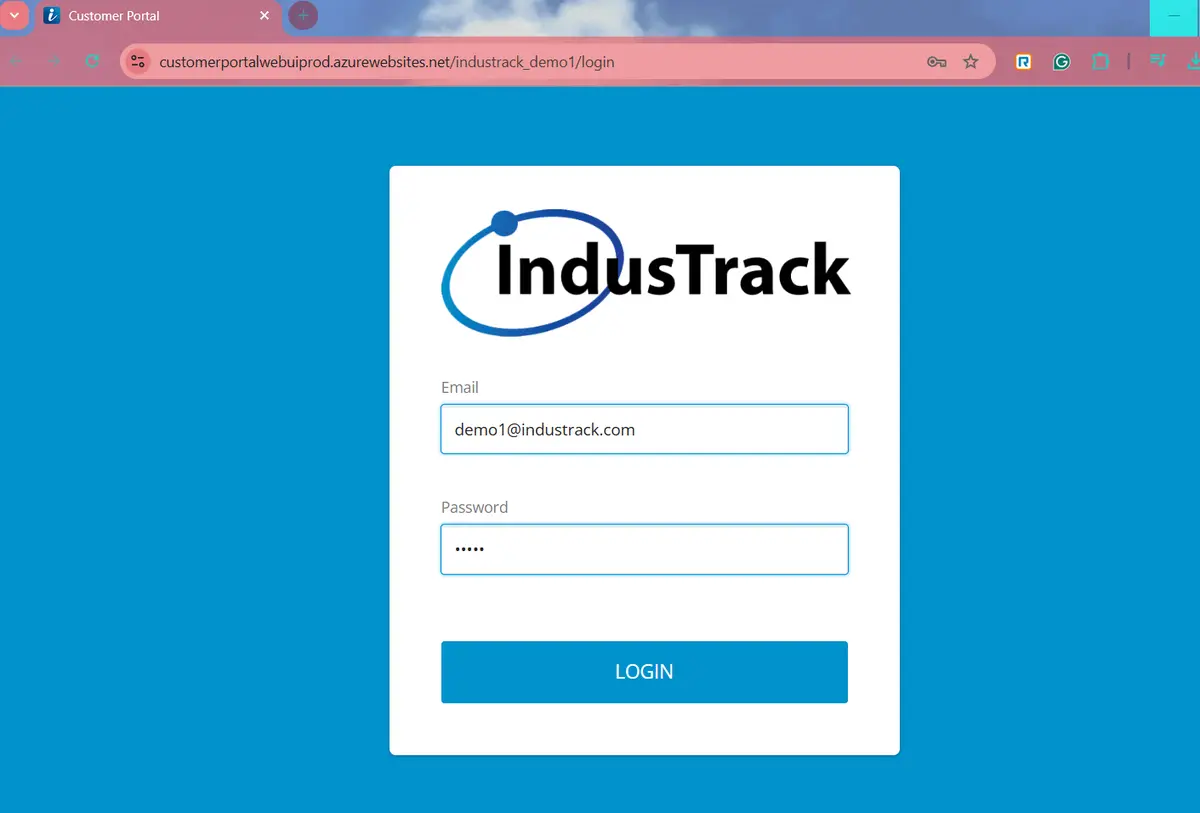
Add a portal user
The portal must be turned on first, or the invitation email won't be sent.
-
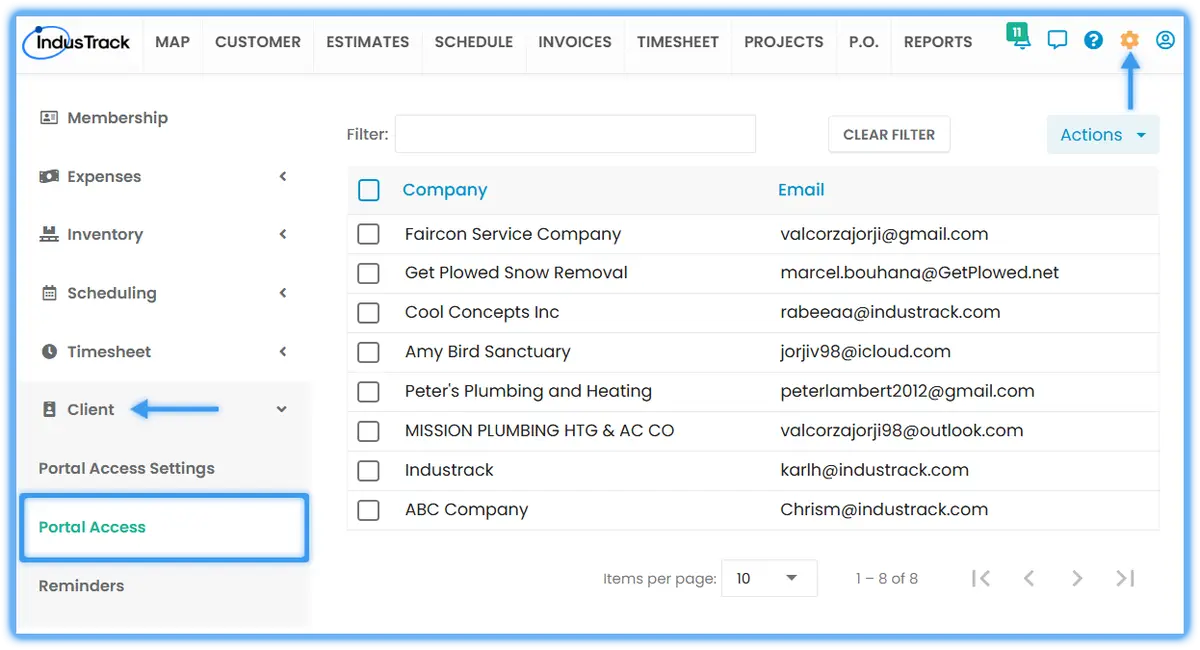
Go to Settings›Client›Portal Access.
-
Click Actions›+ Add New Portal User.
-
Fill in:
- Company: choose the customer's company from the list.
- Email: filled in for you; you can change it.
- Password: create a password for the user.
-
Click Save. The user receives an invitation email with their login details.
Watch: Adding a new portal user
Edit a portal user
-
In Settings›Client›Portal Access, click the user's row.
-
Update the details in the Edit Portal User window.
-
Click Save.
Watch: Editing a portal user
To resend the invitation email, open the user in the Edit Portal User window and click the Resend Invitation Email link at the bottom right, just above the Close and Save buttons.
Delete portal users
Deleted users lose access to the portal. This can't be undone.
-
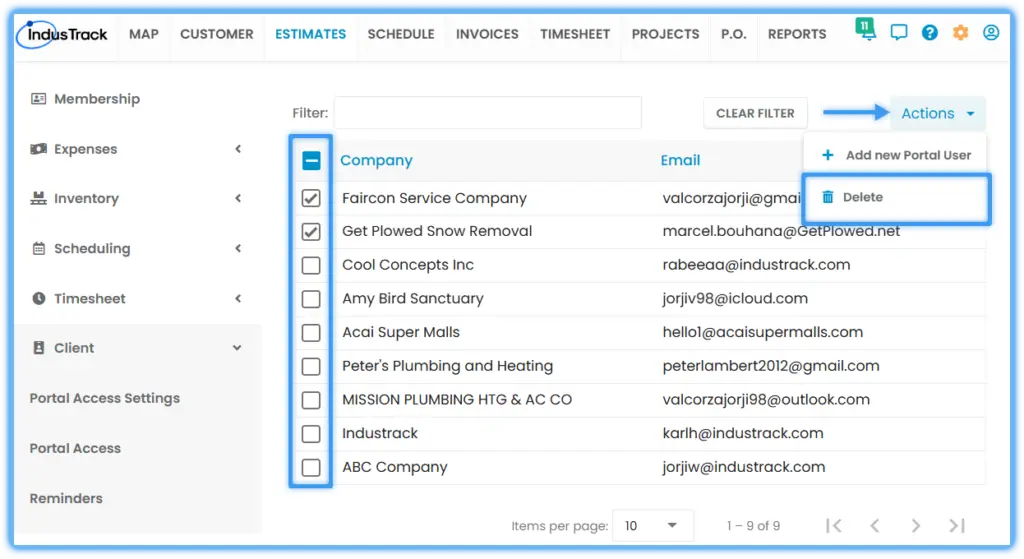
In Settings›Client›Portal Access, check the box next to each user (or the top box to select all).
-
Click Actions›Delete.
-
Click YES to confirm.
Turn off the Client Portal
In Settings›Client›Portal Access Settings, switch Client Portal OFF and click Save. All customer logins stop working while the portal is off.
Common questions
Can a portal user reset their own password?
No. An office user needs to set a new password for them.
Can one customer have more than one portal user?
Yes. A company can have several users, but each email address can only be used once.
Where do I see who has portal access?
In Settings›Client›Portal Access. The list shows each user's Company and Email. Use the search bar to find a user.
My customer didn't get the invitation email. Why?
Check that the Client Portal is turned on. The email isn't sent while the portal is off.
Can I send customers automatic job updates?
Yes, with client reminders. See How do I send customers automatic reminders?
Was this article helpful?
Contact support