How do I add a vehicle and assign its GPS device?
Go to Settings (gear icon)›Vehicle Tracking›Vehicles, click Actions›+ Add New, fill in the vehicle details and pick its GPS device. Office users can do this if their permissions allow it.
Before you start: have the last 8 digits of the GPS device's ESN ready. It's printed on a white sticker on the device.
Steps
-
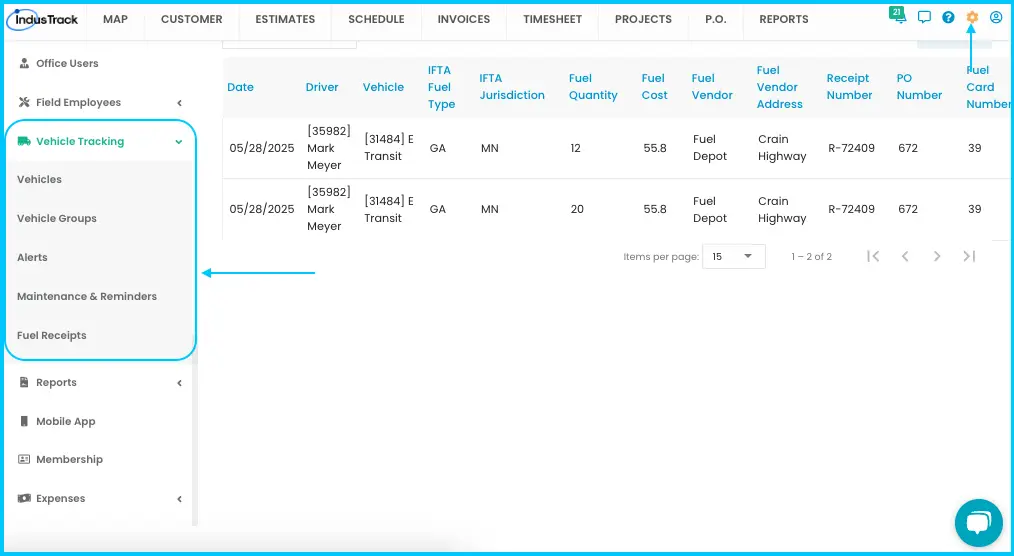
Go to Settings (gear icon)›Vehicle Tracking›Vehicles.
-
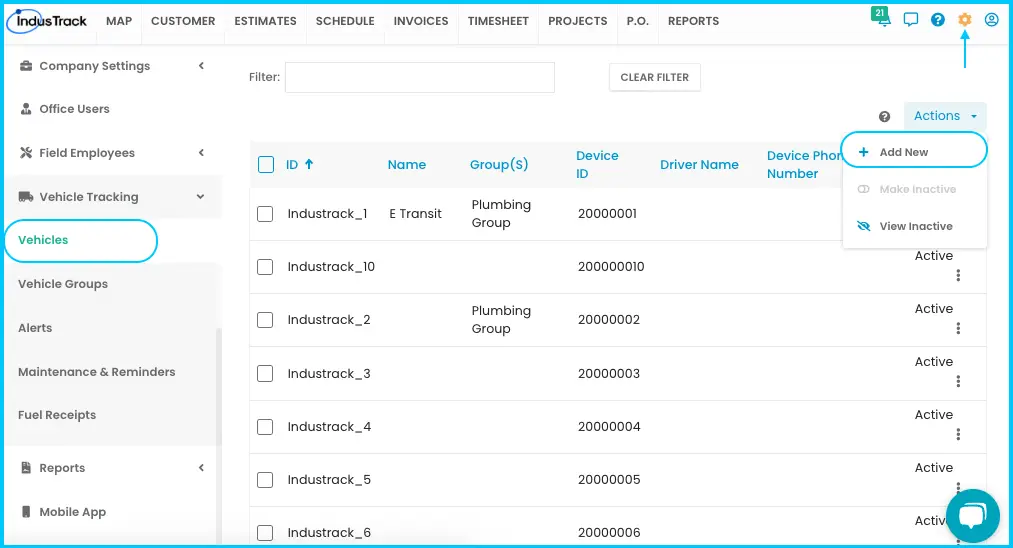
Click Actions and choose + Add New.
-
Fill in General Info:
- Vehicle ID (required): letters and numbers. Each ID must be unique and can't be reused, even for deactivated vehicles.
- Vehicle Name: a name your team will recognize.
- Vehicle Type (required): also sets the vehicle's icon on the map.
- Assign Device: select the GPS device installed in the vehicle, using the last 8 digits of its ESN. Use the search bar if needed.
Watch: Filling in General Info and assigning the GPS device -
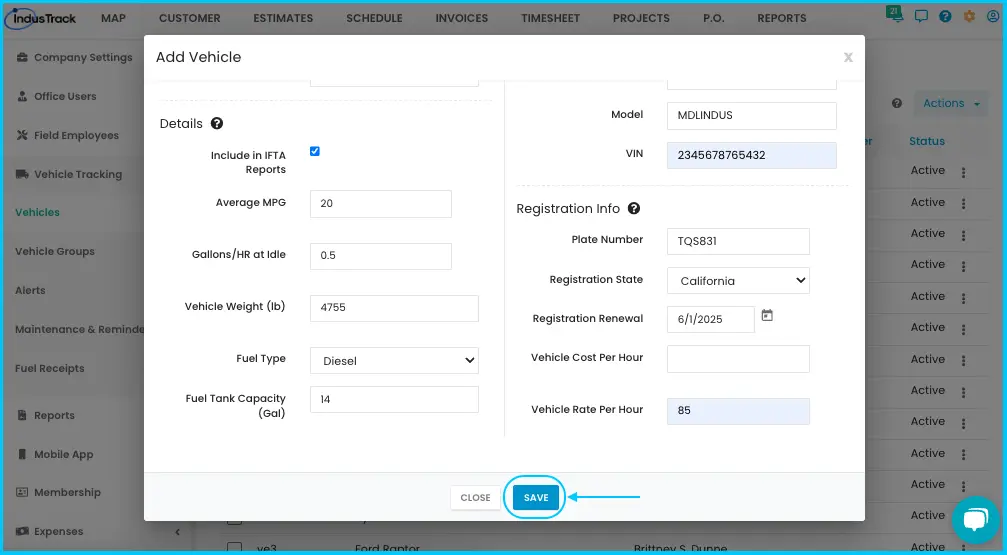
Fill in Fuel & Usage Details (used for fuel and idling reports):
- Average MPG, Gallons/HR at Idle, Vehicle Weight (lbs), Fuel Type and Fuel Tank Capacity (gallons).
- Check Include in IFTA Reports if your company needs IFTA reporting.
Watch: Filling in Fuel & Usage Details -
Fill in Operating Info:
- Current Mileage and Current Engine Hours: click the pencil icon to enter the current odometer reading and engine hours.
- Year, Make, Model and VIN, as shown on the registration.
Watch: Entering current mileage, engine hours and vehicle details -
Fill in Registration Info:
- Plate Number and Registration State.
- Registration Renewal: the expiration date (MM/DD/YYYY). Registration reminders and alerts use this date.
- Vehicle Cost Per Hour and Vehicle Rate Per Hour: used in the asset section of estimates and invoices.
Watch: Filling in Registration Info and hourly cost and rate -
Click Save. The vehicle appears in the Active Vehicles list.
Next, you can add the vehicle to a vehicle group or assign it to a field employee.
Finding your way around the Vehicles list
The list shows active vehicles by default. Click Actions›View Inactive to see deactivated vehicles, and Actions›View Active to go back.
| Column | What it shows |
|---|---|
| ID | The vehicle's unique ID |
| Name | The vehicle's name |
| Group(s) | The vehicle group it's in; "Multiple" means more than one |
| Device ID | Serial number (ESN) of the tracking device |
| Driver Name | The field employee using the vehicle |
| Device Phone # | Phone number linked to the tracking device |
| Status | Active or Inactive |
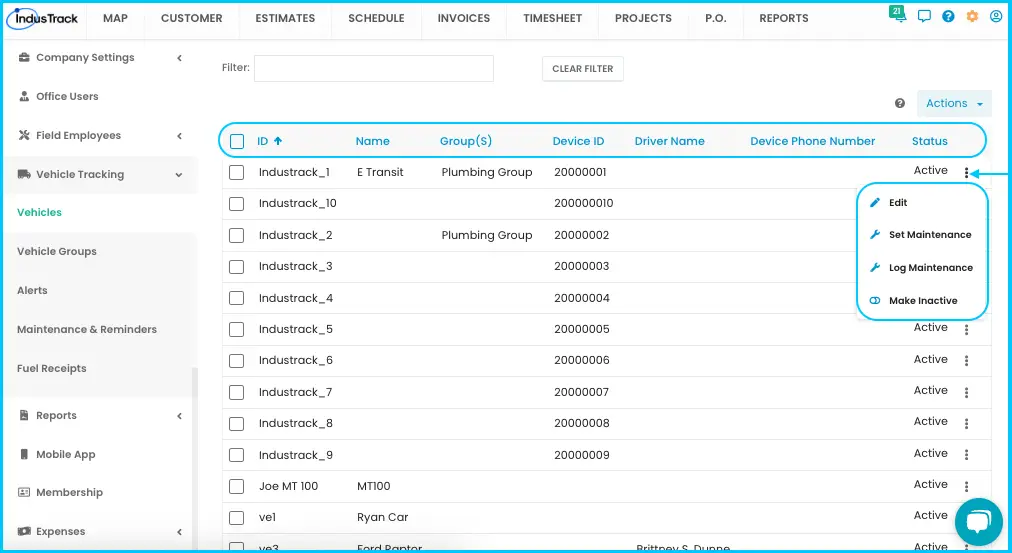
Click a column header to sort. Use the filter bar to search, and Clear Filter to reset. Show 25, 50 or 100 vehicles per page.
Common questions
Why don't my report mileage and engine hours match the vehicle's odometer?
Current Mileage and Current Engine Hours weren't set on the vehicle. Without them, reports only count miles and hours since the device was installed. Edit the vehicle and enter the current readings.
Can I reuse a Vehicle ID from an old vehicle?
No. IDs must be unique, including IDs of deactivated vehicles.
Where do I find the device's ESN?
On the white sticker on the GPS device. Enter the last 8 digits.
Was this article helpful?
Contact support