How does the SnowTrack workflow work?
SnowTrack manages snow removal work such as plowing, salting and shoveling. An admin sets the customer search radius in Settings›Mobile App›Snowplow tab. Field crews start and end each service from SnowTrack in the IndusTrack mobile app, and the office reviews and edits the records on the SnowTrack tab in IndusTrack.
1. Set up SnowTrack (admin)
-
Go to Settings›Mobile App›Snowplow tab. This sets the default for everyone; field employees see their own setting in the app under SnowTrack Options.
-
Set Customer Search Radius (miles): how far from their location field employees can search for customers.
-
Turn Allow Driver to Edit Radius on or off to let field employees change the radius in their app.
Watch: Setting the customer search radius in Settings > Mobile App > Snowplow
2. Work a service in the field (mobile app)
-
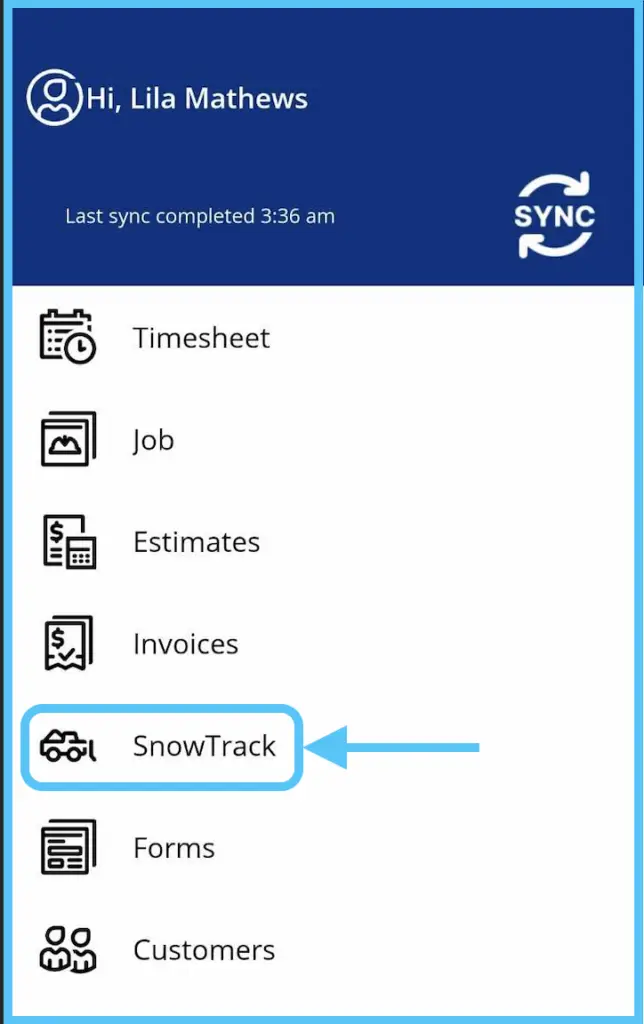
Tap the three horizontal bars at the top left and select SnowTrack.
-
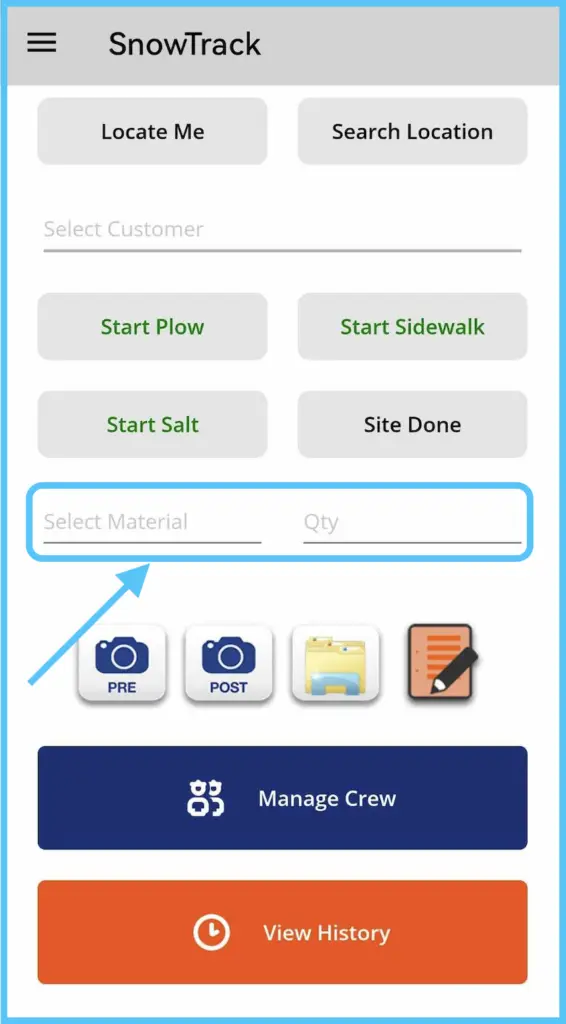
Find the customer:
- The app shows nearby customers within the search radius: 0.25 miles by default. Admins can change the default, and field employees can adjust it if permitted.
- If several customers are in range, tap Select Customer and choose the right one.
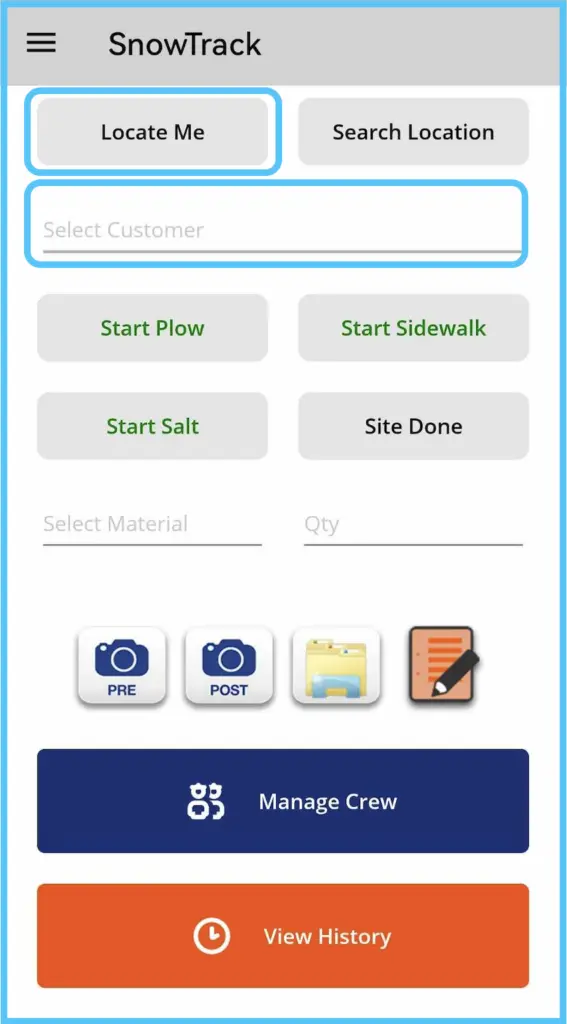
- If no customers appear, tap Locate Me.
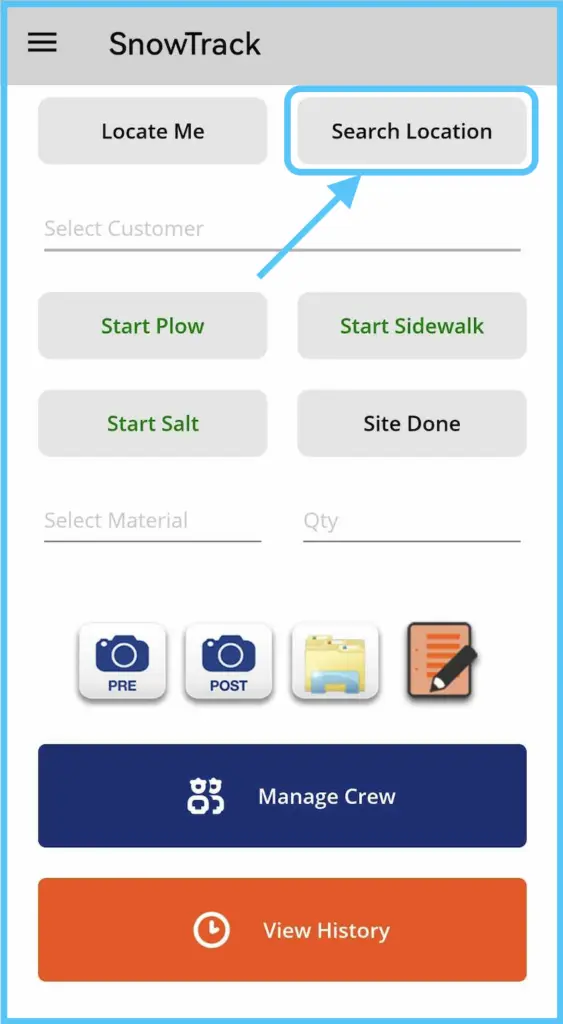
- To enter an address yourself, tap Search Location.
-
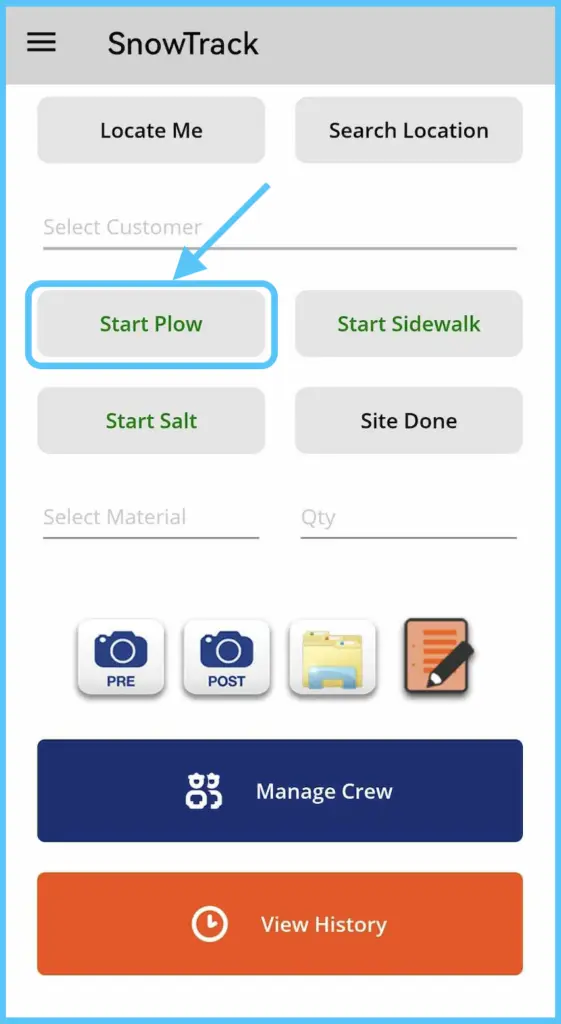
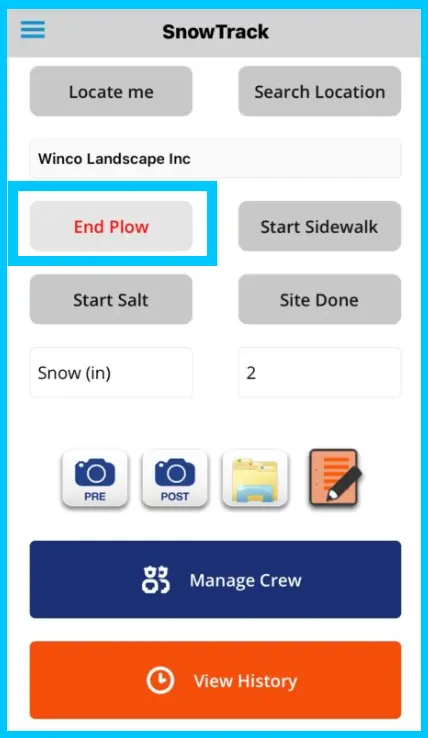
Tap Start Plow, or the button for the service you're doing.
-
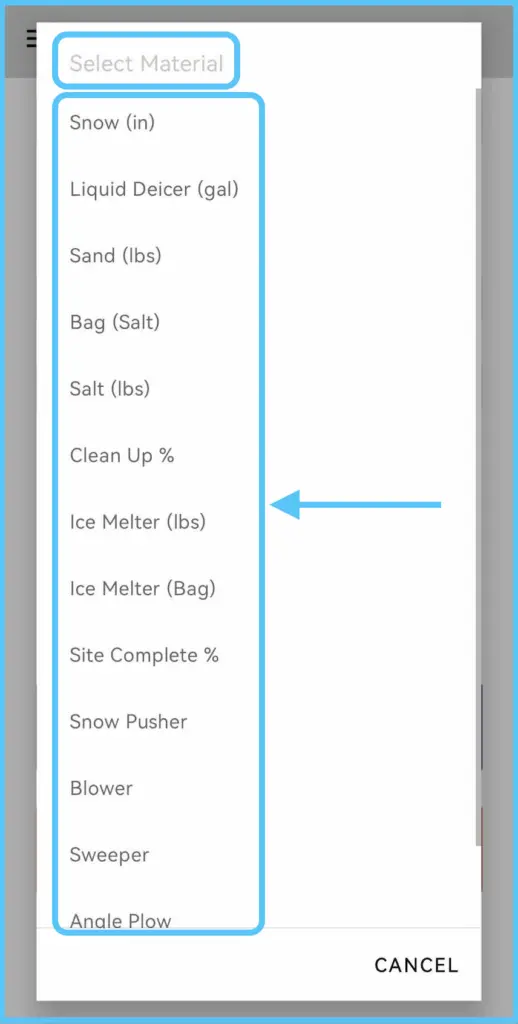
Before you finish, tap Select Material, choose a material from the list and enter the quantity.
-
Add photos, site maps and notes as needed:
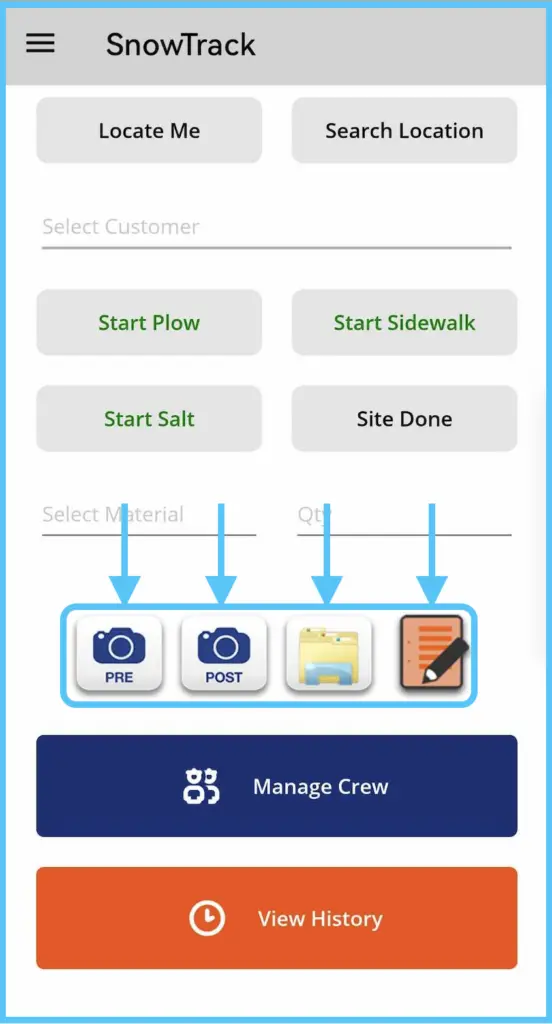
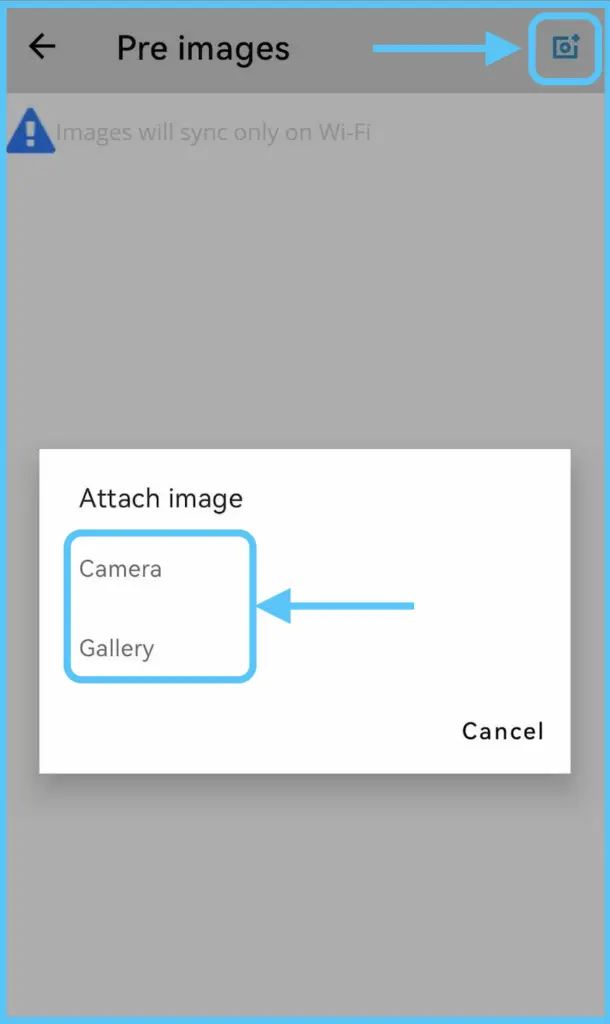
- Tap the camera icon, then Attach Image, and choose Camera or Gallery. You can add several pre-service images, and post-service images once the service is complete.
- Tap the folder icon to see site maps.
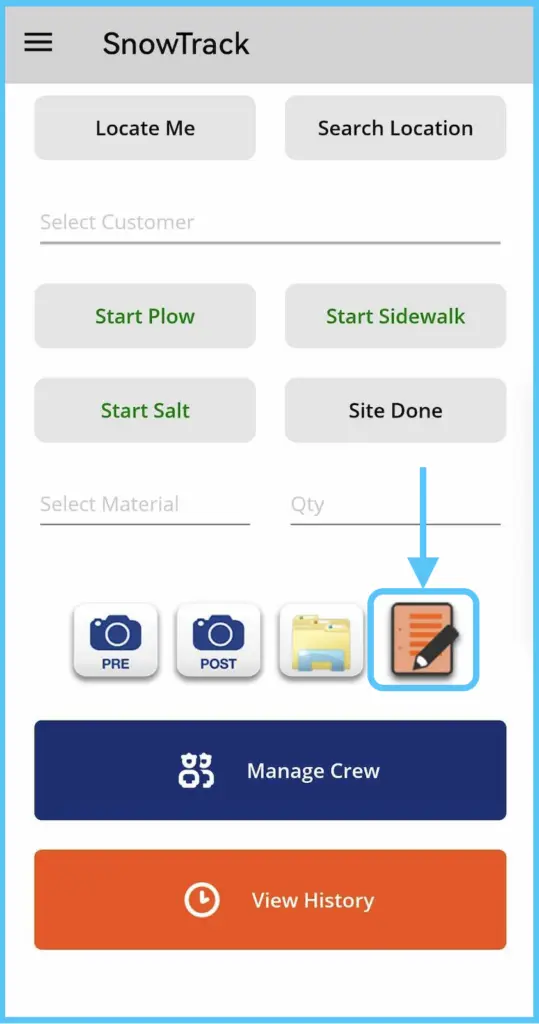
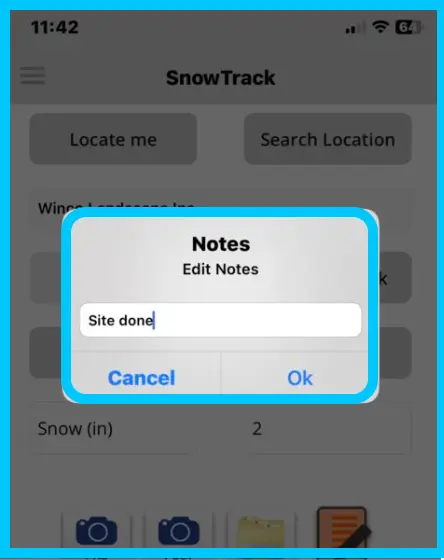
- Tap the paper and pencil icon (Notes), type your notes and tap OK.
-
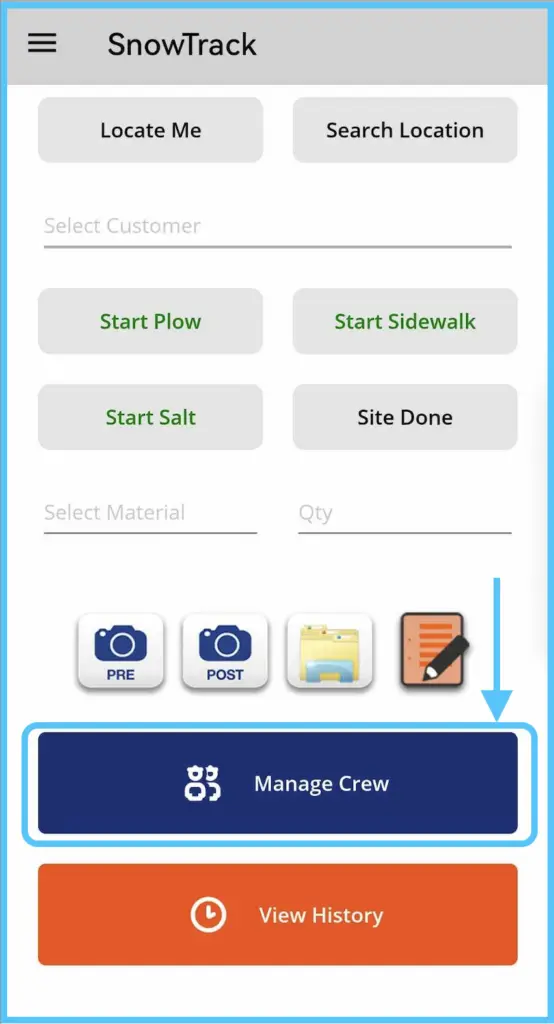
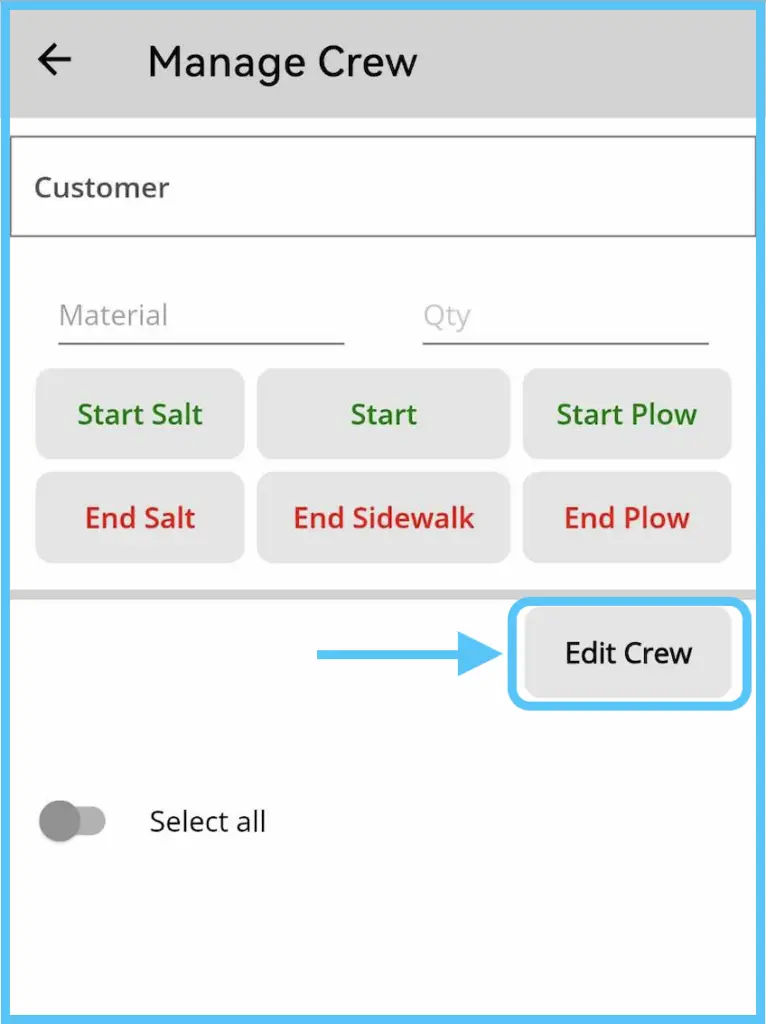
To add crew members, tap Manage Crew, then Edit Crew, turn on the switch next to each crew member and start the service.
-
Tap End Plow, or the button for your service, to complete it.
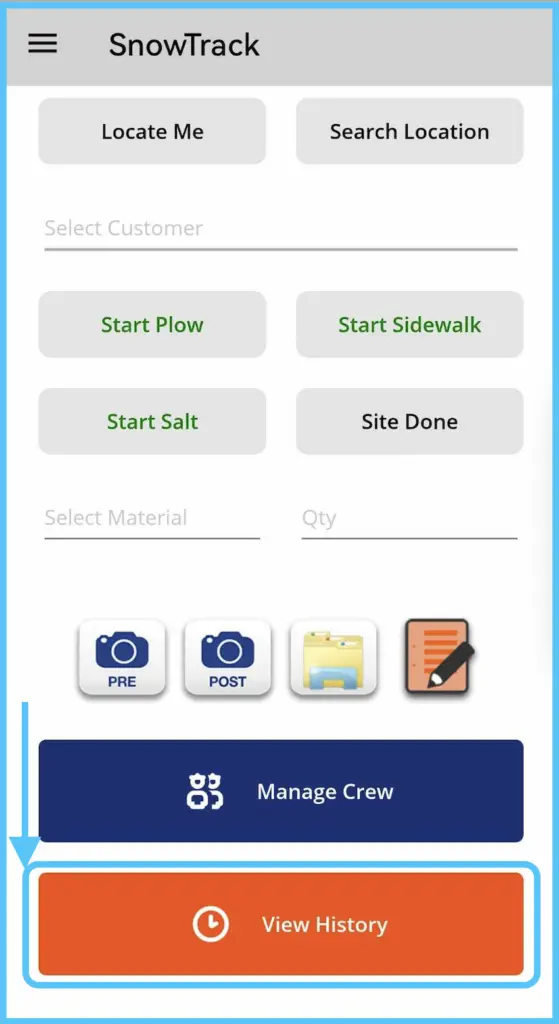
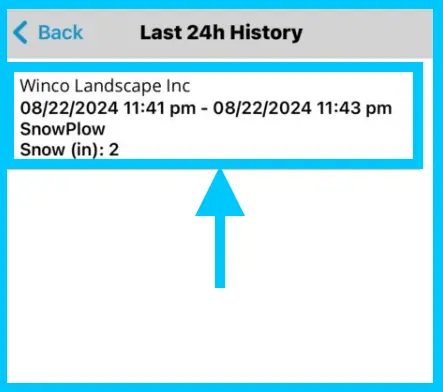
To see services from the last 24 hours, tap View History. It shows the customer name, start and end time, service type, and materials used with quantities.
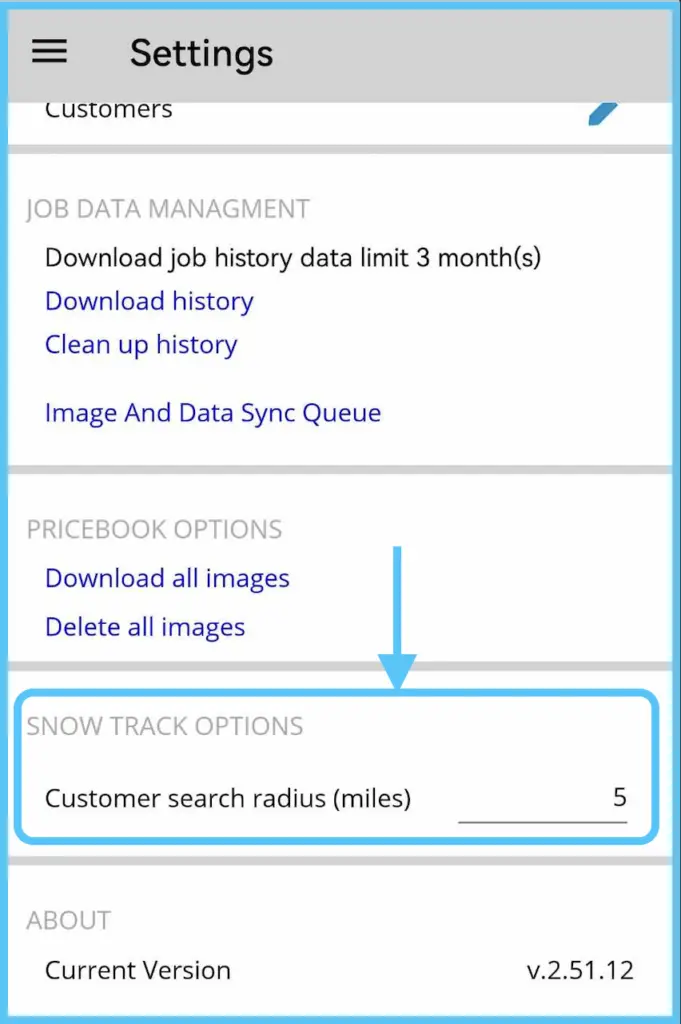
To change the search radius in the app (if your admin allows it), open the app's settings and adjust Customer Search Radius under SnowTrack Options. When you open SnowTrack, the app searches for customers within this radius.
3. Review and manage records (office)
-
On the IndusTrack home page, click the SnowTrack tab. If it's grayed out, your company may not have access.
-
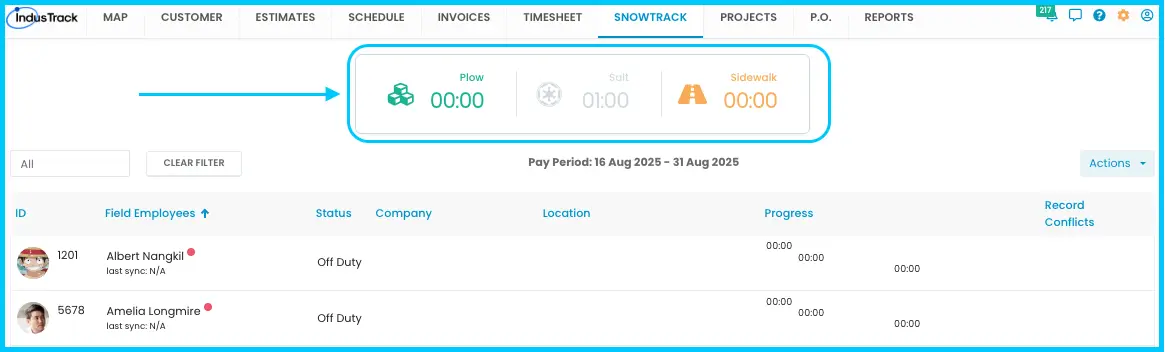
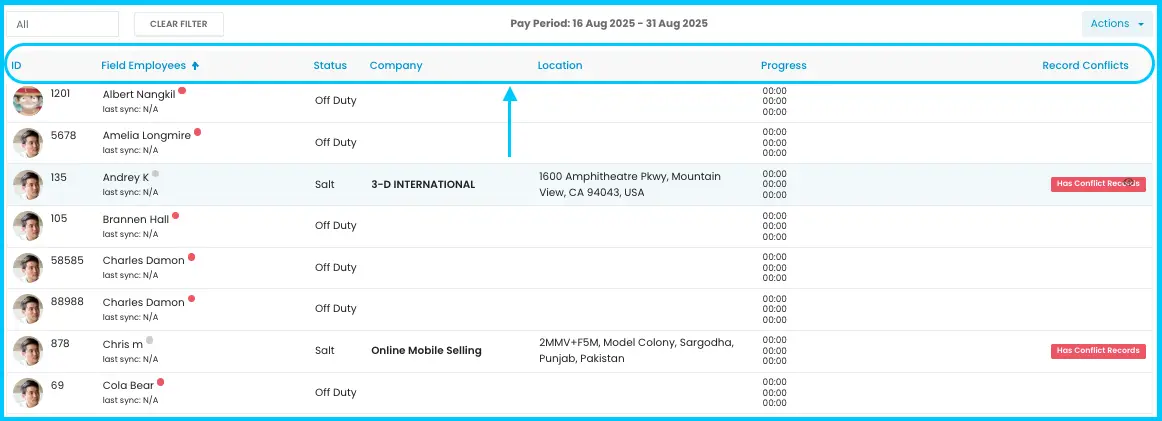
Check the dashboard. It summarizes plow, salt and sidewalk time for employees over a 15-day pay period. Each employee row shows:
| Column | Shows |
|---|---|
| Employee ID / Employee Name | Who the row is for |
| Status | Off Duty, Plowing, Salting or Working on Sidewalk |
| Company | The client they are working for |
| Location | Their current location |
| Progress | Total work hours |
| Record Conflicts | Problems such as missing clock-outs. Click Has Conflict Records to fix them (see below). |
-
To add a record for an employee, use either option:
- From the employee list: click the employee's name, then Add New.
Watch: Adding a SnowTrack record from the employee list - From the Actions button: click Actions›Add New SnowTrack Record, select the employee from the drop-down, then click Add New.
Watch: Adding a SnowTrack record from the Actions button -
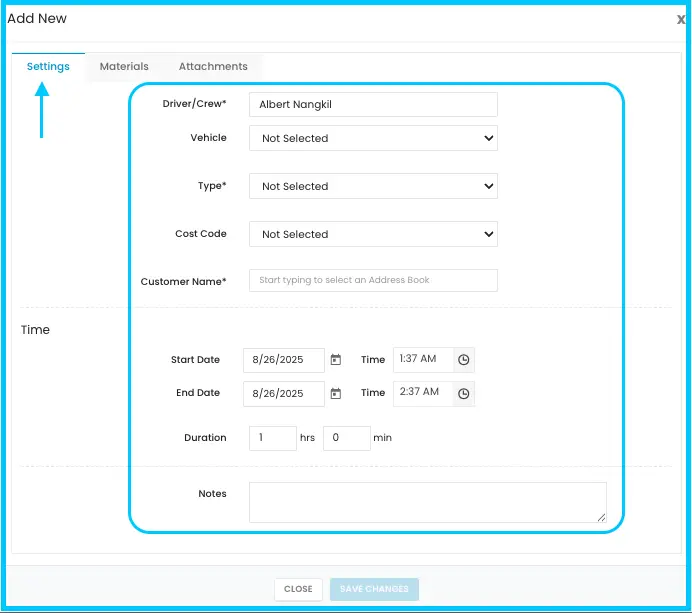
Fill in the record. Fields marked * are required.
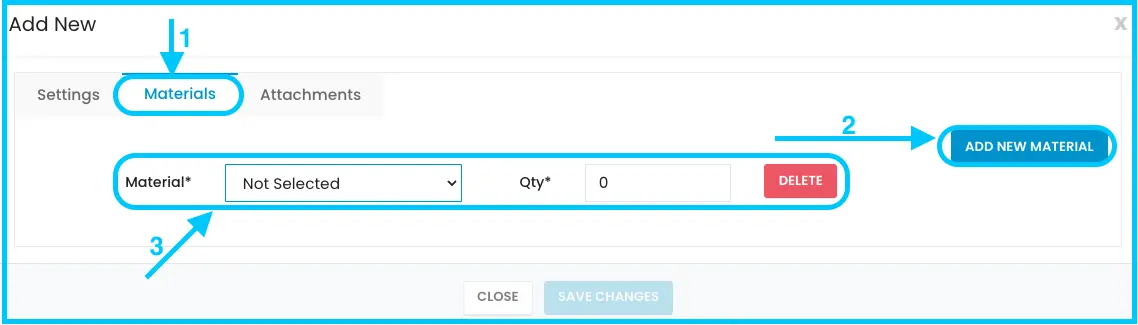
- Materials tab: click Add New Material, then select the material type and quantity.
- Attachments tab: upload images with the Actions button.
Watch: Uploading images on the Attachments tab -
Click Save Changes.
Other things you can do on the SnowTrack tab:
-
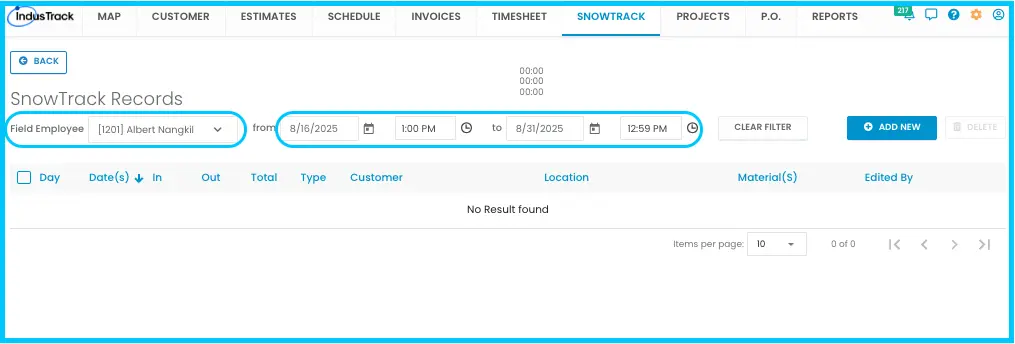
Switch employee or dates: use the Field Employee drop-downs in SnowTrack Records and adjust the date range.
-
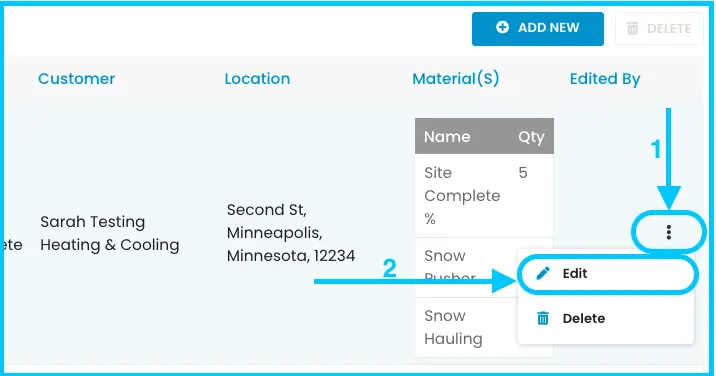
Edit a time entry: click the three dots next to the entry and select Edit.
-
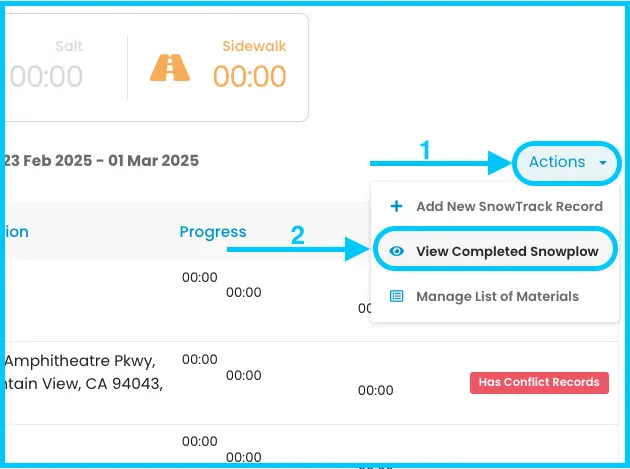
See completed work: click Actions›View Completed Snowplow. Records are shown by week or by month, matching the invoicing period set under Company Settings›Invoice.
-
Hide materials from the app: click Actions›Manage List of Materials and turn materials off.
Watch: Turning materials off in Manage List of Materials -
Fix a record conflict: click Has Conflict Records, click the red message Records conflict has been detected. Needs to be resolved., click the three-dot menu and choose Edit, enter the missing time and click Save Changes.
For reports on SnowTrack work, see SnowTrack report.
Common questions
Why aren't my SnowTrack photos syncing?
Images sync last, and stay marked Not Synced until the next sync finishes. If they still don't sync on mobile data, check Settings›Mobile App›General›Sync Images only on Wi-Fi and turn it off to allow syncing over mobile data.
Why isn't the app syncing with the office?
Check that the app has synced at least once, is up to date, and that the phone isn't low on memory. Also:
- Closing the app and locking the screen stops syncing. Leaving the app open while the phone is locked lets it sync when you unlock.
- Removing the app from recent apps stops syncing.
- The app doesn't sync while the job details screen is open.
How do I see when the app last synced?
On the mobile app dashboard, the last sync time is below your name.
How do I sync right away, or reload everything?
Tap the two circular arrows at the top right of the dashboard for a manual sync. For a full sync, which replaces the data on the phone with the latest from the server, tap the three horizontal bars, select Settings, tap the sync icon and tap Yes at the warning.
How do I update the app?
Your version is shown in the app's settings. When an update is available, a notice appears; tap it to download. You can also update from the App Store or Google Play Store by searching for IndusTrack and tapping Update.
No customers show up when I open SnowTrack. What do I do?
Tap Locate Me, or tap Search Location and enter the address.
Was this article helpful?
Contact support