SnowTrack for office users
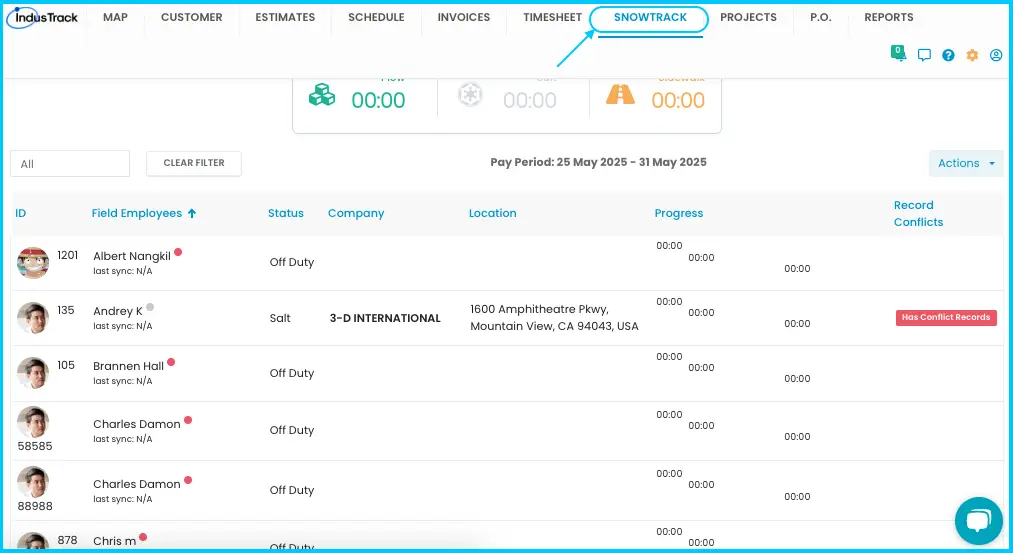
On the IndusTrack home page, click the SnowTrack tab. From there you can see which field employees are working, add and edit SnowTrack records, review completed work and choose which materials crews see in the mobile app.
Open SnowTrack
-
Go to your IndusTrack home page.
-
Click the SnowTrack tab. If it's grayed out, your account may not have access.
Read the dashboard
The top of the page shows total hours spent plowing, salting and on sidewalk work for the current 15-day pay period.
Each employee row shows:
| Column | Shows |
|---|---|
| Employee ID / Employee Name | Who the row is for |
| Status | Off Duty, Plowing, Salting or Working on Sidewalk |
| Company | The client they are working for |
| Location | Their current location |
| Progress | Total work hours |
| Record Conflicts | Incomplete timesheets. Click Has Conflict Records to resolve them (see below). |
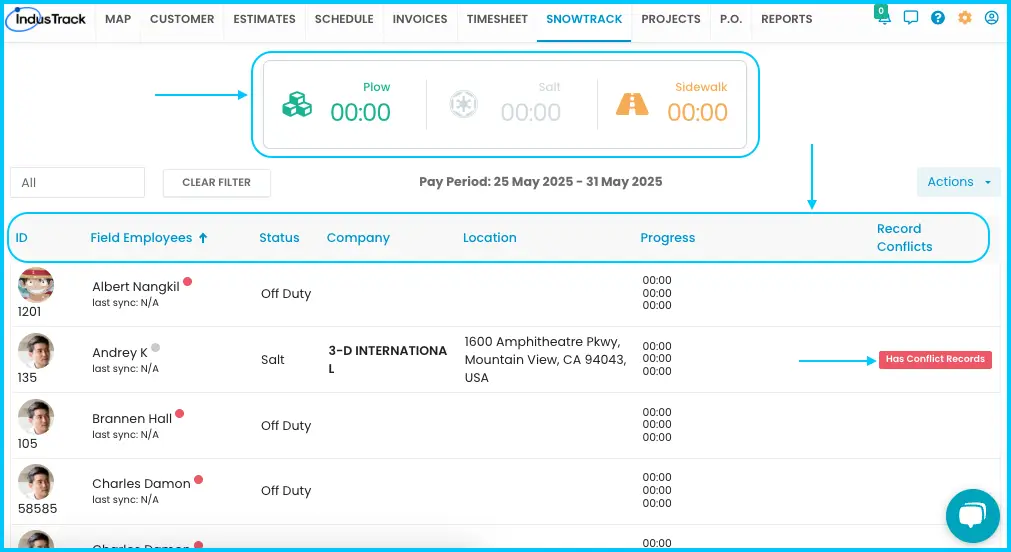
Fix a record conflict
A record conflict is an incomplete timesheet, for example a missing time.
- Click Has Conflict Records next to the employee.
- Click the red message Records conflict has been detected. Needs to be resolved.
- Click the three-dot menu and choose Edit.
- Enter the missing time.
- Click Save Changes.
Add a SnowTrack record
-
Start the record in one of two ways:
- From the employee list: click the employee's name on the dashboard, then click Add New.
Watch: Adding a SnowTrack record from the employee list - From the Actions button: click Actions›+ Add New SnowTrack Record. The form opens without an employee; choose one from the field employee drop-down.
Watch: Adding a SnowTrack record from the Actions button -
Fill in the tabs:
- Settings tab: fields marked * are required.
- Materials tab: select the material type and enter the quantity. Add or delete materials as needed.
- Attachments tab: upload images with the Actions button.
-
Click Save Changes.
Work with time entries
-
Change the employee or dates: use the employee drop-down and the date range selector.
-
Edit a time entry: click the three-dot menu next to the entry and choose Edit.
Watch: Editing a time entry -
See completed work: click Actions›View Completed Snowplow. Records are shown by week or by month, matching the invoicing period set under Company Settings›Invoice.
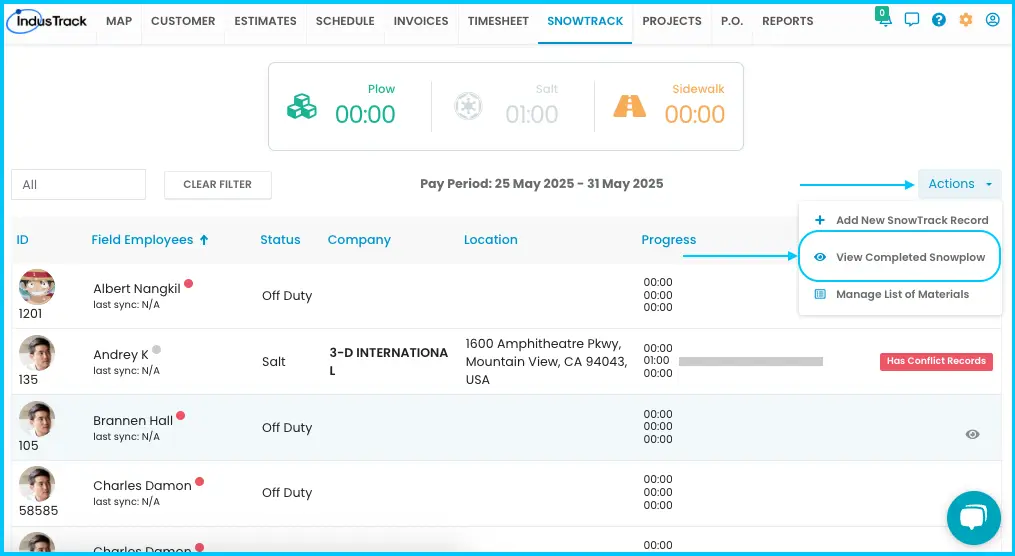
Choose which materials crews see
Click Actions›Manage List of Materials on the SnowTrack tab and turn each material on or off. Materials that are off don't appear in the materials drop-down in the mobile app.
Common questions
Can I see who changed a SnowTrack record?
Yes. The Audit Trail shows when someone adds a record, edits a record, or changes a key field (start time, end time, customer, vehicle, cost code, type or duration), with what changed, when and by whom. To open it, go to View SnowTrack Records, find the record, click its three-dot menu and choose Audit Trail.
Why is the SnowTrack tab grayed out?
Your account may not have access to SnowTrack.
What do crews do in the app?
See SnowTrack for field crews (mobile). For the full process from setup to reports, see How does the SnowTrack workflow work? and SnowTrack report.
Was this article helpful?
Contact support