SnowTrack for field crews (mobile)
In the IndusTrack mobile app, tap the three lines (menu) at the top left and select SnowTrack. Pick the customer, tap Start Plow (or your service), add materials, photos and notes, then tap End Plow to finish.
Start and finish a service
-
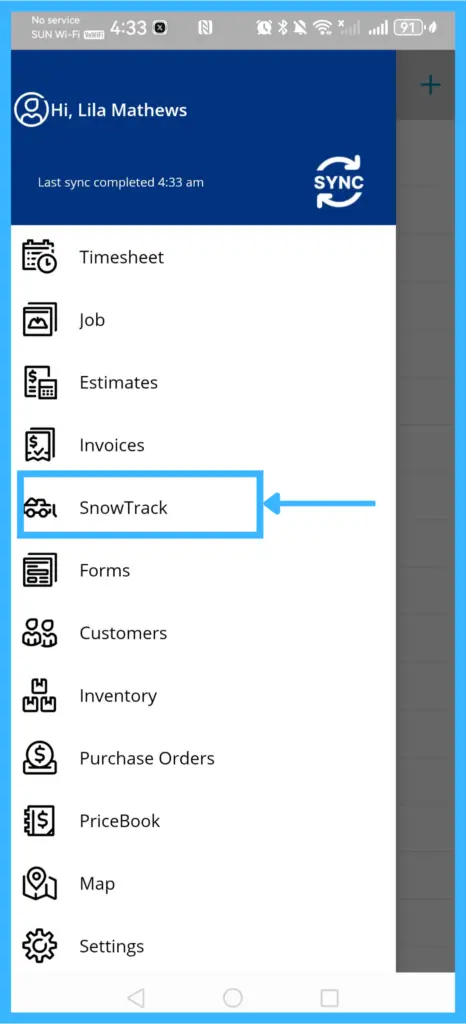
Tap the three lines (menu) at the top left and select SnowTrack.
-
Find the customer:
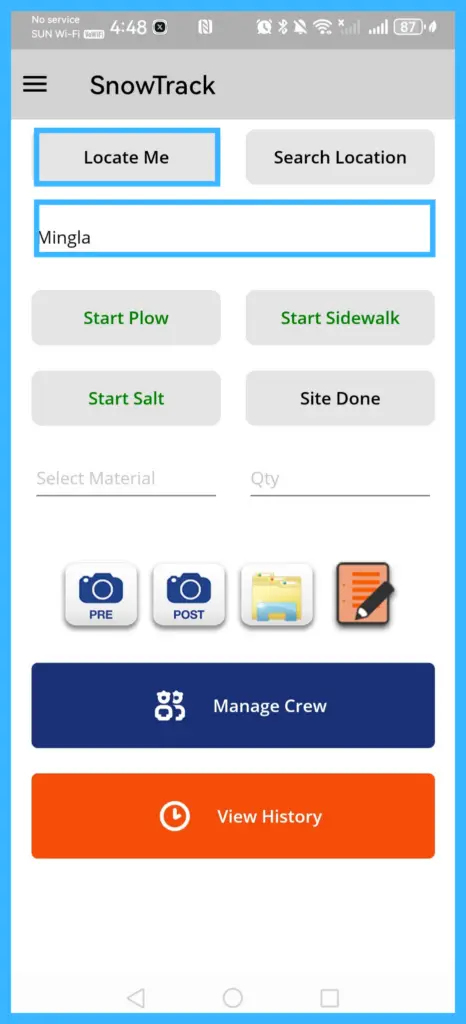
- The app shows customers within 0.25 miles of where you are. This is the default search radius; your admin can change it.
- If no customers appear, tap Locate Me to refresh.
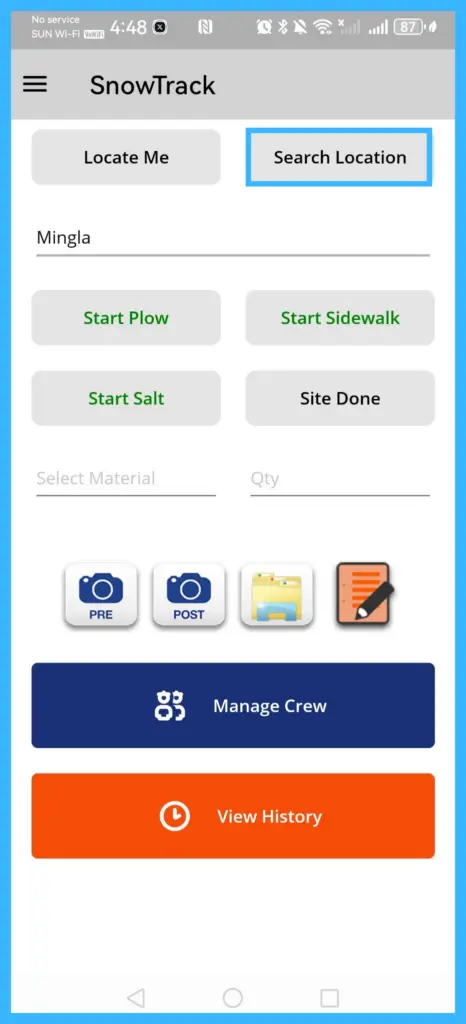
- To find a place yourself, tap Search Location and enter an address or customer name.
-
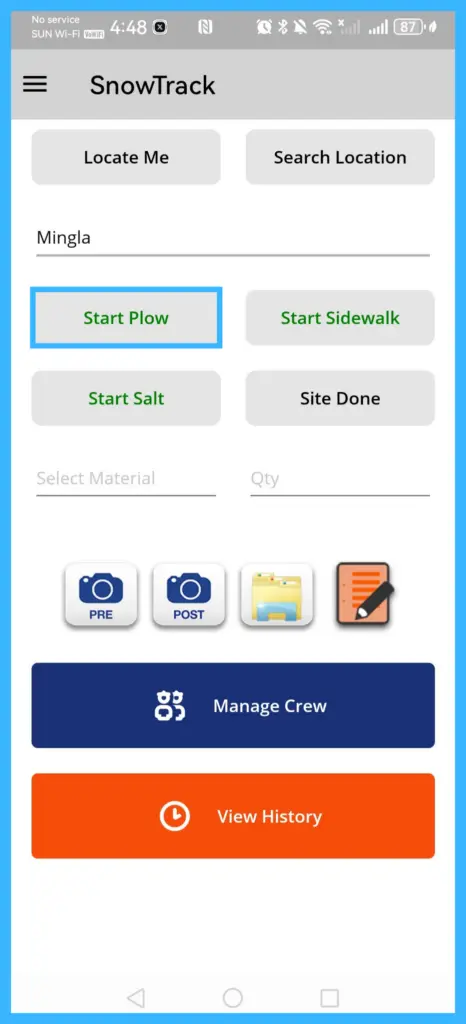
Once a location is selected, tap Start Plow, or the button for your service type.
-
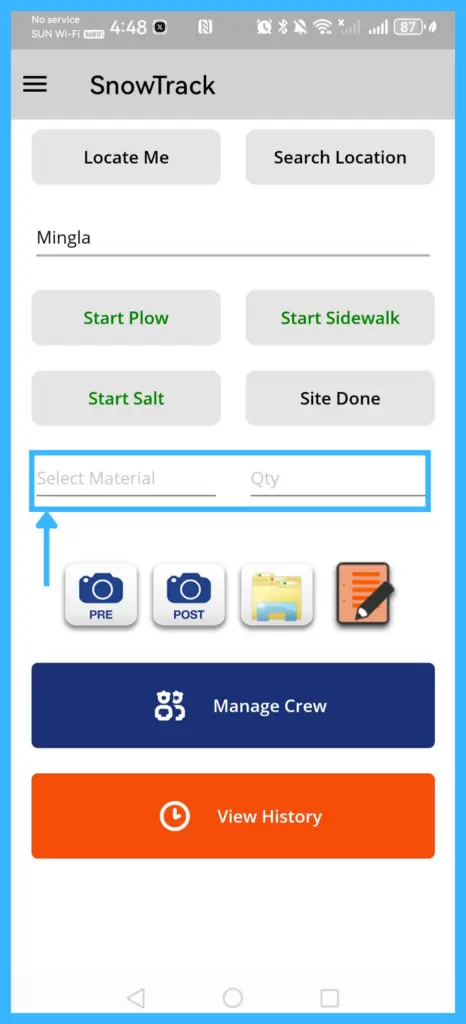
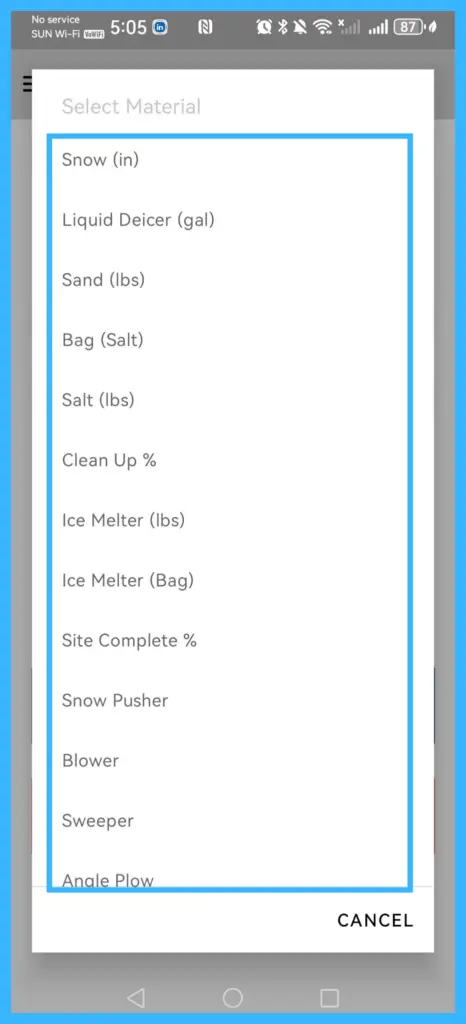
Add the materials you used before you end the service:
- Tap Select Material.
- Choose a material from the list. The list is set up by your office.
- Enter the quantity used.
-
Document the job:
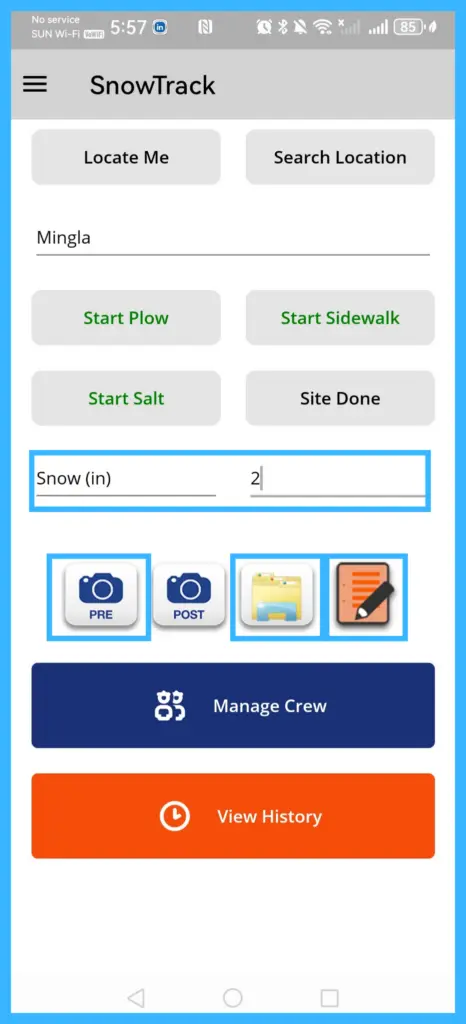
- Tap Pre Image, or the Camera icon, to take a photo or choose one from your gallery. You can add several images.
Watch: Adding pre-service or post-service images - Tap the folder icon to view the customer's site maps. You'll see whatever your office attached as the site map.
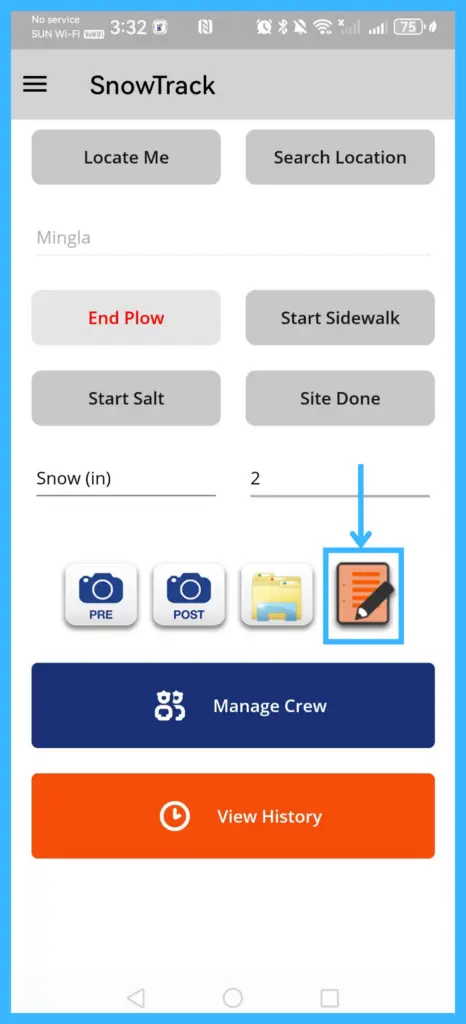
- Tap the paper and pencil icon, type your note and tap OK.
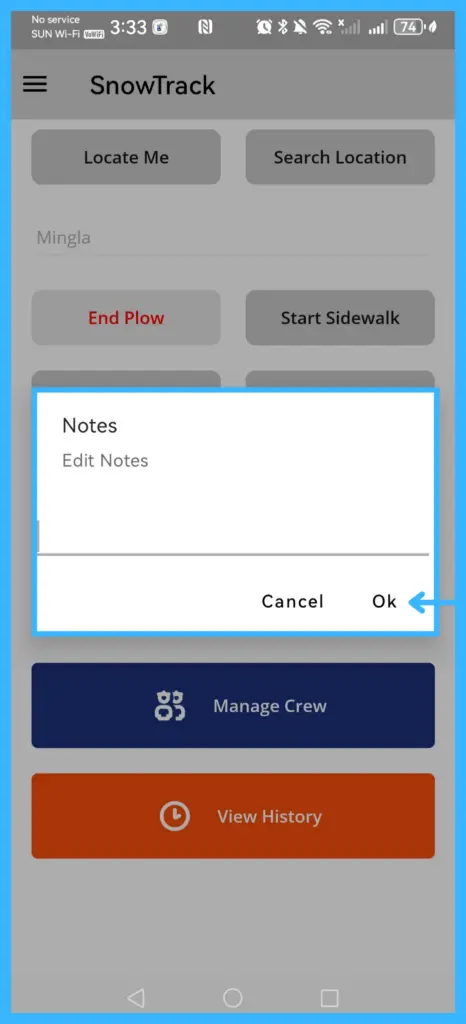
-
When you're ready to end the service, add your post-service images the same way.
-
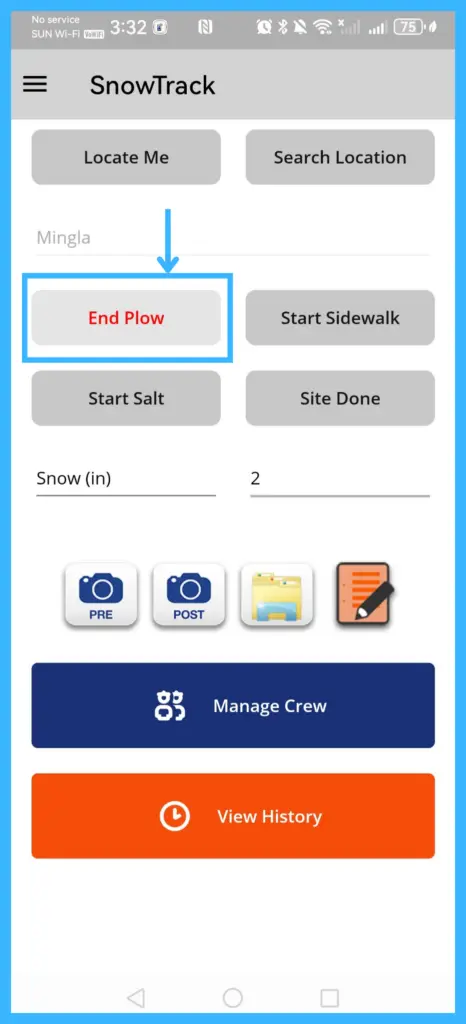
Tap End Plow, or the button for your current service, to complete the job.
Add or remove crew members
-
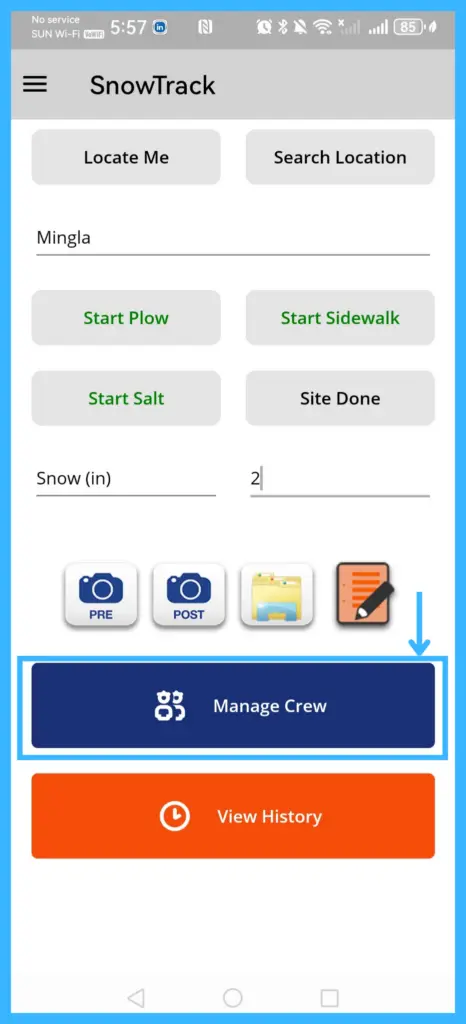
Tap Manage Crew. You'll see the list of assigned employees.
-
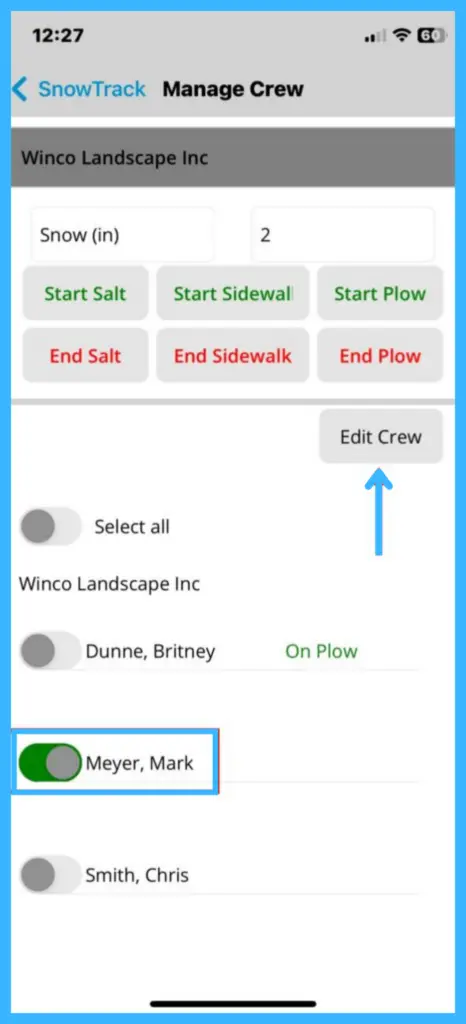
Tap Edit Crew.
-
Turn the switch on or off next to each crew member's name, then start the service.
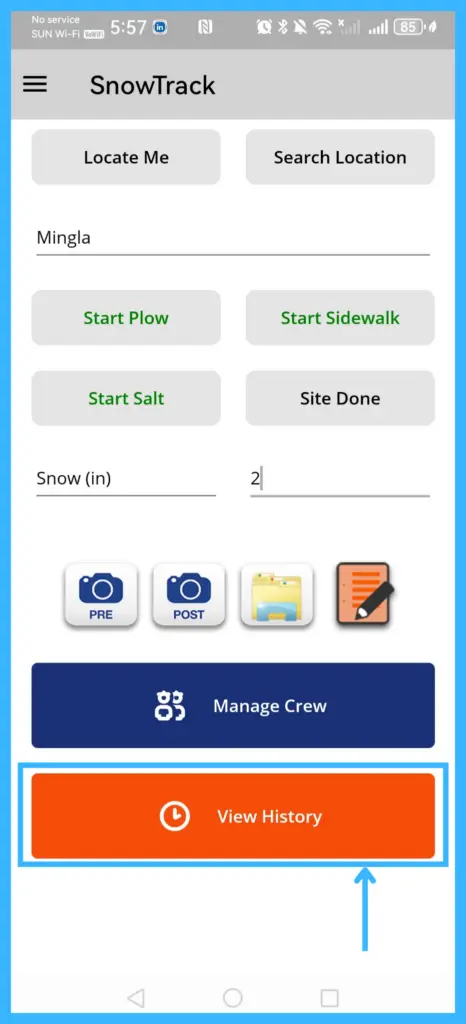
See recent work
Tap View History to see all snow services from the last 24 hours, with:
- Customer name
- Type of service
- Start and end time
- Materials and quantities used
Common questions
Why do my photos say "Not Synced"?
New images are marked Not Synced until the next sync cycle finishes.
Why do I see "Images will sync only on Wi-Fi"?
Your app is set to sync images only on Wi-Fi, so they won't sync on mobile data. If you always use mobile data, turn that setting off. See How do techs set up and sync the mobile app?
Where do site maps come from?
Your office uploads them to the customer's profile: in the Customer module, open Attachments, add a new attachment, mark it as a site map and save it.
Can I change the search radius?
Your admin can change the default radius, and you can adjust it yourself if your permissions allow. See How do techs set up and sync the mobile app?
Locate Me says "Your GPS/Location Services are currently OFF." What do I do?
Turn on GPS or Location Services in your phone's Settings, then tap Locate Me again.
No customers appear. What now?
Tap Locate Me to refresh, or tap Search Location and enter the address or customer name.
Was this article helpful?
Contact support