Getting started: a tour of IndusTrack
Log in with the username and password your account administrator gave you. Use the module headers at the top to move between modules, the IndusTrack logo to return home, and the icons at the top for your account, settings, notifications, help and search.
Log in
-
Open the IndusTrack login page at https://onetrack.industrack.com/login.
-
Enter the username and password your account administrator gave you.
-
You land on your default screen. It's set by the permissions your administrator gave you, and is usually the module you use most.
Watch: Logging in and landing on your default screen
If you have no internet connection, you'll see "No internet connection. Click OK to refresh the page." Connect to the internet, then click OK to reload the page.
Find your way around
| Item | What it does |
|---|---|
| IndusTrack logo | Returns you to the home page from anywhere. |
| Module headers (top of the screen) | Open a module. See the table below for what a grayed-out or missing module means. |
| Account icon | Edit your profile settings, or log out. |
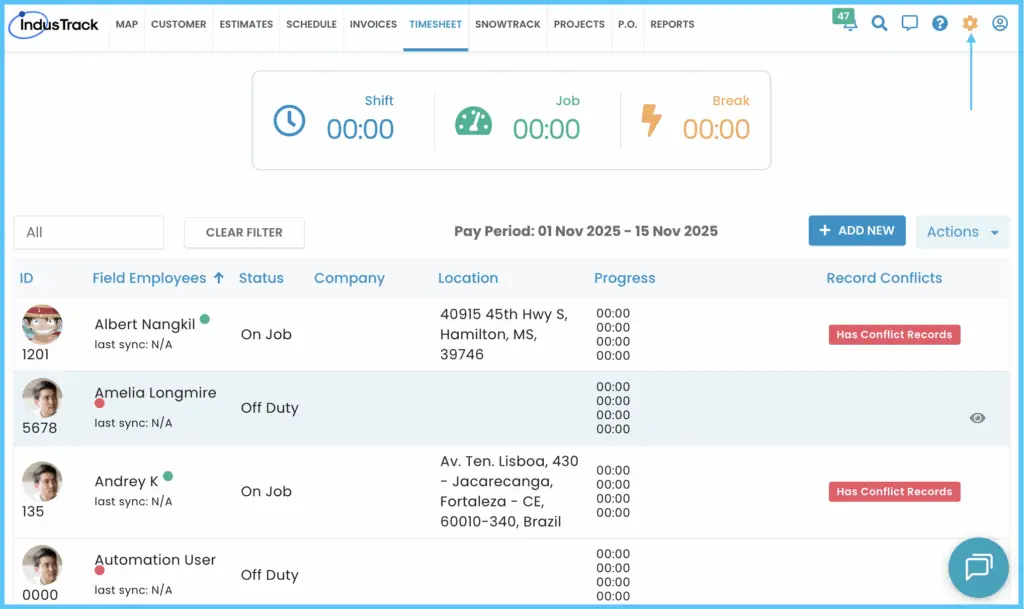
| Cog/Wheel icon | Opens the Settings page. |
| Bell icon | Shows your reminders and alerts. |
| Help icon | Submit a support ticket, or open FAQs, video tutorials and guides. |
| Search icon | Opens Global Search. |
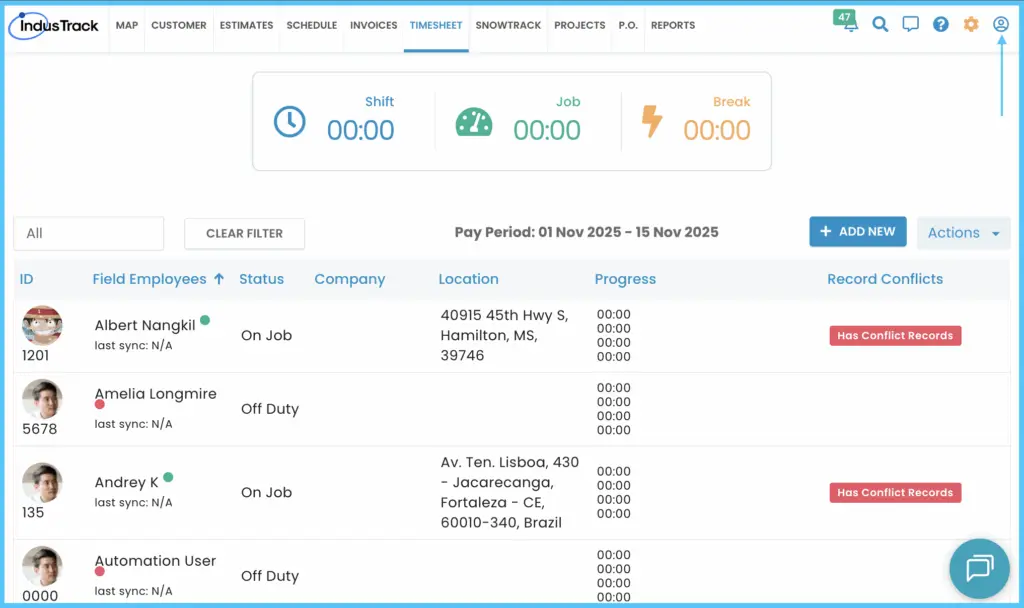
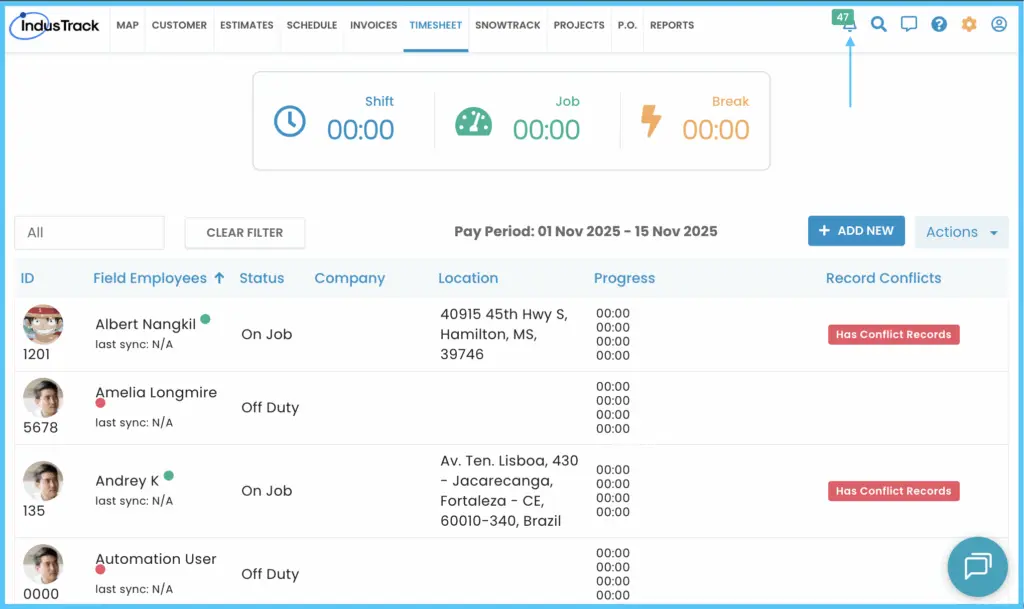
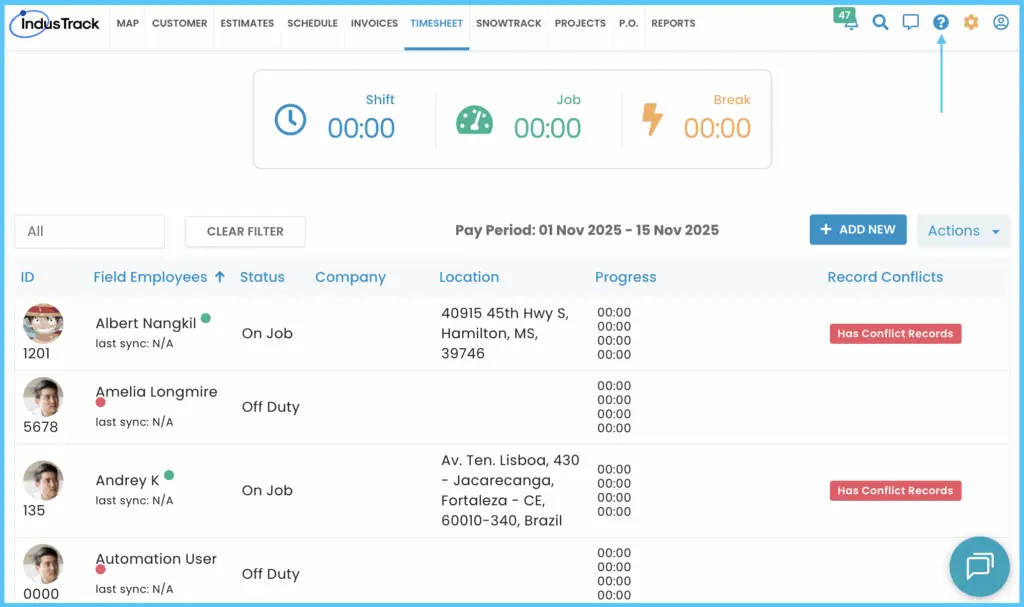
What the module headers mean:
| Header looks… | Meaning |
|---|---|
| Clickable | You have access. Click it to open the module. |
| Grayed out | You don't have permission to use this module. |
| Missing | Your company's account doesn't include this feature. |

Search across modules
Global Search finds records without switching modules. You can search Customers, Jobs, Invoices, Estimates and Purchase Orders.
-
Click the Search icon.
-
Select the module to search, such as Customers or Jobs.
-
Enter your search terms and run the search.
-
Matching results appear in a grid. Each module searches its own set of fields.
Watch: Searching across modules with Global Search
Use the Settings page
Settings is where you manage your company, employees, vehicles, customers, inventory, reminders and more.
-
Click the Cog/Wheel icon at the top of the screen.
-
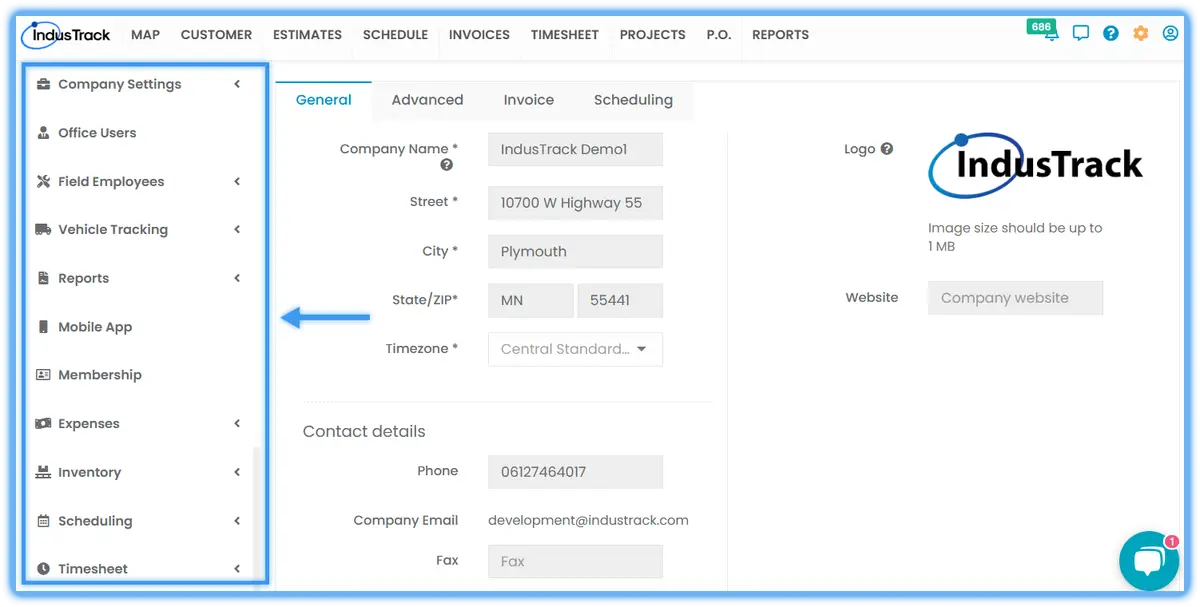
The Settings page opens on Company Settings.
-
Click a category in the left menu to manage that area. The categories you see depend on your subscription and permissions. The full list is:
- Company Settings
- Office Users
- Field Employees
- Vehicle Tracking
- Reports
- Mobile App
- Membership
- Expenses
- Inventory
- Scheduling
- Timesheet
- Client
- Integrations
- Form Settings
- Templates
- Subscription
-
The top menu stays available. Use it to switch modules, or click the IndusTrack logo to go home.
Common questions
Why can't I change anything in Settings?
Without administrative permissions you can view Settings but not edit them. Ask your administrator for access.
When do settings changes reach the mobile app?
Changes made in Settings reach the IndusTrack mobile app when the app does a full sync.
Why is a module grayed out or missing?
Grayed out means you don't have permission; ask your administrator. Missing means your company's account doesn't include that feature.
How do I reset my password?
Click the Forgot password link at the bottom of the login page.
Was this article helpful?
Contact support