How do I edit, reassign or delete a job?
Double-click the job on the calendar to open the Edit Job window. Change any details or the assigned field employees (your techs), or correct a submitted form, then click Save Job. More options, including delete, are under Actions.
Edit or reassign a job
-
Find the job on the calendar and double-click it.
-
Change what you need. To reassign it, open the Employees tab and add or remove field employees.
-
Click Save Job.
Watch: Opening a job from the calendar, editing it and saving
Add tasks to an existing job
-
Double-click the job and open the Tasks tab.
-
Optional: choose a task template from the dropdown and click Load. Loading a template deletes the tasks already on the job.
-
Click Add New Task, enter a Task Name (service type is optional) and add any parts, services, equipment, attachments, customer equipment, forms, purchase order or notes.
-
Click Save Job.
Watch: Adding tasks to an existing job
Edit a submitted form
You can correct a form a field employee has already submitted from the office, without using the mobile app.
-
Open the job's Edit Job window.
-
Open the Forms section.
-
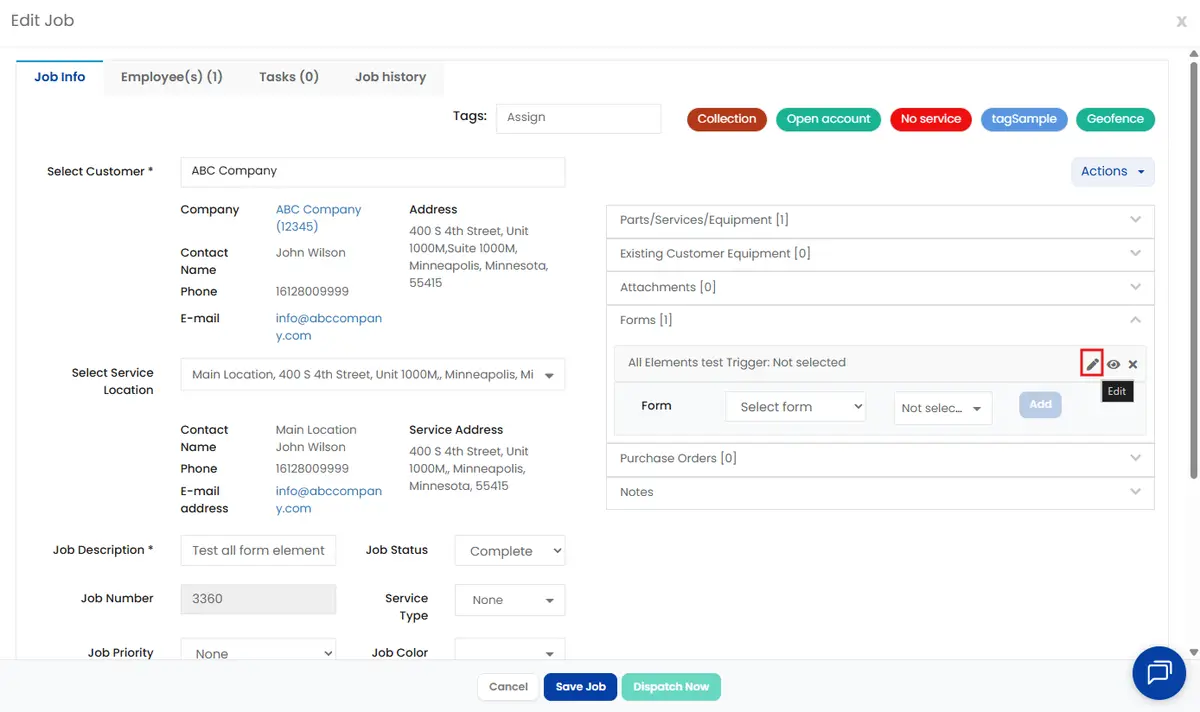
Hover over the form and click the pencil icon (Edit).
-
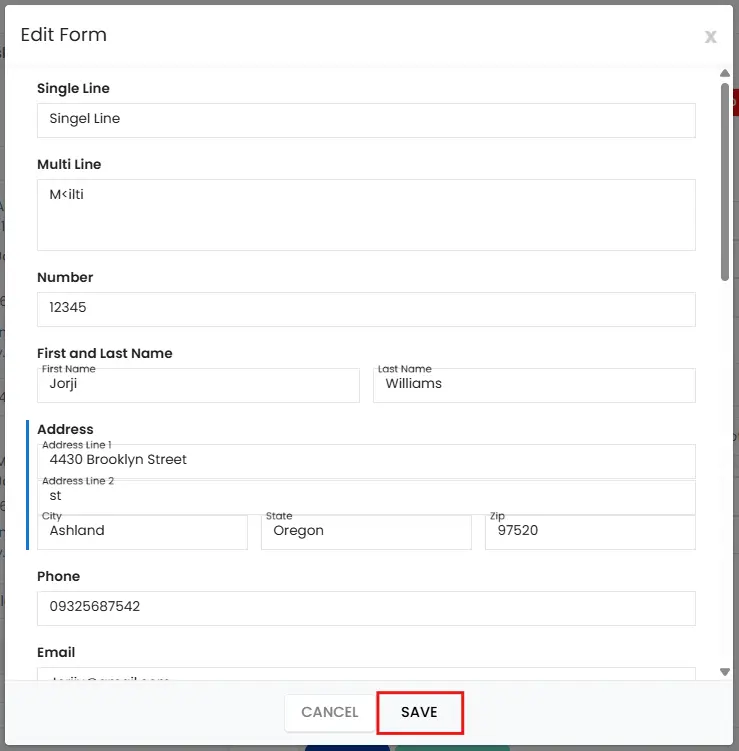
Make your changes in the Edit Form window and click Save.
Delete a job
-
Open the job's Edit Job window.
-
Click Actions›Delete Job and confirm. The job is removed from the calendar.
Watch: Deleting a job from the Edit Job window
After the job is done
-
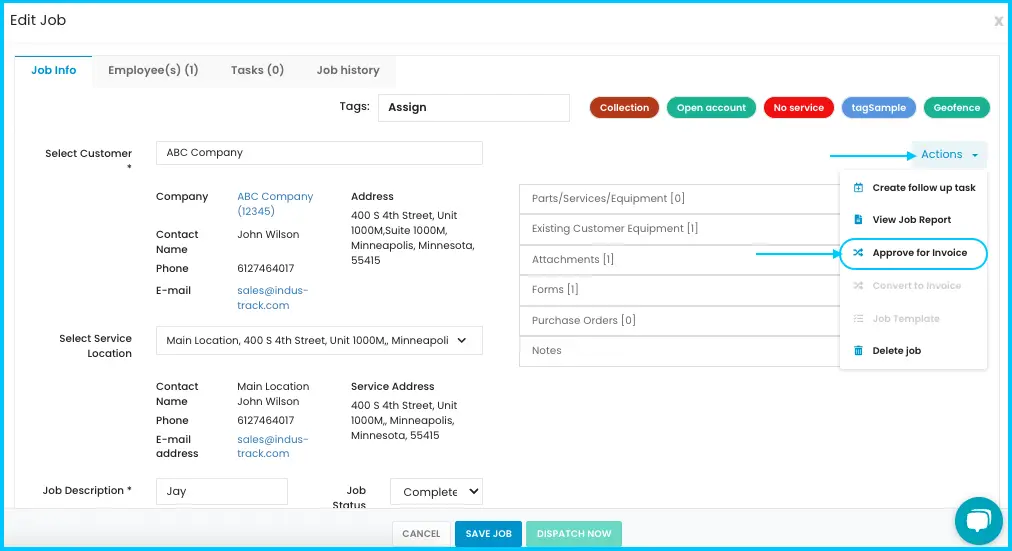
Approve for invoicing: open a completed job and click Actions›Approve for Invoice. Only jobs marked Completed can be approved.
-
Convert to an invoice: after approving, click Convert to Invoice. The Edit Invoice window opens so you can add, remove or edit items, then save.
Watch: Converting an approved job to an invoice -
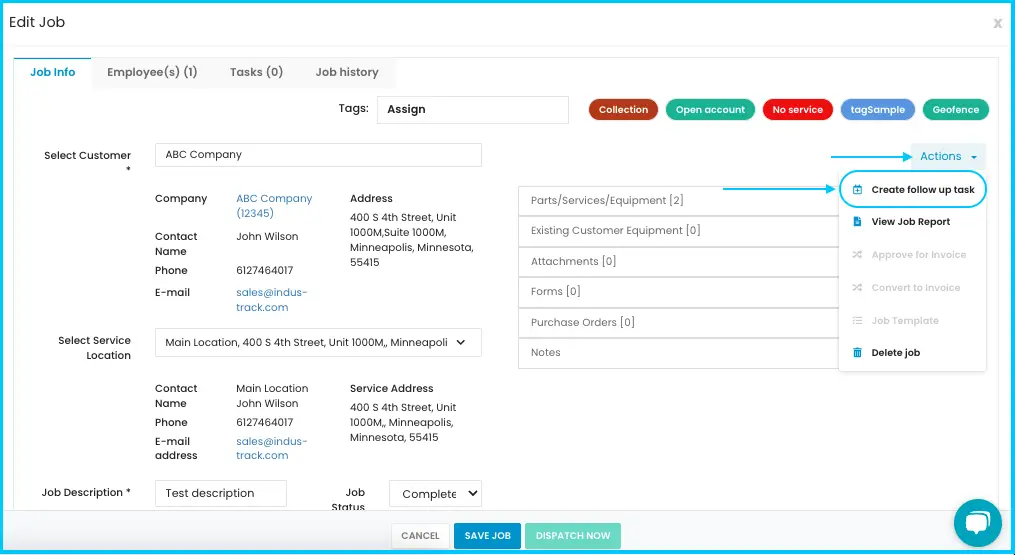
Follow up: click Create Follow-Up Task. A task opens already linked to the job; fill it in and save.
Common questions
Why can't I delete a job?
It has an invoice. A job with an invoice can't be deleted.
Why can't I approve a job for invoicing?
It isn't marked Completed yet.
Was this article helpful?
Contact support