How do I connect QuickBooks Online?
Go to Settings›Integrations›QuickBooks, click Configure sync, choose QuickBooks Online as the integration type and click Connect to QuickBooks. Then choose how often to sync and what to sync: customers, inventory and invoices.
Before you start
- Back up QuickBooks before the first sync. Daily backups are recommended for the first few weeks.
- Clean up QuickBooks first. Delete or mark inactive any customers and items you don't want in IndusTrack; everything else syncs.
- Keep QuickBooks Online and IndusTrack both logged in (in separate browser tabs) while you connect.
Connect QuickBooks Online
-
Log in to IndusTrack.
-
In another browser tab, log in to QuickBooks Online.
-
In IndusTrack, go to Settings›Integrations›QuickBooks.
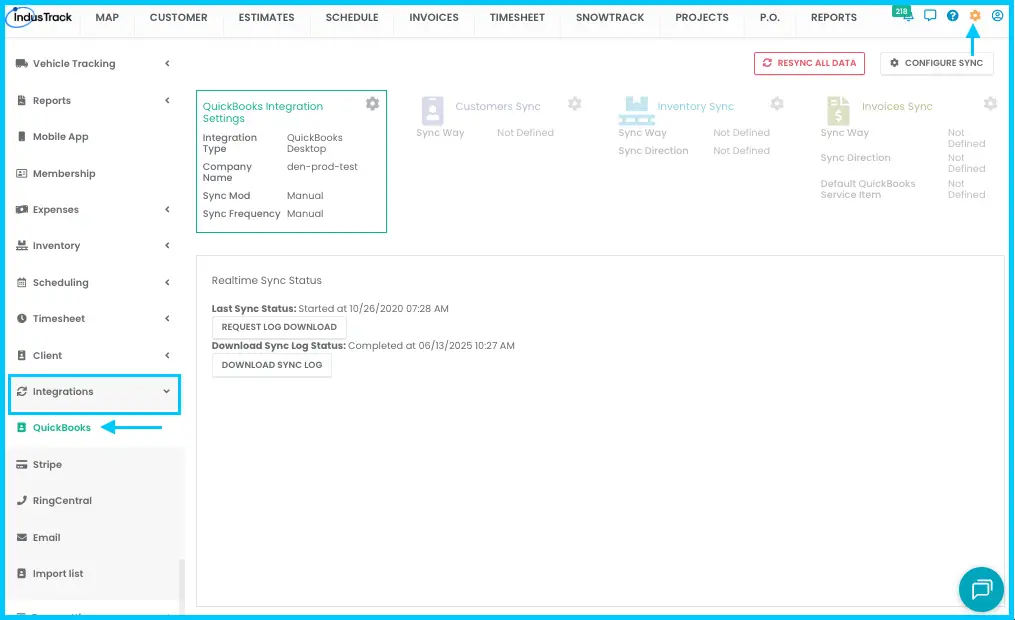
-
Click Configure sync.
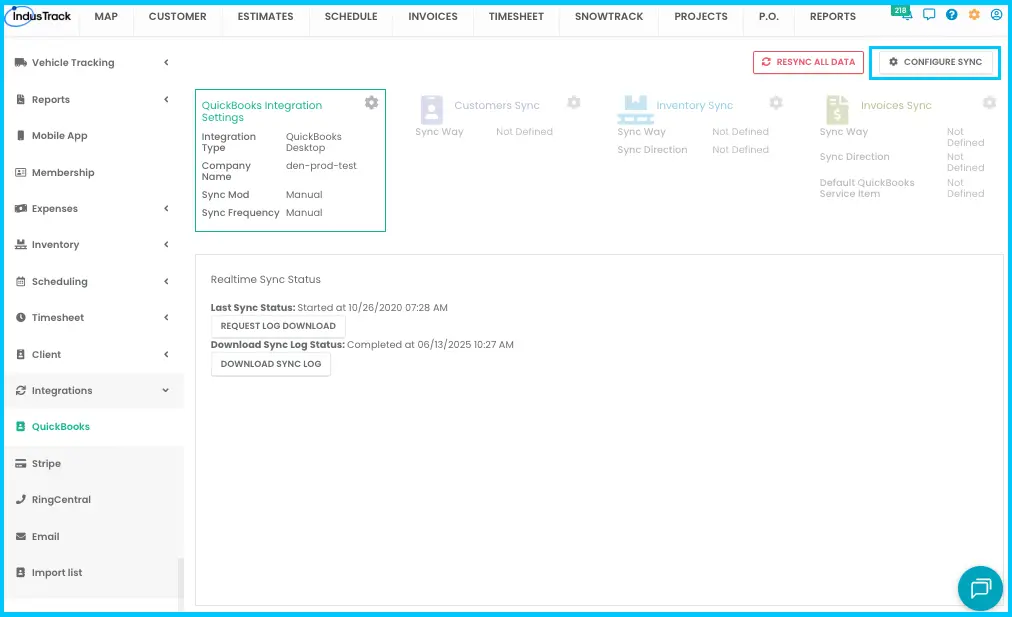
-
For QuickBooks Integration Type, select QuickBooks Online.
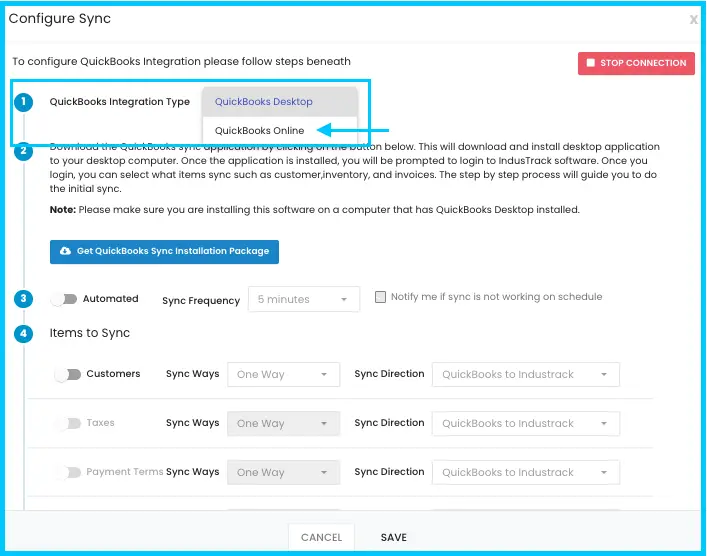
-
Click Connect to QuickBooks.
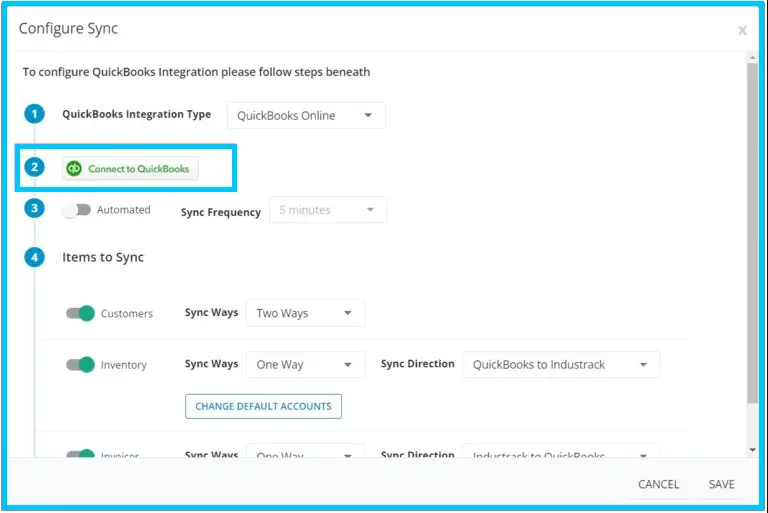
-
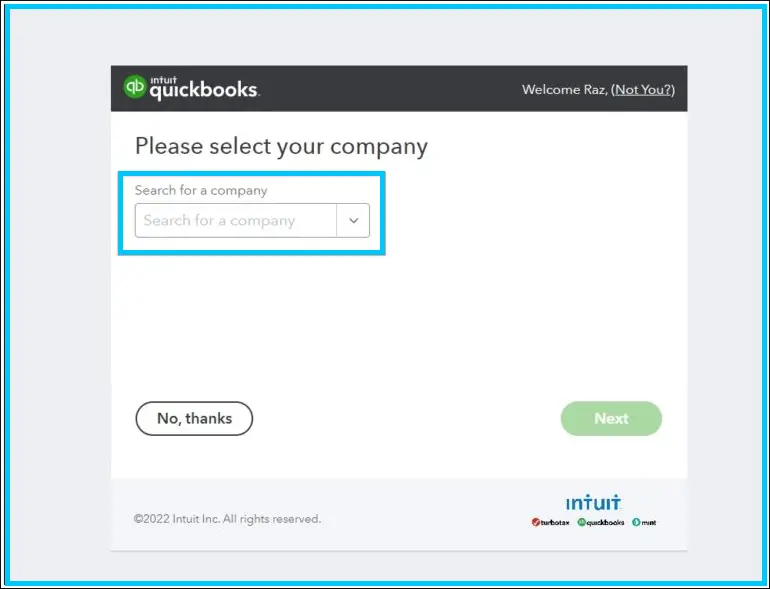
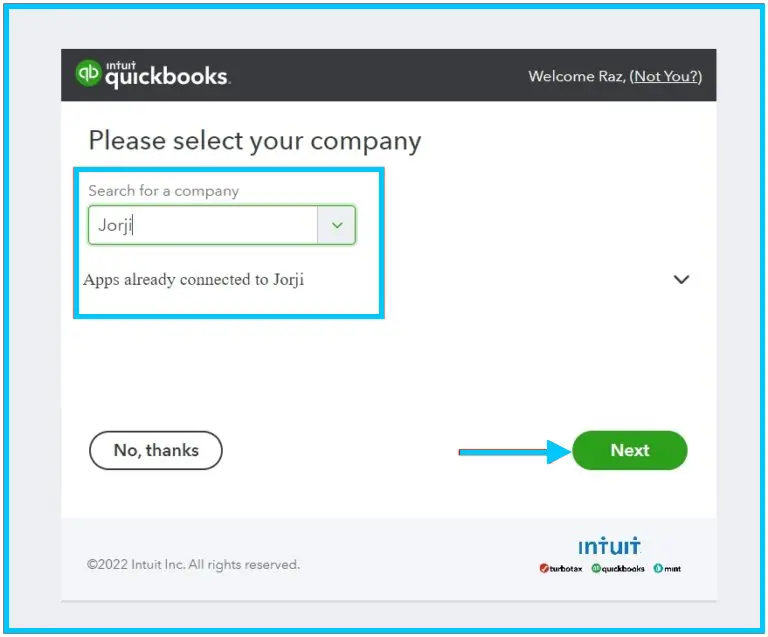
On the QuickBooks page, log in if asked, then select your company.
-
Click Next.
-
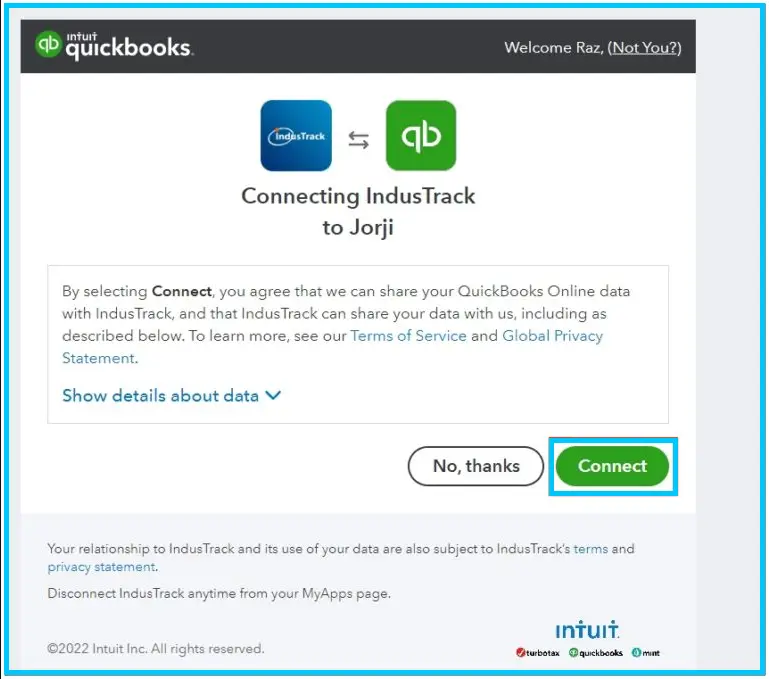
Click Connect. You're sent back to IndusTrack, which shows that the connection is established.
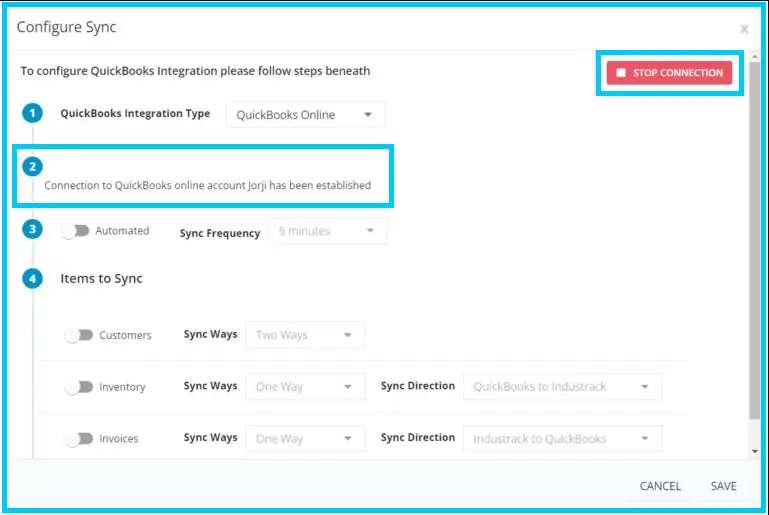
To disconnect later, click Stop Connection in the upper right corner of the QuickBooks integration page.
Choose your sync settings
-
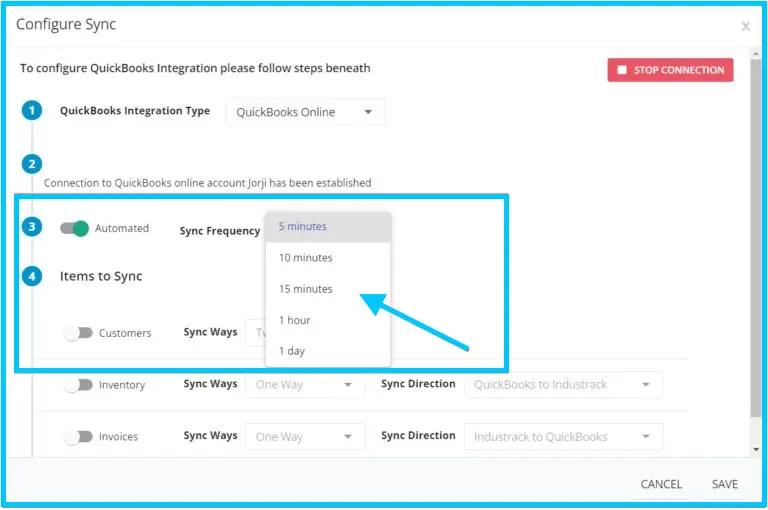
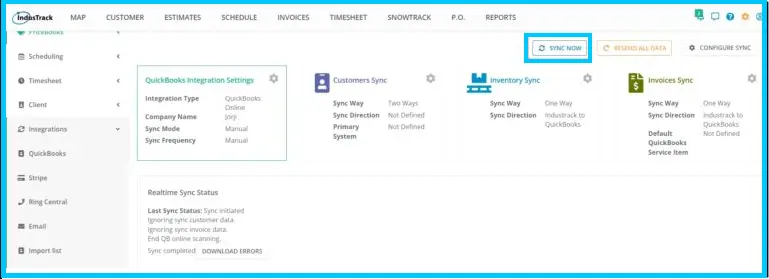
Sync Frequency. Pick how often IndusTrack syncs automatically. You can turn automatic sync off and sync by hand instead: go to Settings›Integrations›QuickBooks and click Sync Now.
-
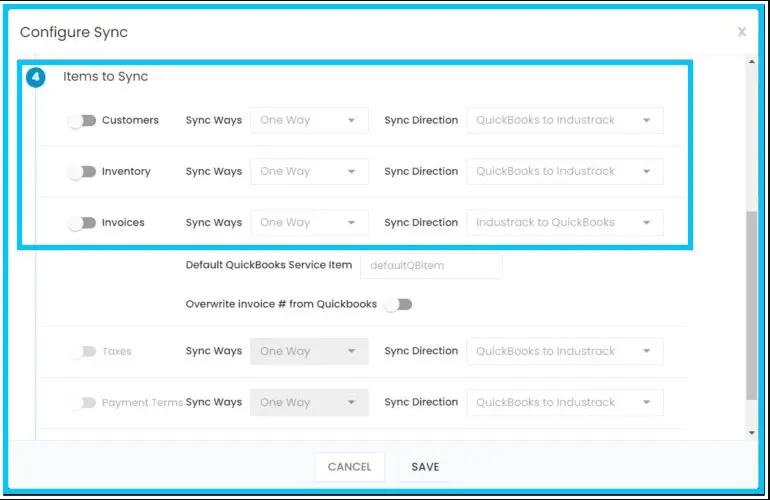
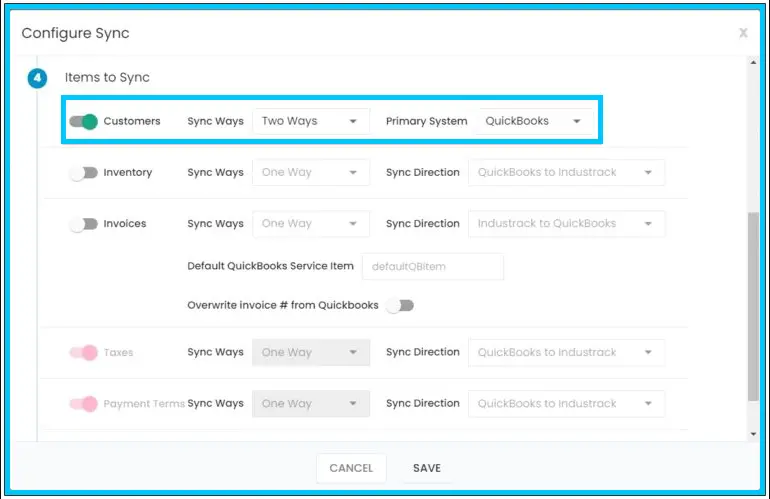
What to sync. Select Customers, Inventory and Invoices as needed.
-
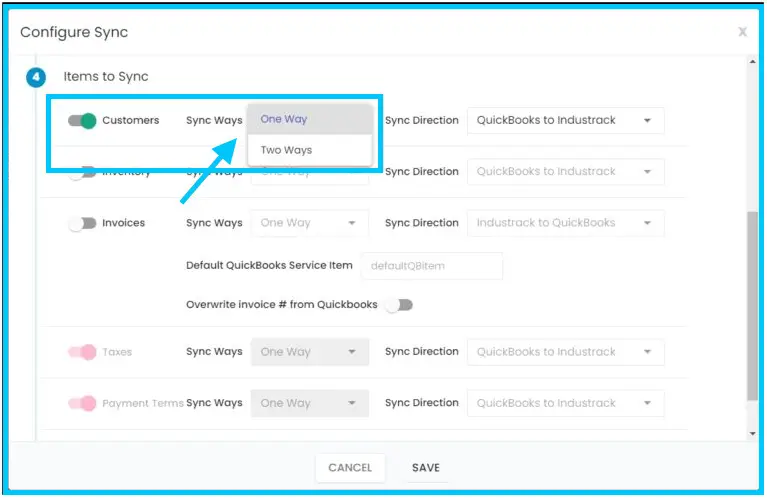
Customers. Choose one-way or two-way sync. For one-way, choose whether QuickBooks or IndusTrack is the master (see the table below).
-
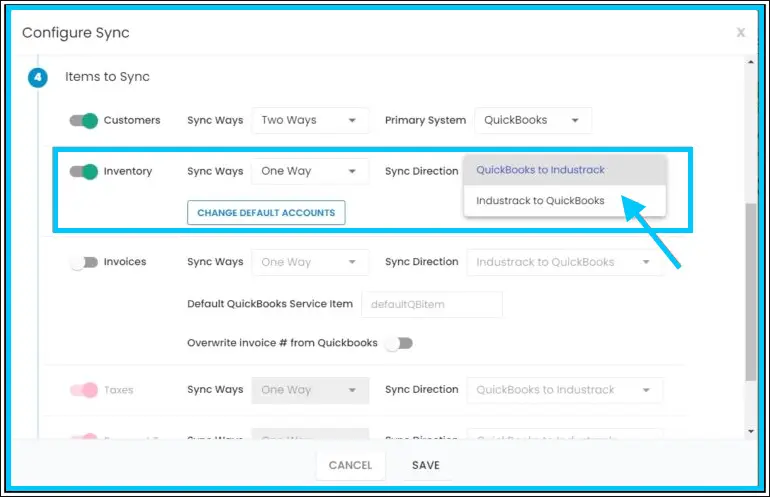
Inventory. Choose one direction: QuickBooks to IndusTrack, or IndusTrack to QuickBooks. Two-way sync isn't available for inventory.
-
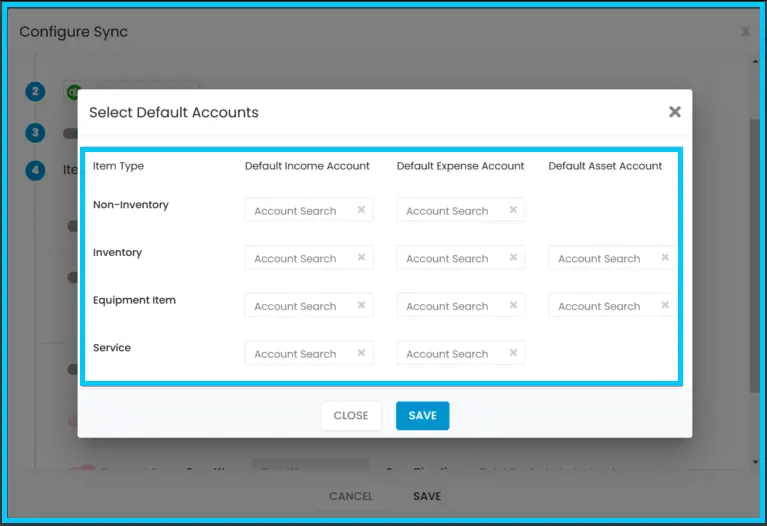
Chart of Accounts. Assign income and expense accounts for all inventory items here, or assign them item by item in the inventory settings. Click Save.
-
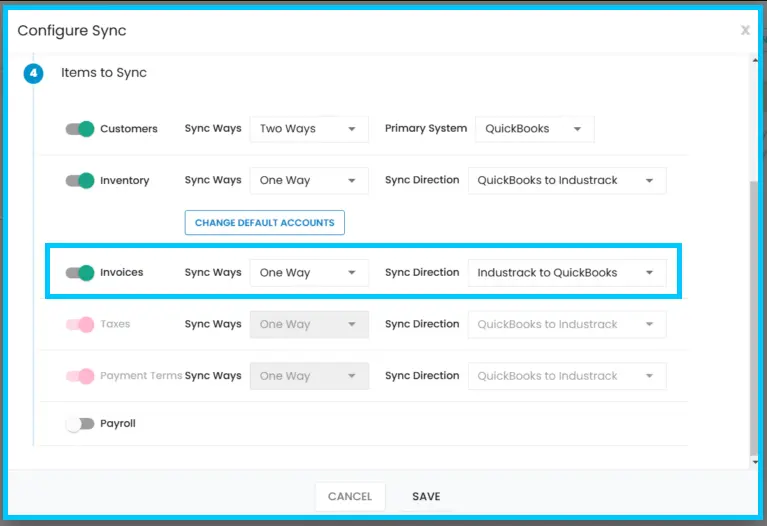
Invoices. Enable invoice sync. Invoices sync only from IndusTrack to QuickBooks.
- Overwrite Invoice # from QuickBooks: choose which invoice number to use. When enabled, the IndusTrack invoice number is replaced by the QuickBooks invoice number after sync. Leave it off to keep the IndusTrack number.
Customer sync options
| Option | Master | What happens |
|---|---|---|
| QuickBooks to IndusTrack | QuickBooks | Changes in QuickBooks sync to IndusTrack. Changes made in IndusTrack (by office users or techs) don't sync to QuickBooks. Customers with taxes assigned in QuickBooks sync as they are. |
| IndusTrack to QuickBooks | IndusTrack | Changes and new customers in IndusTrack sync to QuickBooks. Changes in QuickBooks don't sync to IndusTrack. |
| Two-way sync | Both | Changes in either system sync to the other. If the same record changed in both, the most recent edit wins. |
If you sync customers one way from QuickBooks to IndusTrack, your QuickBooks taxes and payment terms sync to IndusTrack automatically. Let them sync rather than setting them up again in IndusTrack; setting them up twice causes duplicates and invoice sync errors.
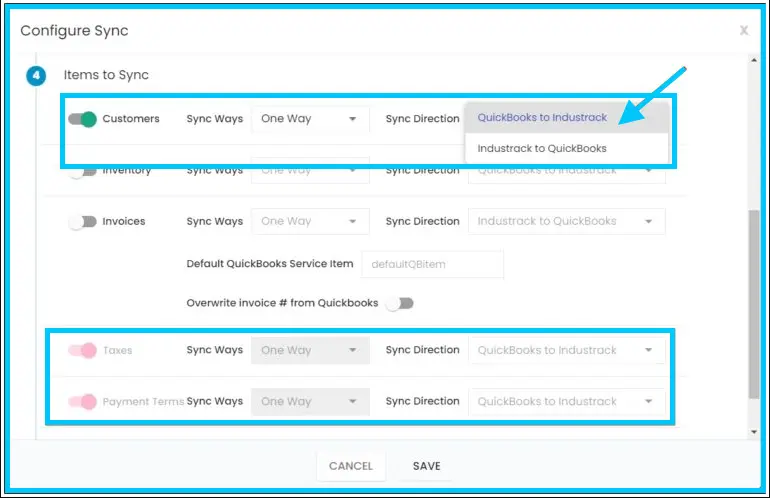
How customers sync
- Customers with several service locations in IndusTrack sync to QuickBooks Online as sub-customers.
- Sub-customers in QuickBooks Online sync to IndusTrack as service locations, on the Location tab of the customer's profile.
- Active customers in QuickBooks Online sync to IndusTrack as active, and inactive customers sync as inactive. Customers you mark inactive in IndusTrack are also marked inactive in QuickBooks Online after the sync cycle completes.
- Customer notes and attachments don't sync. Enter them by hand, or have the IndusTrack team import them from an Excel file. See How do I get my data into IndusTrack?
- Changes show in the other system after the next automatic sync or a manual sync.
How inventory syncs
- QuickBooks to IndusTrack: inventory, non-inventory, service and equipment items entered in QuickBooks sync to IndusTrack, including active and inactive items. The chart of accounts assigned in QuickBooks applies automatically. Items entered in IndusTrack don't sync to QuickBooks.
- IndusTrack to QuickBooks: items entered in IndusTrack sync to QuickBooks. Items entered in QuickBooks don't sync to IndusTrack.
- Assign income and expense accounts to your IndusTrack items, or they won't sync.
- Equipment items in IndusTrack sync to QuickBooks as inventory items.
- If you mark an item non-taxable in IndusTrack, also mark it non-taxable in QuickBooks. Otherwise QuickBooks applies tax to it.
- When QuickBooks Online tax is set up, it applies automatically to inventory items marked taxable in IndusTrack.
Sync invoices to QuickBooks
-
In the Invoices module, check the invoice or invoices you want to sync.
-
Click More Actions›Mark for sync.
-
Click Yes to confirm. The invoice status changes to Ready for Sync.
Watch: Marking invoices for sync to QuickBooks Online 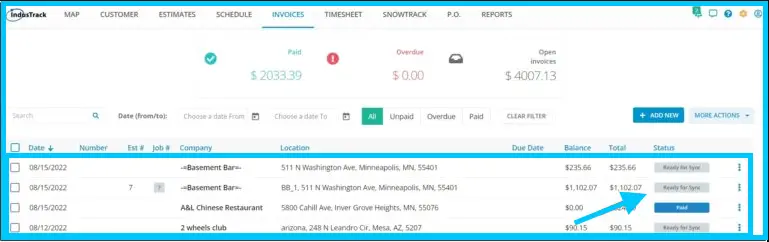
-
Wait for the next automatic sync, or run a manual sync to send them right away.
-
Once synced, the invoice appears in QuickBooks and its status in IndusTrack goes back to Unpaid. If Overwrite Invoice # from QuickBooks is enabled, the invoice number in IndusTrack changes to match the QuickBooks invoice number.

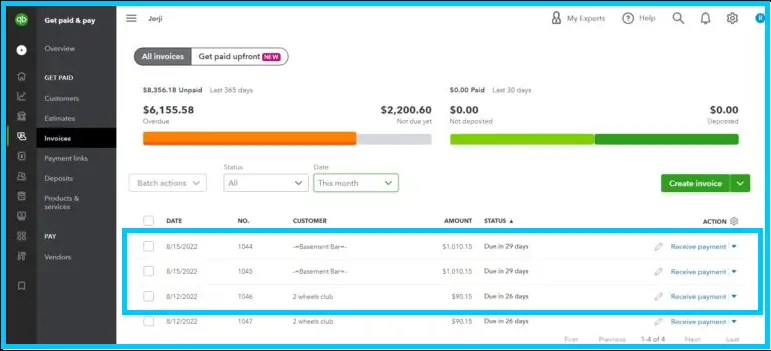
-
When you mark the invoice paid in QuickBooks, it's marked Paid in IndusTrack after the next sync.
Only invoices marked Ready for Sync are sent; invoices don't sync automatically like customers and inventory. Invoices don't need to be approved in IndusTrack first; marking them for sync is enough. If your company wants a manager or supervisor to approve invoices before they're synced, that's your own internal step.
Tax and payment terms
| Customer sync | Tax and payment terms in IndusTrack (Settings›Tax and Terms) |
|---|---|
| One-way, QuickBooks to IndusTrack (tax and term sync toggles on) | Read-only. Taxes and terms come from QuickBooks; change them in QuickBooks. |
| One-way, IndusTrack to QuickBooks | Toggles are disabled. You can add, edit and delete tax rates and payment terms in IndusTrack; they carry over to QuickBooks. |
| Two-way, QuickBooks as primary | Read-only. Taxes and terms sync from QuickBooks. |
| Two-way, IndusTrack as primary | Read-only. You can still edit customer name, contact info, addresses, notes and job details. |
Common questions
Do $0 invoices sync?
Yes. Zero-dollar invoices can be synced.
Can I bring old invoices into IndusTrack from QuickBooks?
Not through the sync. Invoices only go from IndusTrack to QuickBooks. To bring in a customer's past invoices, send them in our invoice spreadsheet template and the IndusTrack team imports them for you. See How do I get my data into IndusTrack?
Why does QuickBooks add tax to an invoice I didn't tax?
If the customer has a tax set up in QuickBooks, QuickBooks applies it when the invoice syncs. Apply the same tax rate to the customer in IndusTrack so the invoices match.
I deleted a customer in IndusTrack. Why is it still in QuickBooks?
Deleting a customer in IndusTrack doesn't delete or flag it in QuickBooks, and no warning is shown. Delete or inactivate the customer directly in QuickBooks.
I marked a customer inactive in IndusTrack. Why is it still active in QuickBooks?
The customer is marked inactive in QuickBooks Online after the sync cycle completes. Wait for the next automatic sync, or run a manual sync.
I deleted a customer in QuickBooks Online. What happens in IndusTrack?
QuickBooks Online doesn't really delete customers; it marks them inactive and hides them. They sync to IndusTrack as inactive customers. To see them in QuickBooks Online, go to Sales›Customers, click the gear icon and check Include Inactive. They're labeled "(Deleted)".
Do purchase orders sync?
No. If you create a PO and receive inventory in QuickBooks and the part cost changes, update the cost in IndusTrack by hand. If you sync from IndusTrack to QuickBooks and create and receive POs in IndusTrack, you don't need to update the cost in IndusTrack; you can enter the vendor's invoice in QuickBooks and attach it to the job. New parts added in IndusTrack need the correct accounts set up in QuickBooks.
Do bills sync?
No. Bills (Settings›Expenses›Bills) don't sync to QuickBooks Online.
I use the same item with different descriptions on one invoice. How does it sync?
Each line syncs to QuickBooks Online as a separate line item and keeps its own description. Items with no custom description sync with a blank description.
Was this article helpful?
Contact support