How do I connect QuickBooks Desktop?
In IndusTrack, go to Settings›Integrations›QuickBooks›Configure Sync, choose QuickBooks Desktop and your sync options, then download and install the QuickBooks connector app on the computer where QuickBooks Desktop runs. The connector links your company file and runs the sync.
Before you start
- Install location: install the connector on the same computer or server where QuickBooks Desktop is installed.
- Single-user mode: QuickBooks must be in single-user mode during setup (steps below). You can switch back to multi-user mode after the first sync.
- Admin access: log in to QuickBooks as an Admin, and run QuickBooks in administrator mode while you install the connector.
- Version: contact IndusTrack support if you use a version other than Enterprise Solutions: Contractor 22.0.
- Company file: don't rename or move your QuickBooks company file after syncing. Doing so can create duplicates in IndusTrack.
- Backup: back up your QuickBooks data first. Daily backups are recommended for the first few weeks.
- Clean up: delete or deactivate any customers and items you don't want in IndusTrack. Everything in QuickBooks transfers.
Switch QuickBooks to single-user mode
-
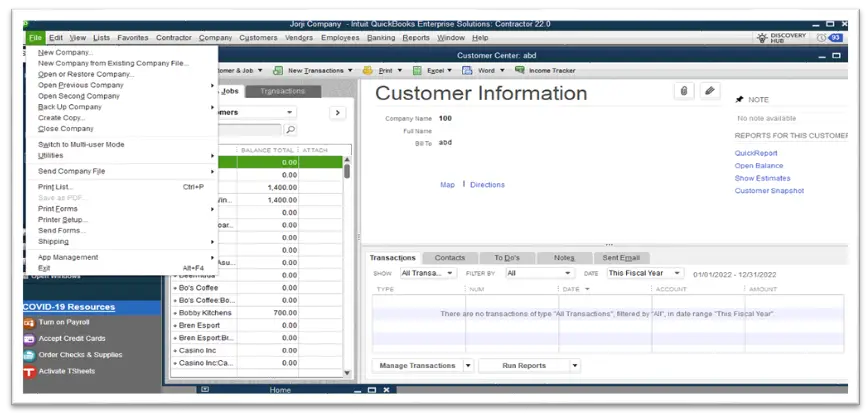
Open QuickBooks and click File.
-
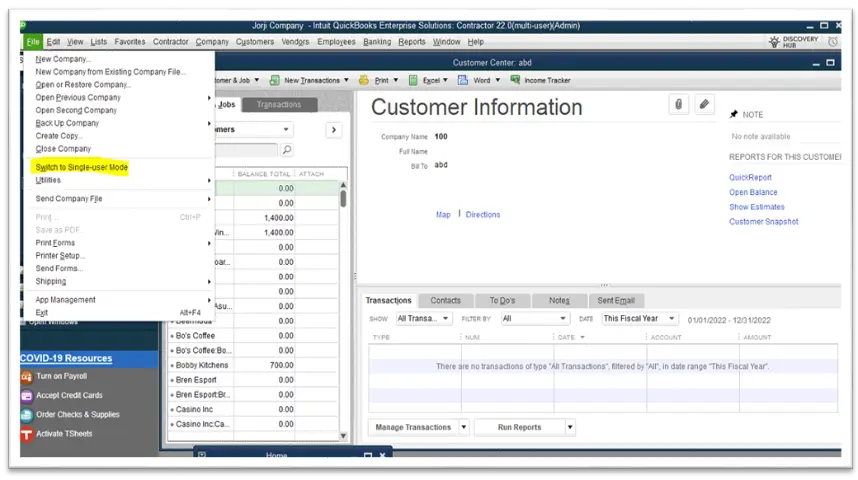
Select Switch to Single-user Mode.
-
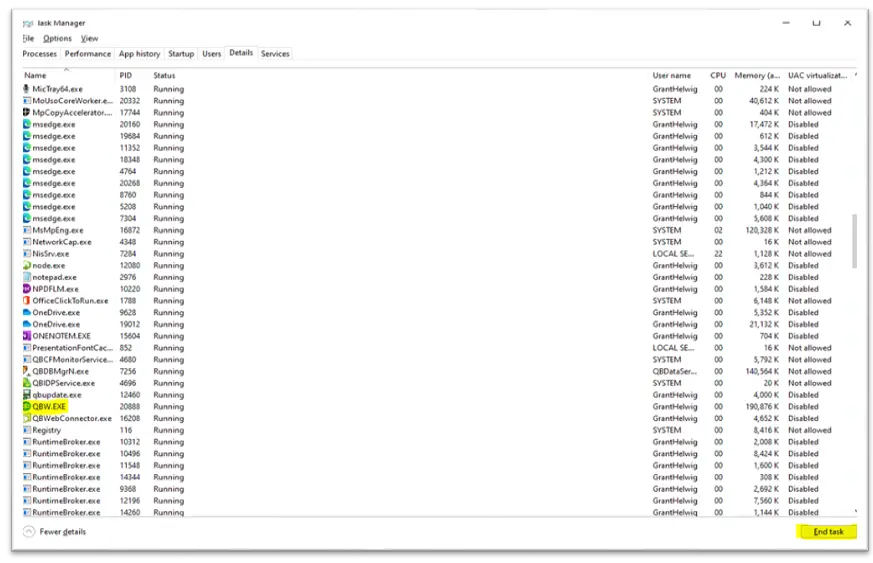
Open Windows Task Manager, find QBW.EXE, select it and click End Task.
-
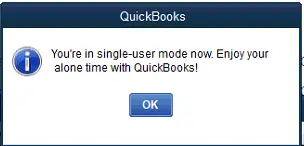
Open QuickBooks again. It should now be in single-user mode.
Set up customer locations in QuickBooks
QuickBooks Ship To addresses become Service Locations under the customer in IndusTrack. Jobs created under a customer in QuickBooks sync to IndusTrack as separate customers, using only the company name (not the job name), so they look like duplicates.
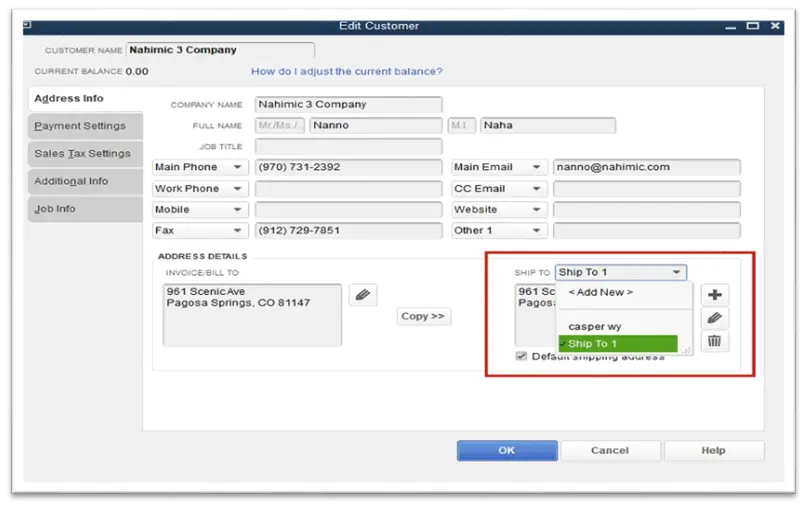
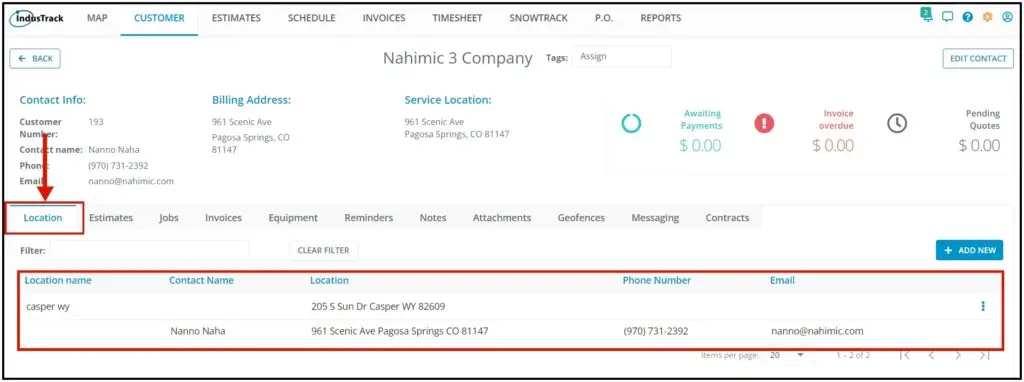
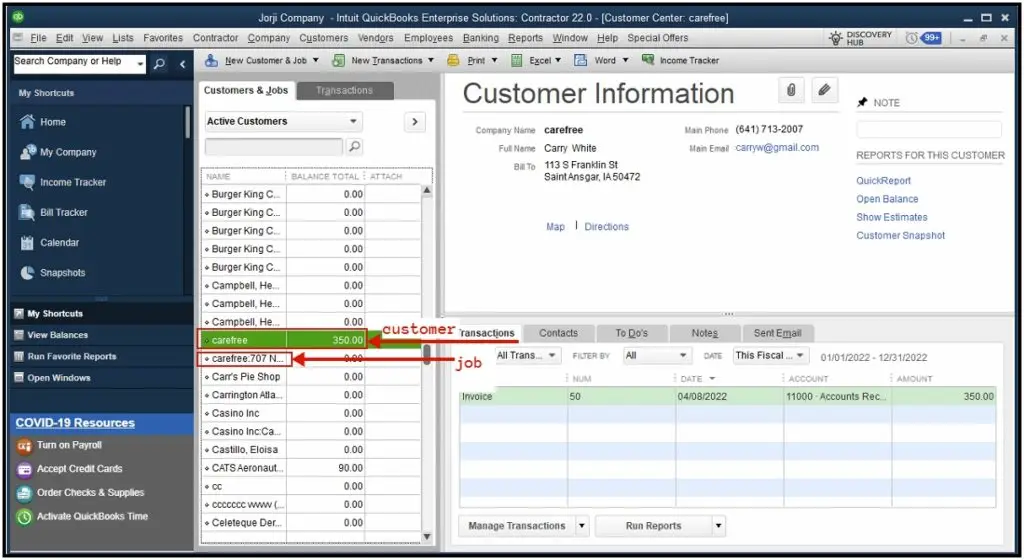
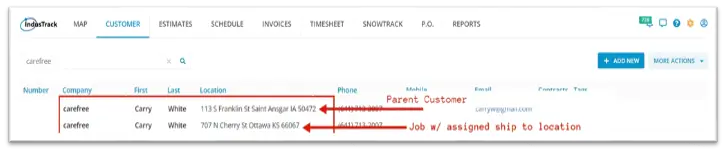
To add a Ship To location in QuickBooks: open the customer, click Edit, then click the plus (+) icon under Ship To.
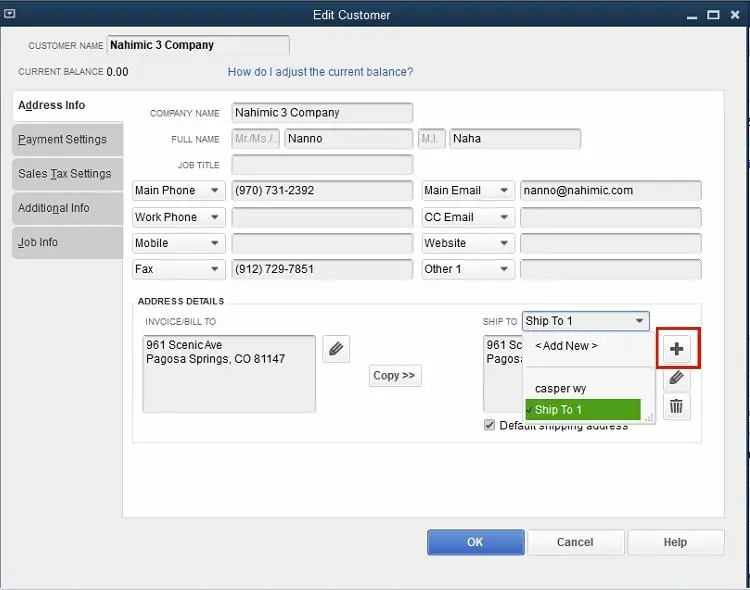
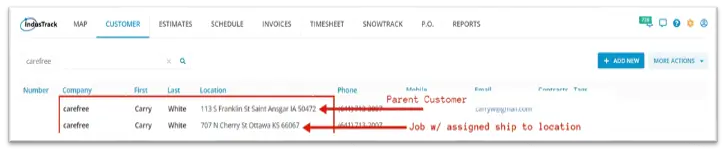
If you already have QuickBooks jobs under customers, you can:
- Leave them as they are (this can be confusing).
- Rename the jobs in QuickBooks to include the location (for example, Customer 01 – Main Office).
- Delete the jobs, after backing up and checking with IndusTrack support.
- Do a full sync, switch to one-way sync from IndusTrack to QuickBooks, then clean up the duplicates in IndusTrack.
Choose your sync direction
Decide this before you install.
| Option | Master | What happens |
|---|---|---|
| QuickBooks to IndusTrack | QuickBooks | Changes in QuickBooks sync to IndusTrack. Changes in IndusTrack don't sync back. |
| IndusTrack to QuickBooks | IndusTrack | Changes in IndusTrack sync to QuickBooks. Changes in QuickBooks don't sync back. |
| Two-way sync | Both | Changes in either system sync to the other. If both change, the most recent change wins. |
When customers sync from IndusTrack to QuickBooks, these fields are mapped:
| IndusTrack field | QuickBooks field |
|---|---|
| Company Name | Customer Name |
| First Name | First Name |
| Last Name | Last Name |
| Phone | Main Phone |
| Main Email |
Configure the sync in IndusTrack
-
Log in to IndusTrack and go to Settings›Integrations›QuickBooks.
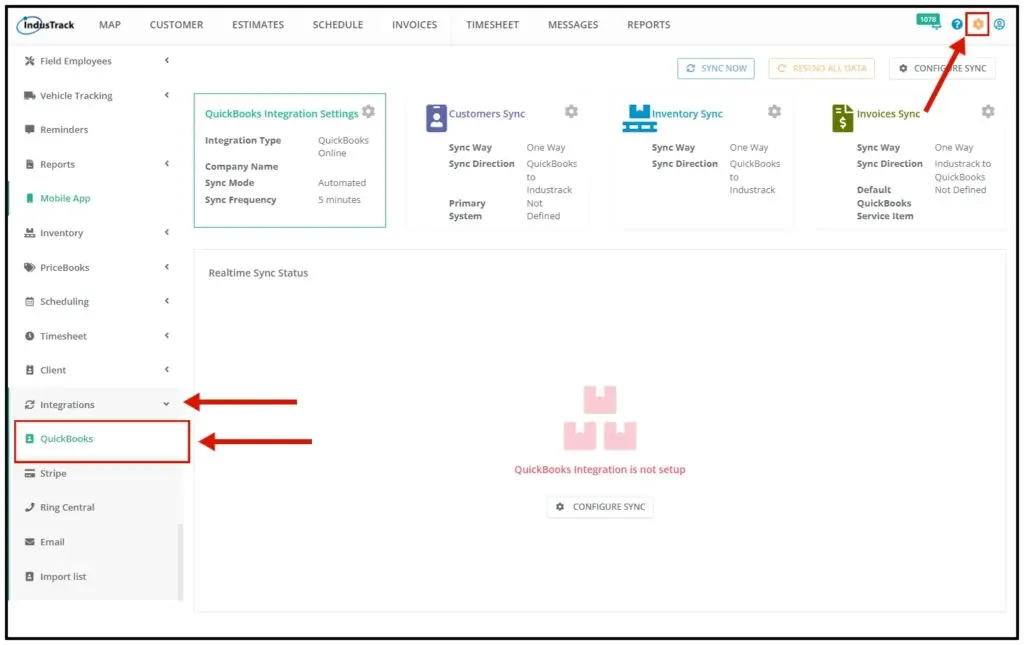
-
Click Configure Sync.
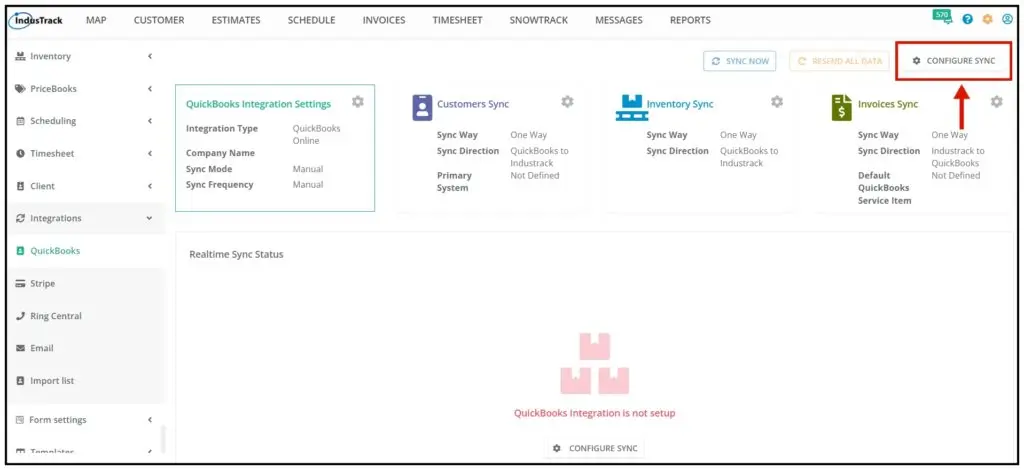
-
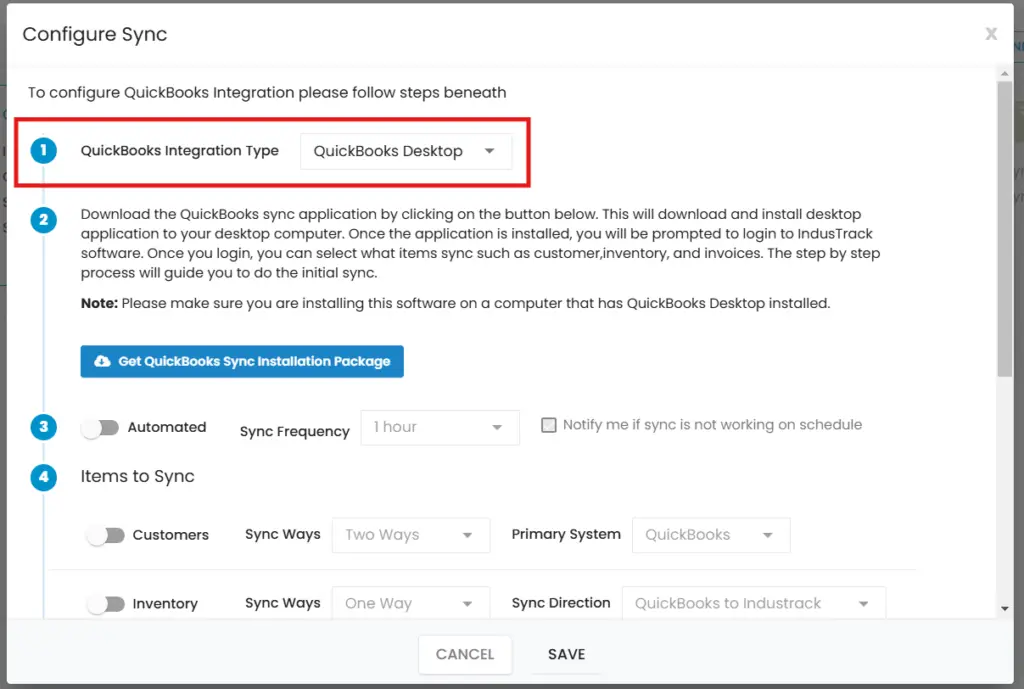
For QuickBooks Integration Type, select QuickBooks Desktop.
-
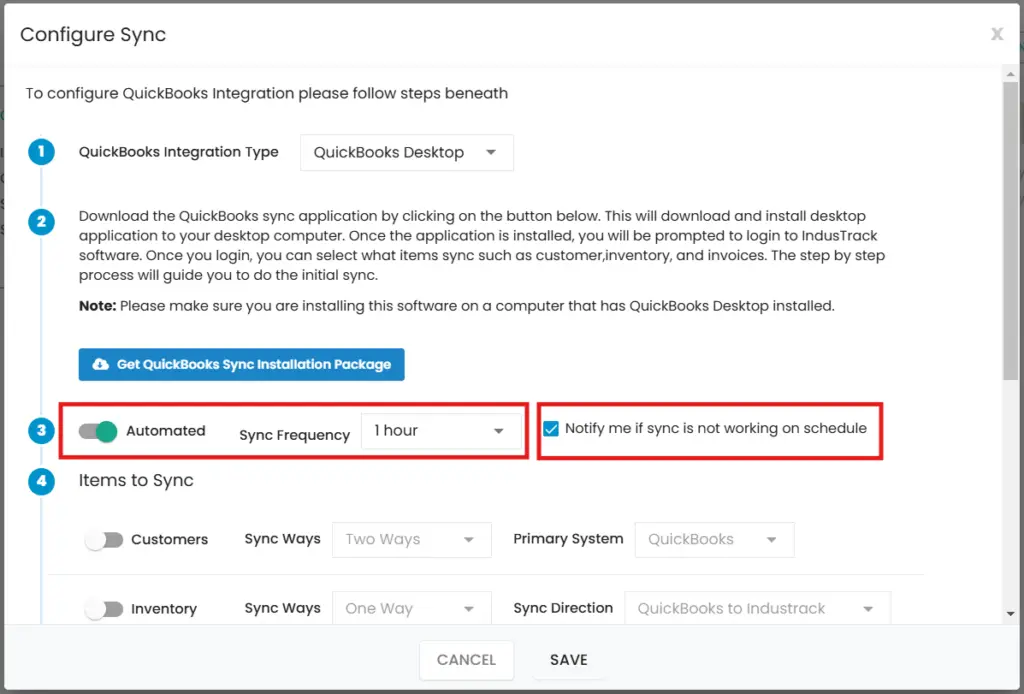
Turn on automatic sync and set the frequency, or leave it off and sync by hand each time. Every hour is recommended, to limit the load on the computer.
- Notify me if sync is not working on schedule: when on, all office users get an email if a sync doesn't run at the set frequency.
-
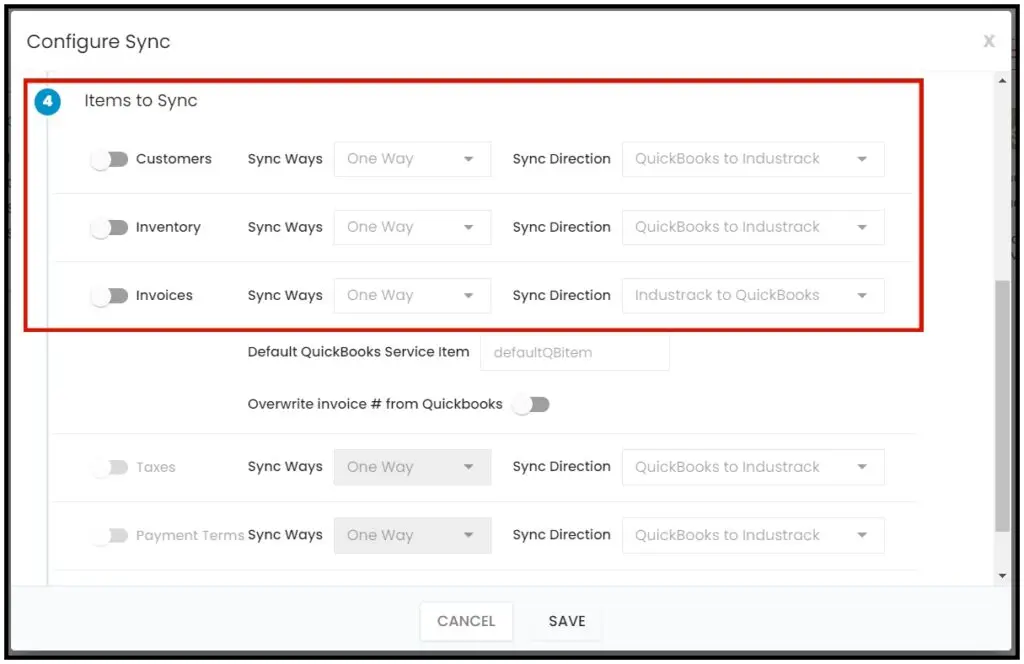
Select what to sync: Customers, Inventory and Invoices.
-
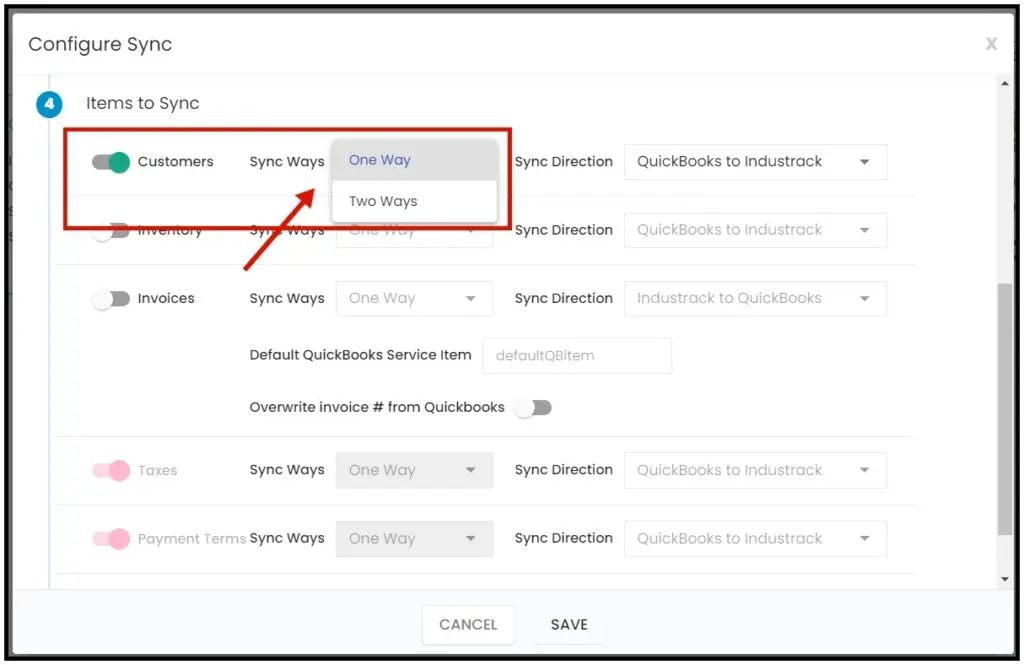
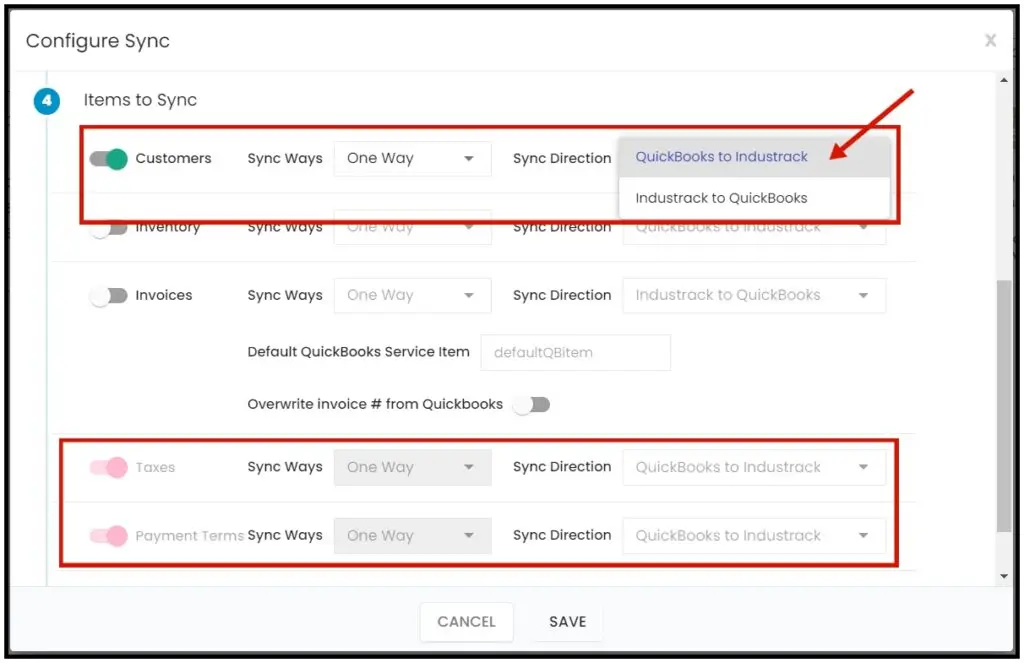
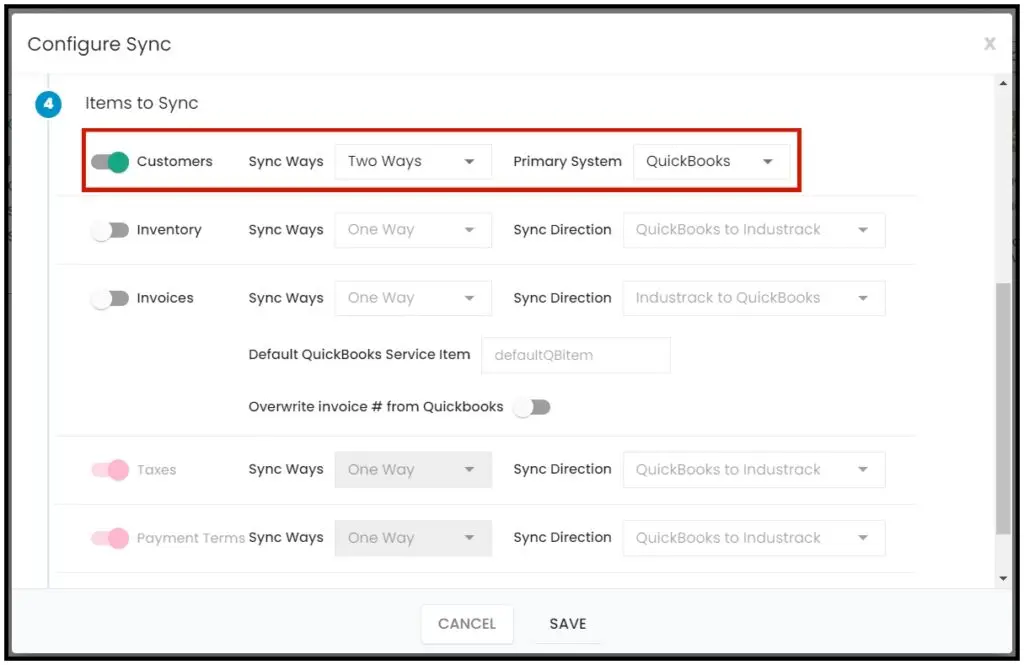
Customers: choose one-way (QuickBooks or IndusTrack as master) or two-way sync.
-
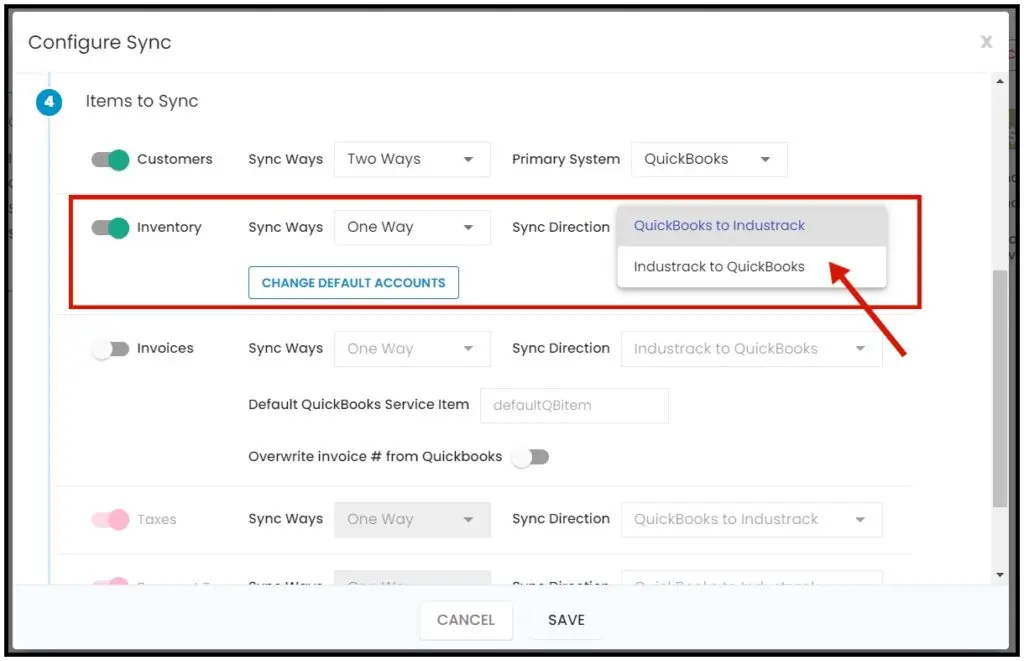
Inventory: choose one direction. Two-way sync isn't available for inventory.
- QuickBooks to IndusTrack: only items entered in QuickBooks sync to IndusTrack.
- IndusTrack to QuickBooks: only items entered in IndusTrack sync to QuickBooks.
-
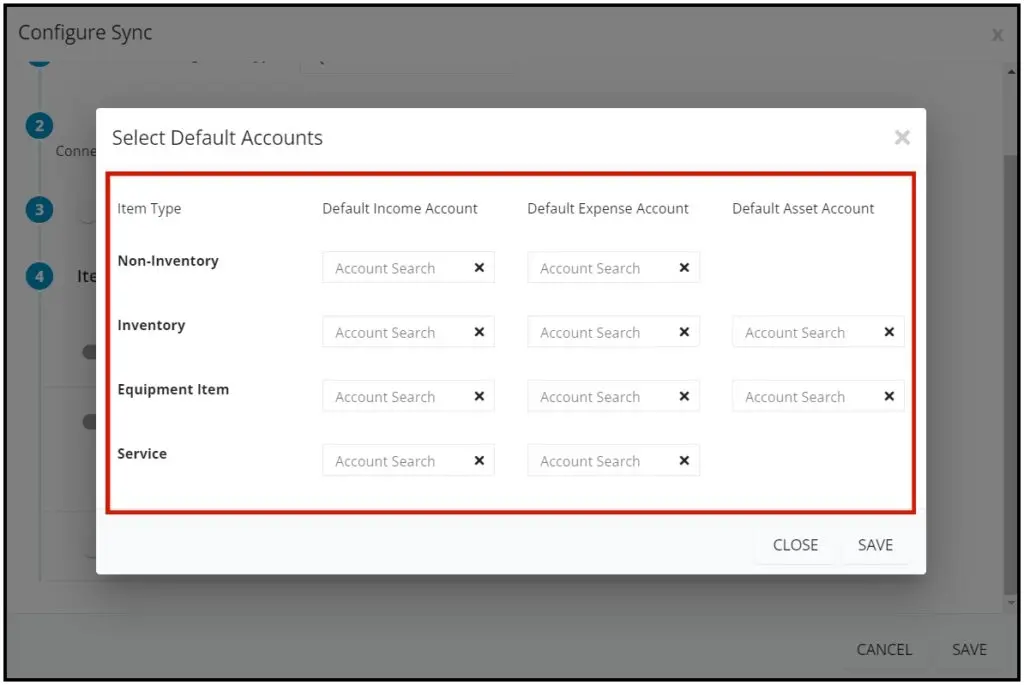
Chart of Accounts: assign income and expense accounts for all inventory items here, or item by item in the inventory settings. Click Save.
-
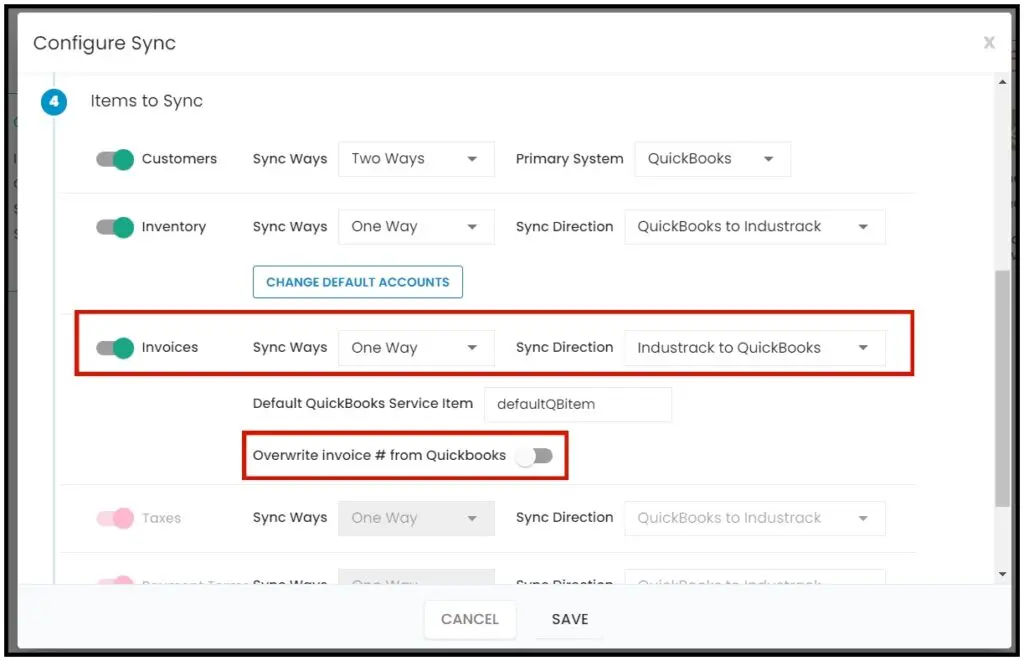
Invoices: enable invoice sync. Invoices sync only from IndusTrack to QuickBooks.
- Overwrite invoice # from Quickbooks (off by default): when enabled, the IndusTrack invoice number is replaced by the QuickBooks invoice number after sync. Leave it off to keep the IndusTrack number.
-
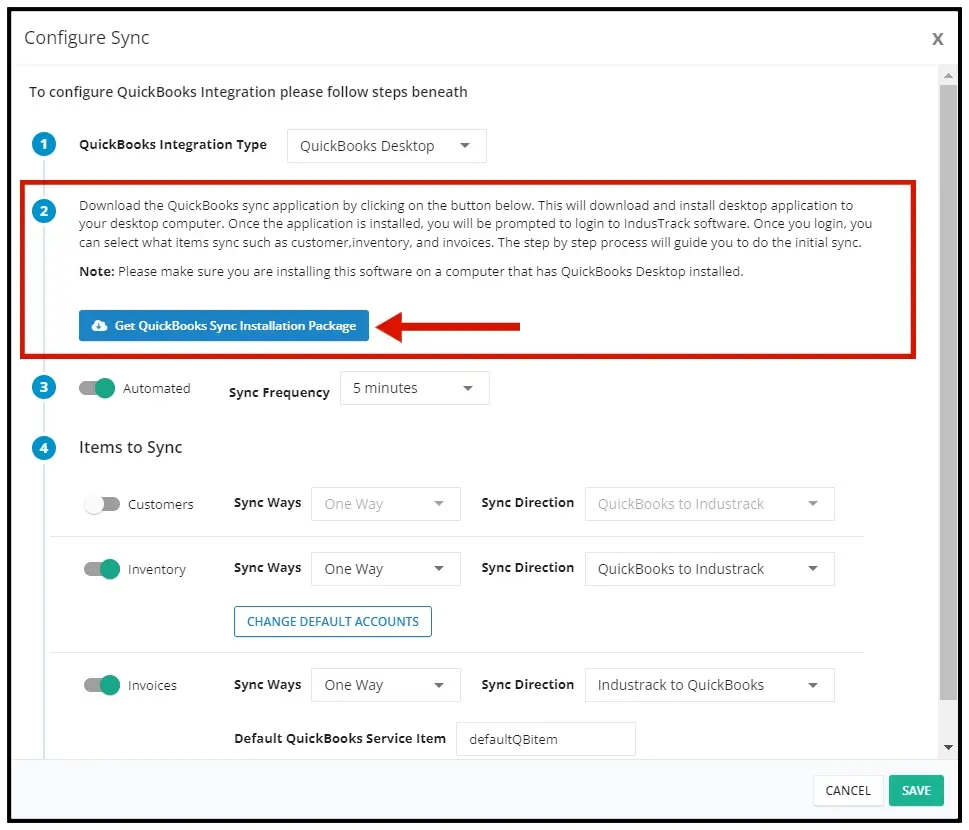
Click Get QuickBooks Sync Installation Package to download the connector. If an older version of the connector is installed, uninstall it first.
Install and connect the QuickBooks connector
Do this on the computer where QuickBooks Desktop is installed, with QuickBooks running and logged in with administrator rights. The connector app is called IndusTrack QuickBooks Connector.
-
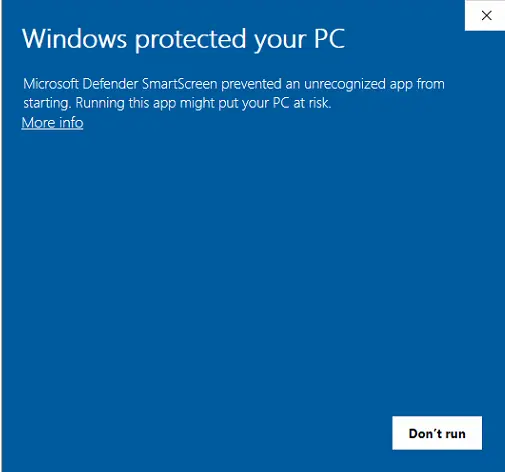
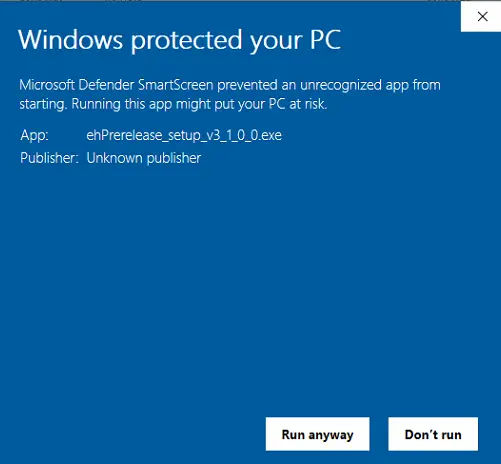
Run the downloaded installer. If Windows doesn't show a Run option, click More Info, then Run Anyway.
-
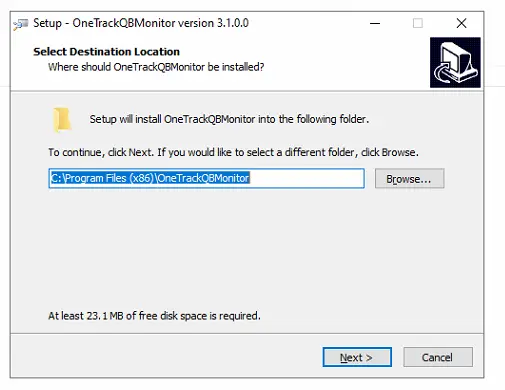
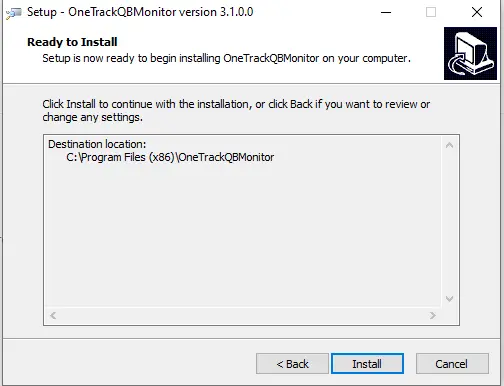
Choose the folder to install to, click Next, then click Install.
-
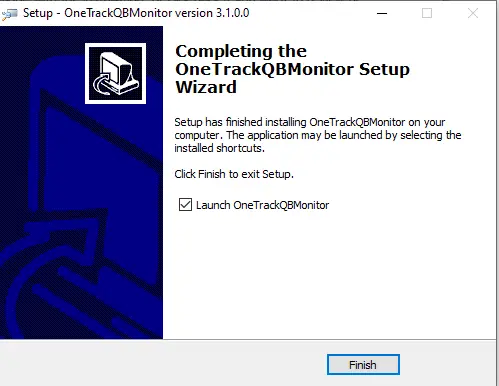
Check the box to launch the IndusTrack QuickBooks Connector and click Finish.
-
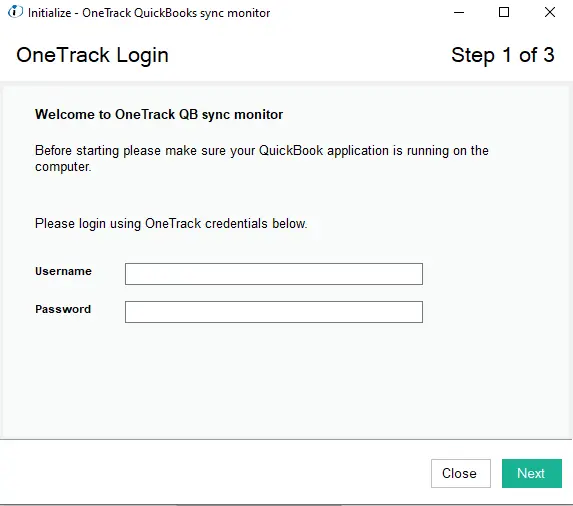
Log in with the IndusTrack office user credentials you used to set up the sync. Click Next.
-
Browse to, or paste the path of, your QuickBooks company file. Make sure it's the correct company file. The default location for company files is
C:\Users\Public\Public Documents\Intuit\QuickBooks\Company Files. Click Next.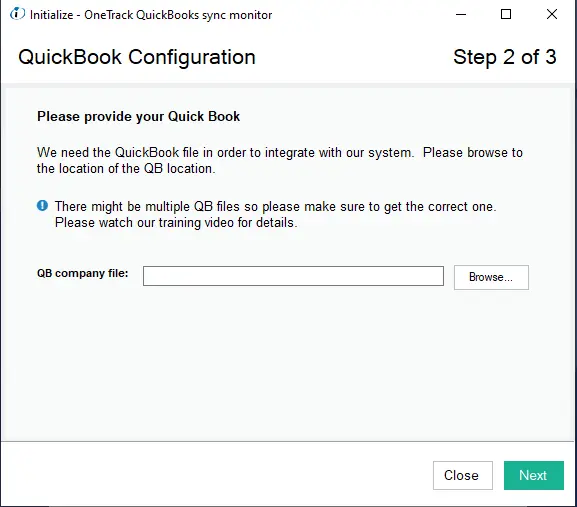
-
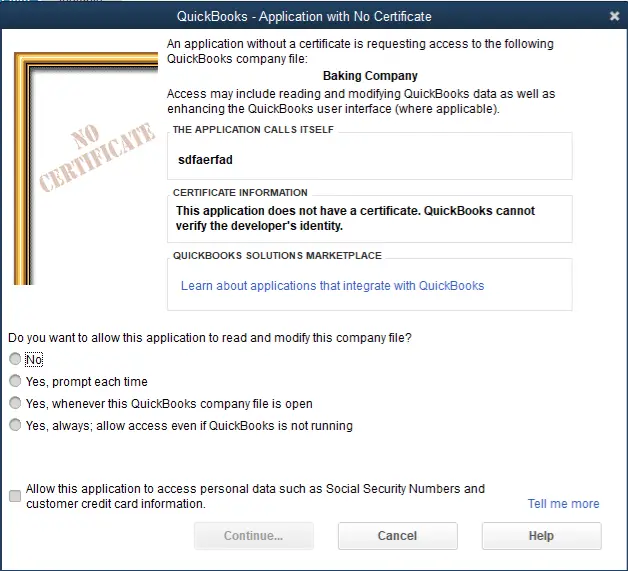
If QuickBooks shows an Application with No Certificate message:
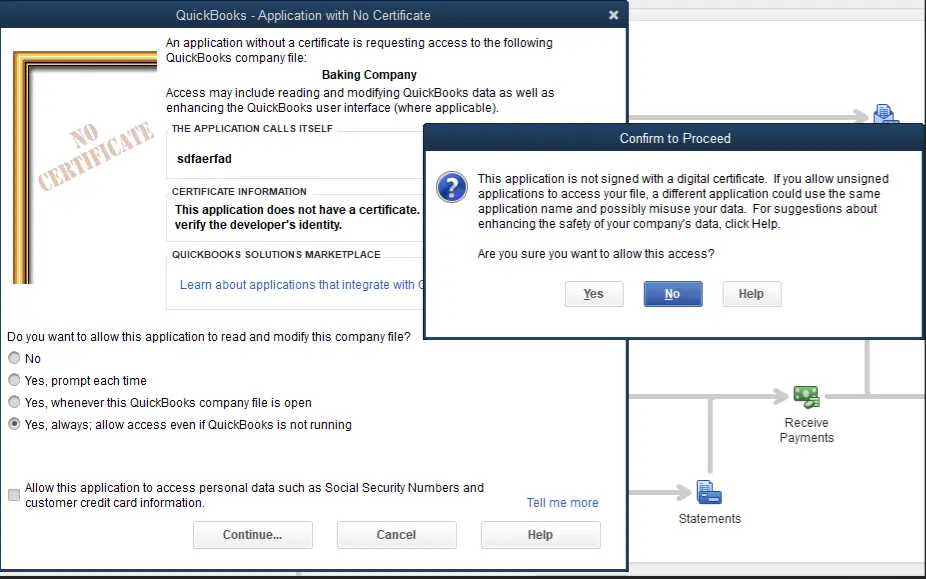
- Select Yes, always; allow access even if QuickBooks is not running. This lets the sync run when QuickBooks is closed.
- Click Continue, then choose Yes on the Confirm to Proceed pop-up.
-
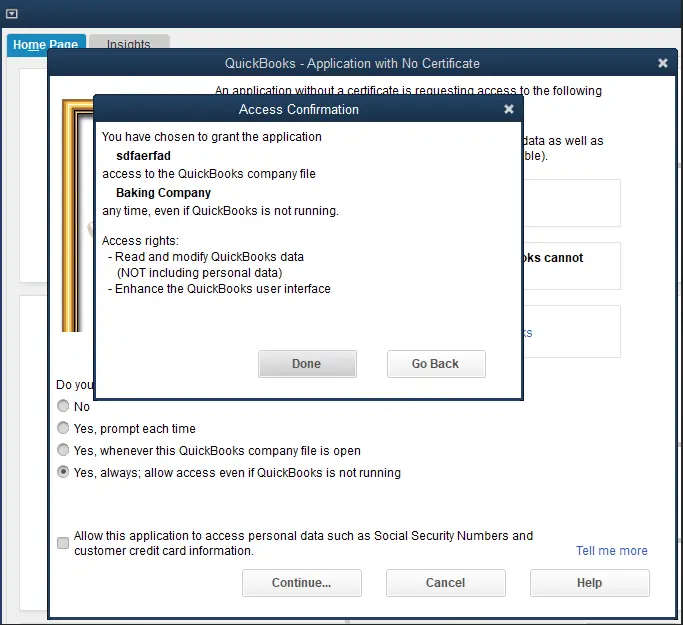
Click Done.
-
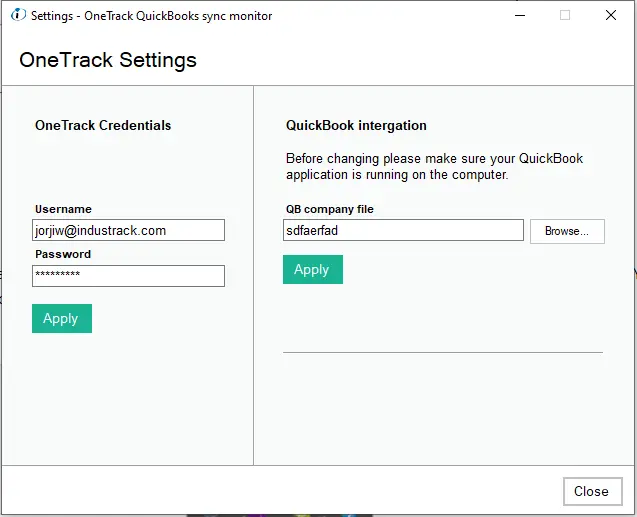
Click Apply on both sides of the window, then close it. The first sync starts. With many records, it can take a long time.
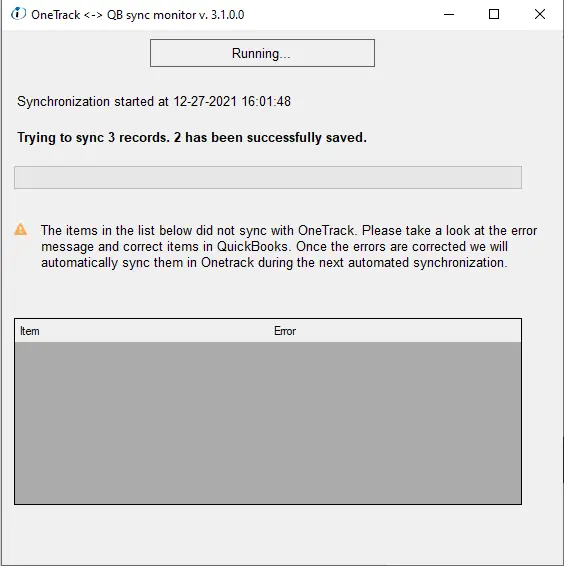
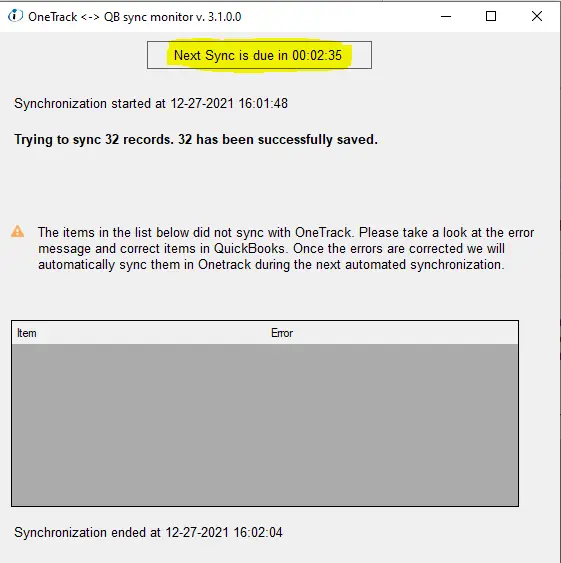
After the first sync, if automatic sync is on, the connector counts down to the next sync. Records that didn't sync are listed at the bottom of the window.
Sync by hand
If automatic sync is off, or a sync doesn't start, find the connector in the Windows system tray (the up arrow at the right of the taskbar). Click the connector, right-click inside it and select Manual Sync.

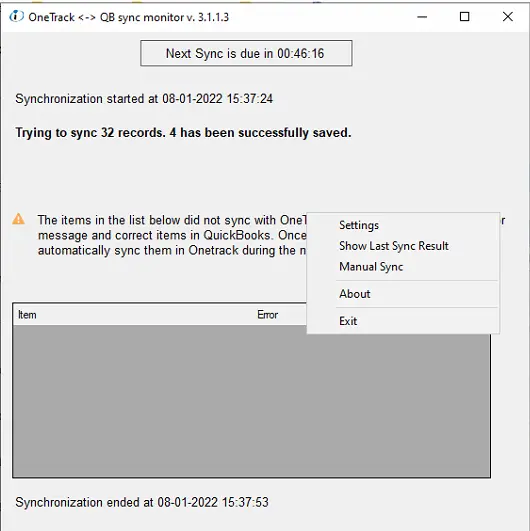
Clicking Exit on the connector stops syncing. To uninstall the connector, make sure it isn't running in the background first.
Sync invoices to QuickBooks
-
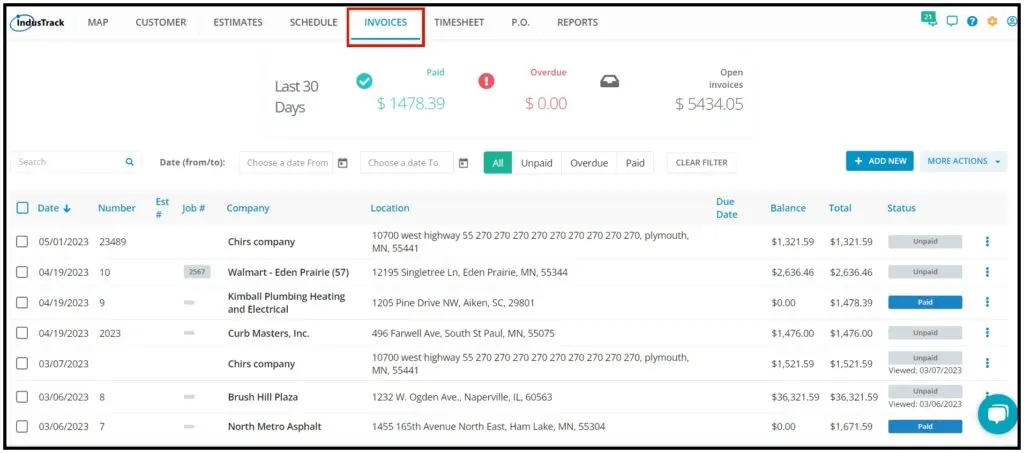
Go to the Invoices module.
-
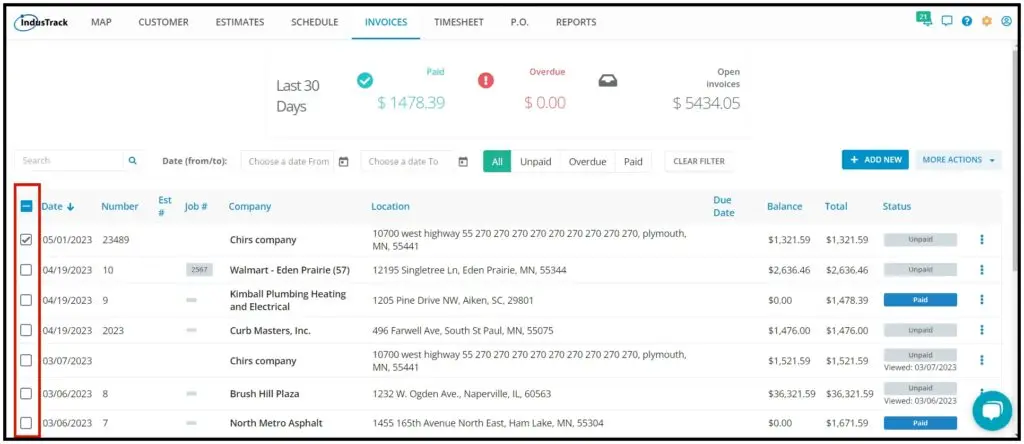
Check the invoices you want to sync. You can select several.
-
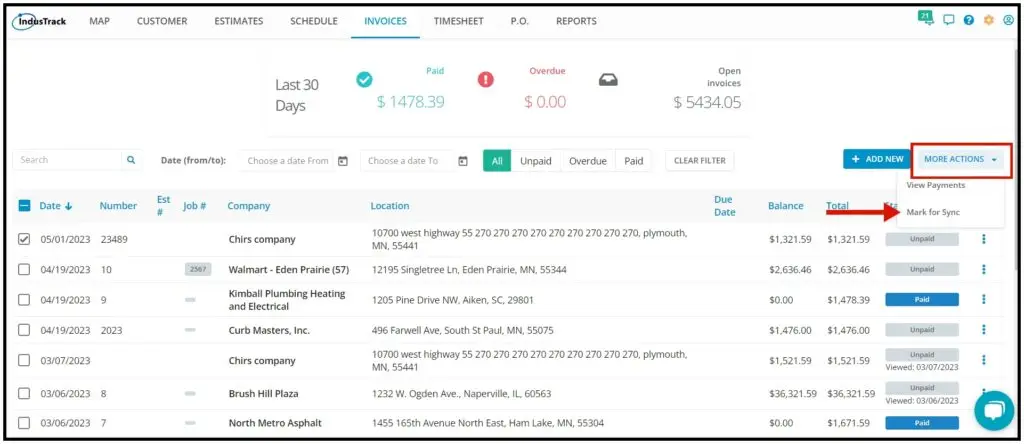
Click More Actions and select Mark for Sync.
-
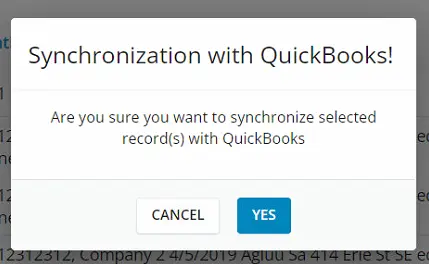
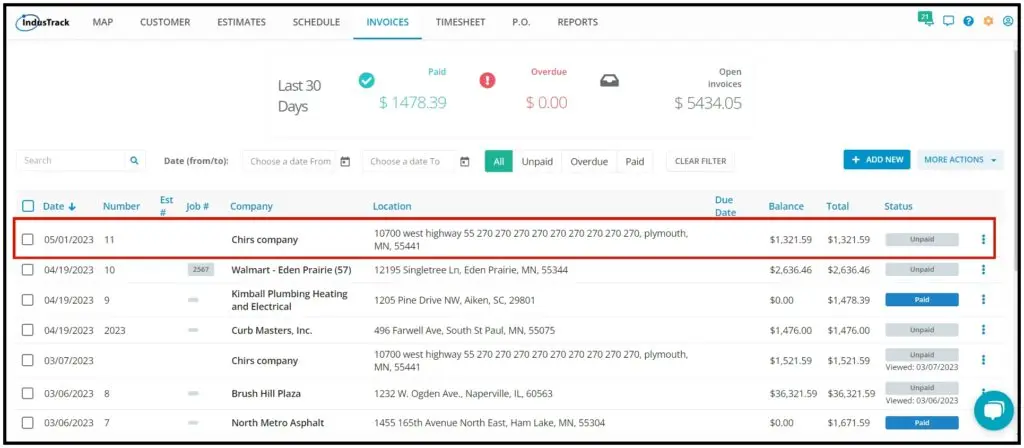
Click Yes to confirm. The invoice status changes to Ready for Sync.

-
The invoices reach QuickBooks at the next scheduled sync (for example, within five minutes if the frequency is five minutes), or right away if you sync by hand.
-
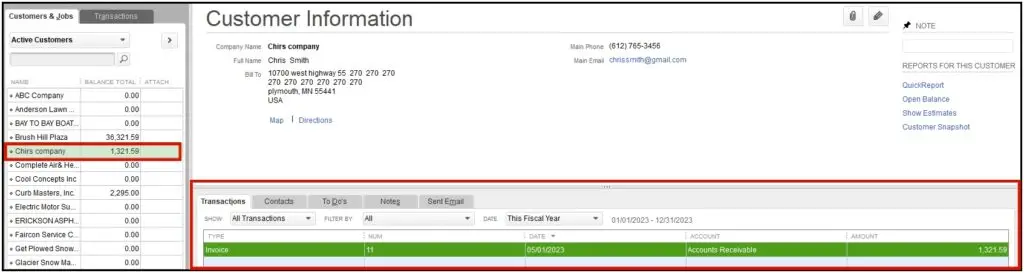
After syncing, the invoice status in IndusTrack changes to Unpaid. If Overwrite invoice # from Quickbooks is enabled, the invoice number changes to match QuickBooks.
-
When you record the payment in QuickBooks, the invoice changes to Paid in IndusTrack after the next sync.
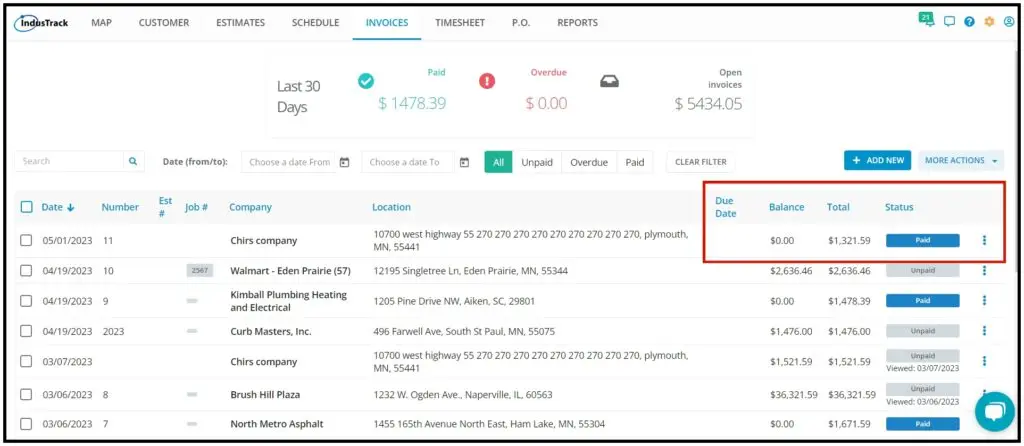
Invoices must be approved and marked ready for sync; they don't sync automatically. Invoices for job-based customers in IndusTrack show both the job and the customer in QuickBooks. If a tax is set for the customer in QuickBooks, it applies automatically when the invoice syncs.
Sync payroll (timesheets)
-
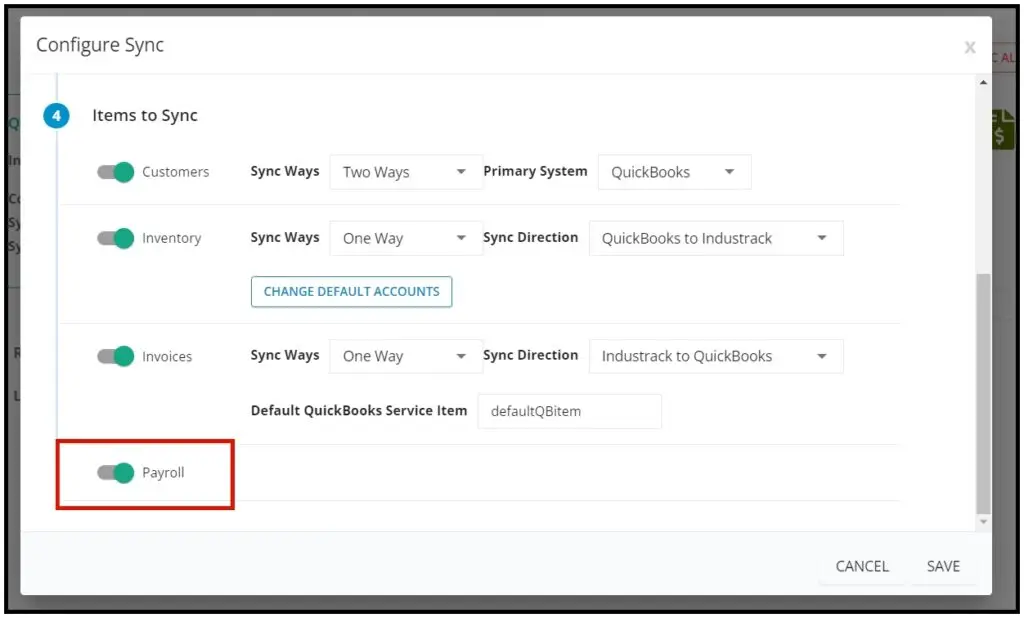
Go to Settings›Integrations›QuickBooks›Configure Sync and turn on Enable Payroll.
-
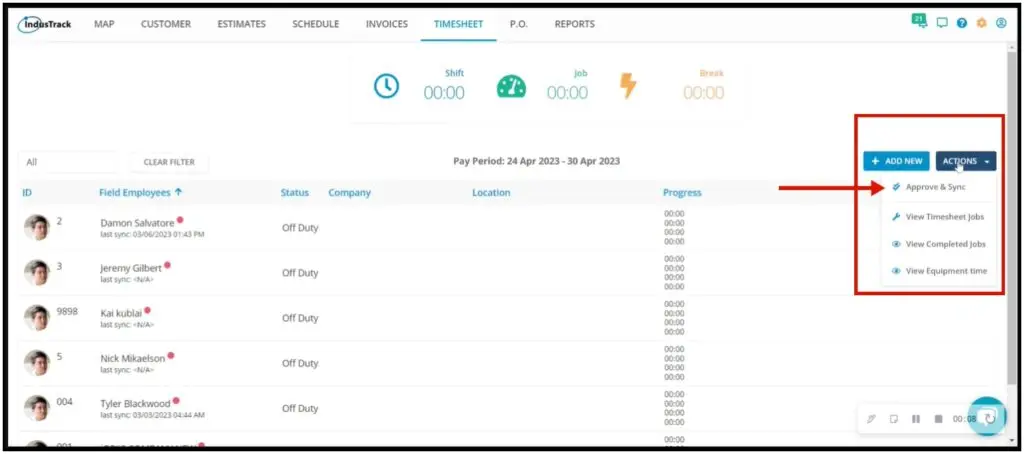
Go to the Timesheet module and click Actions›Approve and Sync.
-
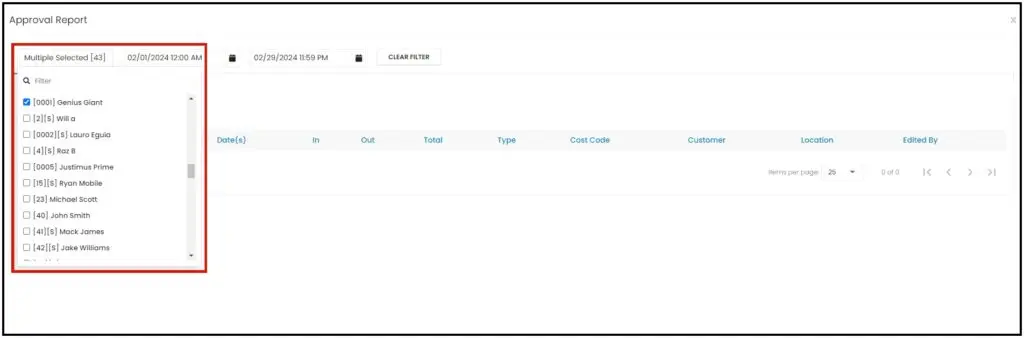
In the Approval Report, select the employee whose entries you want to sync.
-
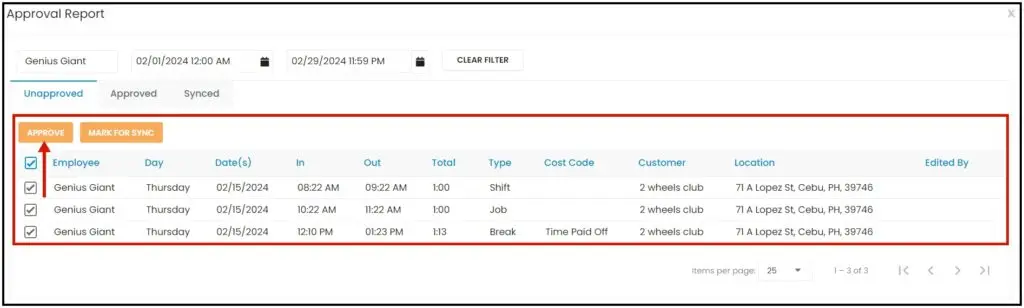
Check the entries to sync and click Approve. They move to the Approved column.
-
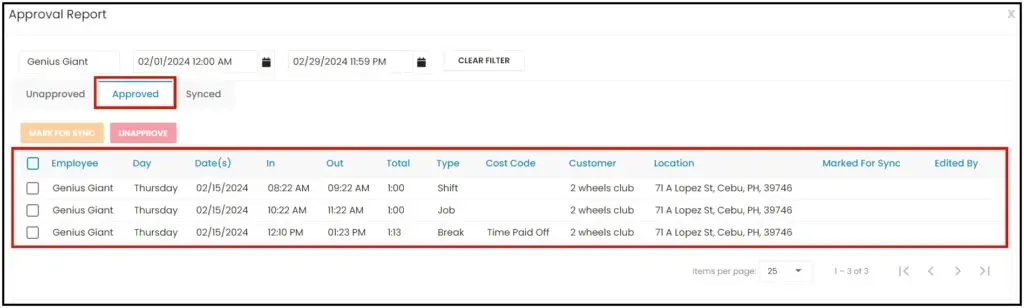
In the Approved column, check the entries and click Mark for Sync. They're now Ready to Sync.
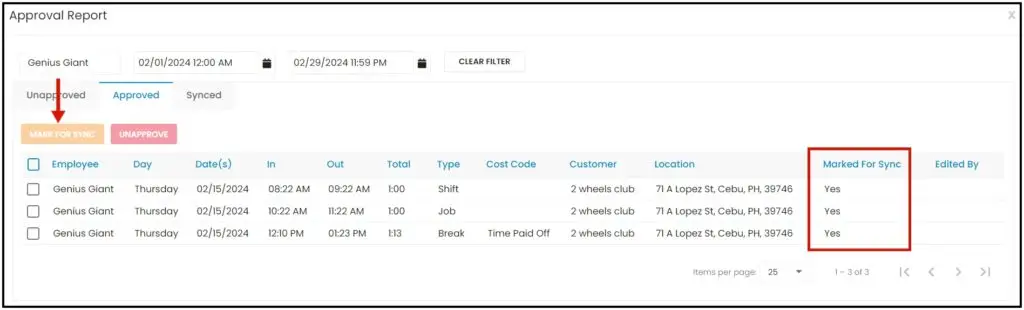
-
The entries sync to QuickBooks on the next sync cycle. Check payroll in QuickBooks to see them.
Tax and payment terms
These rules apply to both QuickBooks Desktop and QuickBooks Online.
| Customer sync | Tax and payment terms in IndusTrack (Settings›Tax and Terms) |
|---|---|
| One-way, QuickBooks to IndusTrack (tax and term sync toggles on) | Read-only. Taxes and terms come from QuickBooks; change them in QuickBooks. |
| One-way, IndusTrack to QuickBooks | Toggles are disabled. You can add, edit and delete tax rates and payment terms in IndusTrack; they carry over to QuickBooks. |
| Two-way, QuickBooks as primary | Read-only. Taxes and terms sync from QuickBooks. |
| Two-way, IndusTrack as primary | Read-only. You can still edit customer name, contact info, addresses, notes and job details. |
If QuickBooks already has taxes and payment terms, let them sync to IndusTrack instead of setting them up again. Setting them up twice causes duplicates and invoice sync errors.
Common questions
Do $0 invoices sync?
Yes. Zero-dollar invoices (for example, for warranty or follow-up visits) can be synced.
What happens to duplicate customers?
A customer with the same name or ID in the other system isn't created again and isn't merged.
- One-way, IndusTrack to QuickBooks: QuickBooks skips the duplicate and the sync log notes it.
- One-way, QuickBooks to IndusTrack: IndusTrack skips it and logs it in the sync report, if enabled.
- Two-way: no duplicate is created; the most recently changed record updates the other. Conflicts may show as warnings in the sync logs.
To avoid problems, use unique customer names, check both systems for duplicates before syncing, check the sync logs regularly, and don't enter the same customer in both systems.
How do I see what didn't sync?
Click Download Logs. It downloads an Excel file listing each record that didn't sync and why.
What does Resync All Data do?
It resends all data between QuickBooks and IndusTrack and can overwrite data in either system. Contact IndusTrack support before you use it.
I changed a tax in QuickBooks Desktop and now IndusTrack has two.
With two-way sync and QuickBooks Desktop as the primary system, editing a tax's name or value in QuickBooks creates a new tax in IndusTrack and leaves the old one. This is a known limitation.
I deleted a payment term in QuickBooks Desktop. Why is it still in IndusTrack?
In one-way sync from QuickBooks to IndusTrack, deleted terms aren't removed from IndusTrack.
Do notes, attachments or purchase orders sync?
No. The IndusTrack team can import customer notes and attachments from Excel files. See How do I get my data into IndusTrack? Purchase orders don't sync with QuickBooks.
How do inventory items sync?
Inventory, non-inventory, service and equipment items sync in the direction you chose. Equipment appears in QuickBooks as inventory items. Assign income and expense accounts in IndusTrack before syncing inventory. Items marked non-taxable in IndusTrack must also be marked non-taxable in QuickBooks.
Do active and inactive customers keep their status?
Yes. Active and inactive customers sync with the same status in the other system.
Was this article helpful?
Contact support